
When using the Kadence Theme and Kadence Blocks, you may notice unexpected spacing above, between elements, or below your content. This guide covers common causes of extra spacing and provides solutions to help you achieve a clean and consistent layout.

Post/Pages Layout Customizer Settings
The Kadence Theme Customizer includes layout settings for Posts, Pages, and Archives, found in the Customizer → Post/Page Layout settings. Each option adjusts the layout for its respective post or page type.
Two common settings that may add extra spacing above or below your content are:
Learn more about these settings below.
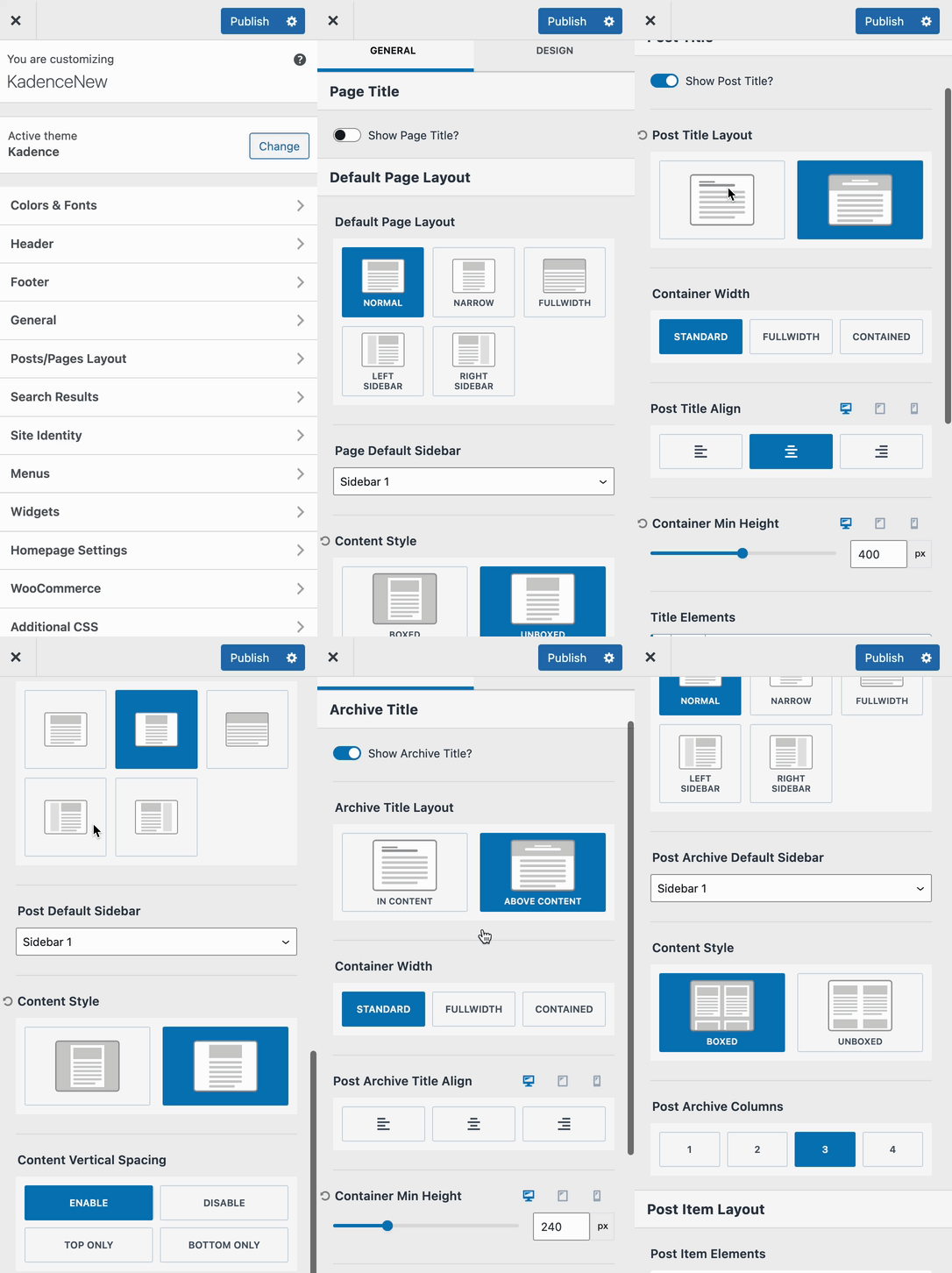
Content Vertical Spacing
The Content Vertical Spacing setting applies when using any post/page layout except Fullwidth and allows you to adjust the vertical spacing at the top and bottom of your content.
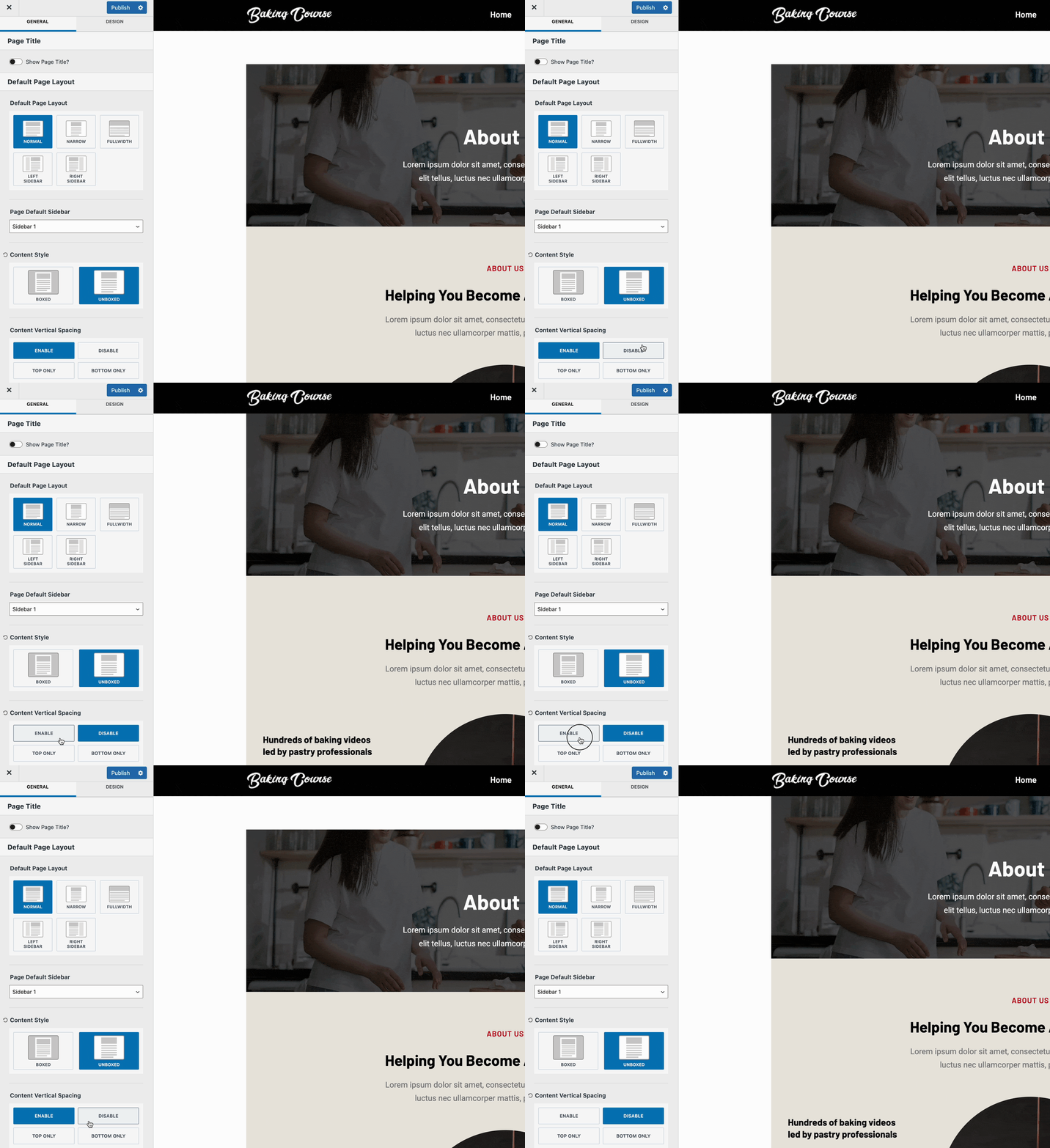
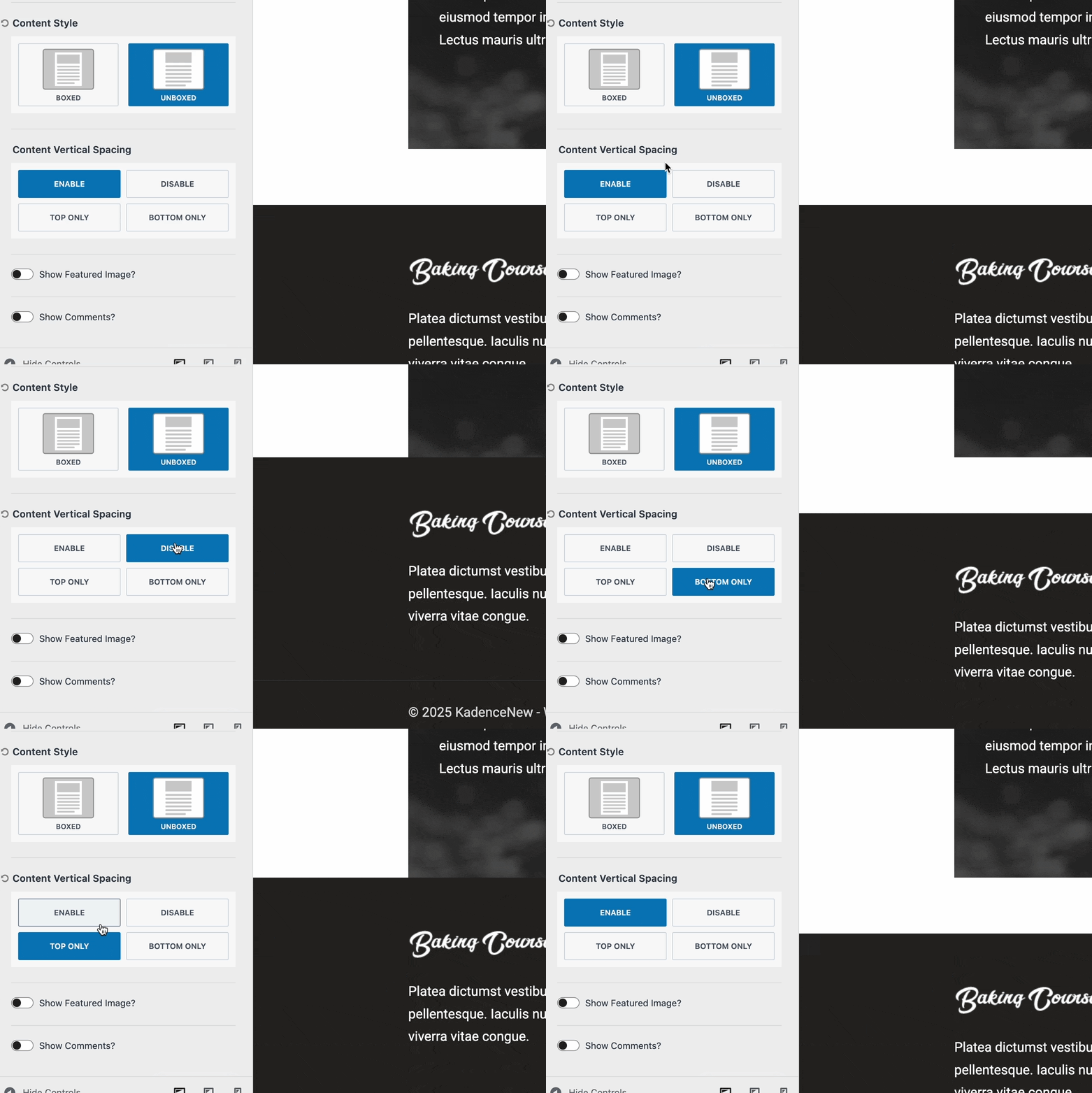
Content Vertical Spacing controls the additional space at the top and bottom of Post, Page, or Archive content. This setting can be disabled to remove extra spacing entirely. Alternatively, you can choose Top Only or Bottom Only to apply vertical spacing exclusively to the top or bottom of the content.
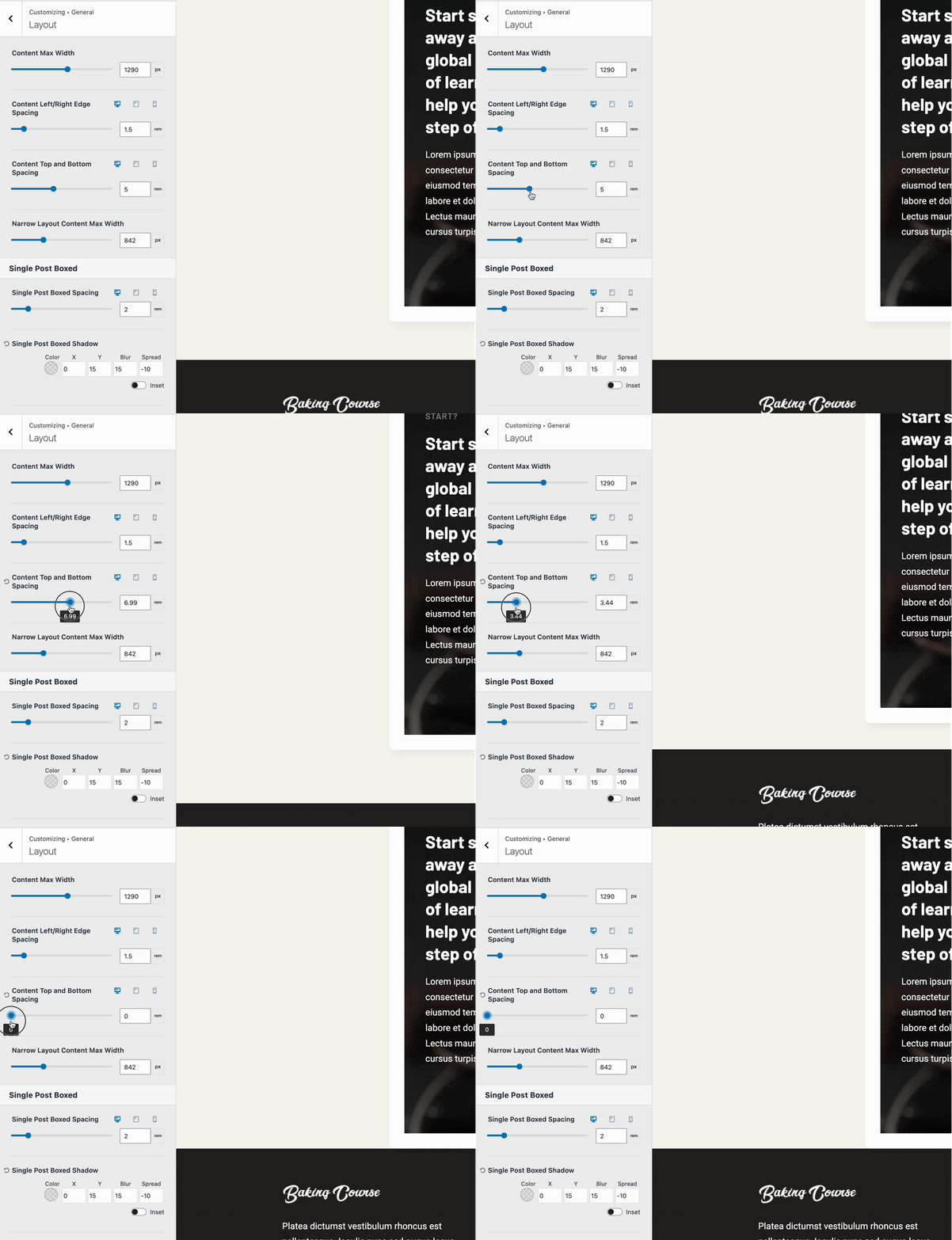
If you wish to reduce, expand, or control the Content Vertical Spacing in general, you can adjust the Content Top and Bottom Spacing Customizer settings. This setting can be accessed from the Customizer -> General -> Layout settings.
If you notice unexpected empty space at the top or bottom of your content, check the Content Vertical Spacing setting to ensure it is not the source. You can also adjust spacing on a per-post or per-page basis using the Post/Page Editor Settings.
Content Style
Kadence offers two Content Styles: Boxed and Unboxed. If you continue to experience spacing issues after disabling the Content Vertical Spacing, the Boxed Content Style may be the cause. This style adds padding around the content, creating extra space to achieve the boxed effect.
Change the Content Style to Unboxed to remove this extra space. You can also adjust the Content Style on a per-post or per-page basis using the Post/Page Editor Settings.
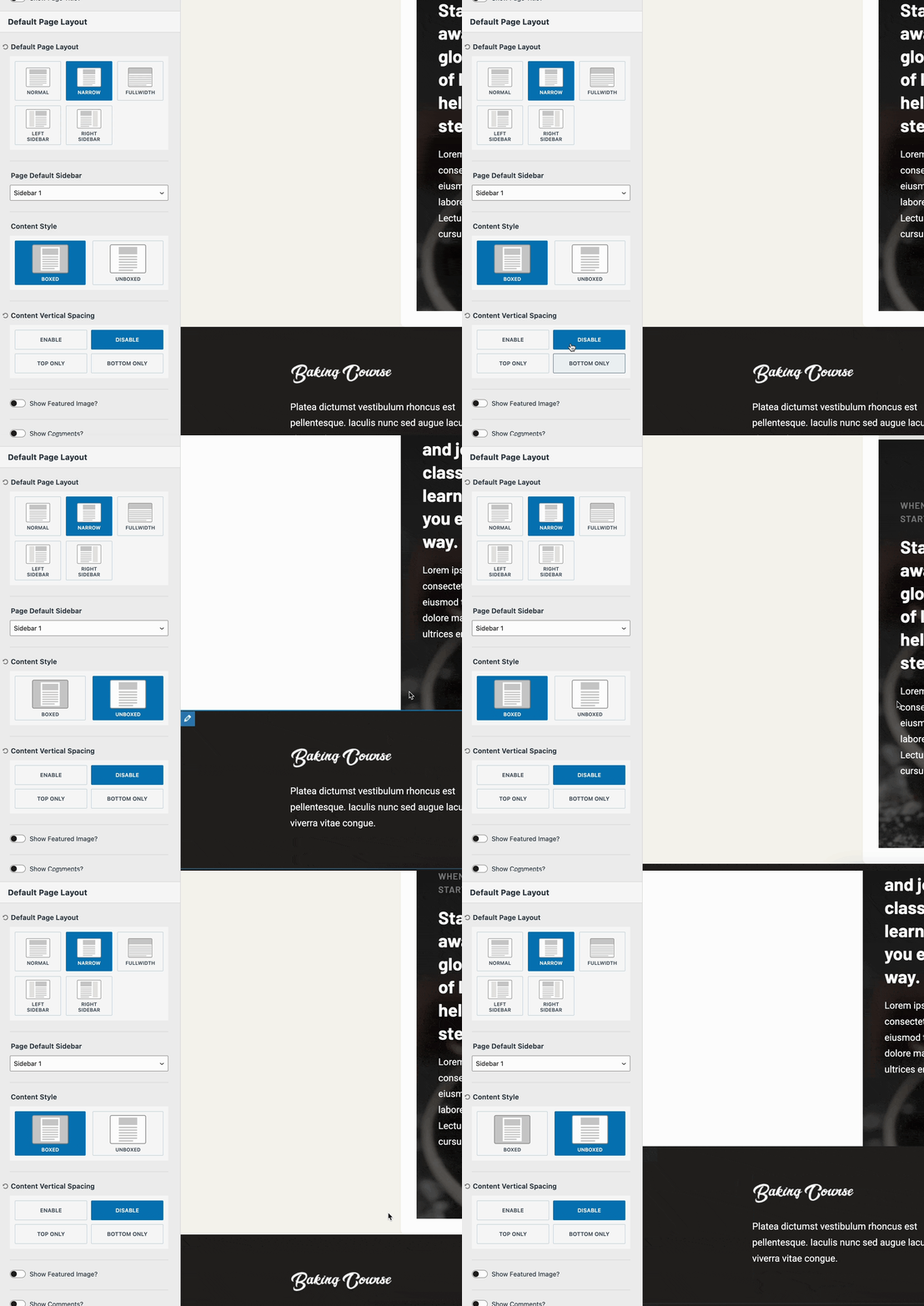
Post or Page Editor Settings
The Post and Page Editor Settings provide an additional way to adjust the Content Vertical Spacing and Content Style settings for the current post or page. If you still notice spacing issues after disabling the settings in the Customizer, checking the Page Settings is recommended.
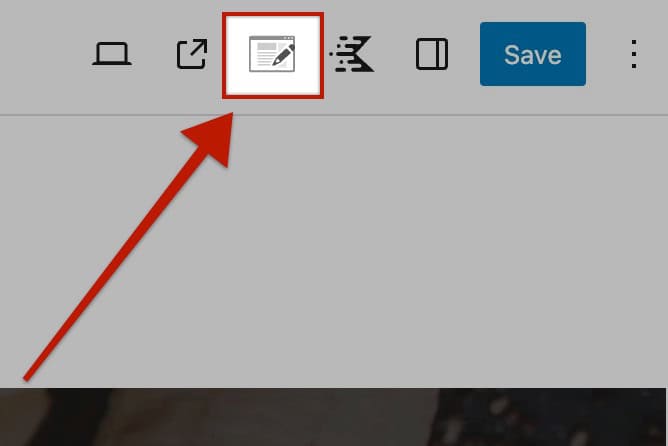
To access the Post/Page Settings, click on the Post/Page Settings Icon located in the top right corner of the WordPress Editor.
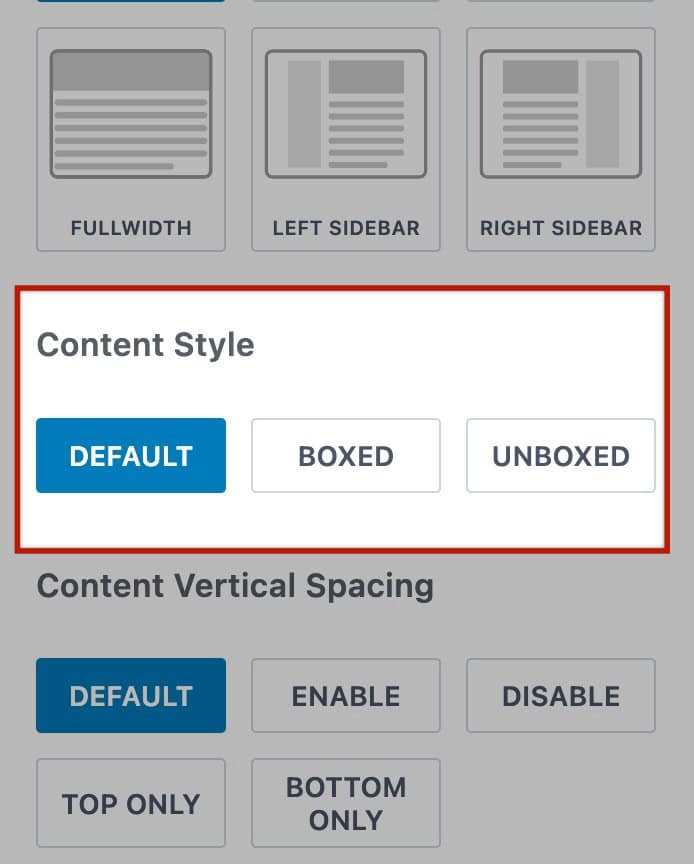
In the Page Settings, you can find the Content Vertical Spacing and Content Style settings, allowing you to control these things on a post-to-post or page-to-page basis.
When set to Default, this option will use the respective Customizer Vertical Content Spacing or Content Style setting for the Post or Page type. You can also manually adjust these settings to Disable or select a different option as preferred. Any changes made will only apply to the current Post or Page.

Empty Paragraph Blocks
When using the WordPress Editor, pressing Enter creates a new Paragraph Block. If the block remains empty, it may introduce unwanted blank space in your content.
To determine the source of the empty space, edit the relevant post or page and check for any empty Paragraph Blocks. If you find any, remove them using the Block Toolbar or the List View in the editor.
You can use the List View to quickly find and remove any empty Advanced Text or Paragraph Blocks on the page.
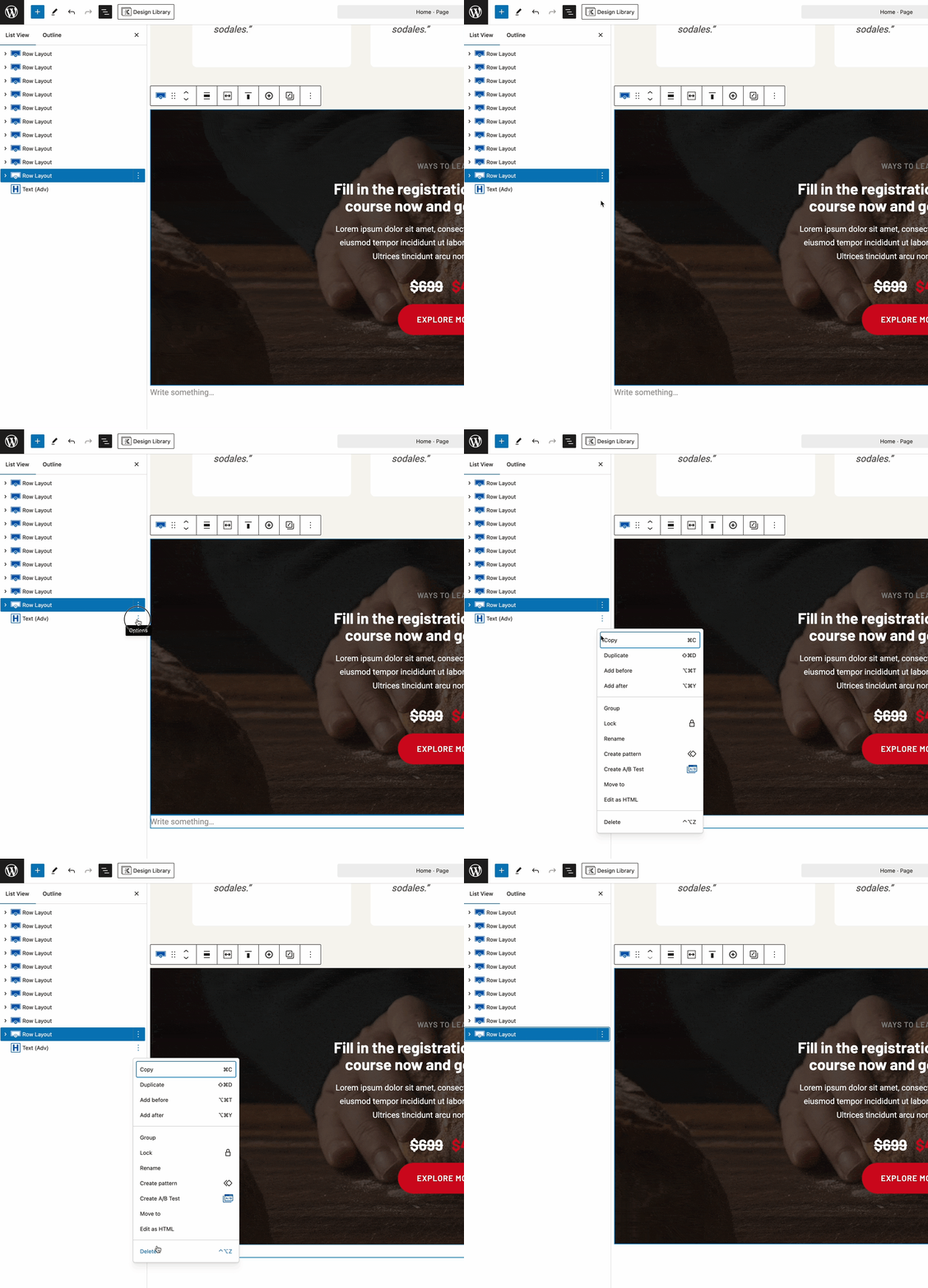
You can also select the empty Text Block and use the Block Toolbar to delete it.
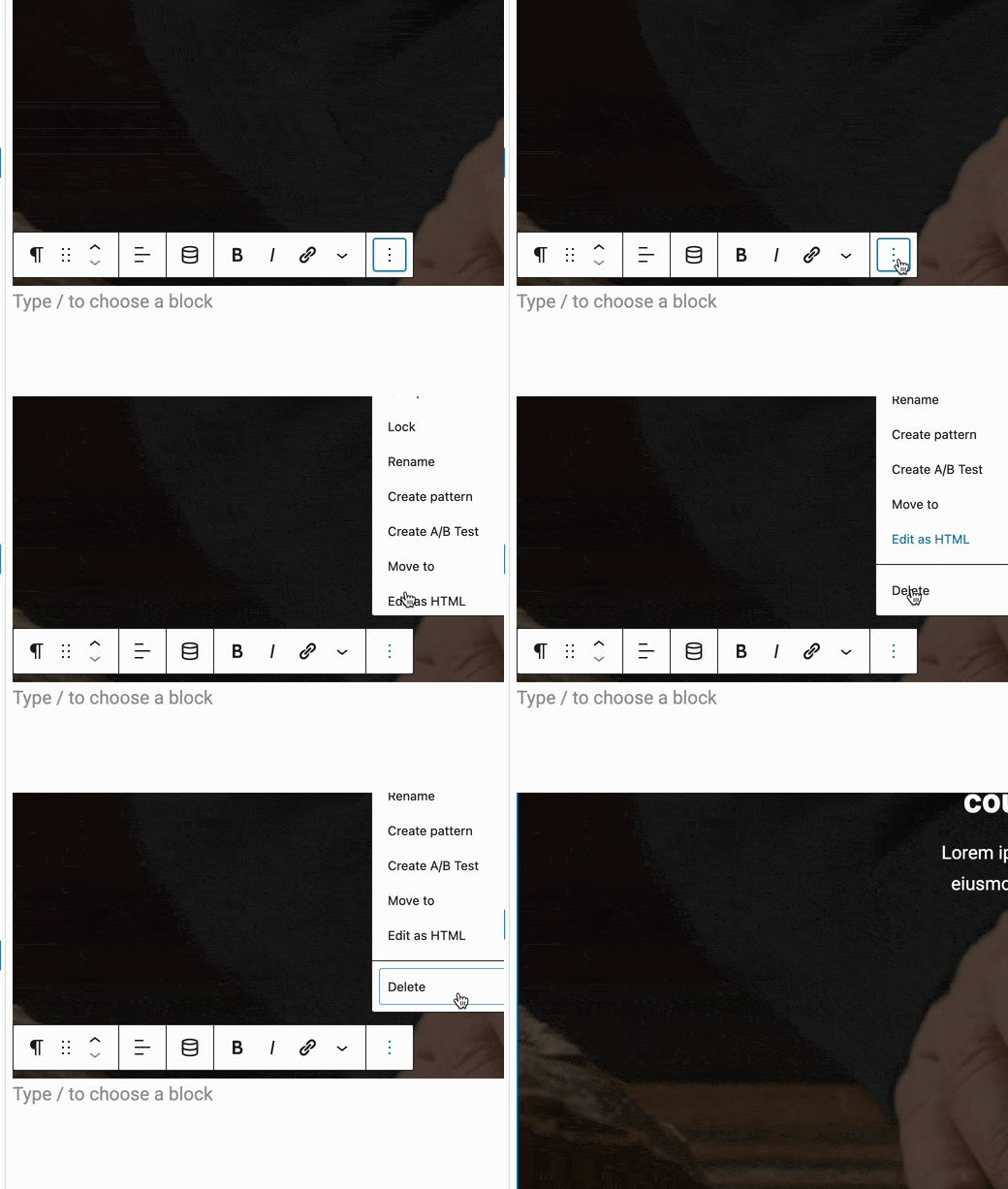
Block Settings
When using Blocks, various Block Settings control spacing and layout. If you experience unwanted spacing, it may be caused by a setting within a block. To diagnose this, edit the relevant Post/Page, locate the blocks affecting the area, and review their Block Settings. You can access these settings by selecting the block and using the Gutenberg Settings Icon (See the image below) next to the Save button in the Editor.

Kadence Blocks include General, Layout, and Advanced tabs for customization. Below are common Block Settings that may contribute to extra space, which are available in multiple blocks, not just the examples provided.
Padding or Margin Values
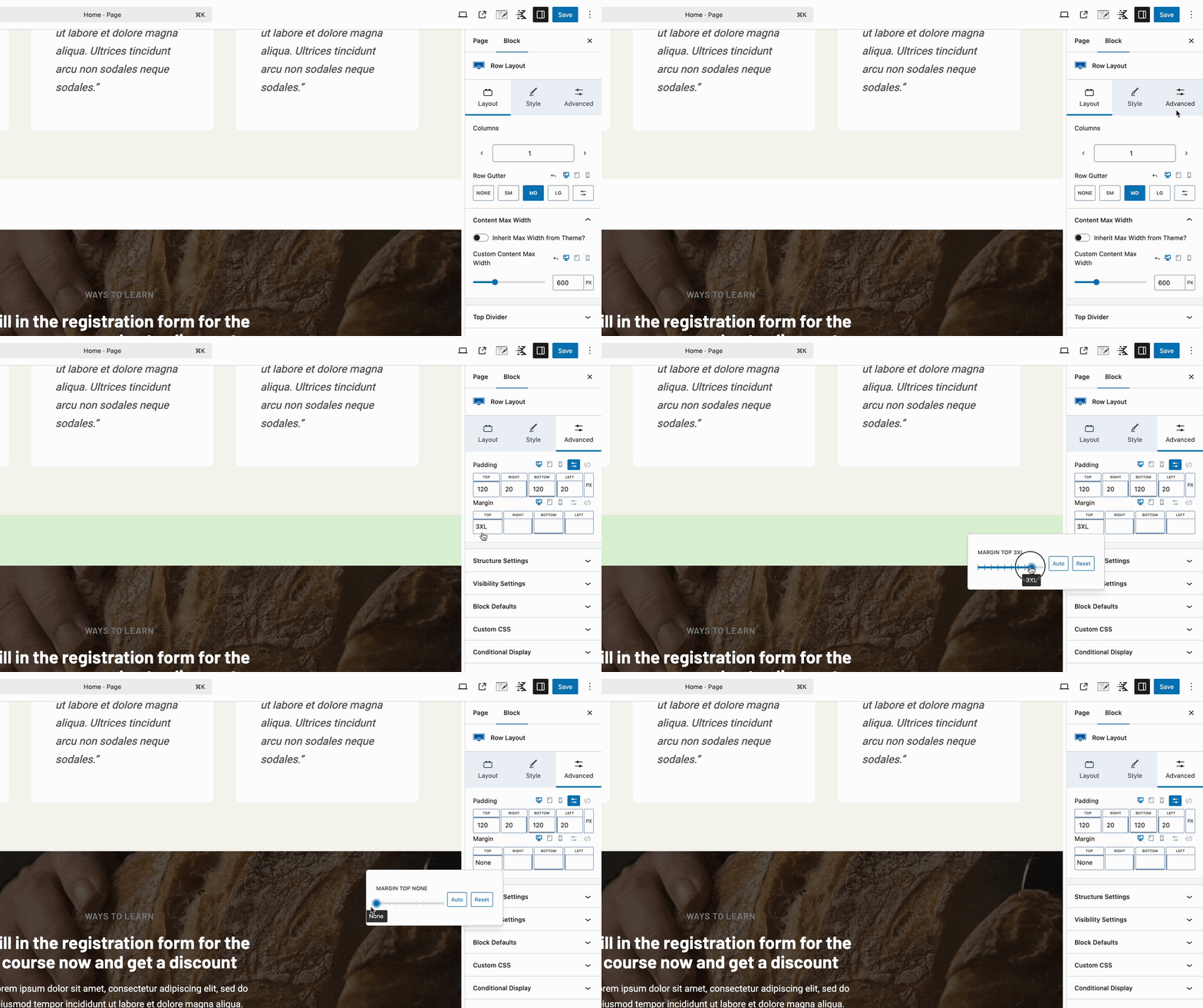
When using Kadence Blocks, you can set Padding and Margin values to control spacing within and around blocks. These settings are typically found in the Block Settings → Advanced Tab of various blocks.
For example, in the GIF, the Row Layout Block has a Top Margin, which creates extra space. Removing this margin resolves the spacing issue. If you notice unwanted extra space between items in your layout, check the Padding and Margin settings of your blocks and adjust them as needed.
Column and Row Gutters
Some Kadence Blocks, such as the Row Layout Block, offer Column and Row Gutter settings that control the spacing between items.
When diagnosing spacing issues, if extra space occurs between items, check the related blocks and their settings for any Column or Row Gutter adjustments. This will help you identify and resolve any unwanted spacing.

Column and Row Gaps
Some blocks may use the Column and Row Gap settings to add space between items, similar to the Column and Row Gutter settings mentioned earlier. When checking for spacing issues, also review any Column and Row Gap values.
One example of a block that uses this is the Post Grid/Carousel Block.


