WooCommerce gives you a lot of flexibility when creating your products. You can add short and long product descriptions, add variations, manage stock and shipping dimensions, and even make a list of upsell products. Upsell products are products you recommend your customer purchase instead of the currently viewed product. WooCommerce lets you add the list to any product you create as a linked product. Kadence’s Shop Kit provides the Product: Upsell block to add a gallery of your upsells to your Woo Templates.
Adding Upsells
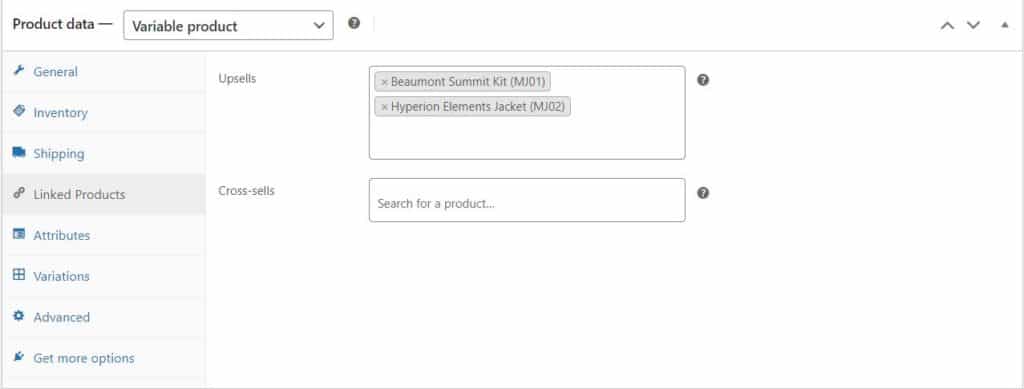
You must add upsell products to your WooCommerce product before they become visible in the Product: Upsell block. WooCommerce provides documentation for adding upsell and related products. Ensure that you have listed upsells on your products to maximize your potential sales.
Product: Upsell
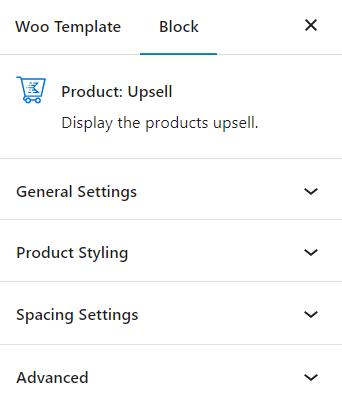
The Product: Upsell block is easy to find in the block inserter. It has sections for General Settings, Product Styling, and Spacing Settings.

General Settings
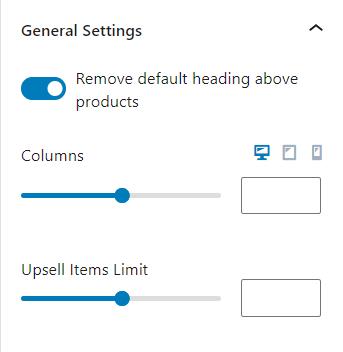
The General Settings gives you a few options. Here, you can remove the default heading above the products. The default heading usually reads, “You may also like…” If you want to remove the default heading, enable the option.
Also, you can adjust the number of columns for the products. You can adjust the number of columns for different screen sizes as well.
You can also set the upsell items limit. If you add many upsell items to your products you can set a limit with this setting.
Product Styling
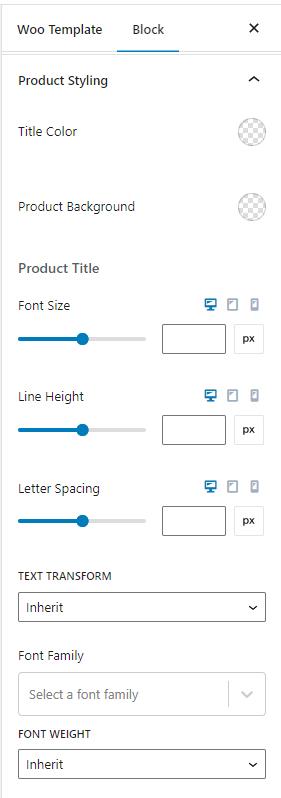
You can edit the styles of the Product: Upsell block in the Product Styling section. You can adjust the title and product background colors using a color selector. Also, you can change the font size, line height, and letter spacing for desktop, tablet, and mobile devices. There are also settings for text transformation, font family, and font weight.
Spacing Settings
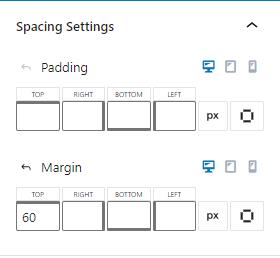
Another section for the block is the spacing settings. This section lets you change the padding and margin. You can set the space for each side individually or connect the top, right, bottom, and left for either the padding or the margin. You can adjust the spacing for desktop, tablet, and mobile devices.