
Kadence Shop Kit allows you to customize how product galleries appear on your WooCommerce products. You can replace the default product gallery with a slider layout and include videos alongside your product images for a richer shopping experience.
Getting Started
If you don’t already have Shop Kit installed on your site, you can follow these steps to get started.
- From your WordPress dashboard, click Shop Kit.
- Open the Product Gallery tab.
Enable the Product Slider Gallery option.
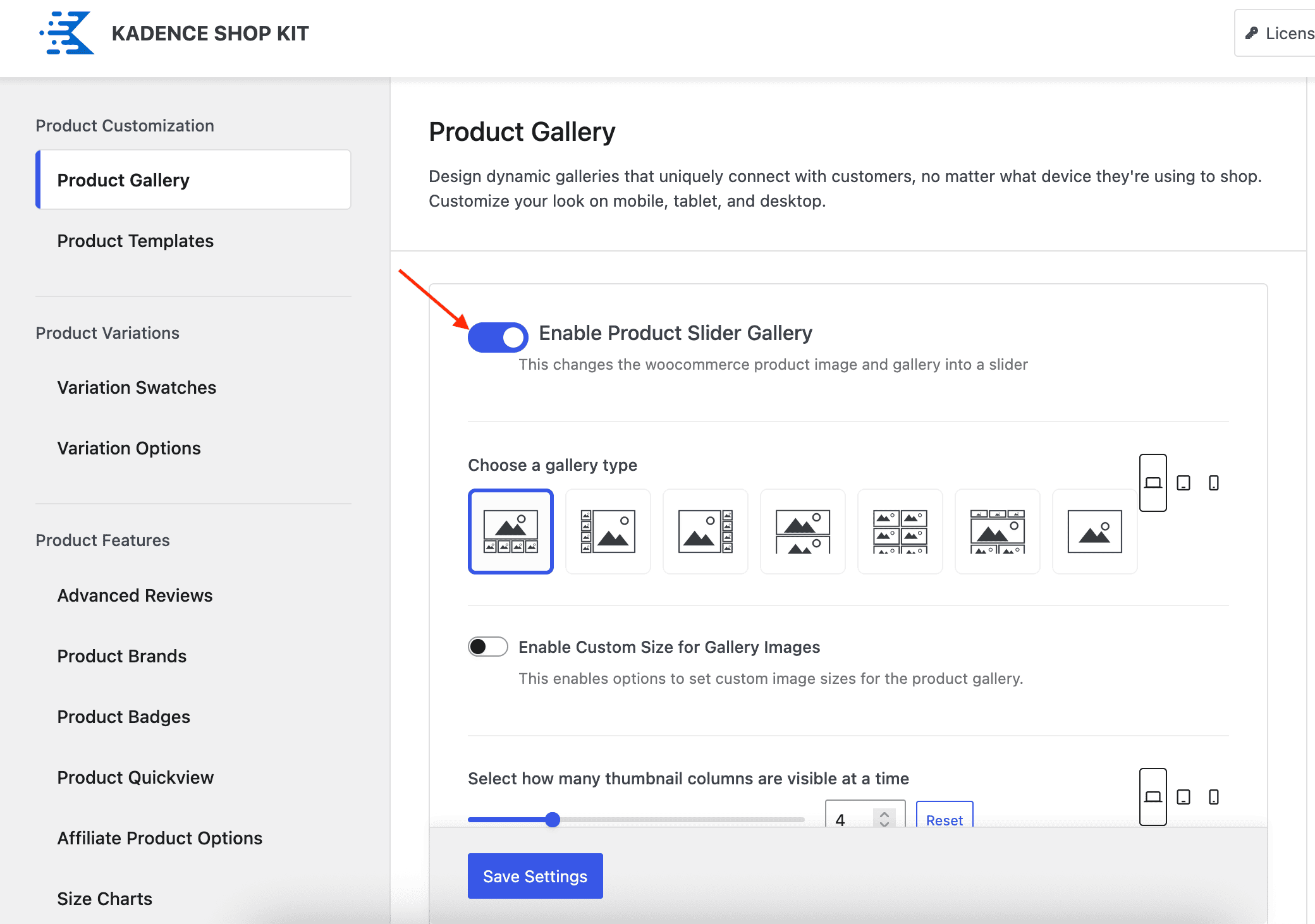
Choosing a Gallery Type
Kadence Shop Kit allows you to control how your product galleries are displayed, including the layout of images and the placement of product thumbnails.
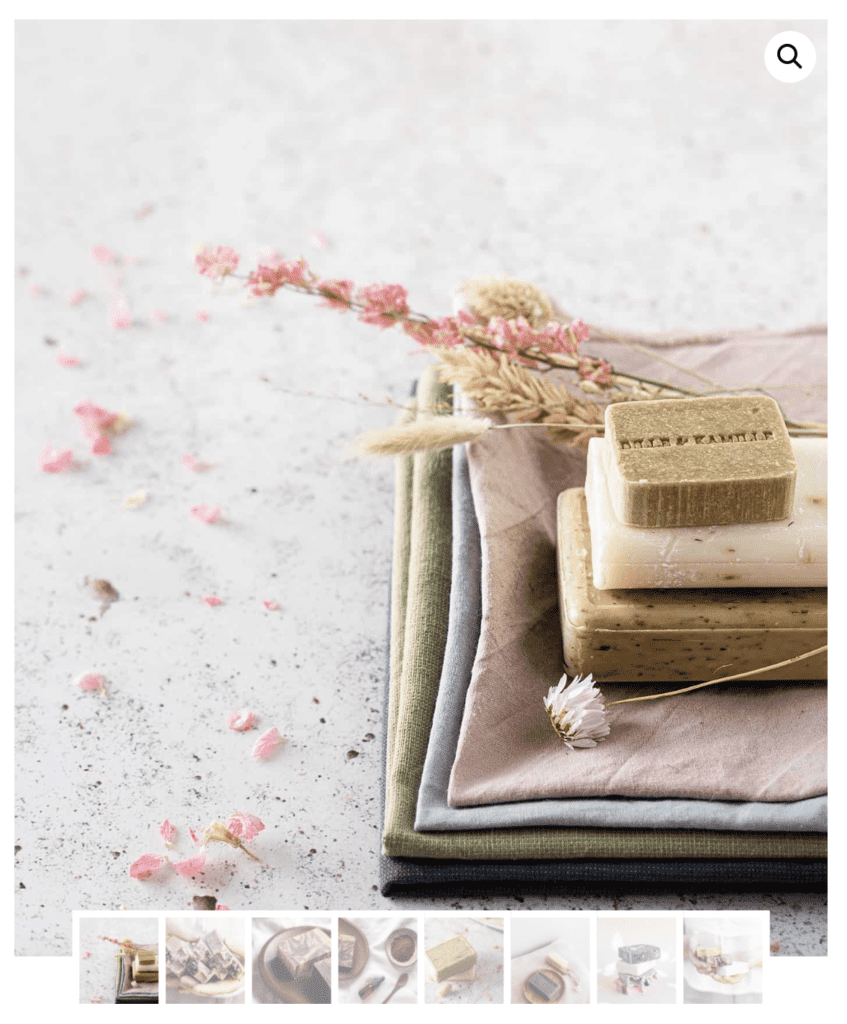
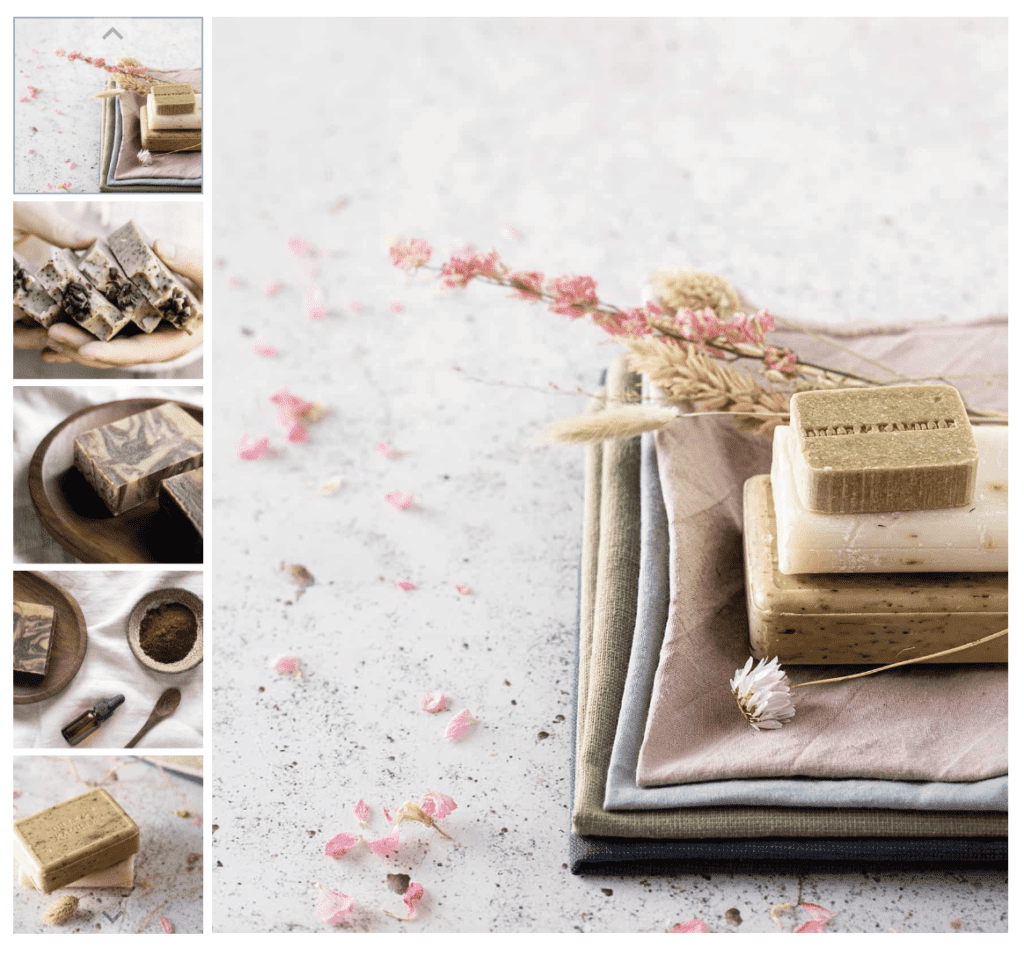
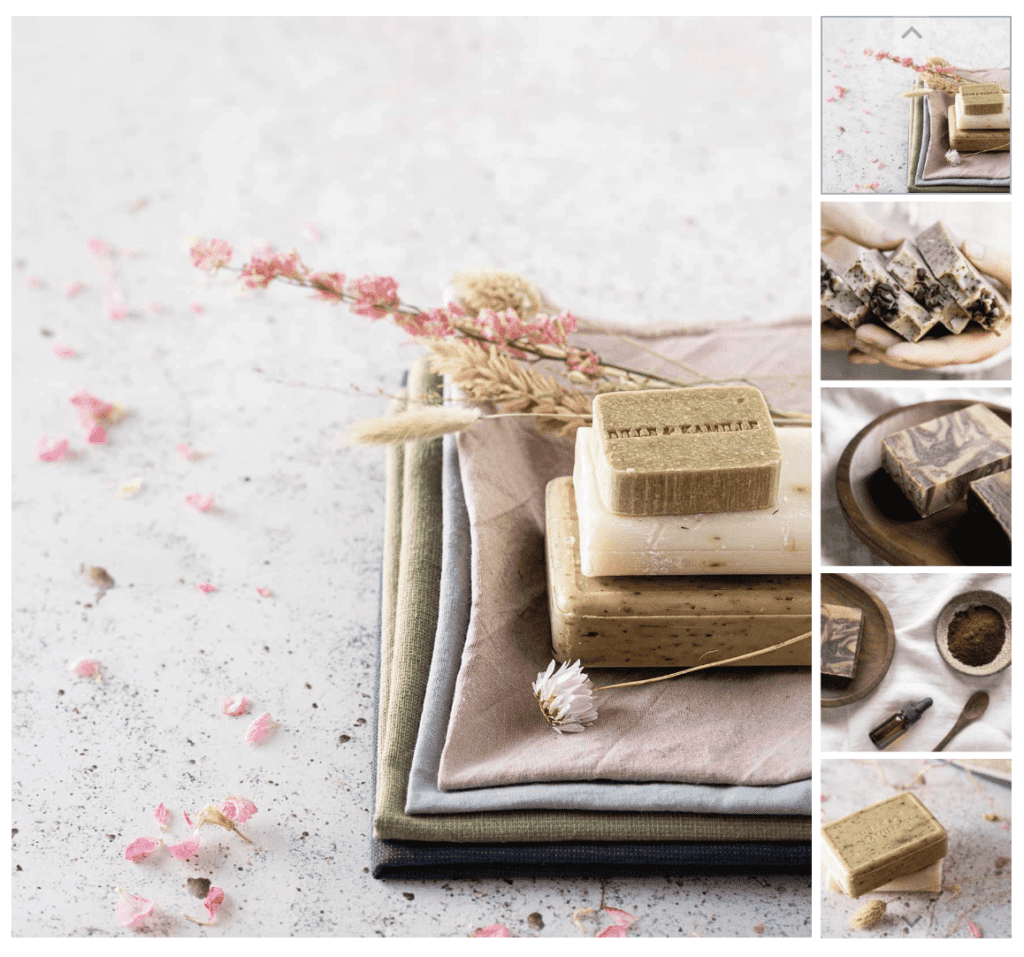


Gallery Settings
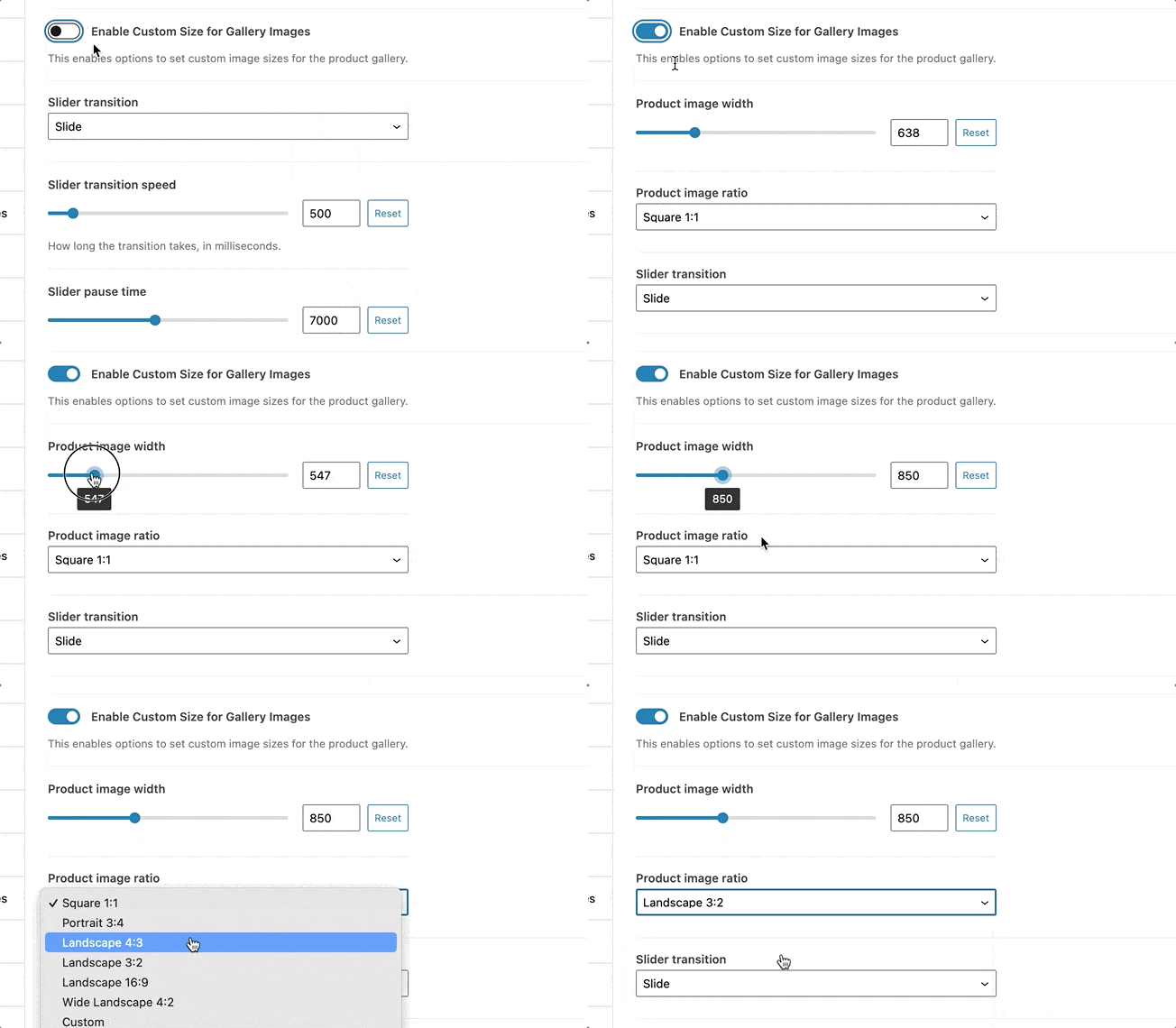
Next, you can choose to enable or disable custom size for gallery images. Enabling this feature will allow you to set a custom product image width and ratio for your product gallery images.
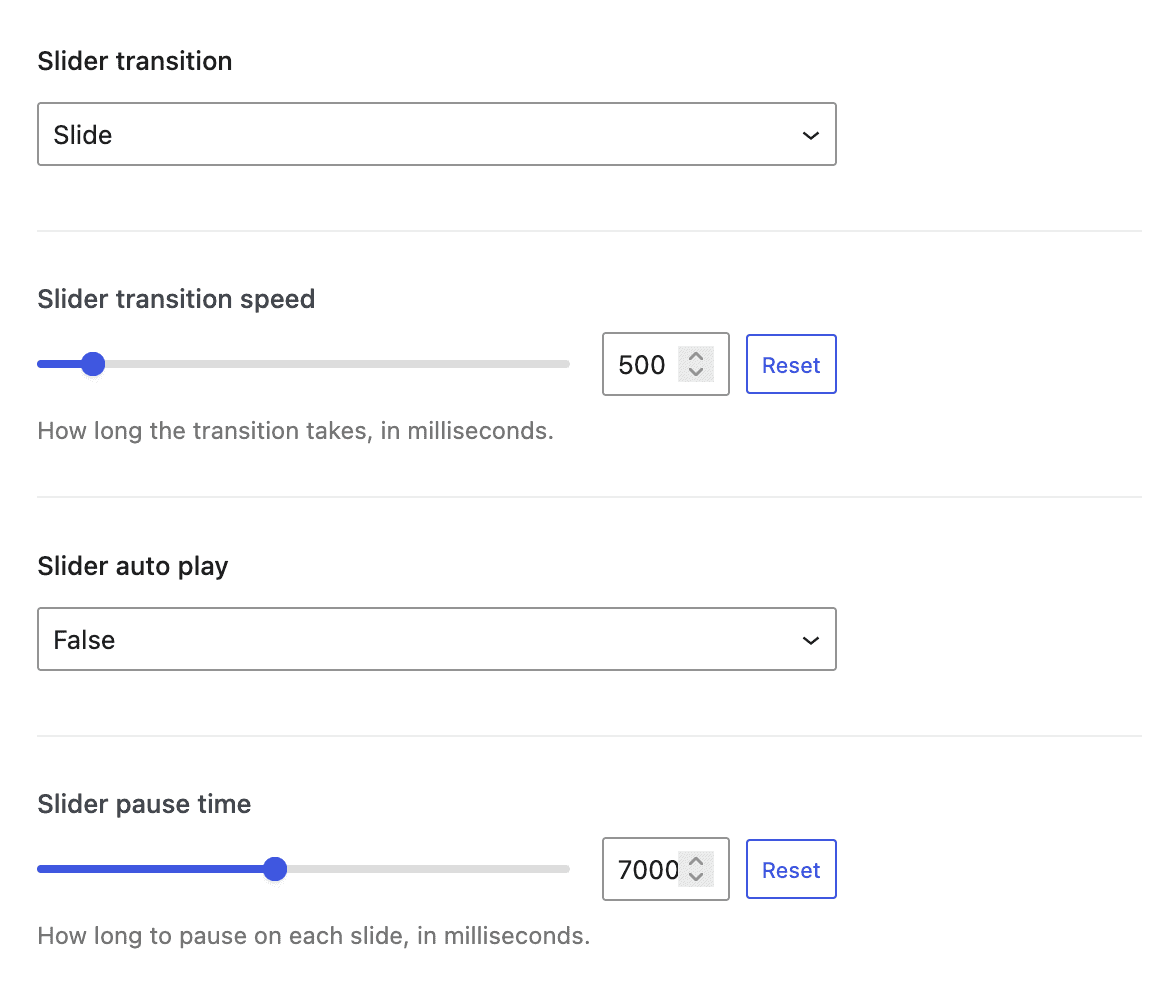
Slider Transition – Choose between Slide or Fade
Slider Transition Speed – Adjust the speed between slides
Slider Auto Play – Enable or disable automatic sliding
Slider Pause Time – Set how long each slide is displayed
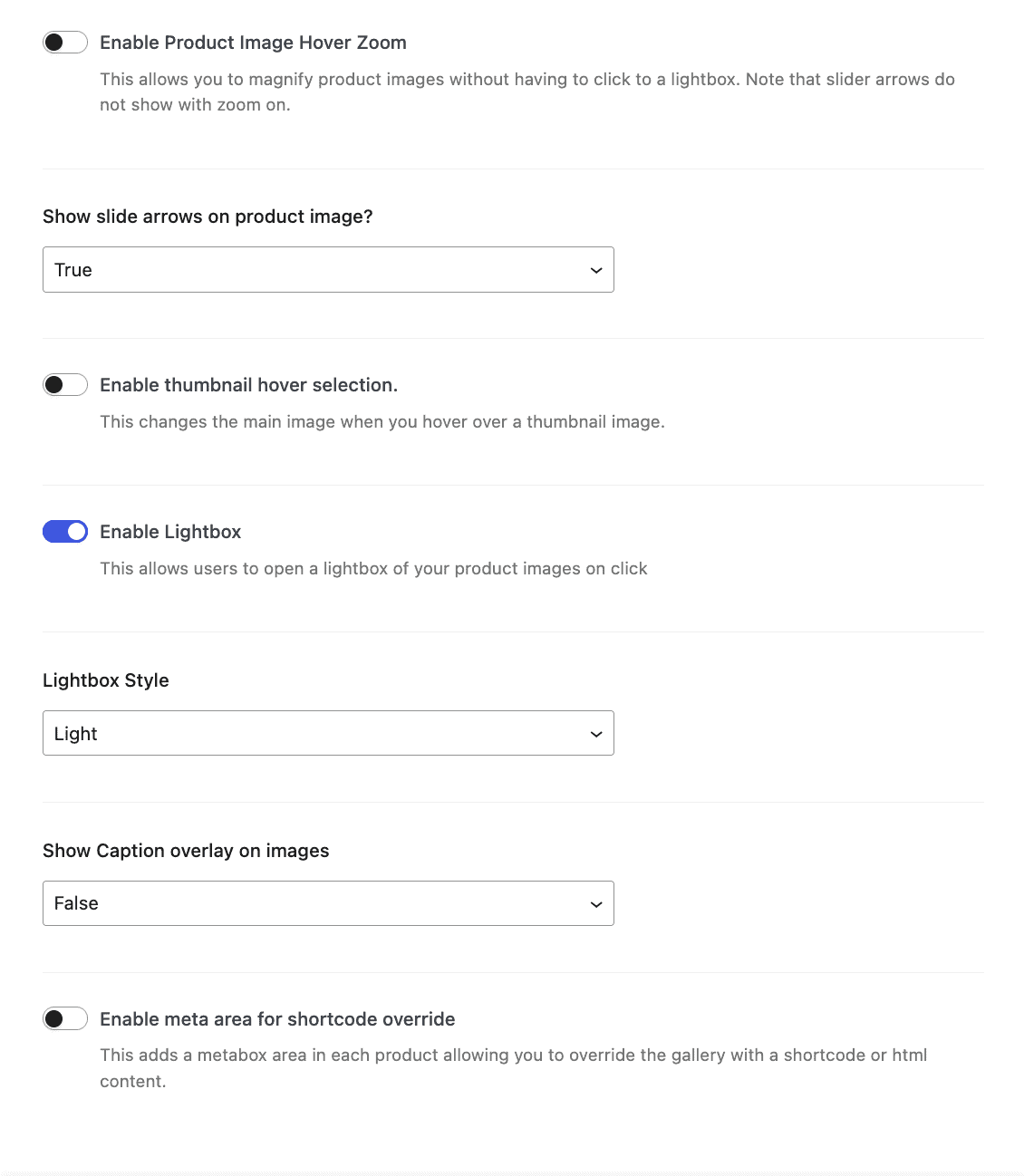
Enable Product Image Hover Zoom – Allows image magnification to appear either on top of the image or beside it
Show slide arrows on product image – Enable navigation arrows on the product image slider
Thumbnail Hover Selection – Enable or disable thumbnail hover behavior (applies only to galleries with thumbnails)
Enable Lightbox – Required to display videos in the product gallery
Lightbox Style – Choose between Light or Dark
Show Image Captions – Display image captions as overlays
Enable Meta Area for Shortcode Override – Adds a metabox to each product, allowing you to replace the gallery with a shortcode or custom HTML
Adding Videos to Your Gallery
Kadence Shop Kit allows you to include YouTube or Vimeo videos directly in your product gallery. To use this feature, the Lightbox theme setting must be enabled. No additional settings are required.
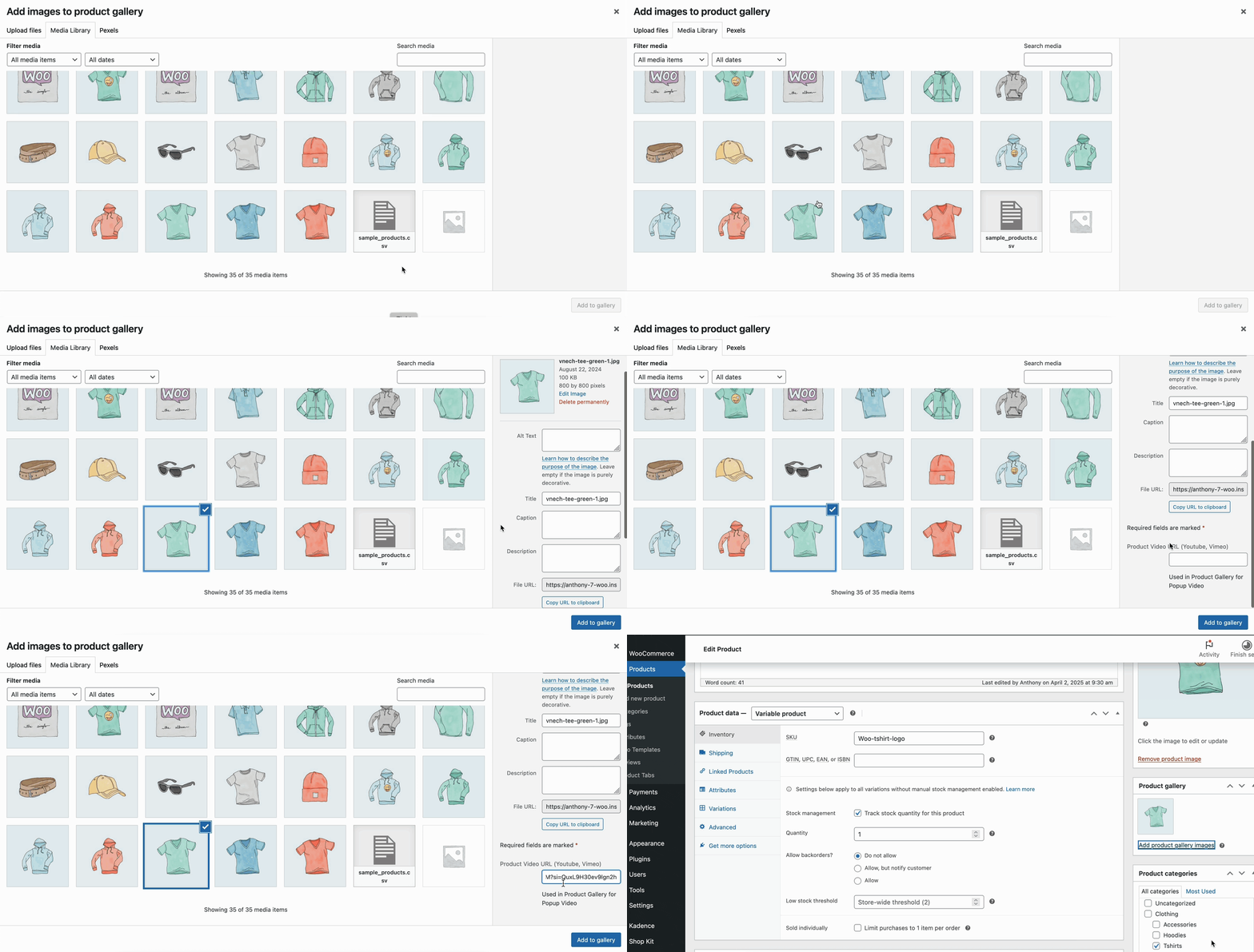
- Edit a product.
- Click Add Product Gallery Images.
- Select an image to use as a placeholder for the video (required).
- Scroll down to the Product Video URL (YouTube, Vimeo) field.
- Paste your video URL.
- Click Add to Gallery.
View Your Product Videos
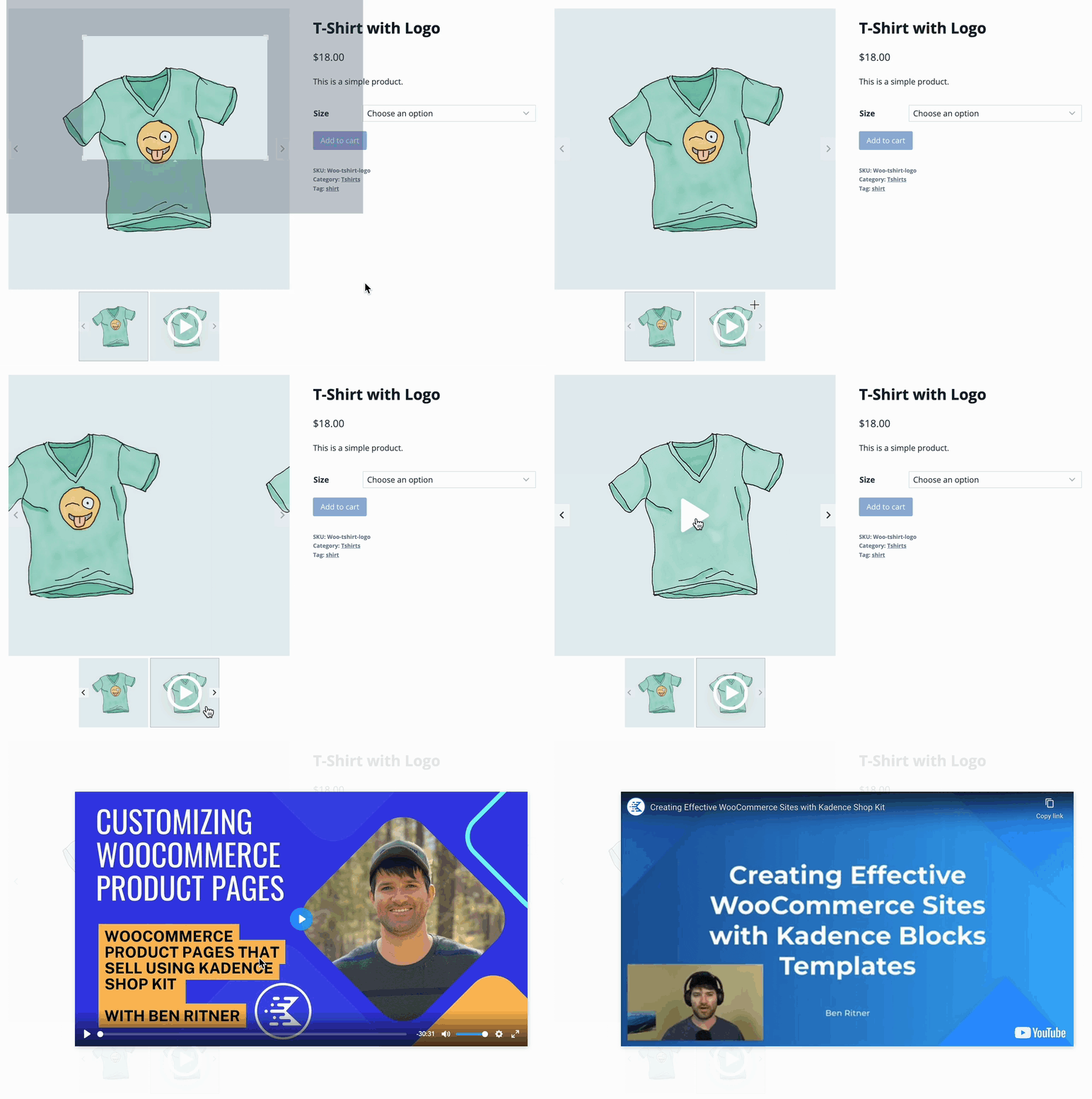
To view a product video on the front end of your site, navigate to the product page. Click the video thumbnail, then click the main image. The lightbox will open and automatically play the video.
Variation Gallery Support
The Shop Kit Product Gallery feature is required to support Variation Galleries. When enabled, Variation Galleries allow you to assign multiple images to each product variation. As customers select different variations, the product gallery dynamically updates to show only the images associated with the selected variation.
Dependency Notice
Variation Galleries depend on the Product Gallery feature. If the Product Gallery is disabled:
- Variation Galleries will not display on the front end
- Variation images will not replace the main product gallery
- The gallery will remain static, even when variations are selected
To use Variation Galleries, ensure the Product Gallery feature is enabled in Shop Kit → Product Gallery.

