
Kadence Shop Kit provides powerful tools to help increase your WooCommerce store’s sales. One of its key features is the ability to customize how product variations are displayed. With flexible options such as dropdowns and radio buttons, you can create a more engaging and intuitive experience that helps customers connect more easily with your products.
Getting Started
To get started, you should do the following:
- Install and activate the Kadence Shop Kit plugin.
- Navigate to Shop Kit in the bottom-left corner of your WordPress dashboard.
- Open the Variation Swatches tab.
- Enable variation swatches for your site.
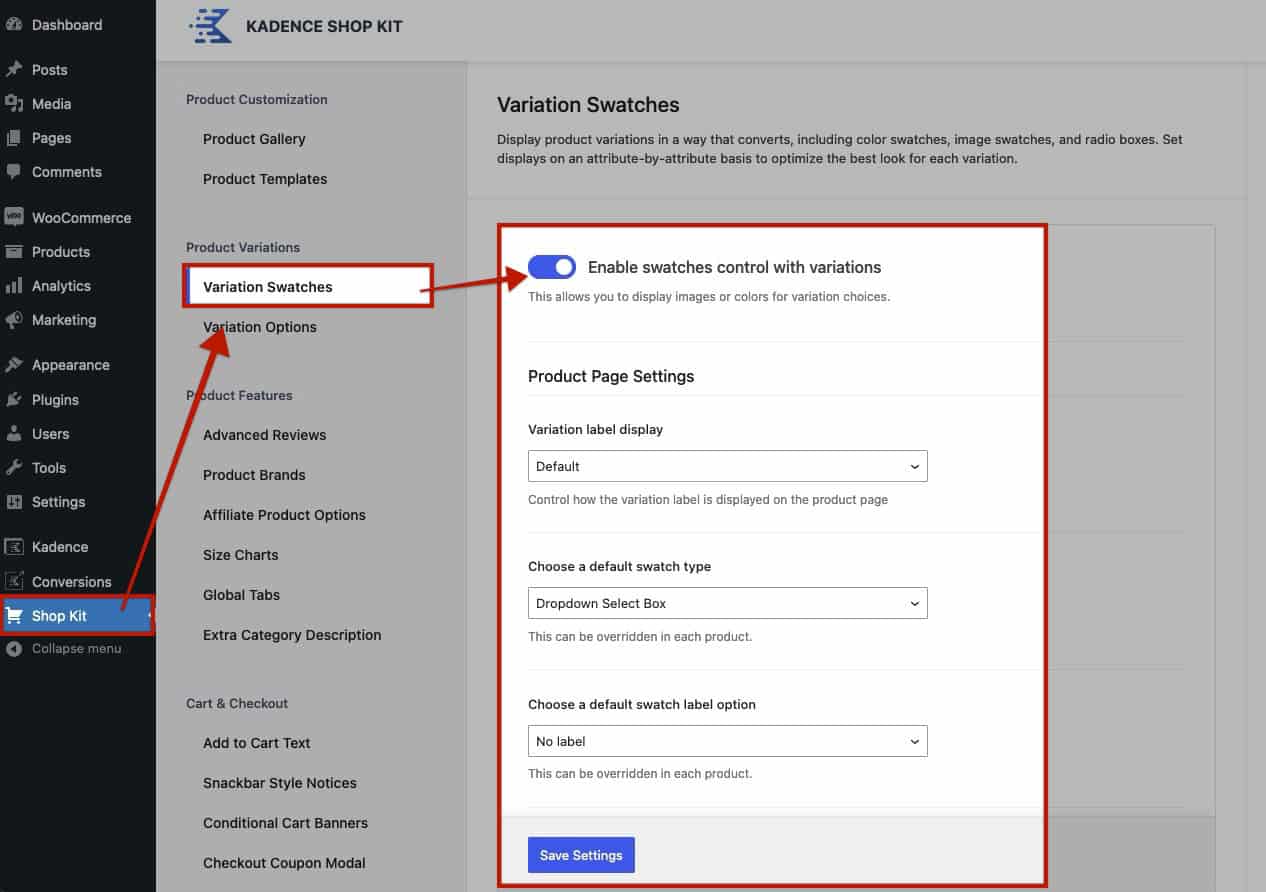
Product Page Settings
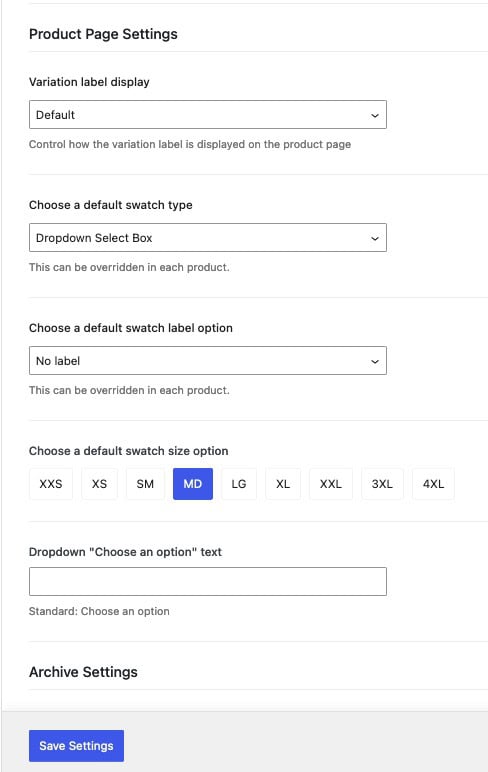
Variation label display: Set the display settings for your Label. This can be set to:
- Beside the variation (default)
- Above the variation
- Hidden
Choose a default swatch type: Choose the default swatch type for your variations.
- Dropdown select box
- Radio buttons
- Color swatches
- Image swatches
- Taxonomy-defined
Notes:
- When using taxonomy-defined, you can assign a swatch type for each attribute under WooCommerce → Attributes.
- Swatch types can also be overridden on a per-product basis. See below for more information on this feature.
This can also be set on a product-to-product basis. See below for more information on this feature.
Choose a default swatch label open: This setting controls how the swatch label is shown. It can be set to No label, Show above, Show below, or Show above on hover. This option can also be overridden on a per-product basis.
Choose a default swatch size: This setting controls the size of each swatch option. This can be set globally here or individually on a product-to-product basis.
Dropdown “Choose an option” text: This setting allows you to set the default placeholder text for dropdown swatch selections.
Configure Product Variations
Before variations can be displayed on a single product page, you must first create them under Product Data → Attributes. Define your attributes (such as size or color) and enable them for use in variations.
For example, see the variation below:
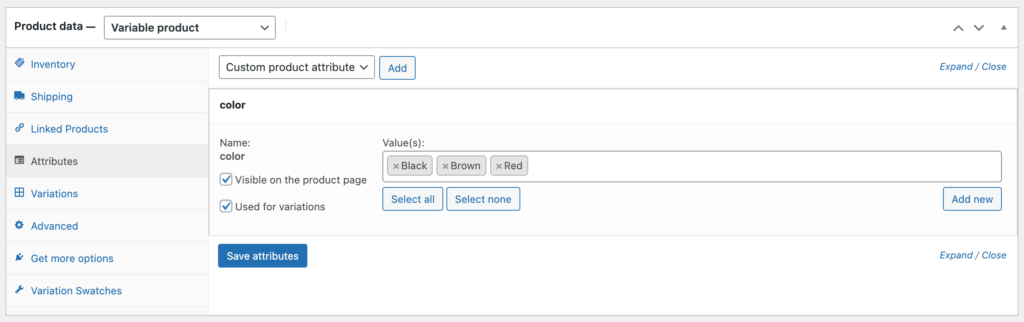
Once your variations are created, be sure to:
- Set a price for each variation.
- Assign an image to each variation.
- Optionally add multiple images to create a variation image gallery.
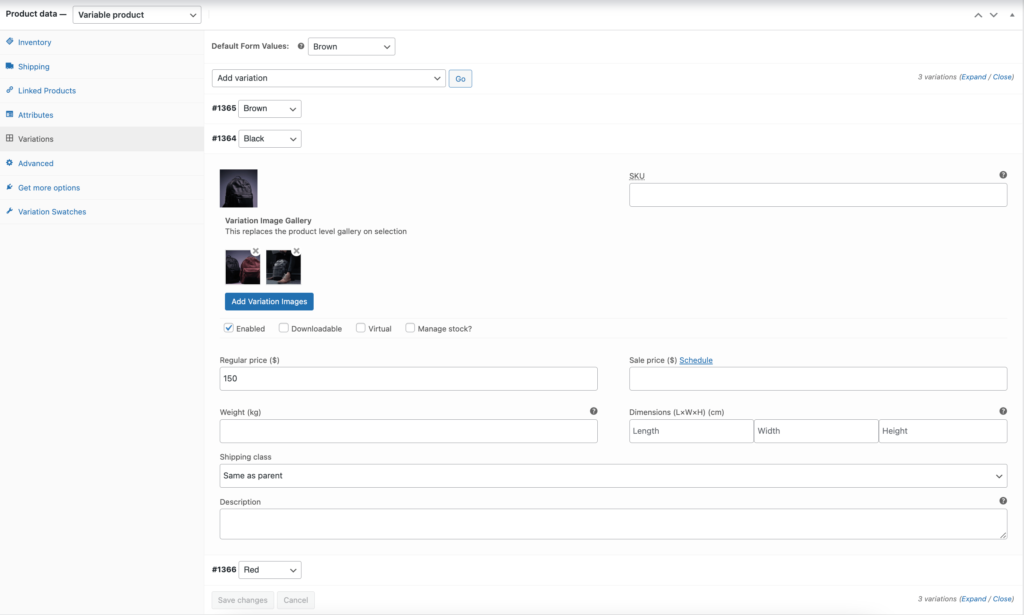
Important: The Shop Kit Variation Gallery only replaces the main WooCommerce product gallery.
- If the main product gallery has no images, variation images will not display on the frontend.
- Always add at least one image to the main product gallery to ensure variation images load correctly.
The Variation Gallery feature requires the Shop Kit Product Gallery to be enabled. Variation Galleries will not function unless the Product Gallery feature is active.
Swatch Attributes
Once your variations are configured, save the product and the swatches will use your global default settings. If needed, you can customize how swatches display for individual products.
To do this, open the Variation Swatches tab under Product Data. From there, you can:
- Select the variation style.
- Adjust the label display.
- Set the swatch size.
- Assign a color or image to each swatch.
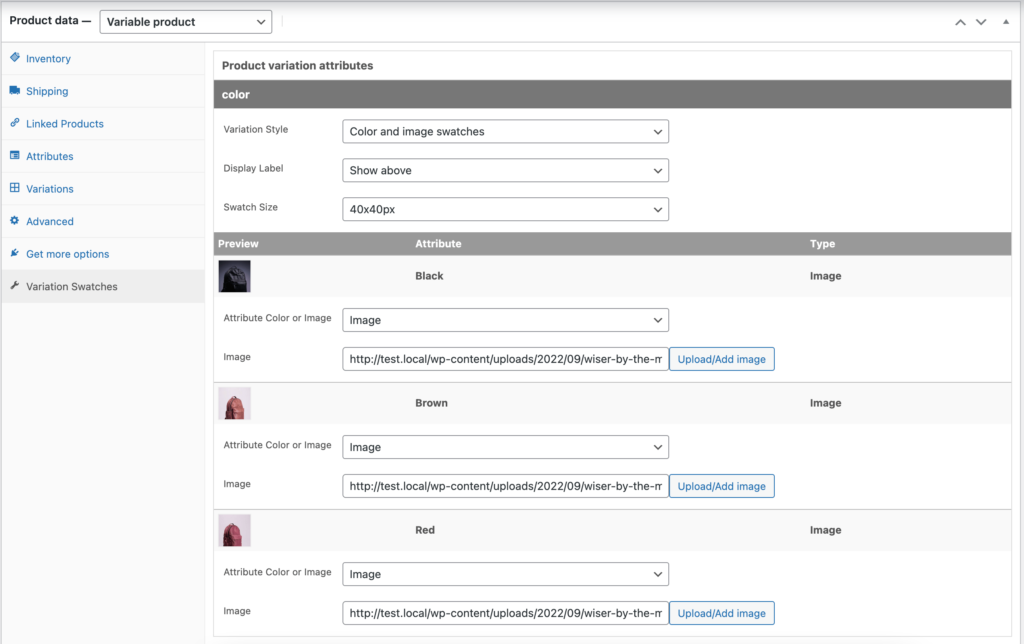
After configuring your swatches, preview the product to confirm that your settings are applied correctly.
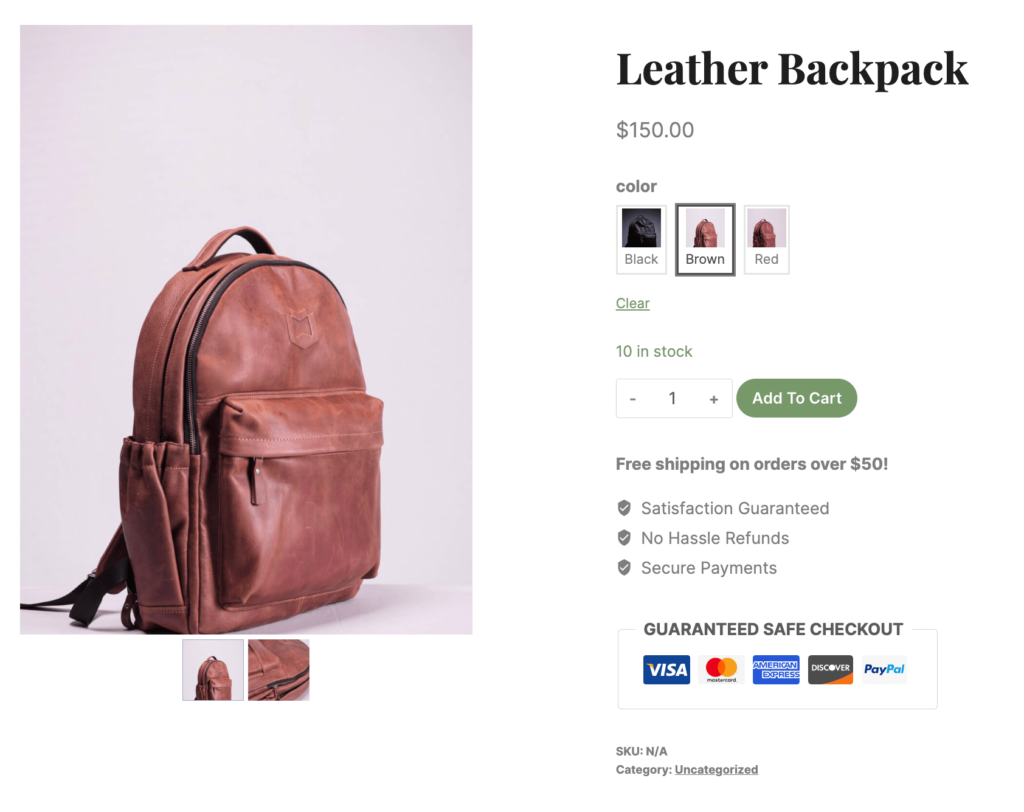
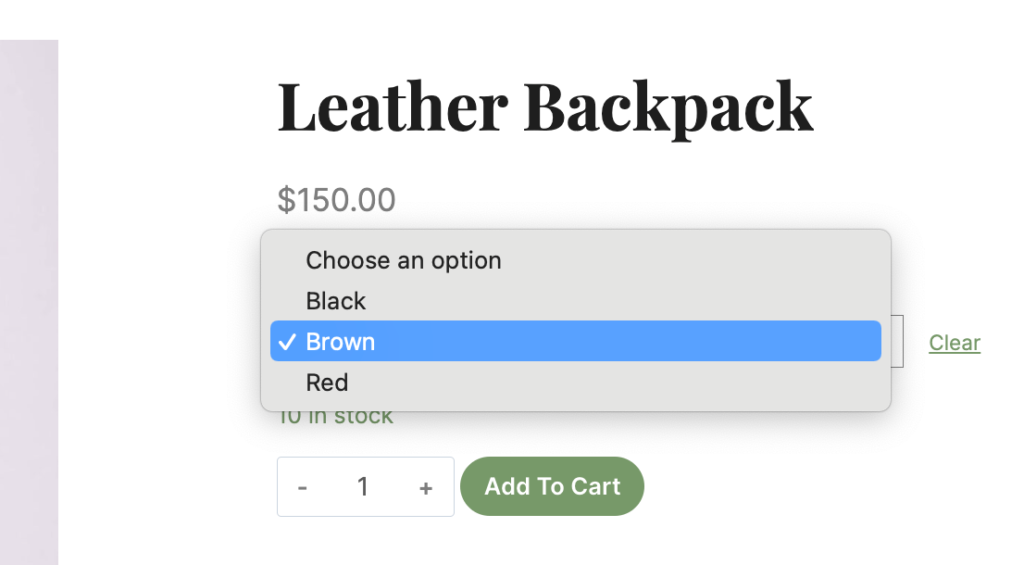
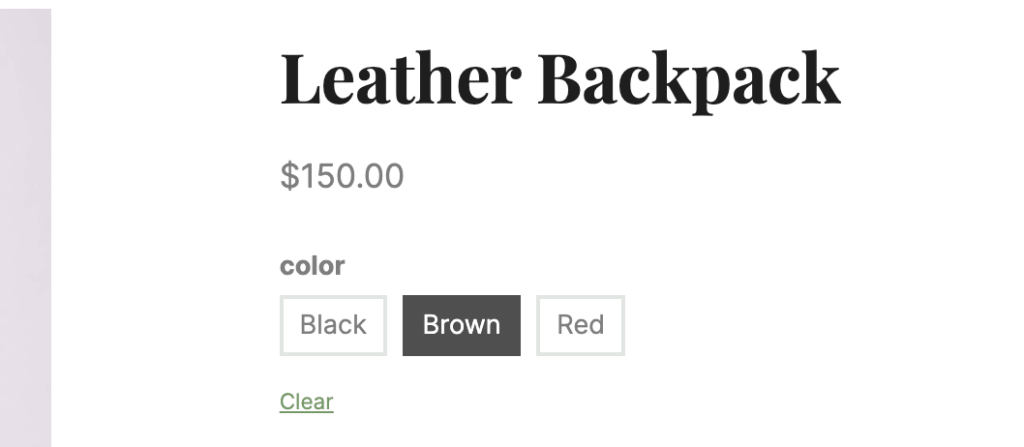
Variation Styles
Displayed below are the styling options available for your product variations.
Dropdown:
Variation Radio Boxes:
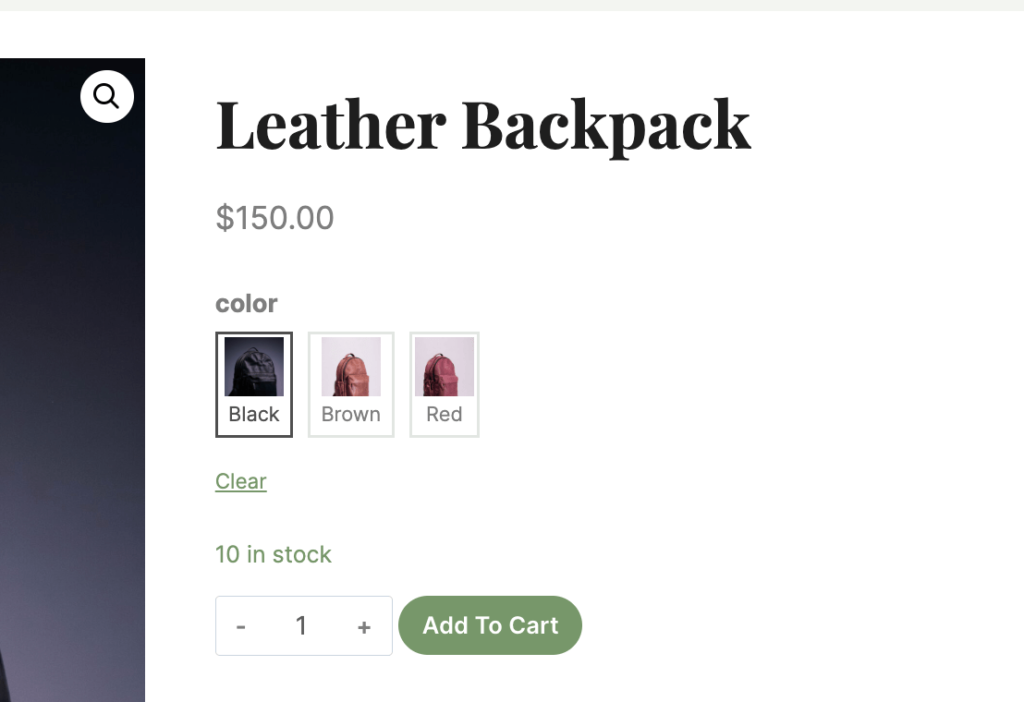
Variation Color or Image Swatches:
Archive Settings
To display variation swatches on archive pages (Shop, Product Categories, and Tags), enable the Enable Swatches for Archives option.
Archive Swatch Mode options:
- Normal – Displays all attributes
- Catalog Mode – Displays only one attribute
Swatch Position: This option determines where the swatches display on archives. Available options are:
- Before Title
- After Title
- Before Price
- After Price
Variation label display: This option controls how each label is displayed. Available options are:
- Beside Variation
- Above the variation
- Hidden (default)
Choose a default swatch size option: This option sets the swatches’ default size.

This is a screenshot of the variation product with one attribute.
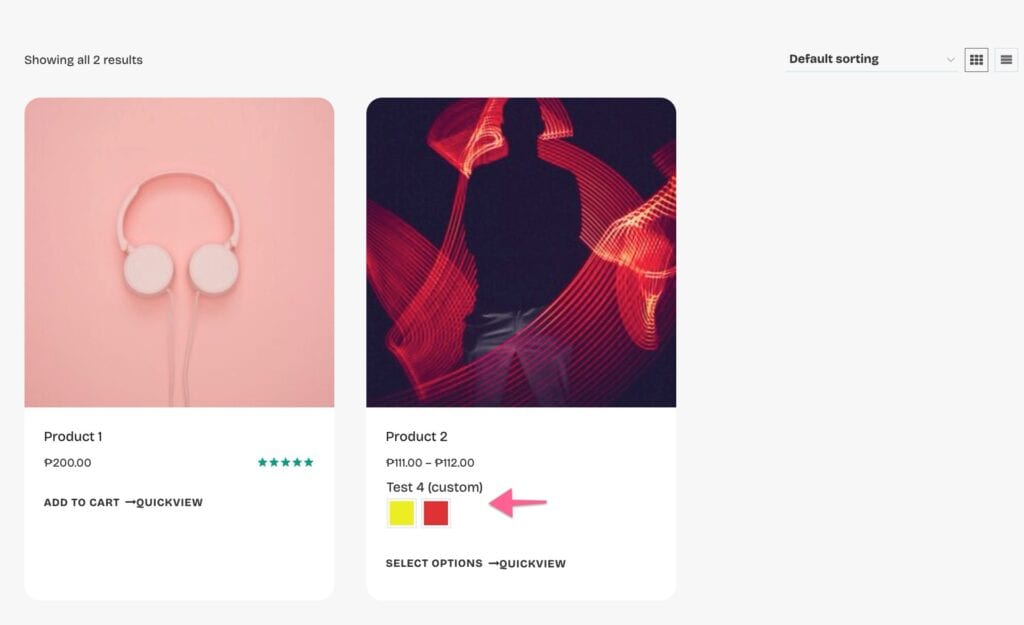
- Showing as color swatches.
- Label set to show above the variation
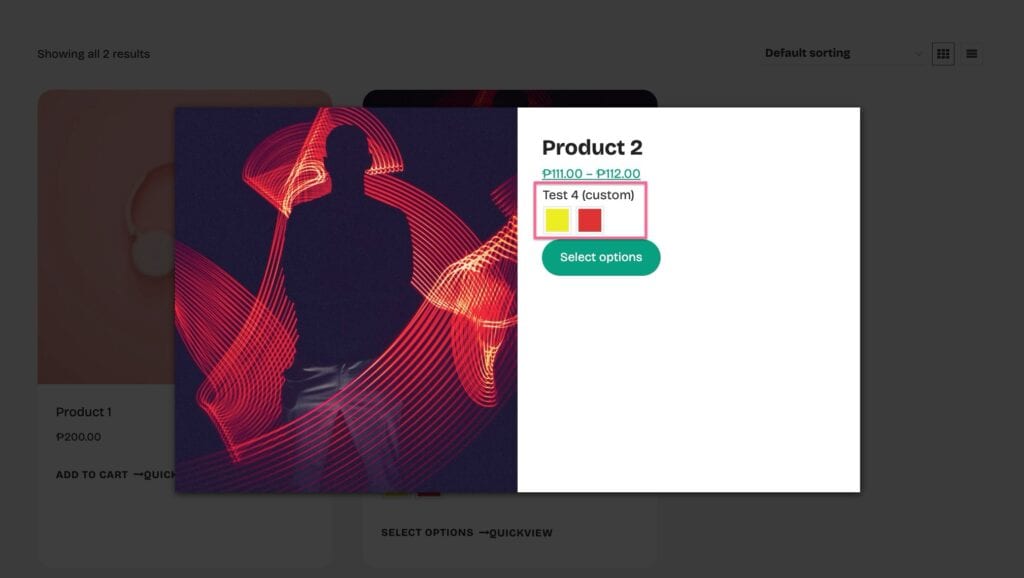
If variation swatches are enabled on archives, they’ll also show in the Quickview. Here’s how it looks:
Variation Galleries:
Variation Galleries allow you to assign multiple images to individual product variations. When a customer selects a variation on the product page, the product gallery automatically updates to display only the images associated with that variation.
Dependency Requirement
The Variation Gallery feature depends on the Shop Kit Product Gallery feature being enabled. Variation Galleries will not work unless the Product Gallery feature is active. Using Variation Galleries without enabling the Product Gallery can result in missing gallery options.

