
Largest Contentful Paint (LCP) is a Core Web Vital metric that measures the time it takes for the largest visible element to load on a page. Whenever you receive a Page Speed Warning related to LCP, there are a few things you should check to help resolve this warning. This document will go over the LCP warning, the causes for this warning, and ways to resolve it.
What Causes LCP?
LCP relates to content that loads on the page. If you have a slow server or if things are not optimized, you may see this warning when testing your website speed. Below are some of the common causes of the LCP warning.
How to fix the LCP warning
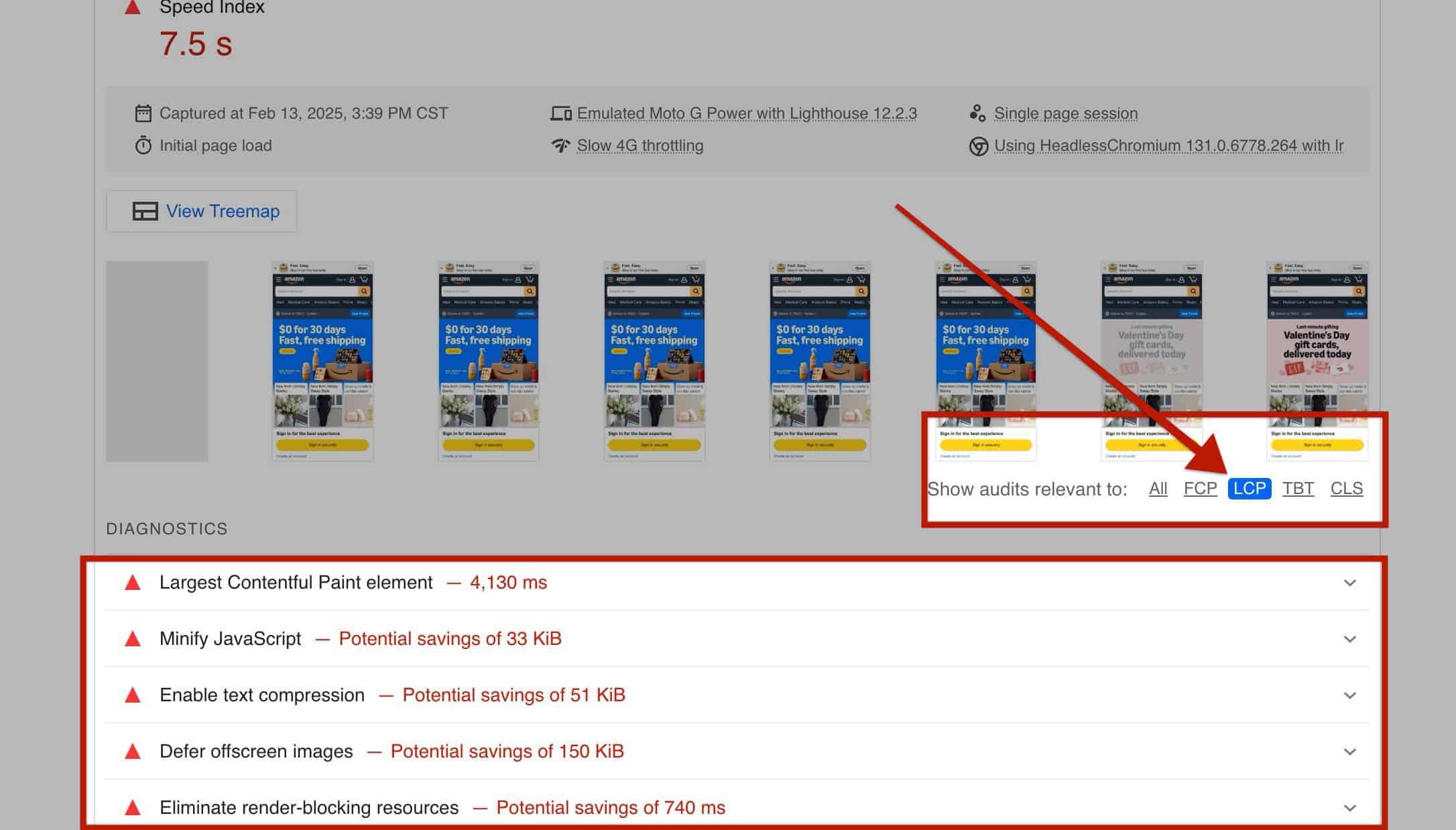
When viewing the PageSpeed Insights tool, you can filter warnings specifically for Largest Contentful Paint (LCP). This filter helps break down the key factors affecting LCP, allowing you to identify and address performance-related issues.
Optimizing your Images
If your images are not Properly Sized or Served in an Optimal Format, you may receive LCP-related warnings. When this happens, along with the LCP Warning, you may also receive additional warnings, such as the following:
- Serve Images in Next-Gen Formats – Using formats like WebP instead of PNG or JPEG improves performance.
- Properly Size Images – Ensuring images are displayed at the correct dimensions can reduce load time.
These issues can be resolved using an Image Optimization Plugin like Imagify or ShortPixel. These plugins can automatically resize and convert your existing images to an optimal format. Click here to learn more about best practices for image sizes and optimization in WordPress.
Lazy loading
By default, WordPress does not Lazy Load images that appear Above the Fold. However, if a plugin or custom code forces Lazy Loading on these images, it can contribute to LCP-related issues by delaying their rendering. To optimize LCP, ensure that Above the Fold Images are excluded from Lazy Loading by adjusting plugin settings or removing any conflicting custom code.
Using a CDN
A Content Delivery Network (CDN) can help improve LCP by reducing the time it takes for assets like Images, CSS, and JavaScript Files to load. A CDN distributes these assets across multiple servers worldwide, allowing users to download them from a location closer to their geographic location.
Using a CDN can also significantly reduce latency, improve load times, and enhance overall performance. Many hosting providers offer built-in CDN services, or you can use third-party options like Cloudflare, BunnyCDN, or KeyCDN.
Ensure that critical assets, such as hero images and above-the-fold content, are properly cached and served through the CDN to avoid LCP-related delays.
Reducing the DOM Size
A Large DOM Size can slow down page rendering, causing longer load times. The more Elements (nodes) a page contains, the more processing the browser needs to perform. It’s recommended to keep the number of HTML elements below 1,500. Exceeding this limit may contribute to issues related to LCP.
Combining Text-related content
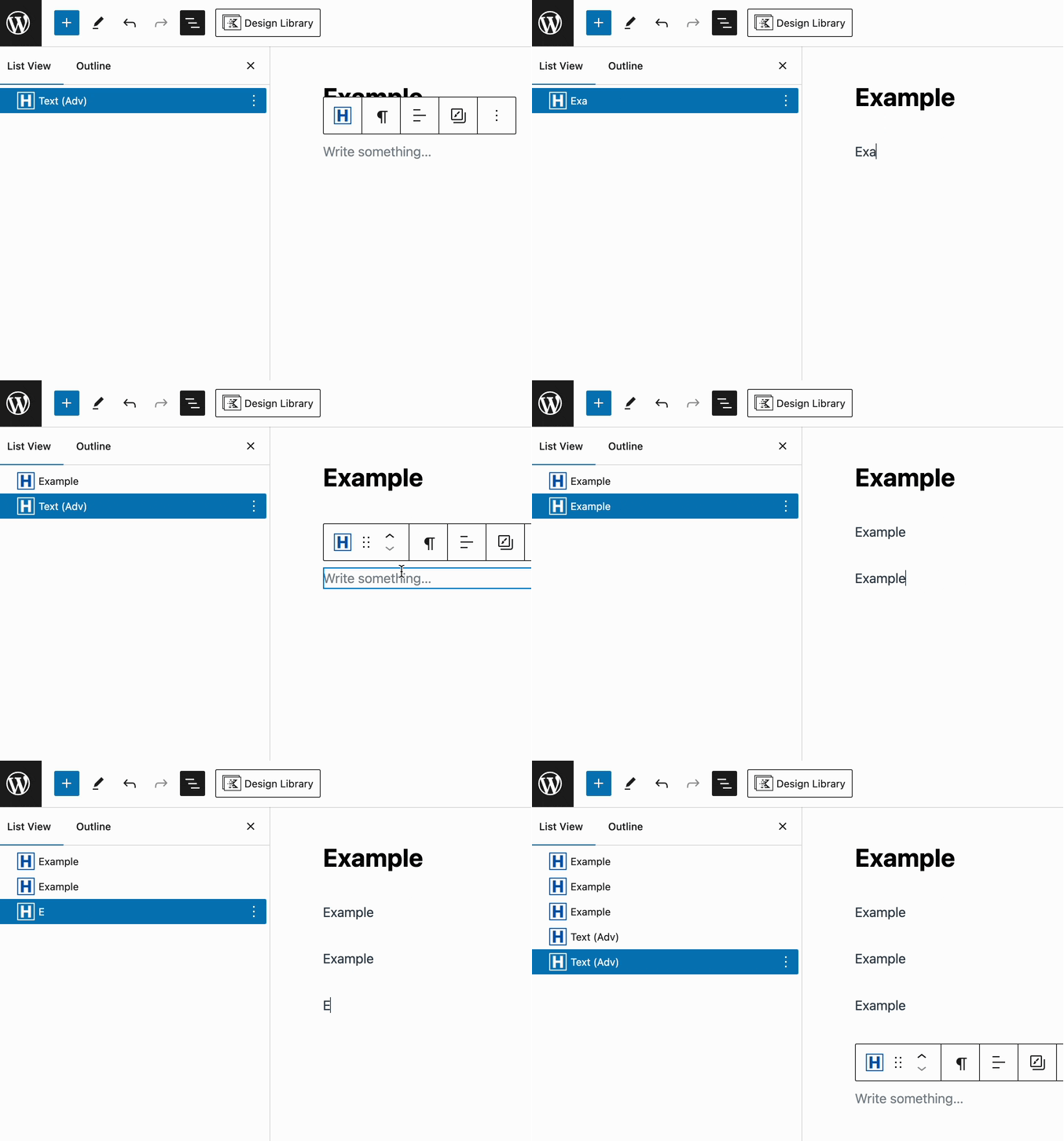
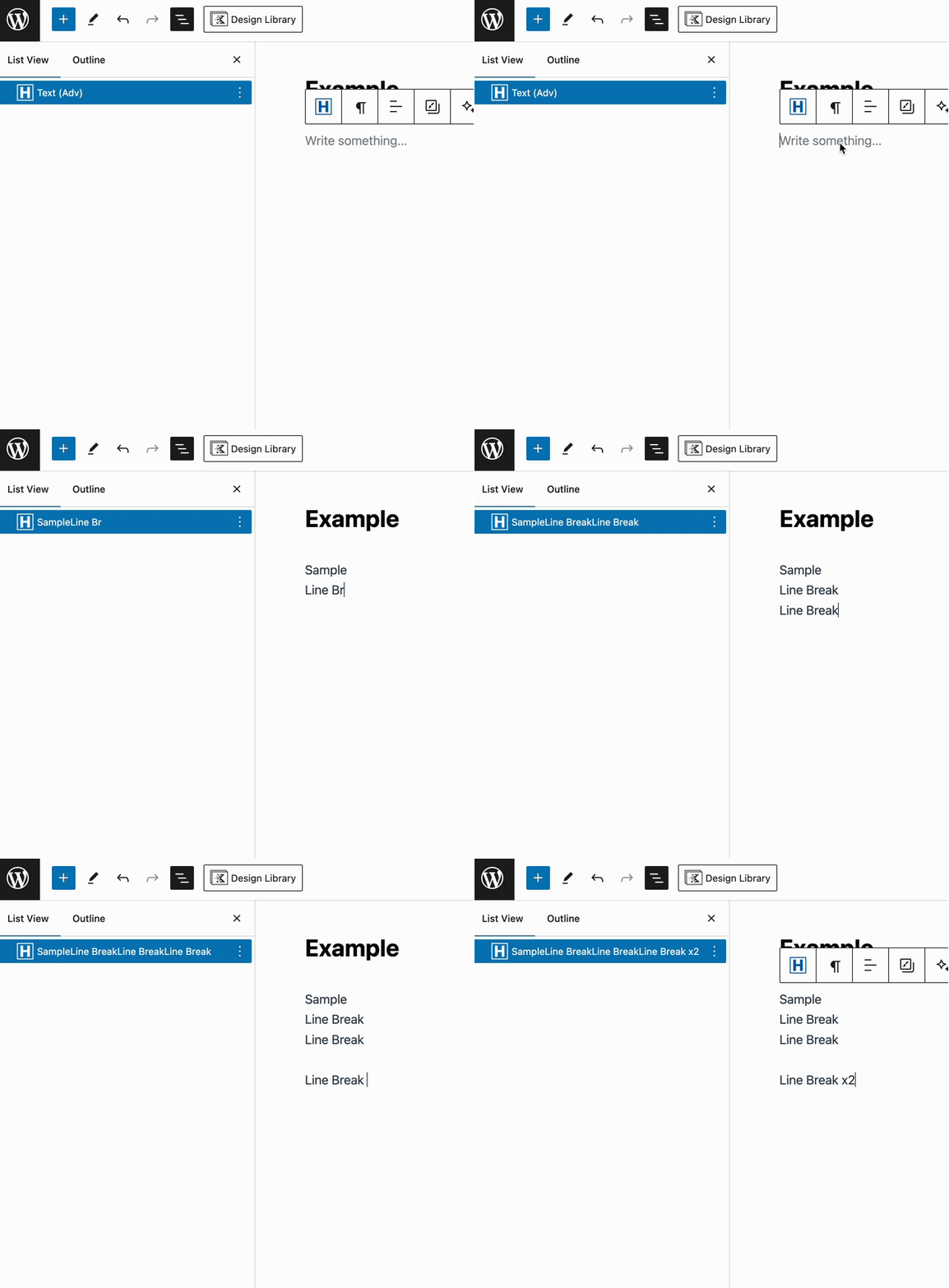
Consider Combining or Removing text content within the page. For example, in Gutenberg, each paragraph is treated as a separate block. Instead of creating multiple paragraph blocks, you can use line breaks to combine text within a single block.
To insert a line break, hold down Shift and press Enter, rather than just pressing Enter alone. This keeps related content within the same block, reducing the total number of HTML Elements on the page. This works with most Gutenberg Text-related Blocks and with Kadence Blocks, such as the Advanced Text Block.
Reducing excessive content
Another factor contributing to a Large DOM Size is having excessive content on a single Post or Page. For example, using multiple Post Grid/Carousel Blocks to display Posts or Products can significantly increase the number of elements on the page.
To optimize this, consider:
- Reducing the number of Post Grid/Carousel Blocks being used.
- Combining multiple Post/Product sets into a single Post Grid/Carousel instance.
- Limiting the Total Number of items displayed per block.
For example, if a page contains four Post Grid/Carousel Blocks, each displaying five products, consider reducing this to two Post Grid/Carousel Blocks, each displaying 5-8 products. This can significantly decrease the DOM size and improve page performance. For further DOM optimization, you can also create a selection of the ten most preferred Posts or Products and distribute them across two Post Grid/Carousel Blocks, rather than dynamically loading a larger set.
Removing Content
If a page contains too much content, the only way to reduce the DOM size may be to remove or reorganize content. In this case, prioritize the most important content and remove lower-priority elements.
You can also distribute content across multiple pages to reduce the load on a single page. For example, if your Home Page contains an excessive amount of About Me information, consider moving some of it to a dedicated About Me page.
Similarly, if a Blog Post such as “Top 10 Gloves for Winter” triggers an Excessive DOM Size warning, consider breaking it into multiple posts. For example:
-Best Gloves for Extreme Cold,
–Best Budget-Friendly Winter Gloves
-Best Waterproof Winter Gloveseach
With each post linking to the next post.
Slow Server Response Time
A Slow Server Response time can negatively impact LCP by delaying the loading of key assets like images, fonts, and scripts. To reduce server response time and improve performance:
- Upgrade Hosting – Ensure your hosting plan has enough resources to handle traffic efficiently. Consider upgrading your hosting plan if required.
- Enable Caching – Use page caching and object caching to reduce the load on your server and speed up content delivery.
- Optimize Database – Regularly clean up your WordPress database by removing unnecessary revisions, spam comments, and expired transients.
- Reduce External Requests – Limit third-party scripts, as they can slow down response times.
- Use a CDN – As mentioned before, A Content Delivery Network can offload traffic from your server and serve static assets faster. This can contribute to speeding up the response time globally.
Minify CSS and JS
Minifying CSS and JavaScript files can help reduce file sizes and speed up loading times by removing unnecessary spaces, comments, and characters from the code. This can help improve LCP by ensuring styles and scripts load faster. Most Optimization plugins offer options to minify CSS and JS.
Reducing Unused CSS and JS
When a page loads, unnecessary CSS and JavaScript files can increase LCP time by adding extra processing and blocking rendering. Reducing unused CSS and JS can help speed up loading and improve performance. Most Optimization plugins offer options to reduce unused CSS and JS.

