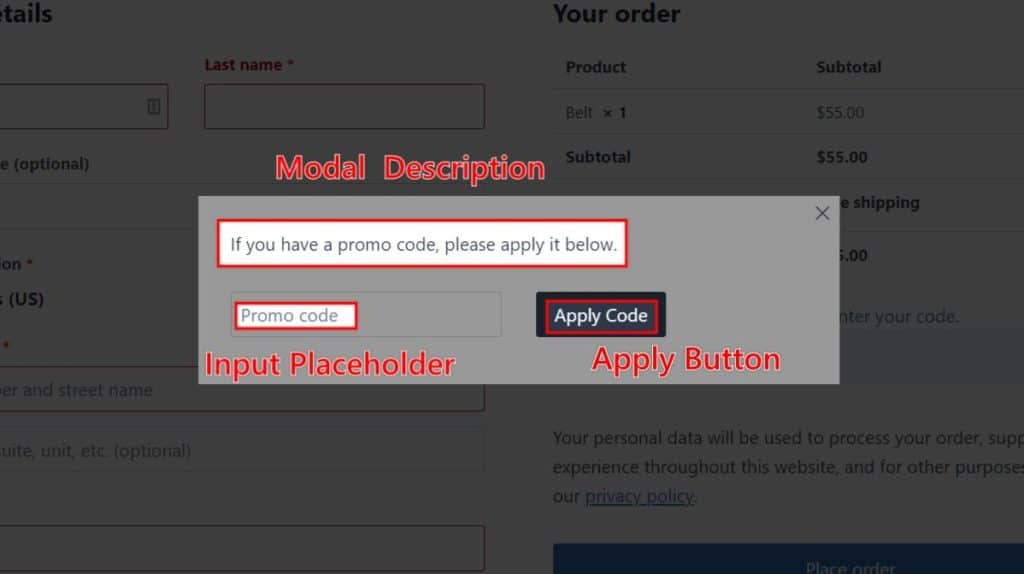
Kadence Shop Kit provides the Checkout Coupon Modal. This feature is a great way to let your customers add a coupon at checkout. The Checkout Coupon Modal displays the coupon input field as a link in the order overview and opens a modal to input a coupon code. Please note that this only works with standard checkout, not the checkout block.
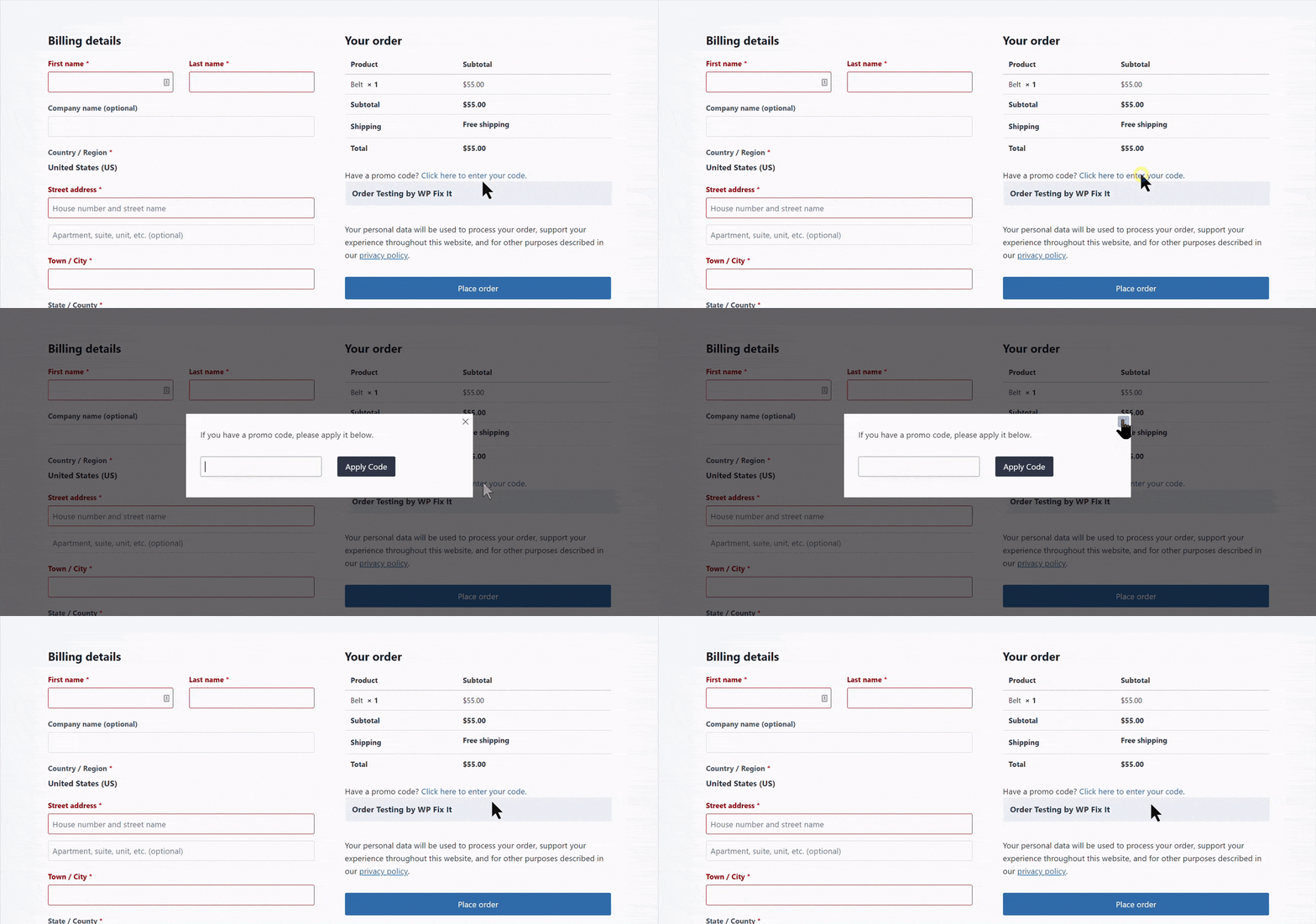
How to Enable
The feature is as easy to enable as all Shop Kit features. In your WordPress admin dashboard, click on Shop Kit, and find the Checkout Coupon Modal settings. Enable the switch, and the settings present you with options for the feature.
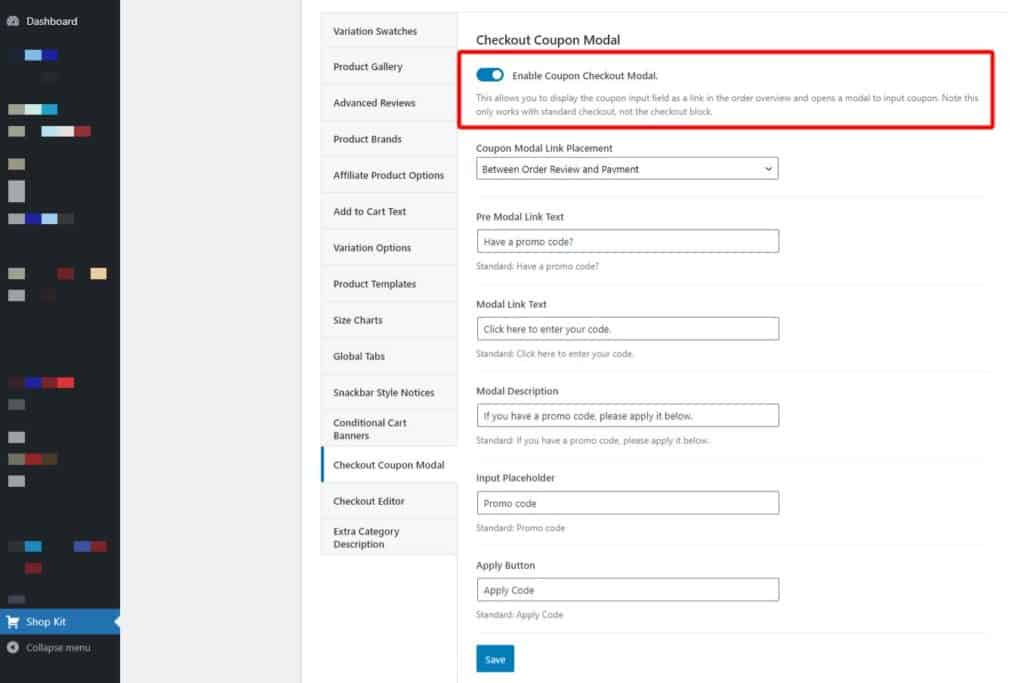
Checkout Coupon Modal Settings
Several settings for this feature include the location, link text, and even button text. These settings let you further customize your site and assist your customers better than the competition!
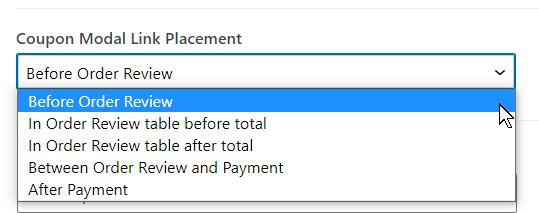
Coupon Modal Link Placement
You can place the link in one of several places on your checkout page. This setting is a dropdown menu that lets you choose: before the order review, in the order review table before the total, in the order review after the total, between the order review and the payment, or after the payment. Select your desired location here.
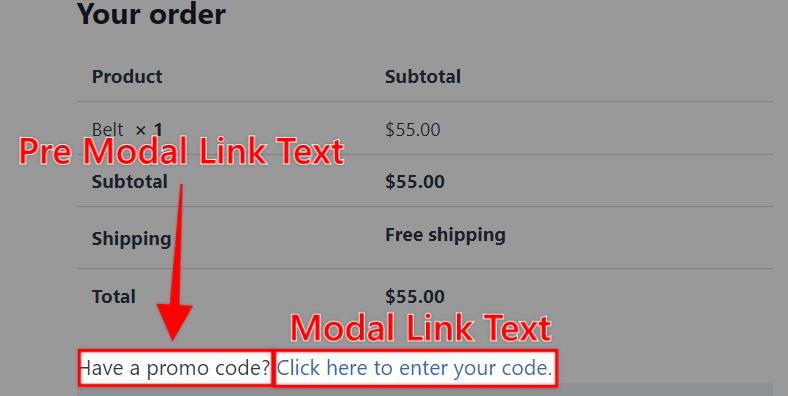
Modal Link Text
There are two parts to the modal link text. There is the text before the link and the link text itself. Having two text fields gives you flexibility in the material you present to your customer.
Modal Text Settings
The last few settings are for the text that appears in the coupon modal. The settings allow you to set the modal description, the input placeholder, and the button text.