
Building a website can feel complex, but Kadence provides a set of high-quality tools that empower site creators to build a beautiful, fast, and fully functional site without writing a single line of code. This guide walks through the essential first steps, from installing the core products to using Starter Templates.
This guide focuses on the three primary tools:
- Kadence Theme ⧉: The lightweight and flexible foundation of a website.
- Kadence Blocks ⧉: Advanced building materials for creating dynamic page layouts within the WordPress editor.
- Features the Kadence Design Library ⧉ and various free blocks ⧉.
- Kadence Starter Templates ⧉: Pre-built site blueprints that allow a quick and professional launch.
Understanding How to Use the Help Center
The best way to expand your knowledge beyond this guide is to use the Kadence Help Center. Free Kadence users have several Knowledge Bases to explore:
- Kadence Blocks Knowledge Base ⧉ – Covers the free Kadence Blocks plugin, including block usage, settings, and the Design Library.
- Kadence Theme Knowledge Base ⧉ – Covers the Kadence Theme, including header options, page layout controls, and global settings.
- Kadence AI Knowledge Base ⧉ – Covers AI-powered tools, including AI Design Library usage, setup, and optimization.
Each Knowledge Base is organized into categories, making it easy to:
- Browse by product and topic to find documents/guides specific to a feature.
- Use the search bar to quickly locate setup guides, tutorials, and troubleshooting tips.
- Stay up to date with new documentation as features are released.
Mastering navigation of the Knowledge Base ensures you can quickly find the answers you need, whether you’re building your first site, customizing your theme, or exploring advanced features.
Installing Kadence Theme
A website begins with a theme, and Kadence Theme is built for speed and full control over a site’s design. The theme can be installed directly from the WordPress Dashboard.
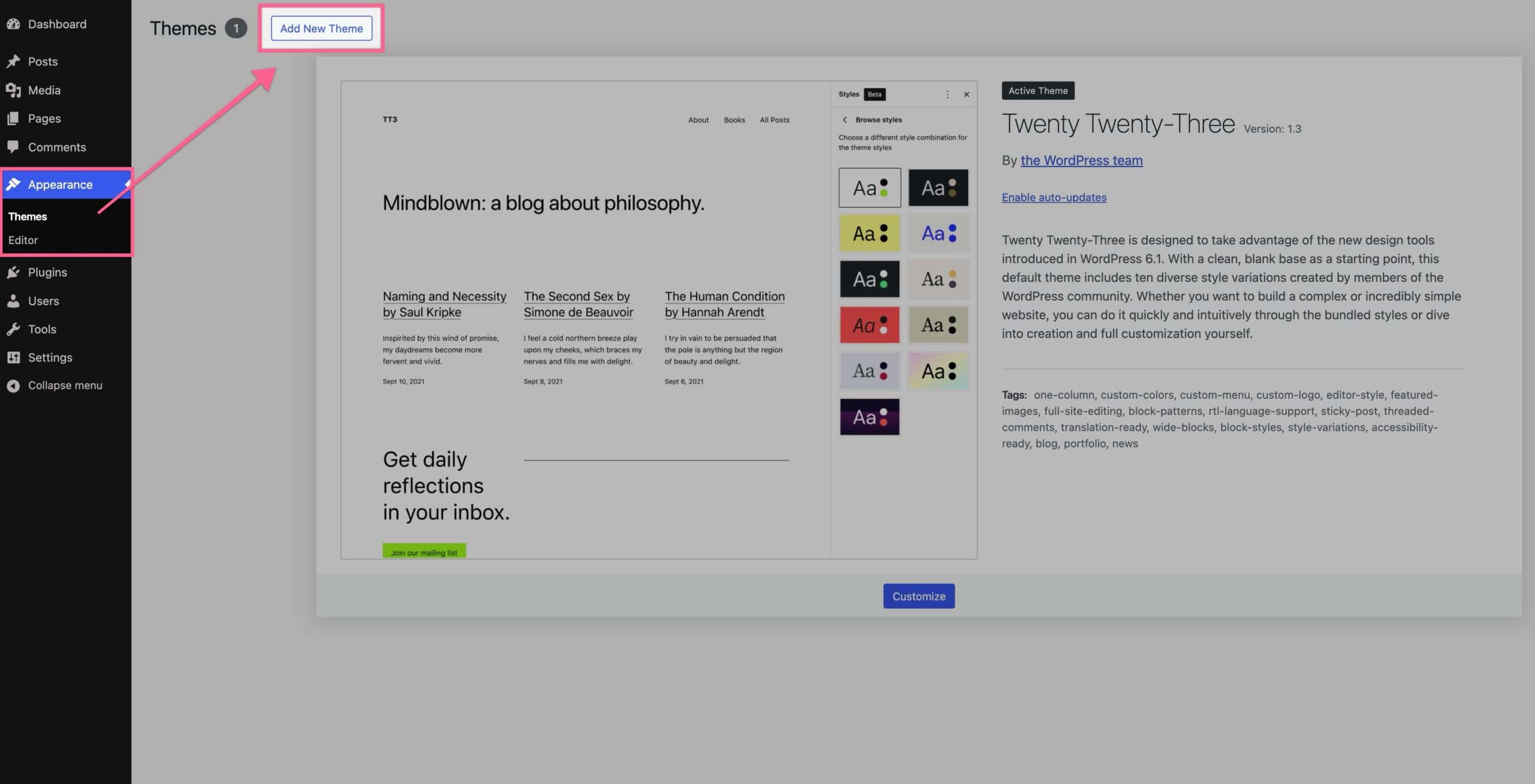
- In the WordPress Dashboard, navigate to Appearance > Themes.
- Click the Add New Theme button at the top of the page.
- Use the search bar at the top right to search for Kadence.
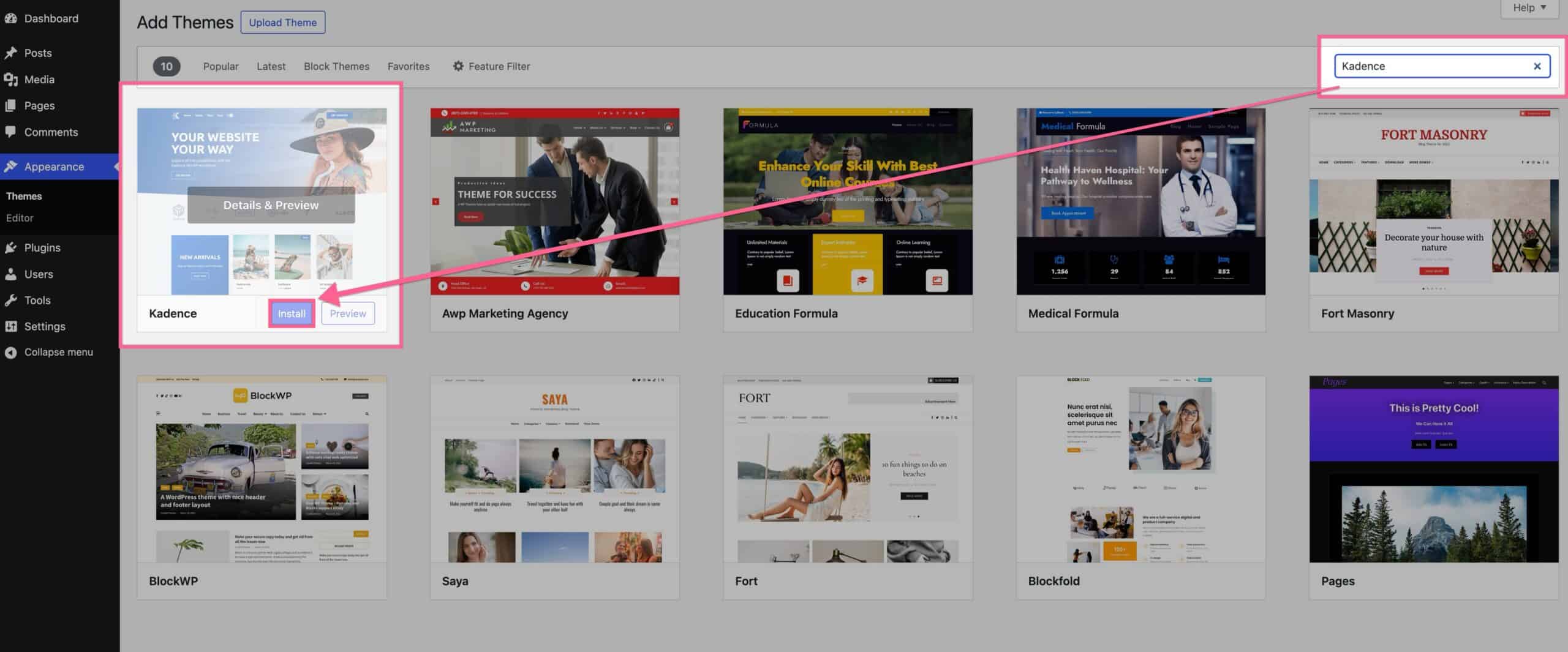
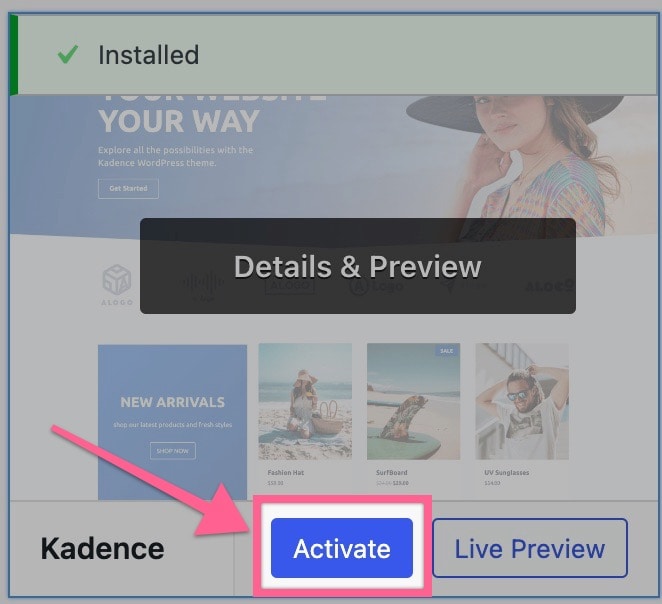
- Once the Kadence theme appears, click the blue Install button.
To see all the possibilities of the Kadence Theme, check out the Kadence Theme Knowledge Base.
Installing the Kadence Blocks Plugin
Kadence Blocks enhances the standard WordPress editor by adding a collection of versatile blocks and design controls/settings. It allows a site creator to build professional and dynamic layouts without coding. The Kadence Blocks plugin can also be installed directly from the WordPress Dashboard.
- In the WordPress Dashboard, navigate to Plugins > Add New Plugin.
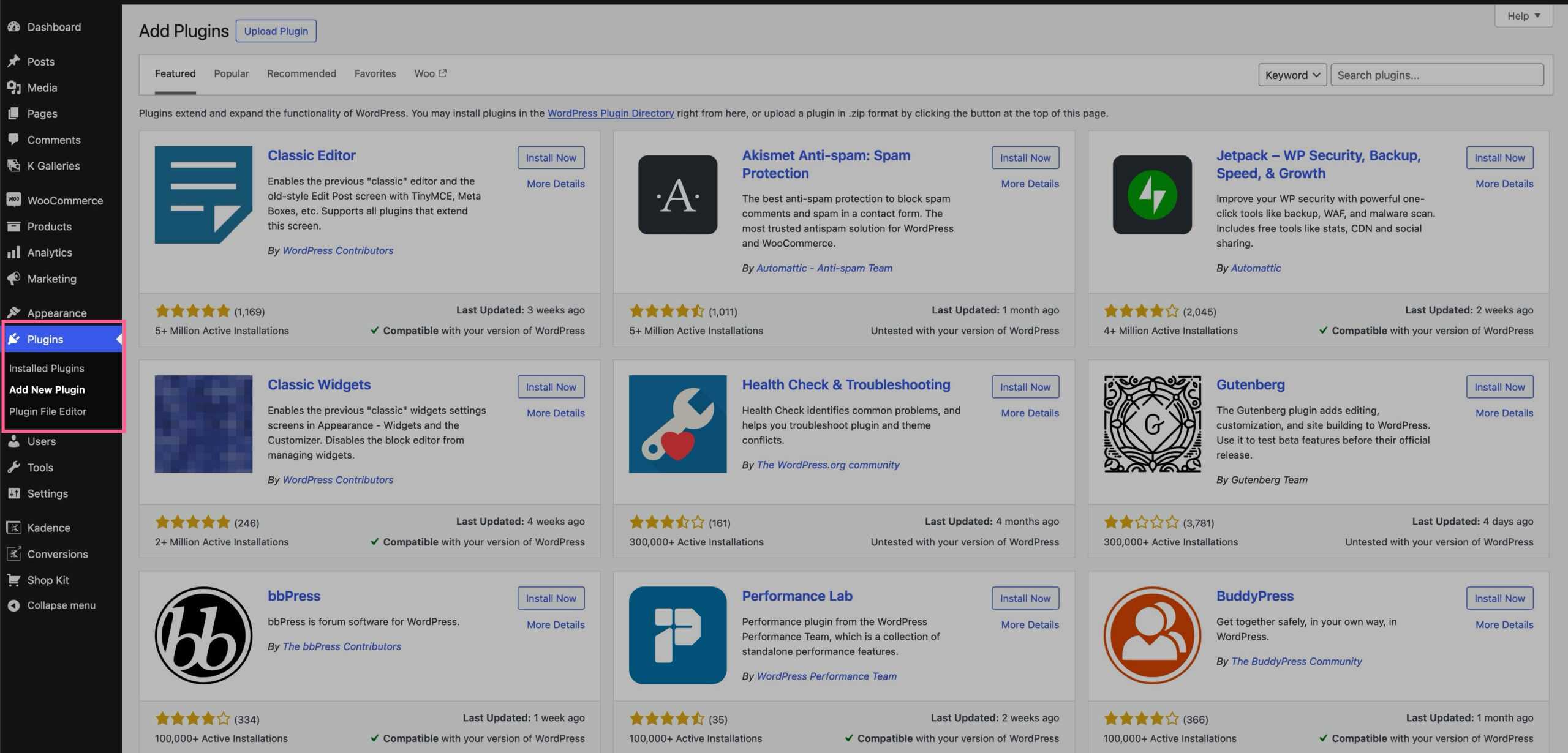
- Use the search bar to search for Kadence Blocks.
- Locate the plugin with the full name Gutenberg Blocks with AI by Kadence – Page Builder Features.
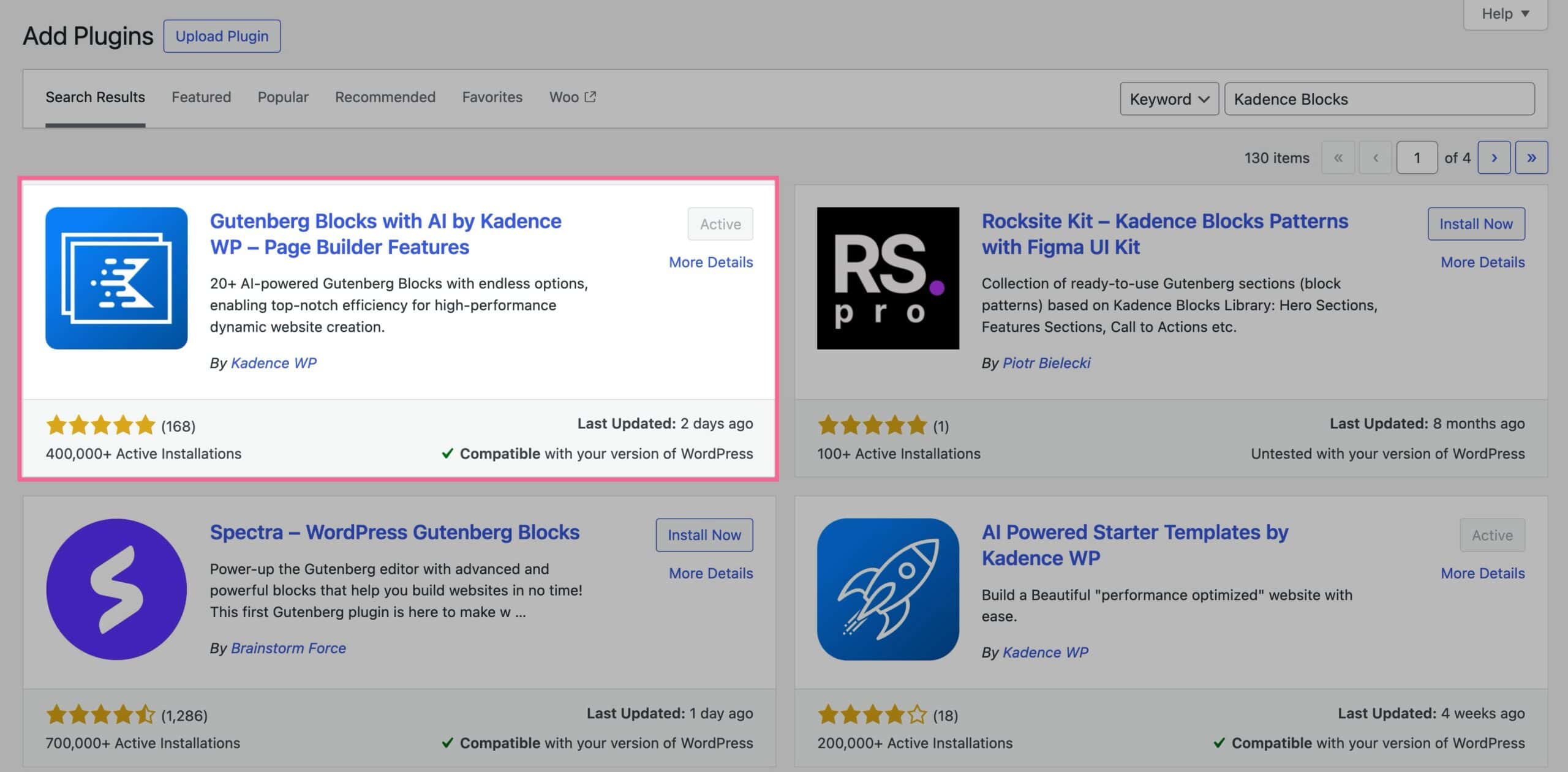
- Click the Install Now button and then the Activate button to complete the installation.
Kadence Blocks features the Design Library. Learn more about using Pre-Designed Patterns/Pages ⧉ or AI-Powered Patterns/Pages ⧉.
To see all the possibilities with Kadence Blocks, check out the Kadence Blocks Knowledge Base.
Installing the Kadence Starter Templates Plugin
Kadence Starter Templates is a site creator’s shortcut to a fully designed website. It includes professionally built sites that can be imported with a single click.
- In the WordPress Dashboard, navigate to Plugins > Add New Plugin.
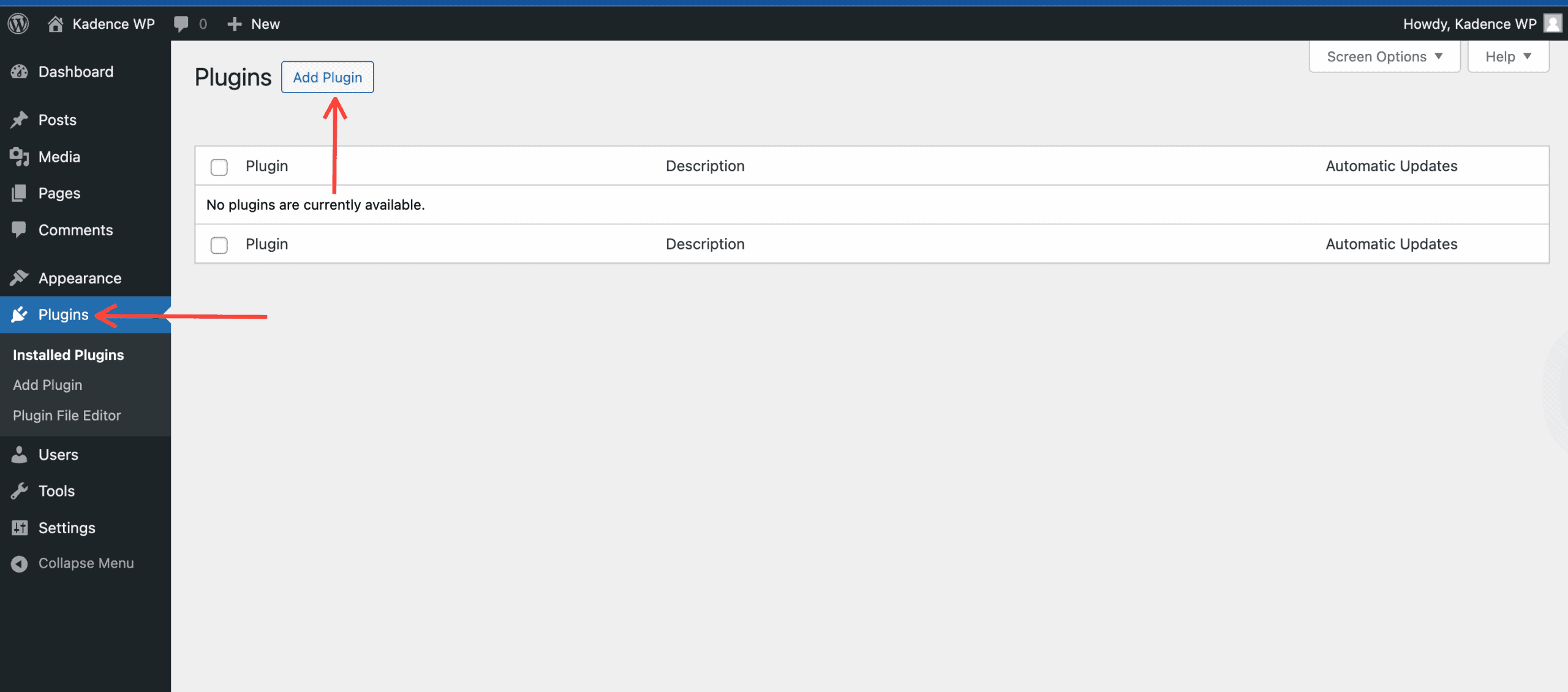
- Use the search bar to search for Kadence Starter Templates, and you will find the plugin named AI Powered Starter Templates by Kadence.
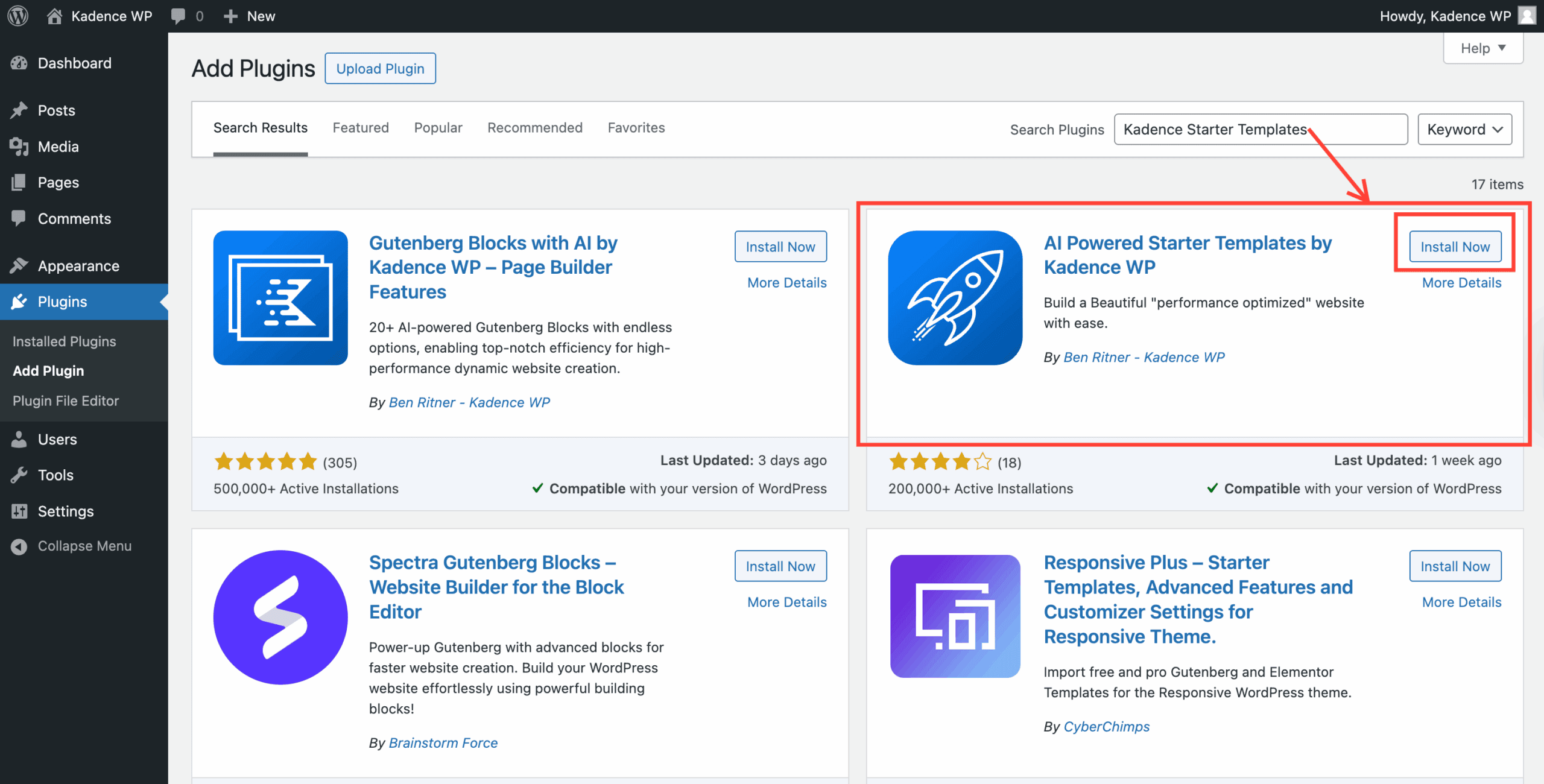
- Click the Install Now button.
- After the installation finishes, click the blue Activate button to activate the plugin.
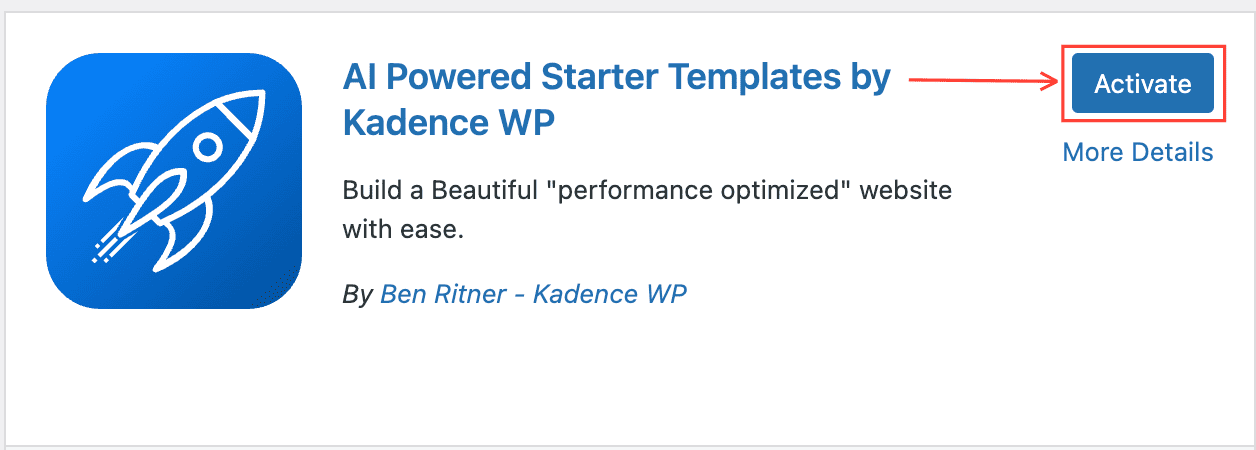
Important: The Kadence Starter Templates plugin is required to access the Starter Template library and Site Assist.
Using Site Assist
The Kadence Starter Templates plugin includes a feature called Site Assist. This wizard helps guide a site creator through a simple setup process for a new site, including general site settings, security configurations, performance optimizations, setting up your website logo, adding a starter template, and more. This streamlined process helps to establish a website’s foundation efficiently early on.
Site Assist can be accessed from the Dashboard -> Site Assist -> Site Assist page.
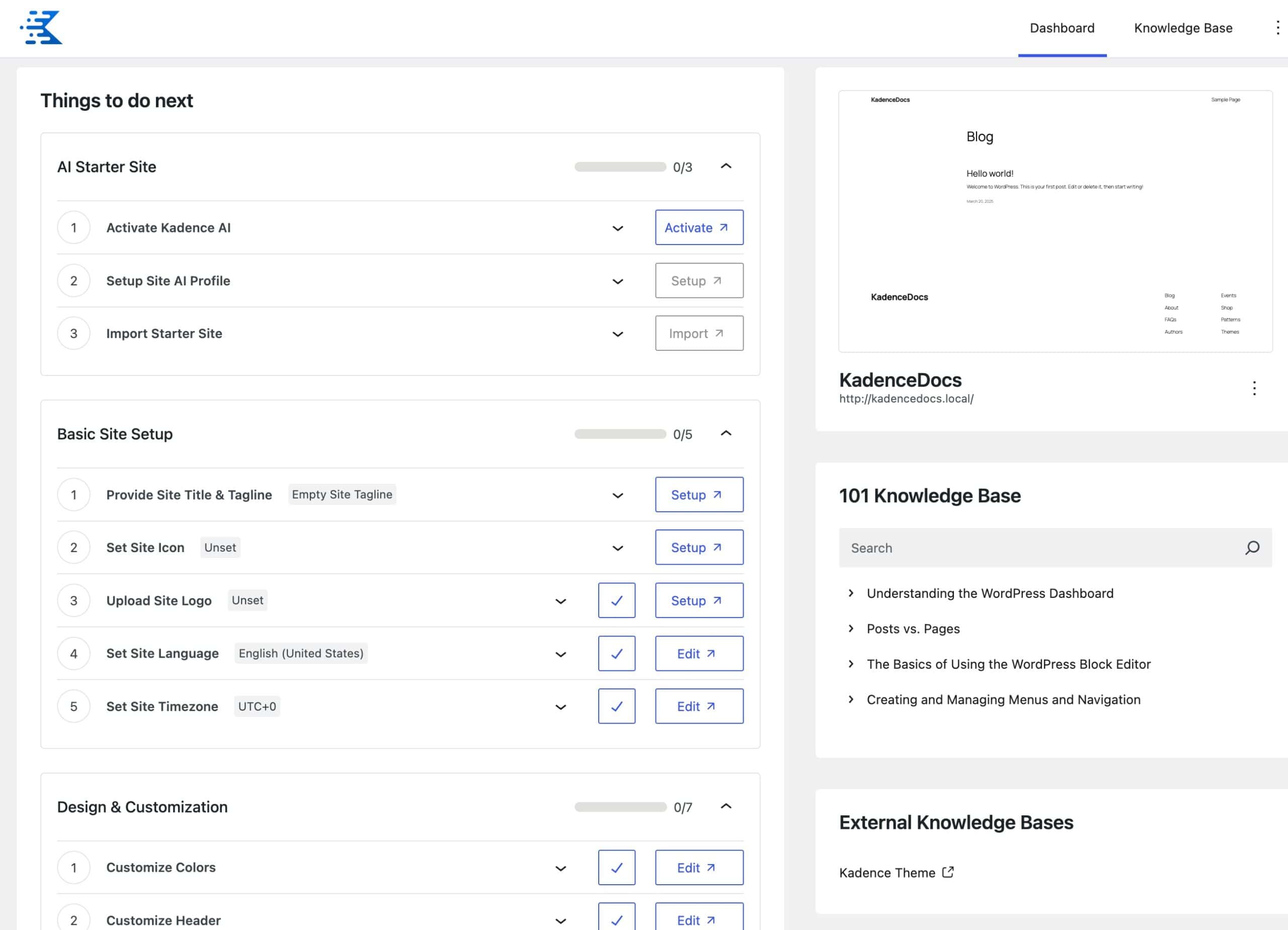
To learn more about what Site Assist offers and for a general walkthrough, refer to the official document: Kadence Site Assist ⧉.
Importing a Starter Template
Kadence Starter Templates includes the option to import Starter Templates using a wizard that guides a site creator through choosing and importing a template.
- From the WordPress Dashboard, go to Site Assist > Starter Templates. You will be presented with the option to use AI Starter Templates or Pre-Designed Starter Templates.
(Learn more about each template type below.) - Browse the library and preview the designs. Once a template is chosen, click it to start the setup.
- During the startup, you will be guided through selecting a color palette, fonts, and even AI-generated content and images. (If applicable.)
- Click Finish and Launch to bring the new site to life.
You can learn more about each Starter Template type and the processes to install them below.
AI Starter Templates
AI Powered Starter Templates are professionally designed templates that use AI to automatically generate content and images based on a site creator’s business and brand.
AI Powered Starter Templates use AI Content, which is set up through the Kadence AI Activation Process ⧉. This is a process where Kadence AI allows you to input content, such as your business name, business details, and goals. From there, AI can help generate texts and grab copyright-free images to insert into AI Templates. This gives you a head start and helps with the hassle of populating relevant sections of a website with business-specific texts and images.
From the Dashboard -> Site Assist -> Starter Templates page, click on the Kadence AI Powered Starter Templates button to get started.

This will prompt you to connect to your Kadence account. Free Kadence users receive 250 free AI credits, while premium users receive more. (Learn more here.)
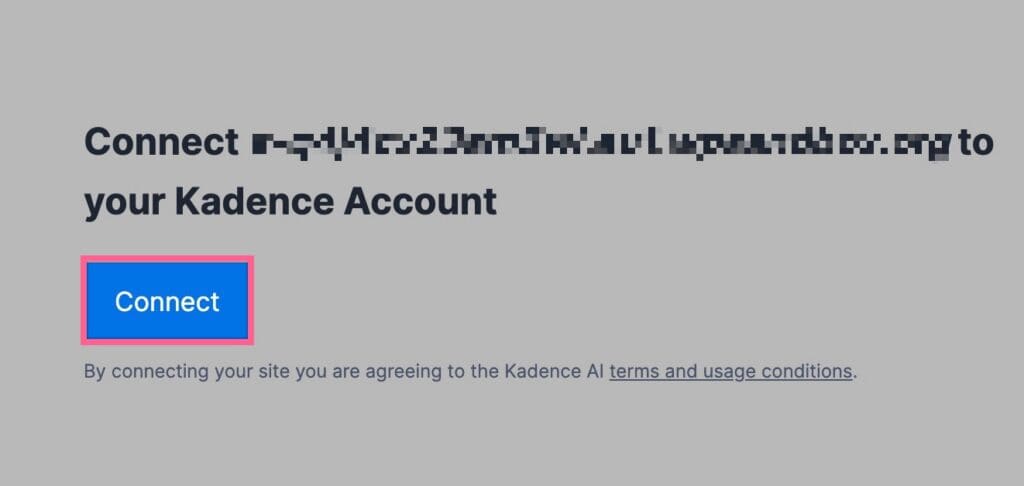
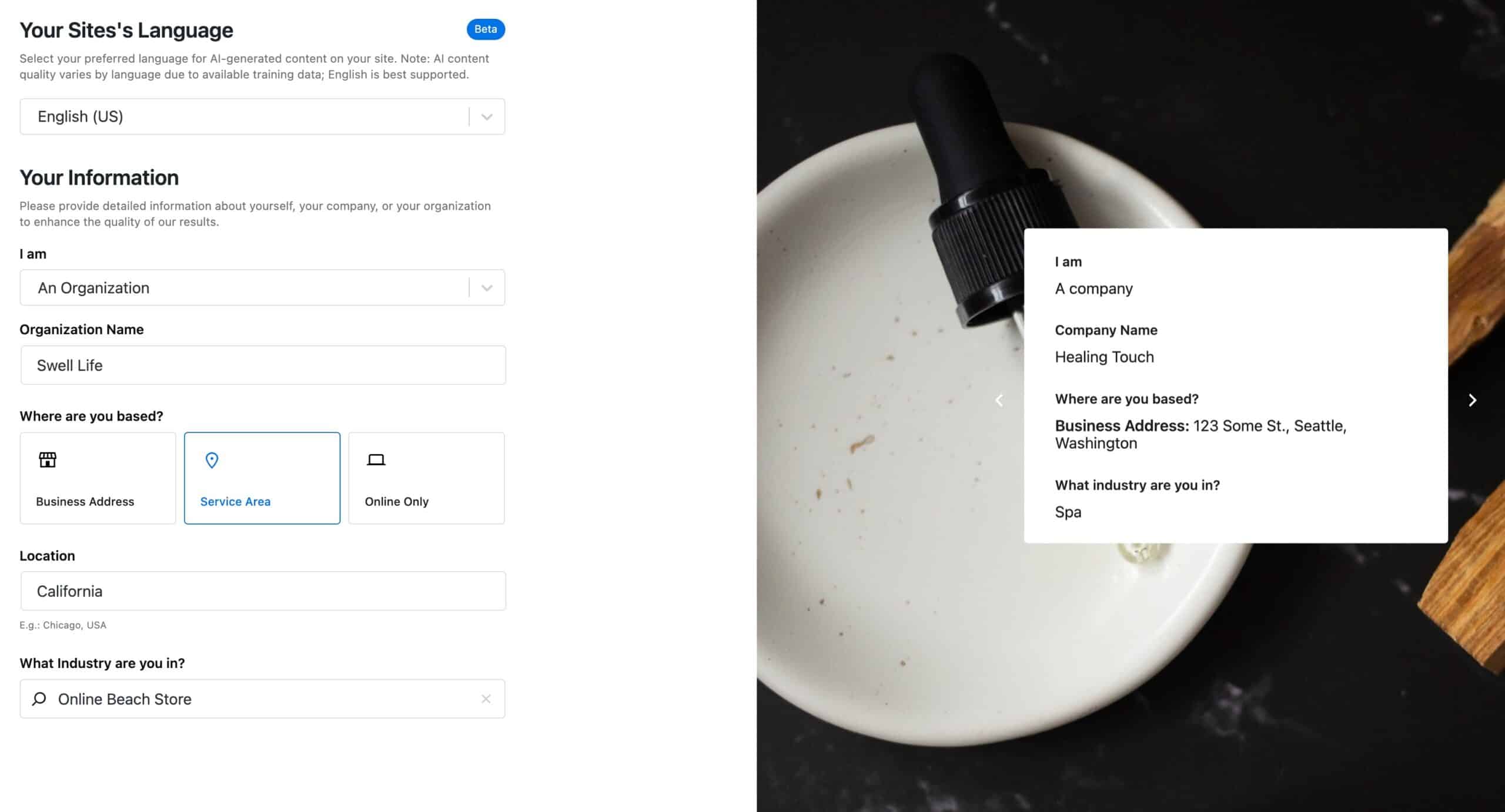
Once you are connected to your Kadence account, you will be able to begin filling out AI details for your website. The first slide goes over the standard information needed to understand the website context.
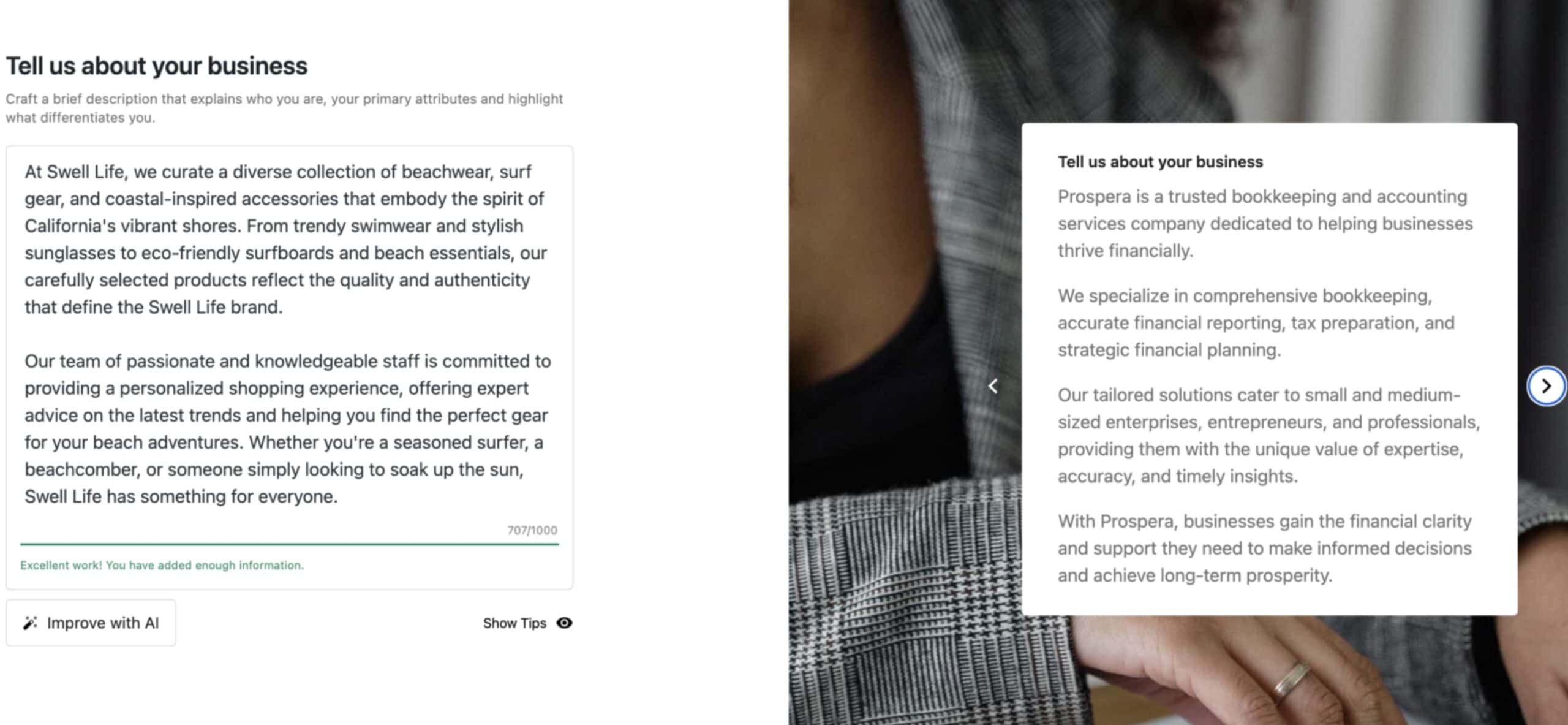
The next step is to explain your business and important details.
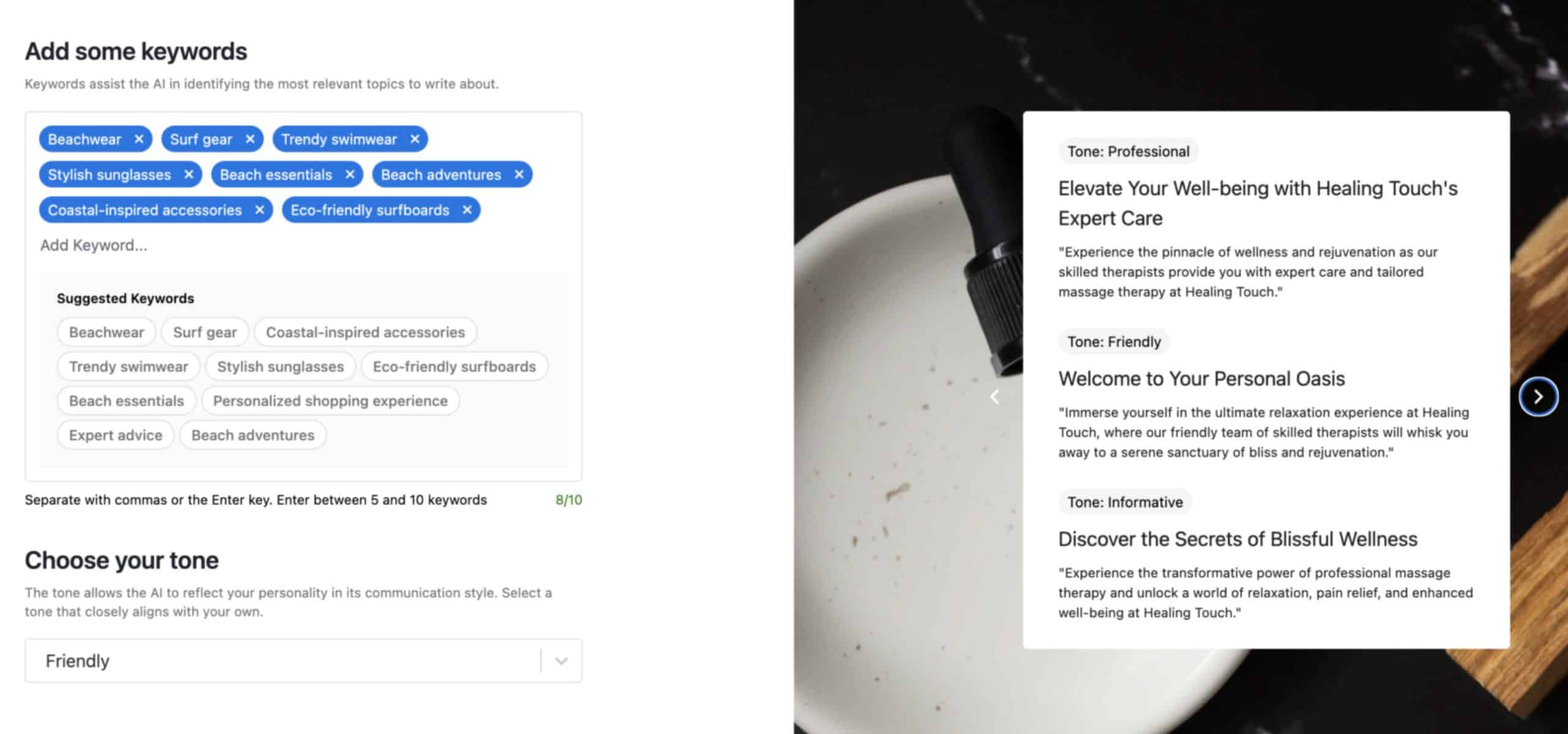
Then, AI will help find Keywords you can add to the website, or you can enter your own. You can also control the tone of your website to control which tone of voice the texts will use.
Kadence AI Templates feature AI-grabbed images. These images come from Pexels and are pre-selected by AI according to your website topic. You can also modify these images with your own images or change them out as needed.
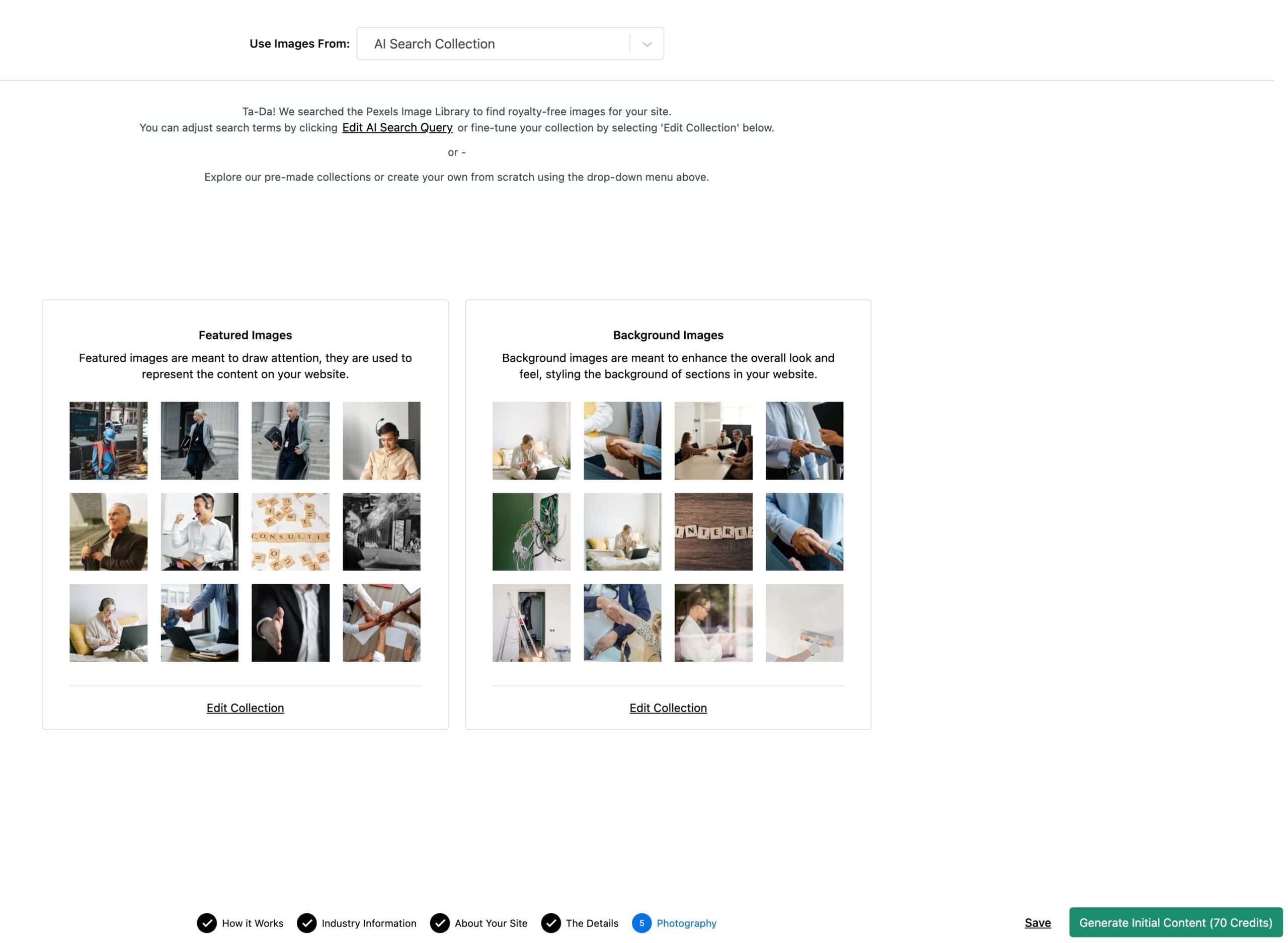
Once finished, your AI Content can be generated. This will cost around 70 credits. Once you have fully generated the initial content, the Kadence AI Starter Templates library will shift and use your AI content instead of placeholder texts. From there, you can select and import a full AI Starter Template matching your AI contents.
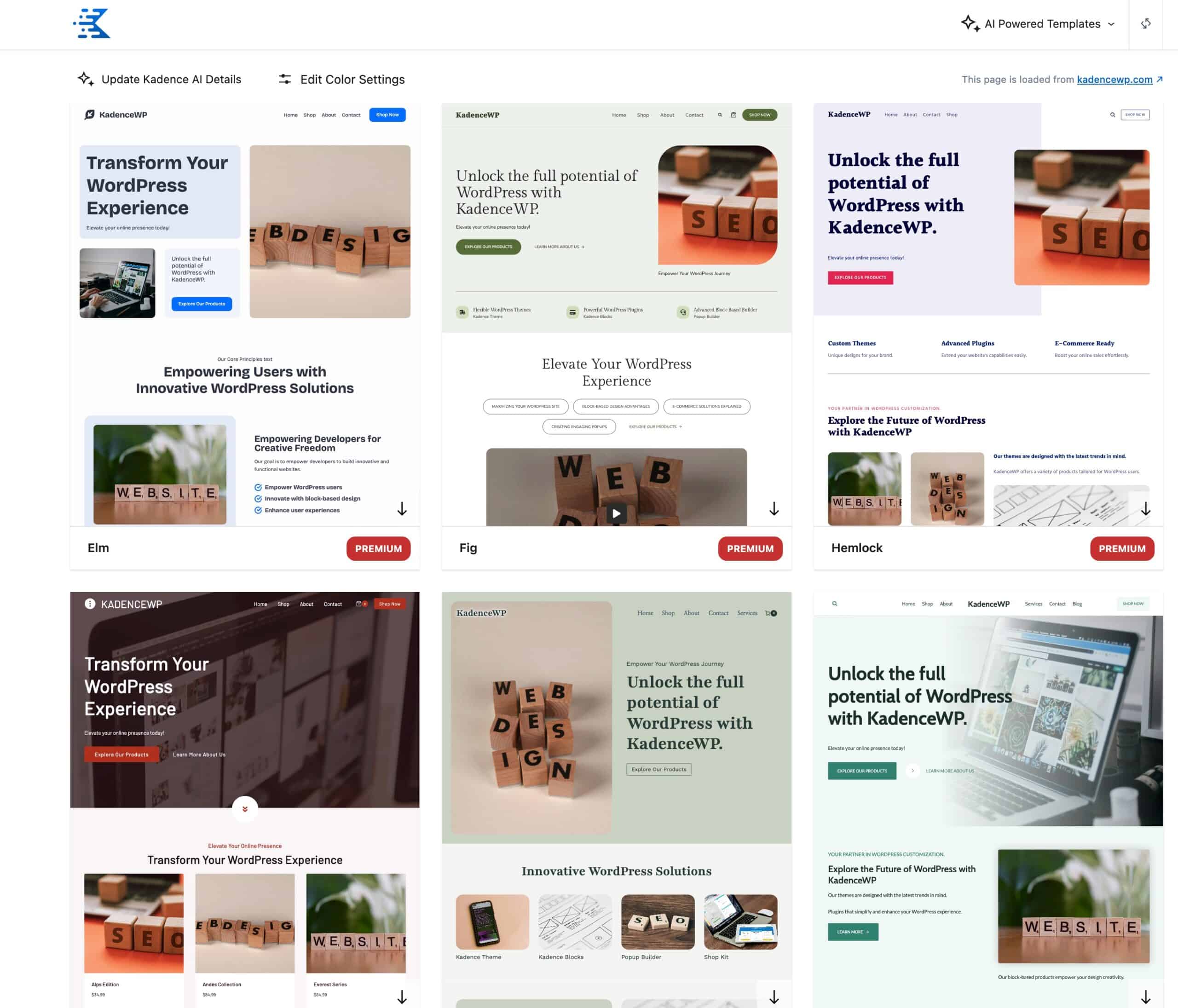
You can select a template to begin the importation process, which will overview the website colors, fonts, and plugins that will be imported during the process.
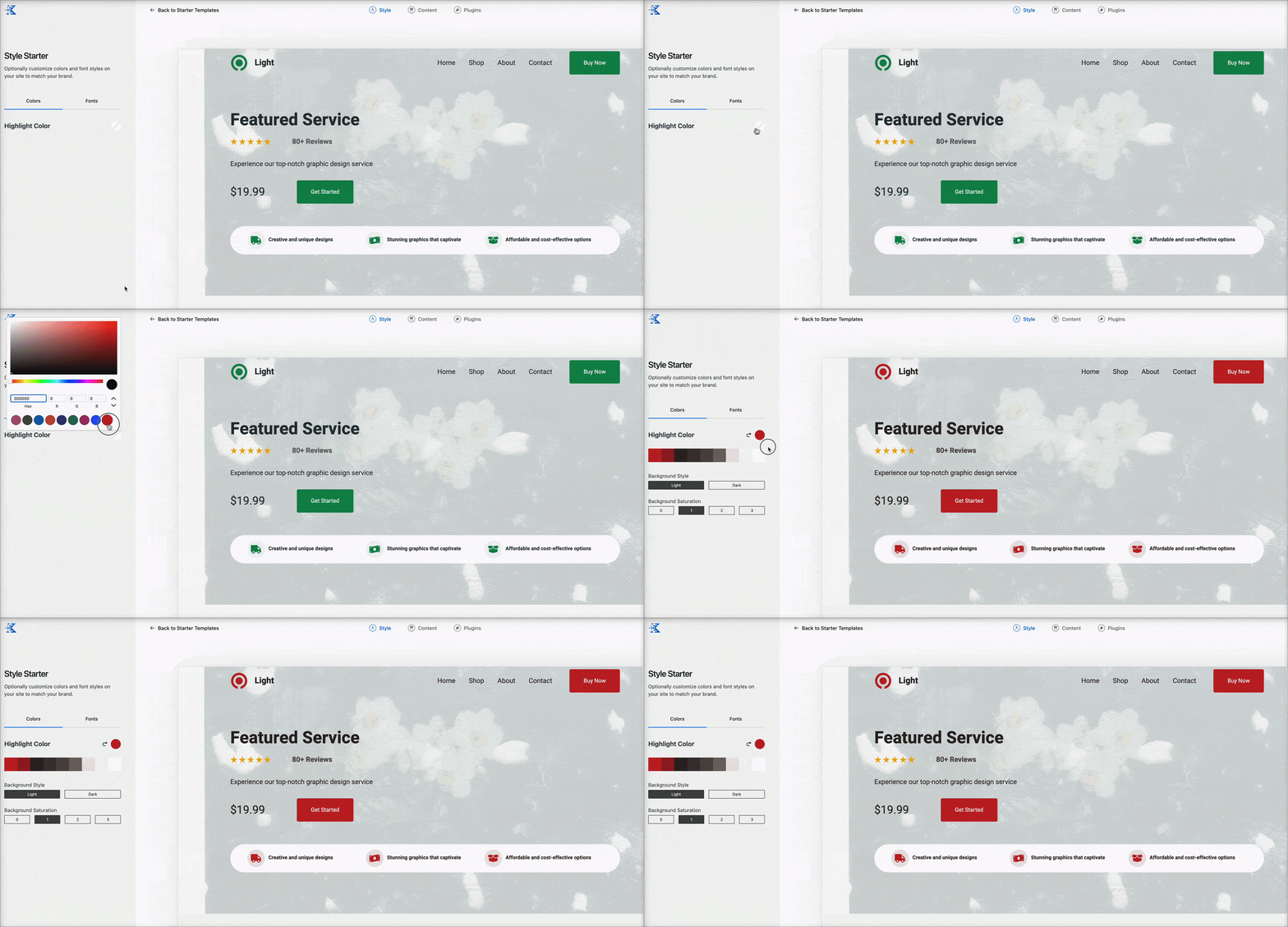
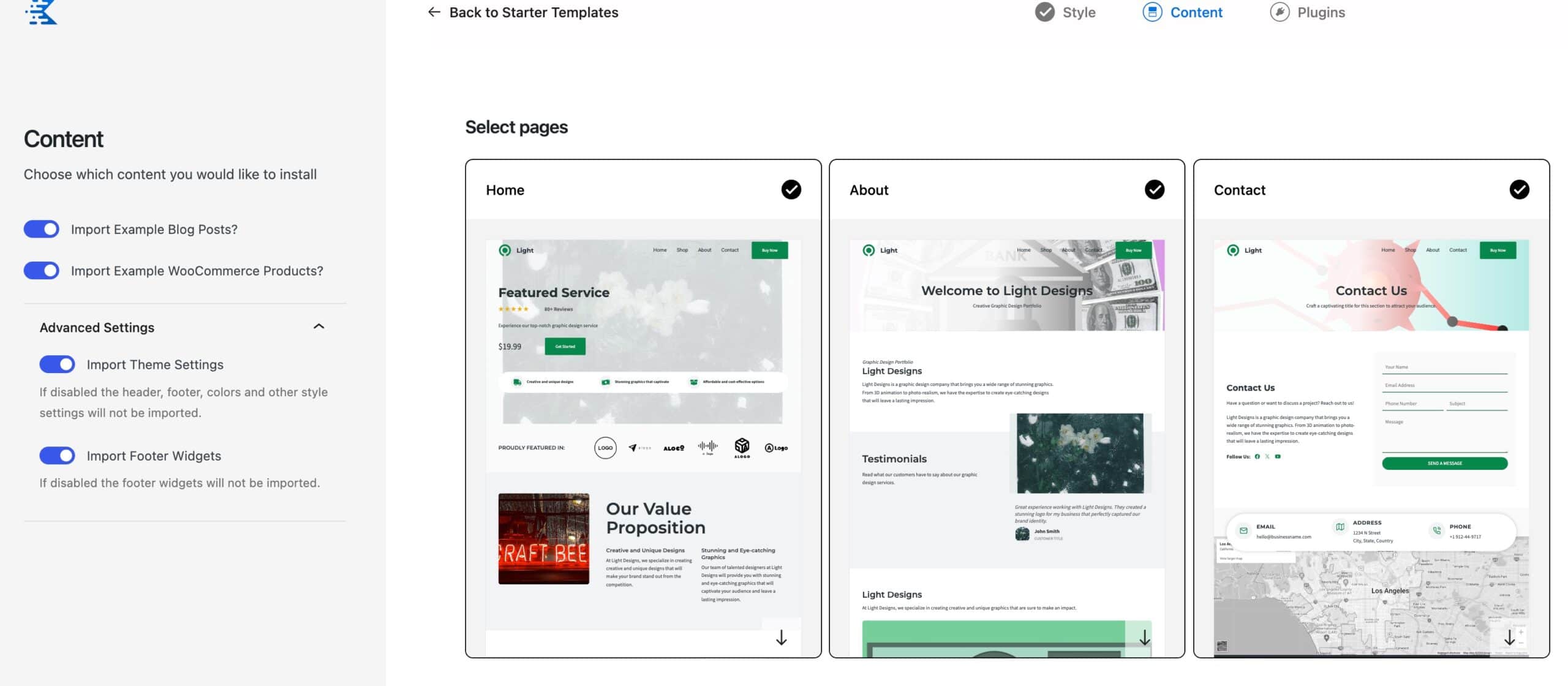
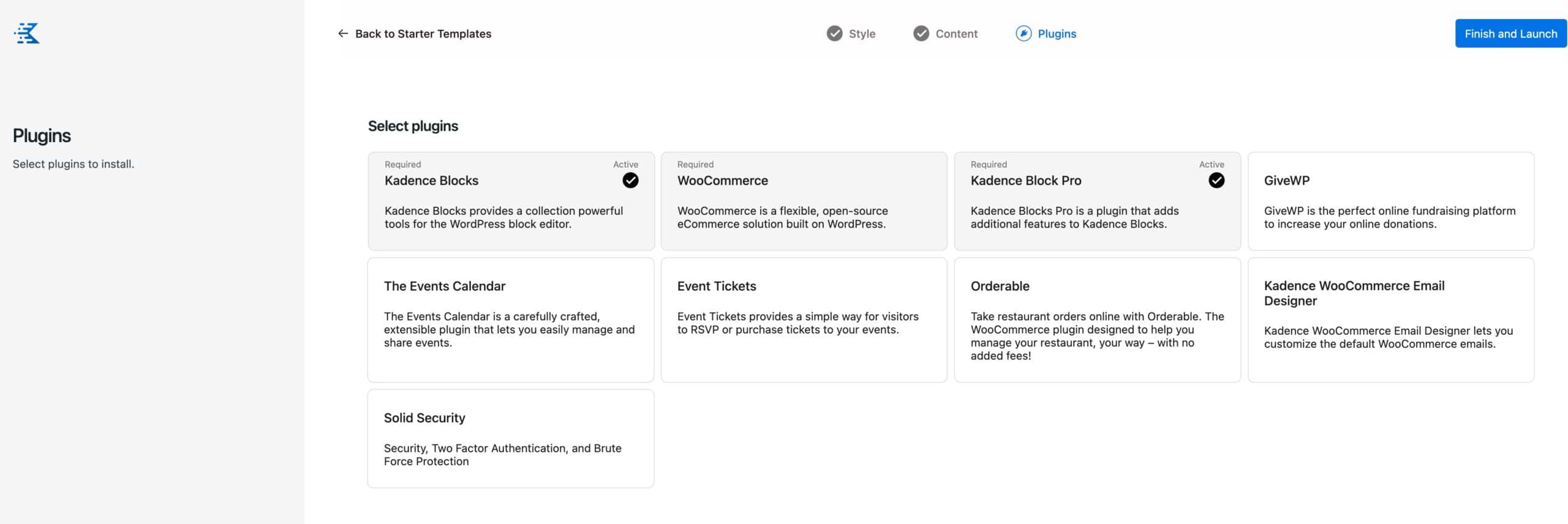
Once finished, the template can be imported and used on your WordPress website.
For a full overview of how AI-Powered Starter Templates work, a user can refer to the official document: Kadence AI-Powered Starter Templates ⧉.
Pre-Designed Starter Templates
Pre-Designed Starter Templates are a collection of pre-designed, professionally built sites that can be imported with a single click.
From the Dashboard -> Site Assist -> Starter Templates page, click on the Use a Classic Starter Template button to get started.

From here, you will be able to browse and view multiple Kadence Pre-Design Starter Templates. These templates have niche companies applied to them, which can be modified and customized 100%, giving you a real work scenario to go off of.
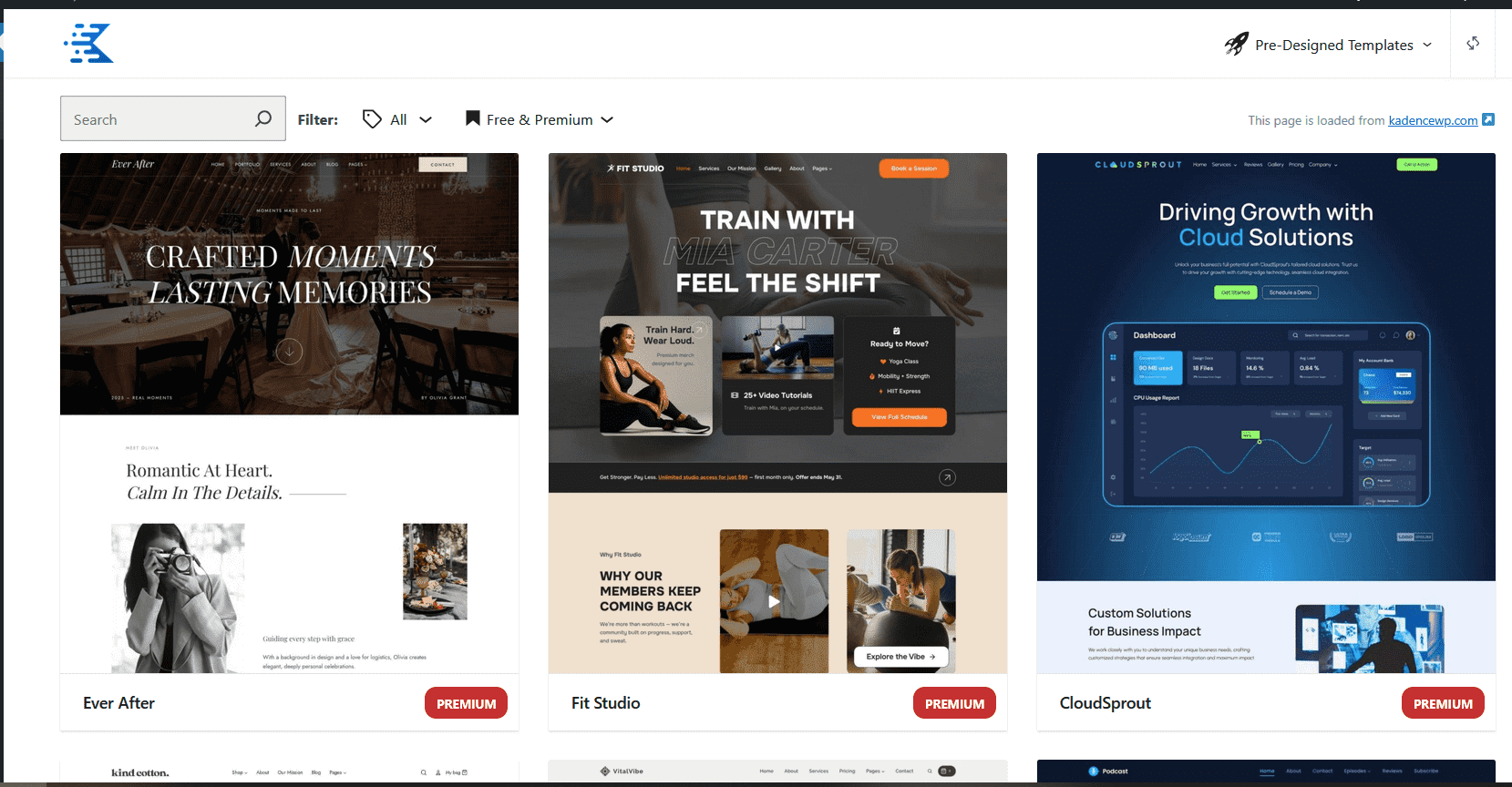
Once you find a Starter Template, you can use the style starter to set up the template colors, fonts, and plugins.

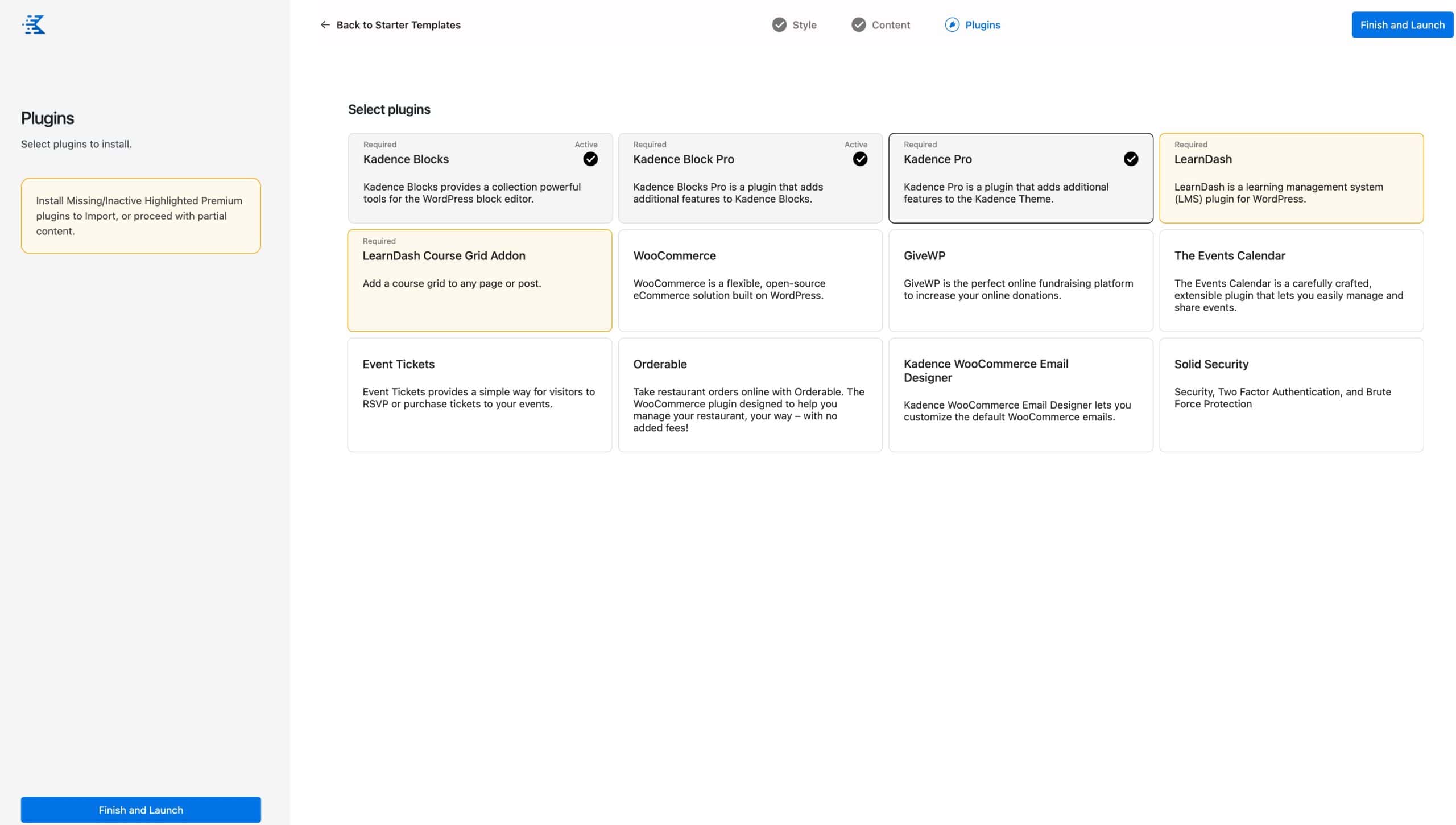
Once everything is set up, you can import the professional-looking website in minutes.
To learn more about using the Classic Starter Templates, a user can refer to the official document: Getting Started with a Pre-Designed Starter Template ⧉.
Can’t find what you’re looking for, or running into technical issues? We’re here to help!

