
The Kadence Express Plan provides a suite of premium tools that expand creative options and help users build a professional website more efficiently. This guide explains how to install and use the key features included in the Express Plan, such as the Creative Kit, Kadence Custom Fonts, Animate on Scroll, and Kadence CAPTCHA.
The Express Plan is one of the premium plans offered by Kadence. Learn more ⧉.
Before You Begin
The Express Plan builds directly on the free Kadence products. Before installing the premium features, you should have the free Kadence Theme, the free Kadence Blocks plugin, and the free Kadence Starter Templates plugin already installed and activated.
A helpful guide is available for users who have not yet installed the free products: Getting Started with Free Kadence Products ⧉.
Understanding How to Use the Resource Hub
This guide highlights the key tools and features included in the Kadence Express Plan, though it doesn’t cover every feature in full detail. Every Kadence product offers its own powerful options and workflows, so knowing where to find more information is key.
The best way to expand your knowledge beyond this guide is to use the Kadence Resource Hub. Express Plan users can focus on the Kadence General Knowledge Base, where most Express Plan products are documented under the Additional Plugins category.
The free Kadence Blocks plugin has documentation in the Kadence Blocks Knowledge Base ⧉, and the Kadence Theme is covered in the Kadence Theme Knowledge Base ⧉. Together, these resources help you unlock the full potential of both our free and premium features.
Here’s how to make the most of it:
- Browse by category – Explore categories within Knowledge Bases to find specific documents or guides.
- Use the search bar – Quickly locate setup guides, troubleshooting tips, and feature documentation by typing in keywords.
- Stay up to date – New documentation and feature updates are added regularly to help you get the most out of your Express Plan tools.
By learning how to navigate the Resource Hub and Knowledge Base, you’ll be able to find answers faster and get the most out of your Express Plan. Whether you’re installing the Creative Kit, adding custom fonts, using Animate on Scroll, or configuring Kadence CAPTCHA, the Knowledge Base provides step-by-step guidance every step of the way.
Kadence Creative Kit
A key feature of the Express Plan is the Kadence Creative Kit plugin. Installing this single plugin unlocks access to a library of premium starter templates and pre-designed patterns within the Design Library, providing a professional starting point and advanced design options.
Installing the Creative Kit Plugin
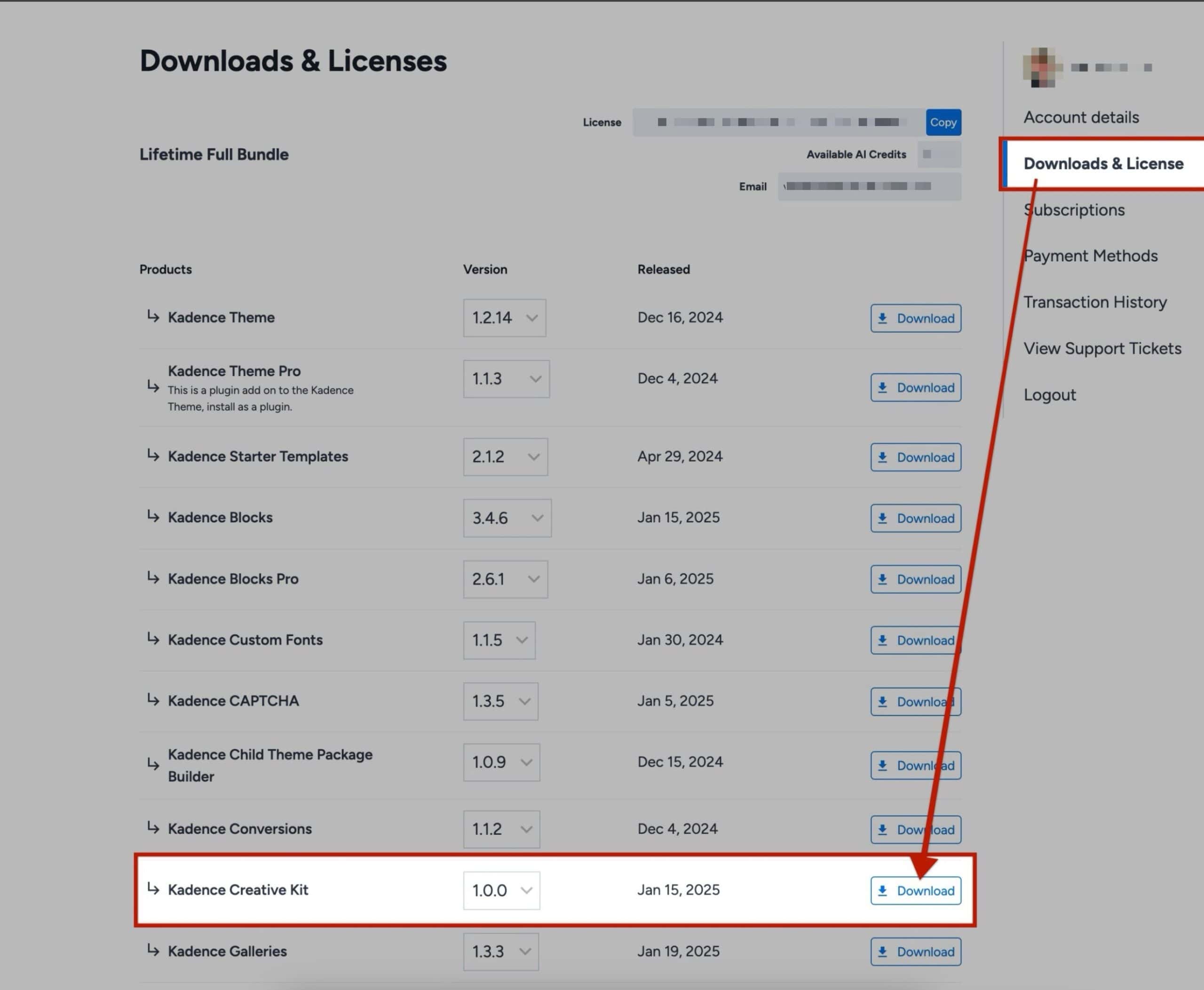
- Log in to the Kadence account and go to the Downloads section.
- Locate the Kadence Creative Kit plugin and download the zip file to a computer.
- In the WordPress Dashboard, navigate to Plugins → Add New Plugin.
- Click the Upload Plugin button at the top of the page.
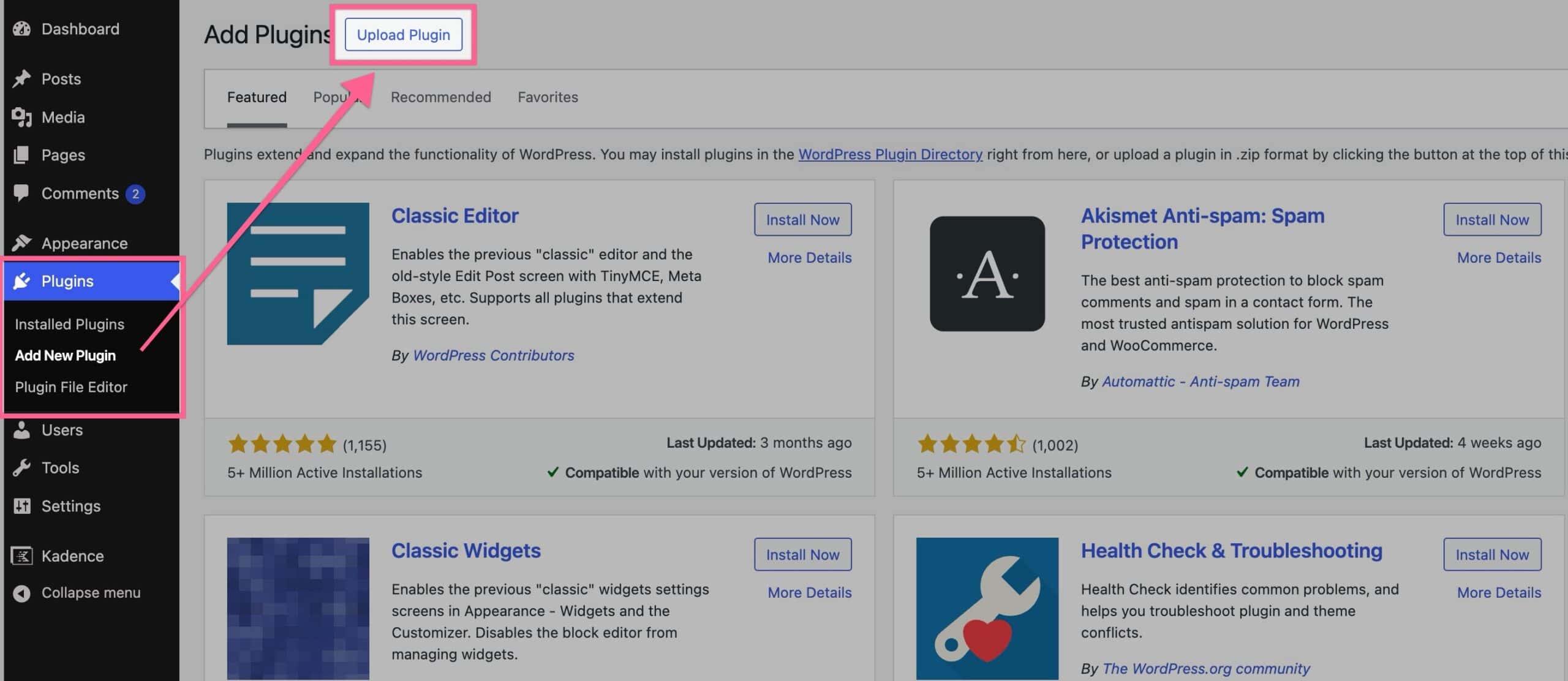
- Choose the zip file and click Install Now.
- After the installation is complete, click Activate Plugin. Once finished, the plugin is ready to be used.
Now, you have unlocked Premium Starter Template and Premium Design Library items on your website.
For more details on the Kadence Creative Kit plugin, view the official document here ⧉.
Using Premium Starter Templates
Once the Kadence Creative Kit plugin is installed and activated, you can import a premium starter template directly from the WordPress Dashboard.
- Navigate to Site Assist → Starter Templates. You can either use AI-Powered Starter Templates or a Pre-Designed Starter Template.

- For a full overview of how AI-Powered Starter Templates work, refer to the official document: Kadence AI-Powered Starter Templates ⧉.
- To learn more about using the Classic/Pre-Designed Starter Templates, refer to the official document: Getting Started with a Pre-Designed Starter Template ⧉.
- Browse the template library. Premium templates are marked with a “Premium” label. The Express Plan unlocks premium templates for both AI-Powered and Pre-Designed Starter Templates.
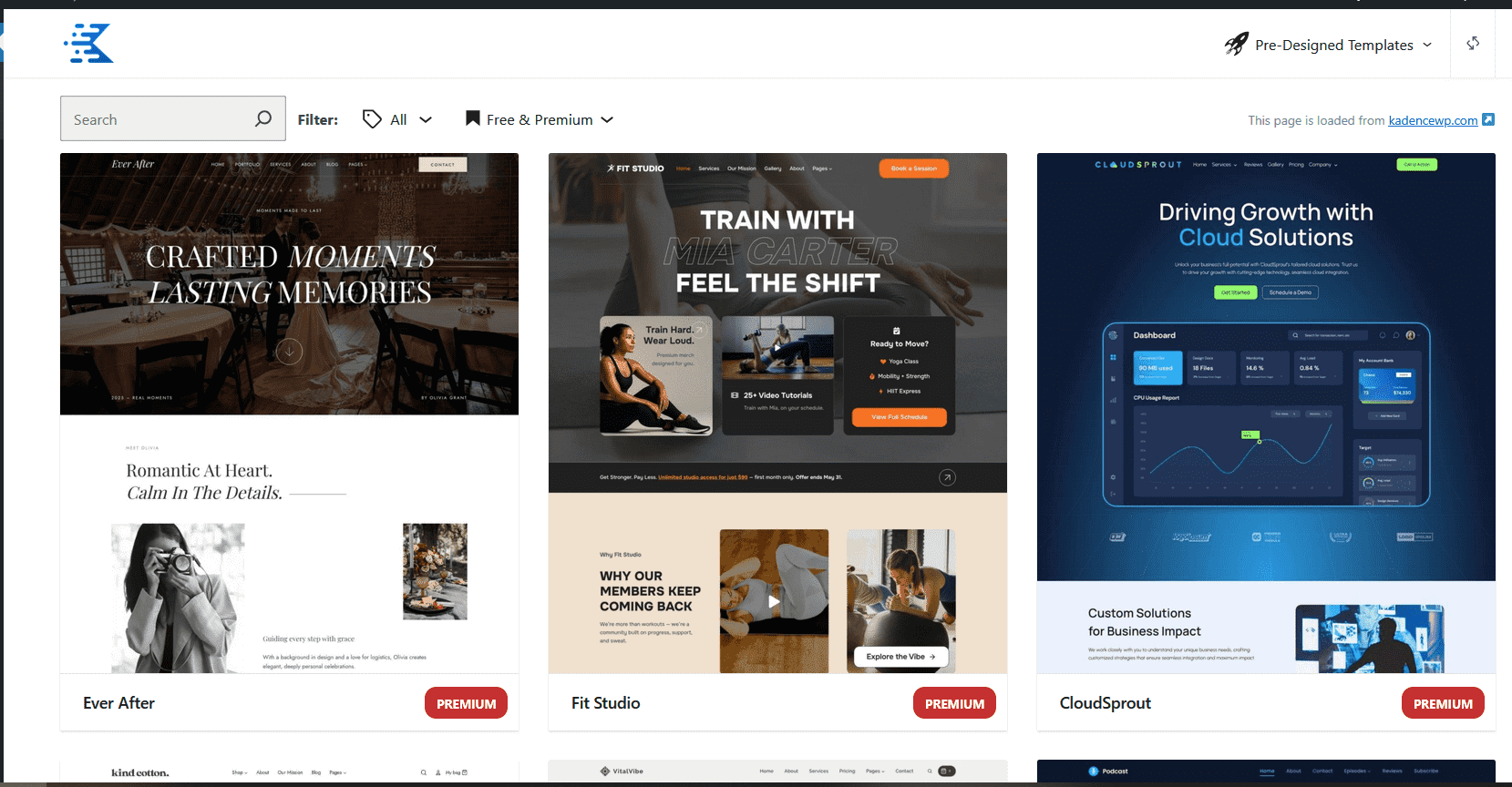
- Click on a chosen premium template and follow the wizard to import it, just as with a free template.

Using the Premium Design Library
In addition to full site templates, Kadence Creative Kit also provides a premium library of pre-designed patterns and pages that can be used within any page or post.
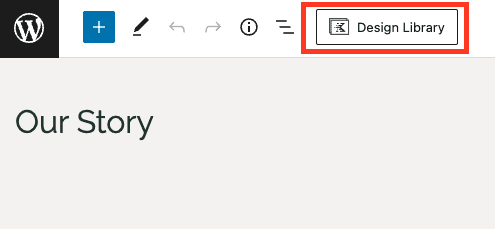
- When editing a page or post, click the Design Library icon in the top-right corner of the editor.
- The Kadence Design Library offers Pre-Designed Patterns along with AI Patterns. At the top left of the Design Library modal, you can find options to switch between By Design or With AI.
- AI Design Library Items require that you first activate Kadence AI ⧉ and provide the website with context. Learn more about using the AI Design Library ⧉.
- Pre-designed Library Items are ready to use out of the box. Learn more about using the Pre-designed Design Library ⧉.
- Browse the selection of free and premium patterns. The premium patterns are marked as “Premium”.
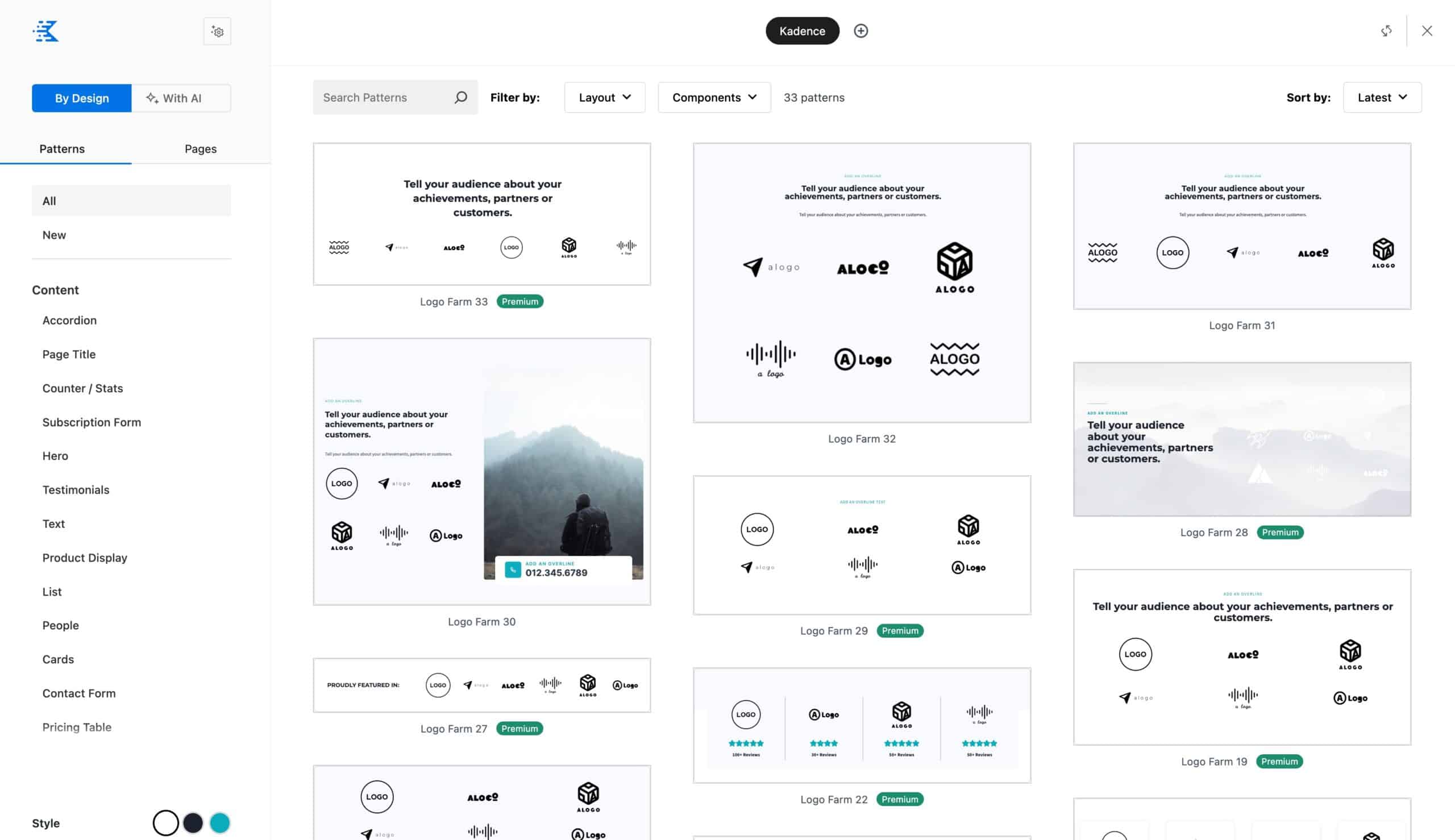
- You can navigate through Patterns or Pages. Each selection offers categories and filtering options to help find what you need.
- Click on a desired pattern to add it to the page and customize it as needed.
Animate On Scroll (Kadence Blocks feature)
The Express Plan unlocks Animate On Scroll (AOS) within the free Kadence Blocks plugin. This allows you to add animations to your website, helping enhance/guide the user experience.
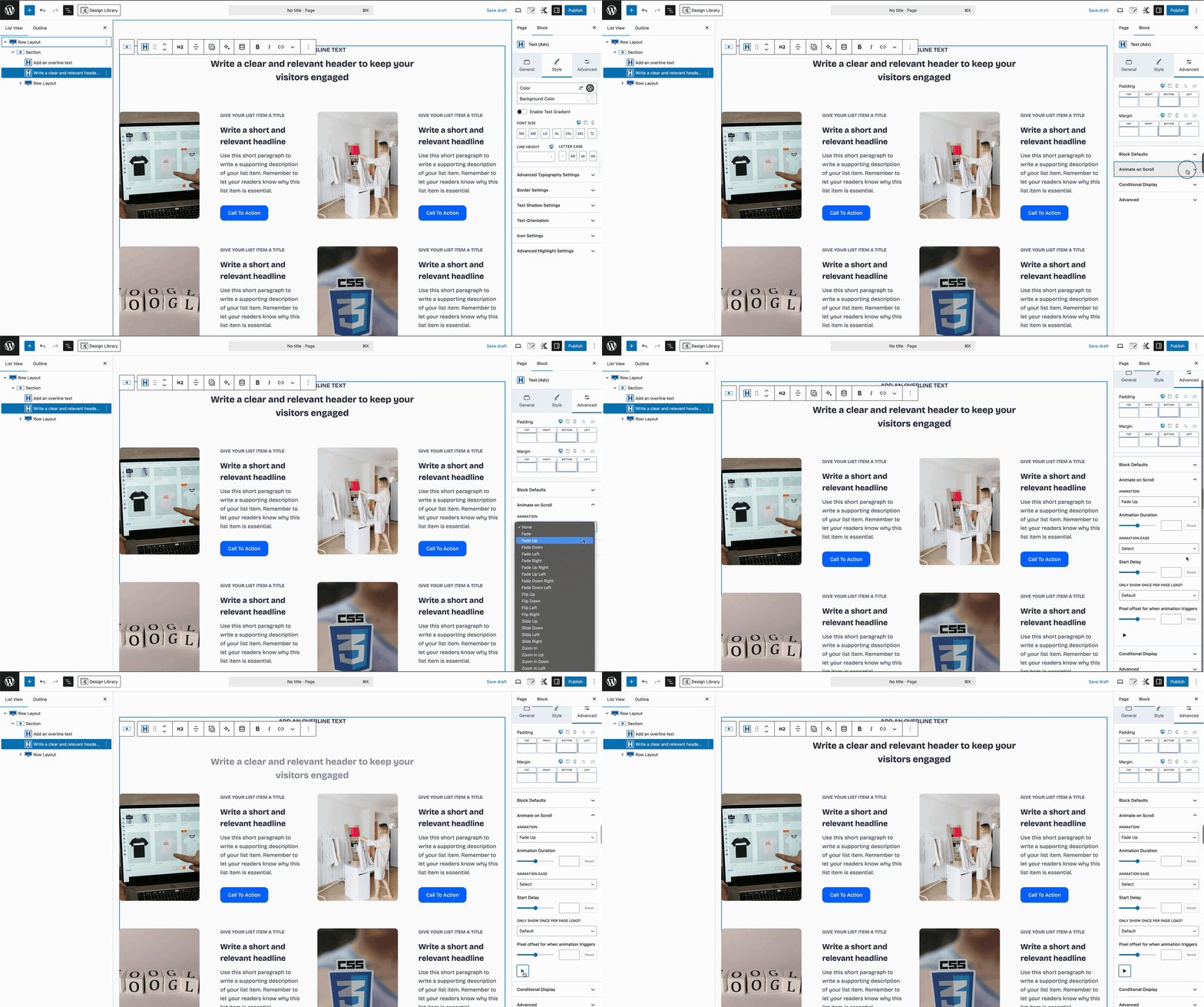
Certain Kadence Blocks support AOS. For a full overview of which blocks support this feature and how to use this feature, refer to the official document here ⧉.
Kadence Custom Fonts
The Kadence Theme and plugins offer native built-in support for Google Fonts. However, you may have a non-Google font that you wish to use. In this case, Kadence Custom Fonts is a plugin you want to use. The Kadence Custom Fonts plugin allows users to upload and use any font file on a website, providing complete control over typography. This works for manually uploading a file or connecting to Adobe for Adobe TypeKit Fonts.
Installing and Using the Plugin
- From a Kadence account, download the Kadence Custom Fonts plugin from your Kadence dashboard.

- Install it on the site using the standard upload method (Plugins → Add New Plugin → Upload Plugin). Once finished, activate the plugin.
- Navigate to the Dashboard → Appearance → Kadence → Custom Fonts page to upload font files. Click on the Add New button to add a new font. This will bring you to the font importer, where you can fill out font-related details and upload font files.
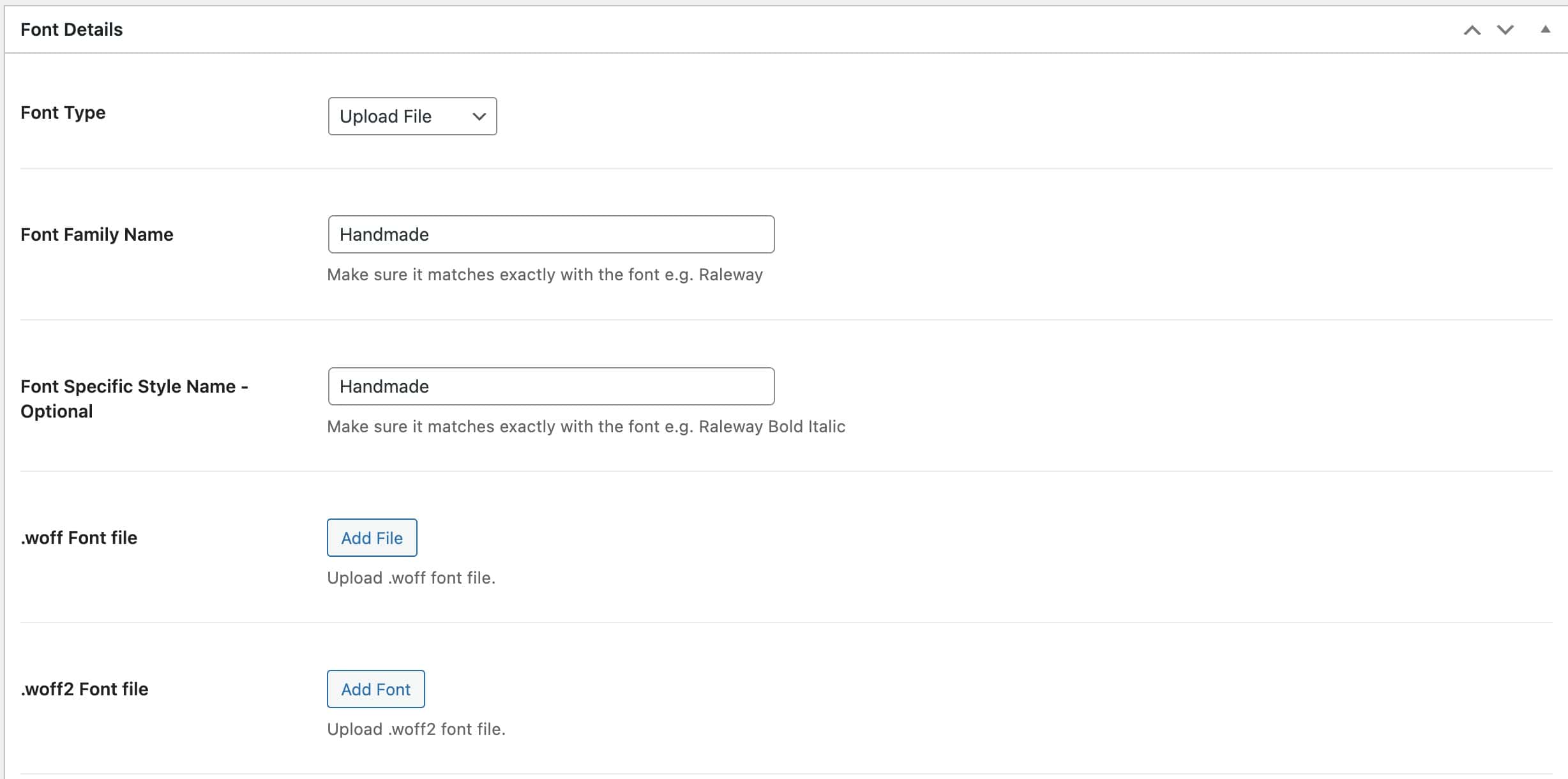
- From the Font Type dropdown, you can also use Adobe Type Kit Fonts, if preferred. Learn more ⧉.
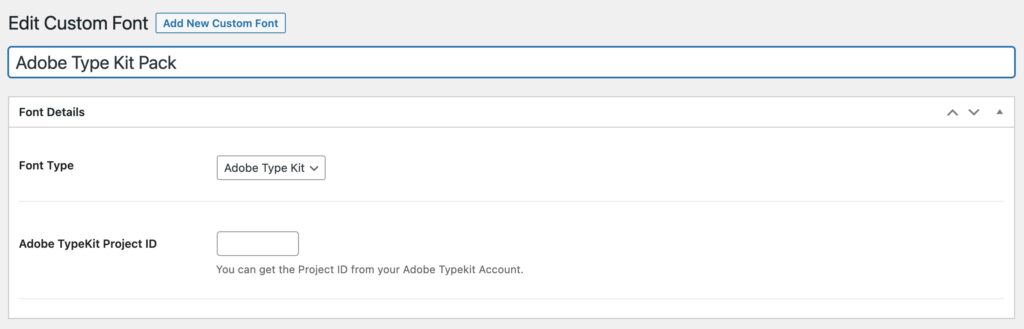
- From the Font Type dropdown, you can also use Adobe Type Kit Fonts, if preferred. Learn more ⧉.
- Once a font is uploaded, it becomes available in the WordPress Customizer (Appearance → Customize → Colors & Fonts → Typography) and in the block editor’s typography font controls. These fonts also apply to the Kadence Blocks plugin and other areas where you can select fonts with Kadence.
For a complete overview of the Kadence Custom Fonts plugin, view the Kadence Custom Fonts document ⧉.
Kadence CAPTCHA
The Kadence CAPTCHA plugin helps protect your website forms from spam and automated bot submissions. It integrates seamlessly with WordPress and WooCommerce forms, adding a simple verification step for users. This ensures that critical forms, like login, checkout, and other non-block-based forms, stay secure from bad actors.
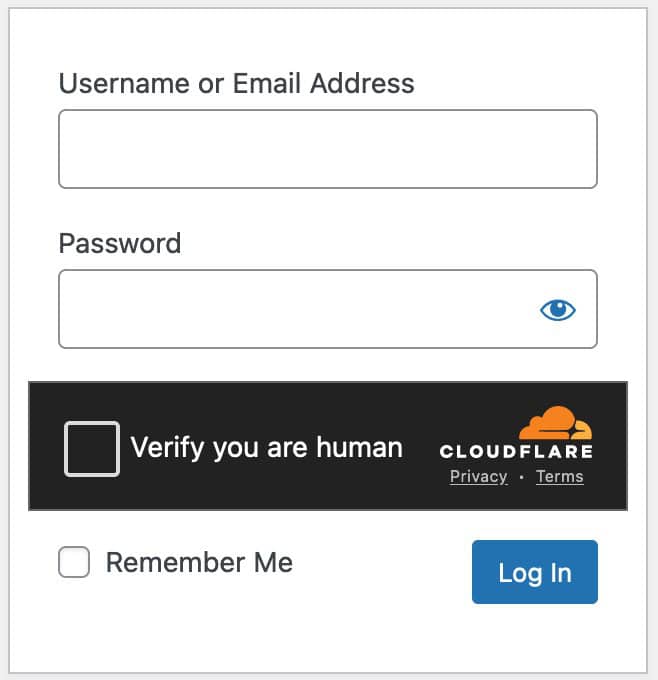
Both the Kadence Form Block (Learn more ⧉) and the Advanced Form Block (Learn more ⧉) also include built-in CAPTCHA options. However, these are configured differently from the CAPTCHA plugin. The Kadence CAPTCHA plugin specifically secures forms that are not created with Kadence Blocks.
Installing and Enabling Kadence CAPTCHA
- From a Kadence account, download the Kadence CAPTCHA plugin. Install and activate it on the WordPress site.
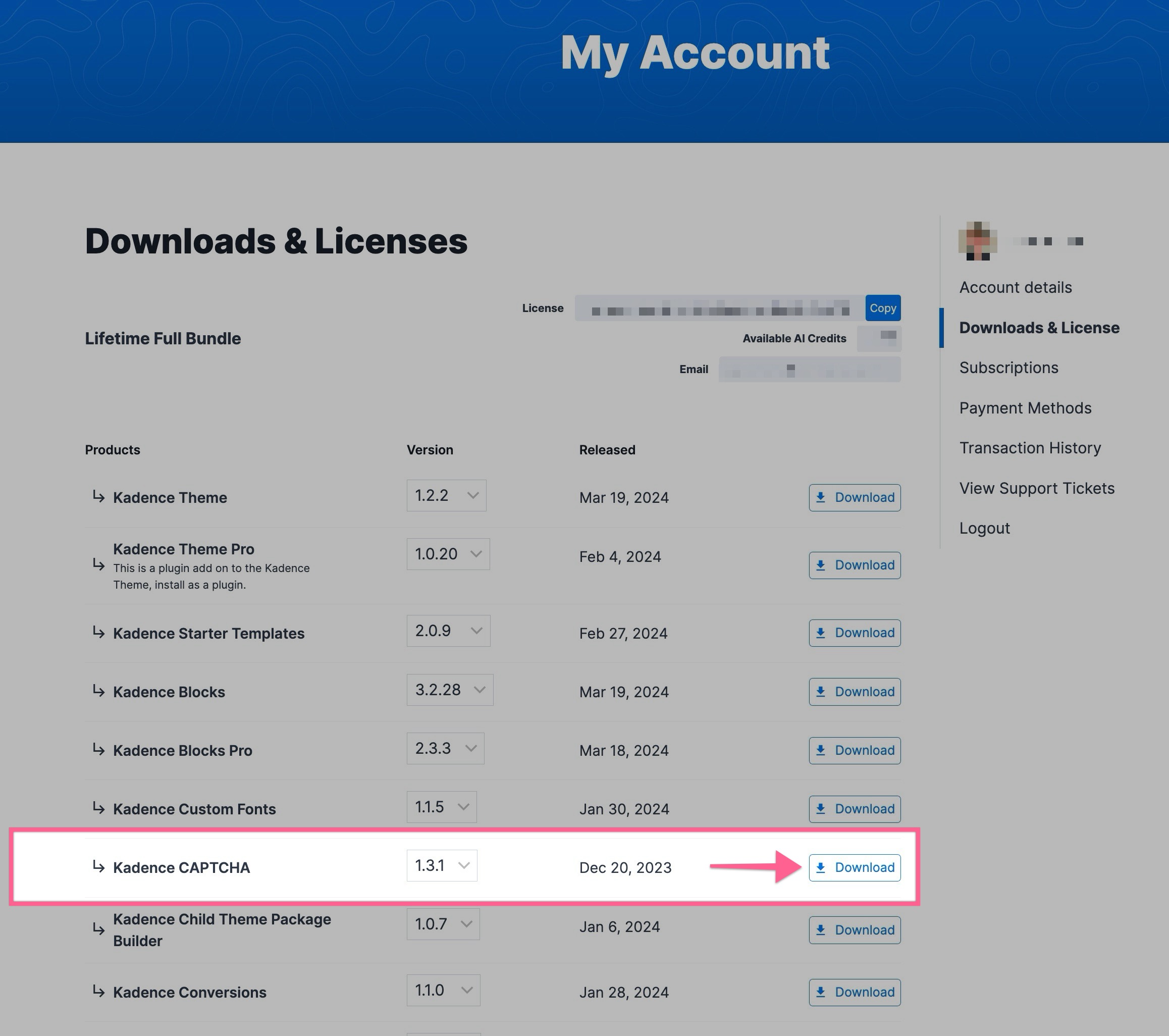
- After installation, go to the WordPress Dashboard and navigate to the Settings → CAPTCHA page to access the CAPTCHA settings.
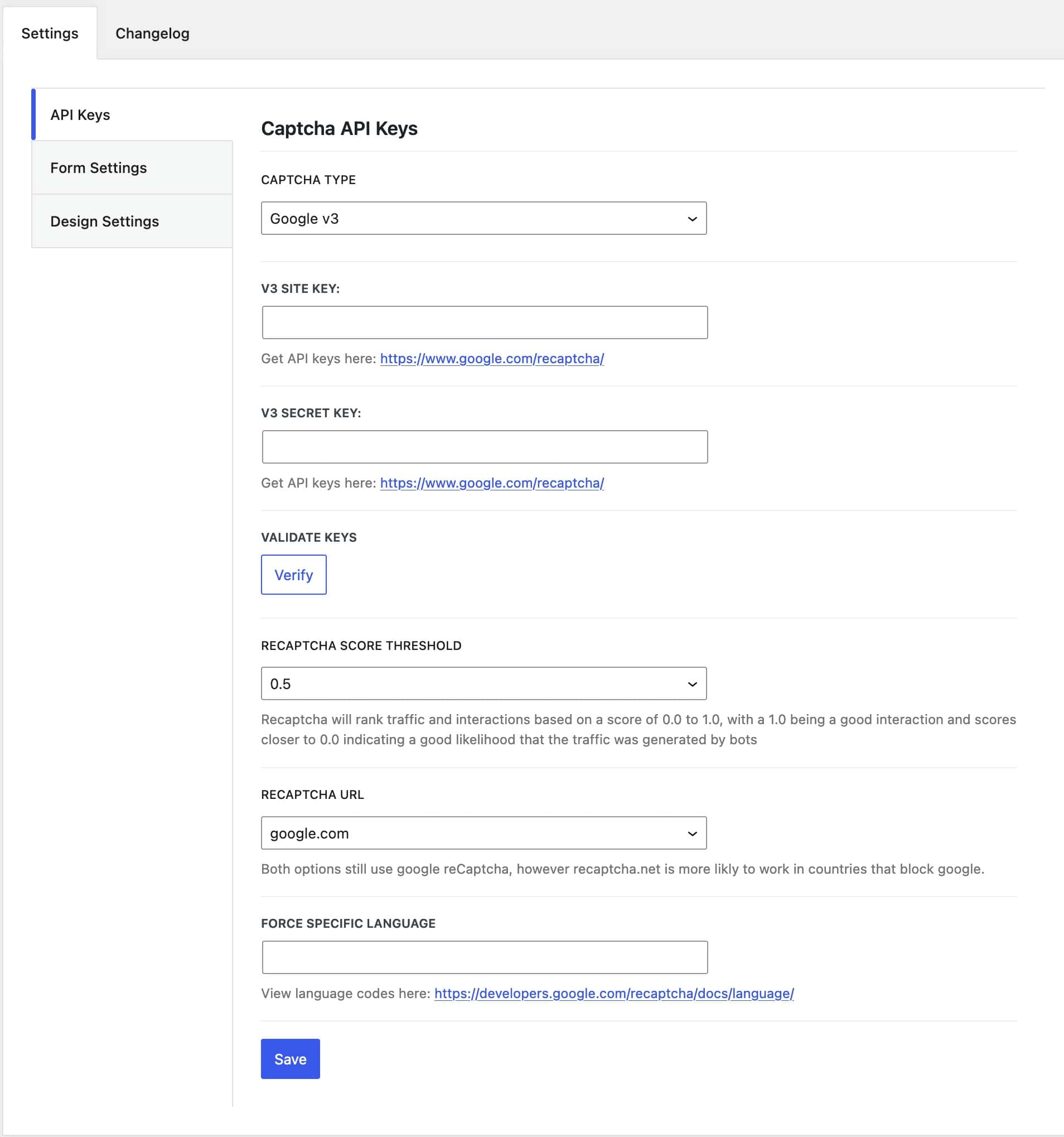
- Google reCAPTCHA – Kadence CAPTCHA supports Google reCAPTCHA v2 and v3. Learn more about setting up Google reCAPTCHA with Kadence ⧉.
- Cloudflare Turnstile – Kadence CAPTCHA also supports Cloudflare Turnstile. Learn more about setting up Cloudflare Turnstile with Kadence ⧉.
- From here, you can enable CAPTCHA for forms and connect to your preferred source API.
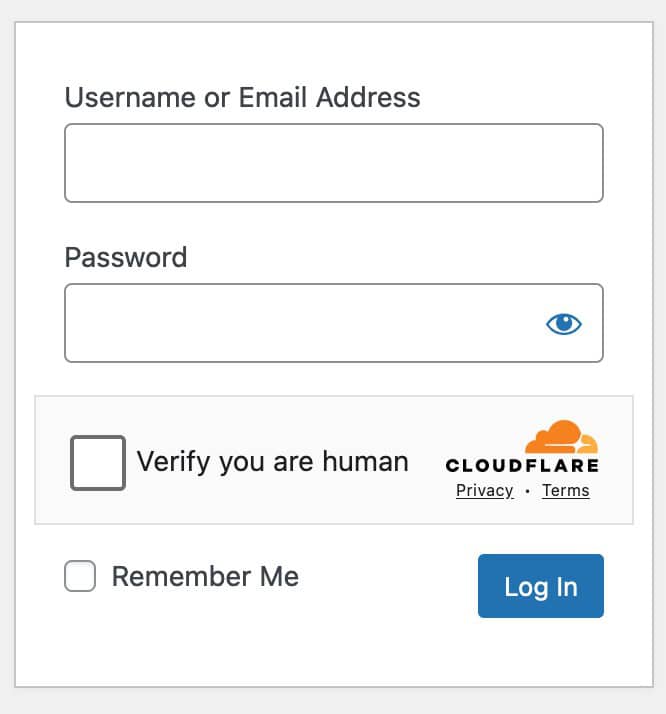
For more details on the Kadence CAPTCHA plugin, view the official Kadence CAPTCHA document ⧉.
Can’t find what you’re looking for, or running into technical issues? We’re here to help!

