Kadence Hooked Elements features the Content Section element type. This is an element type that be inserted anywhere on a page or post or even replace certain sections of your pages. For example you can insert a Table of Contents block after the first paragraph on every post. Or perhaps might want to add to or replace the sidebar on a custom post type page.
Common use cases where a Content Section element might be useful:
- Promotional banners.
- Newsletter signups.
- Display custom field content.
- Design a custom site footer.
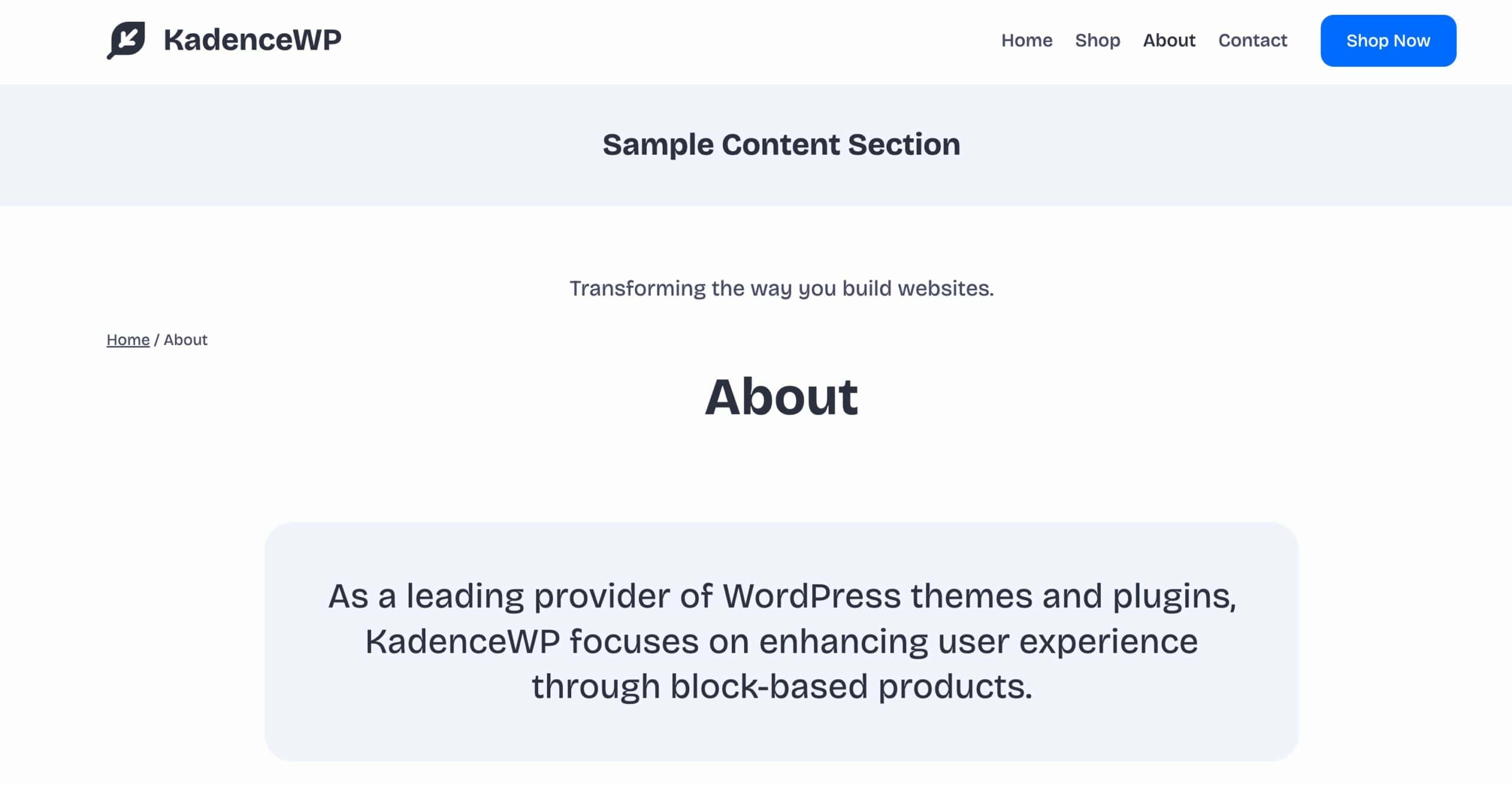
Result:
Unlock the powerful features of Hooked Elements with Kadence Theme Kit Pro.
Getting Started
You must have the Kadence Theme Kit Pro plugin installed, activated, and licensed on your website. (Click here to learn more.) Once Theme Kit Pro is active on the website, enable Hooked Elements from the Dashboard → Appearance → Kadence page.
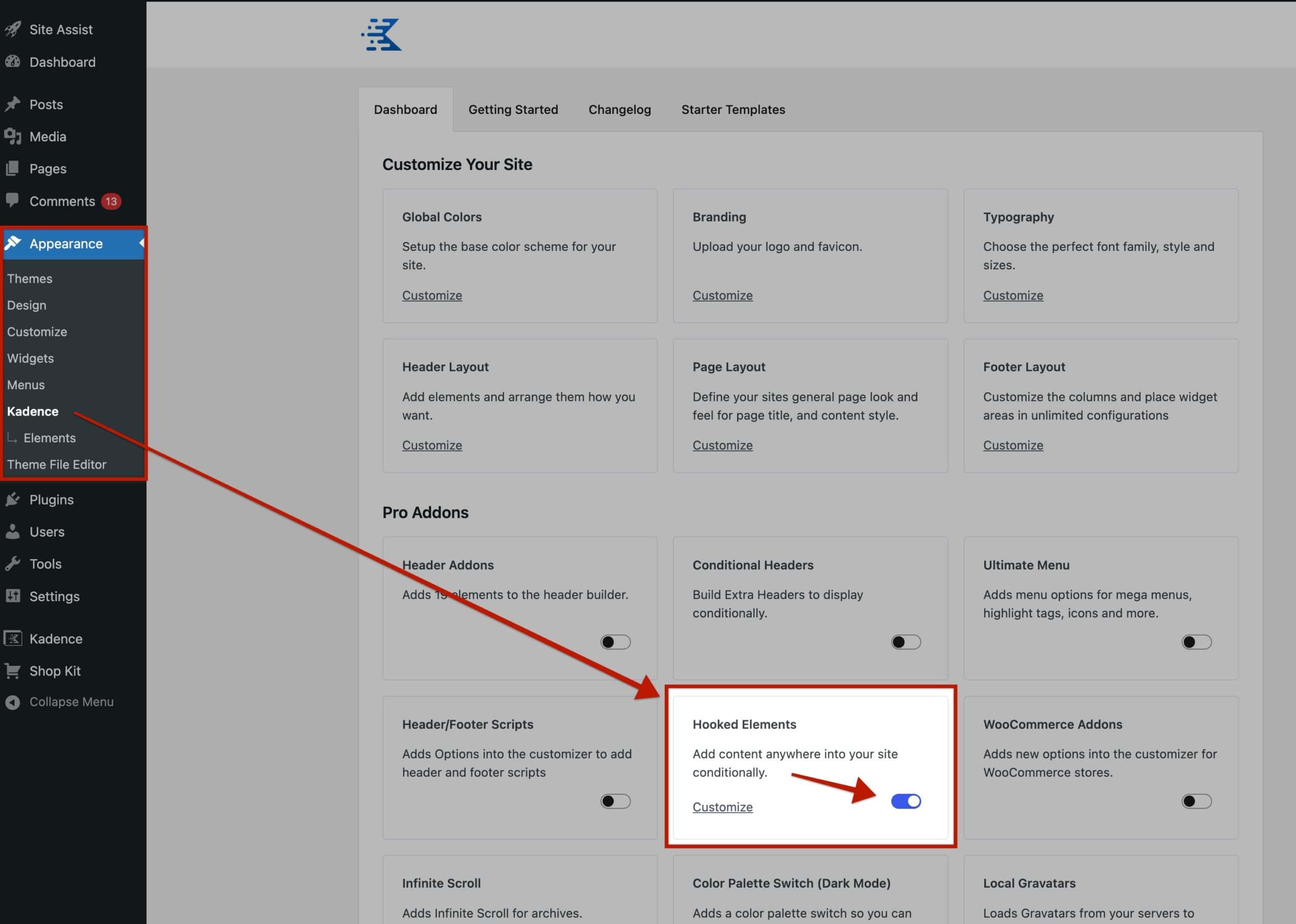
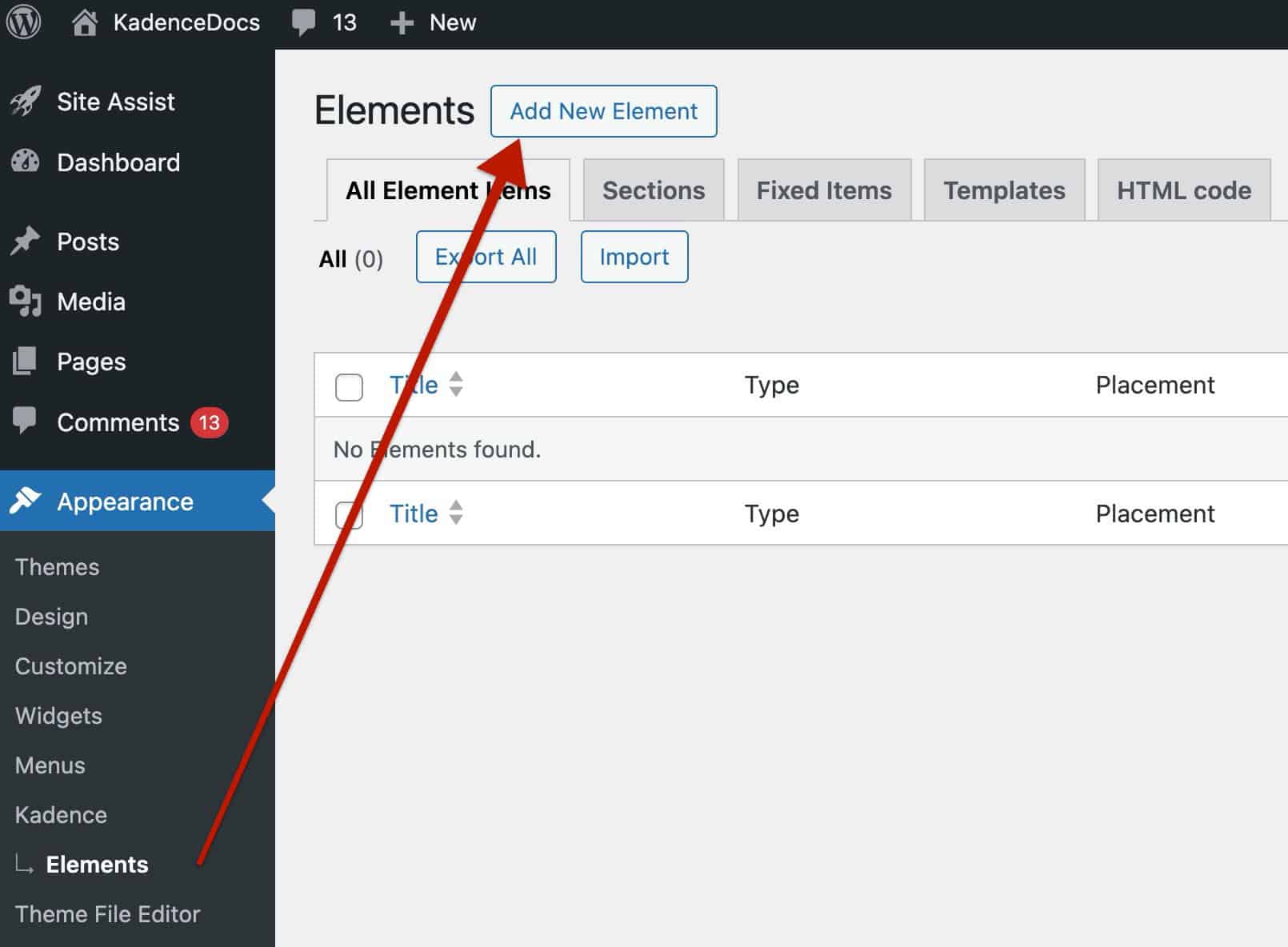
Once Hooked Elements are enabled, navigate to the Dashboard → Appearance → Kadence → Elements page and create a new element by clicking the Add New Element button.
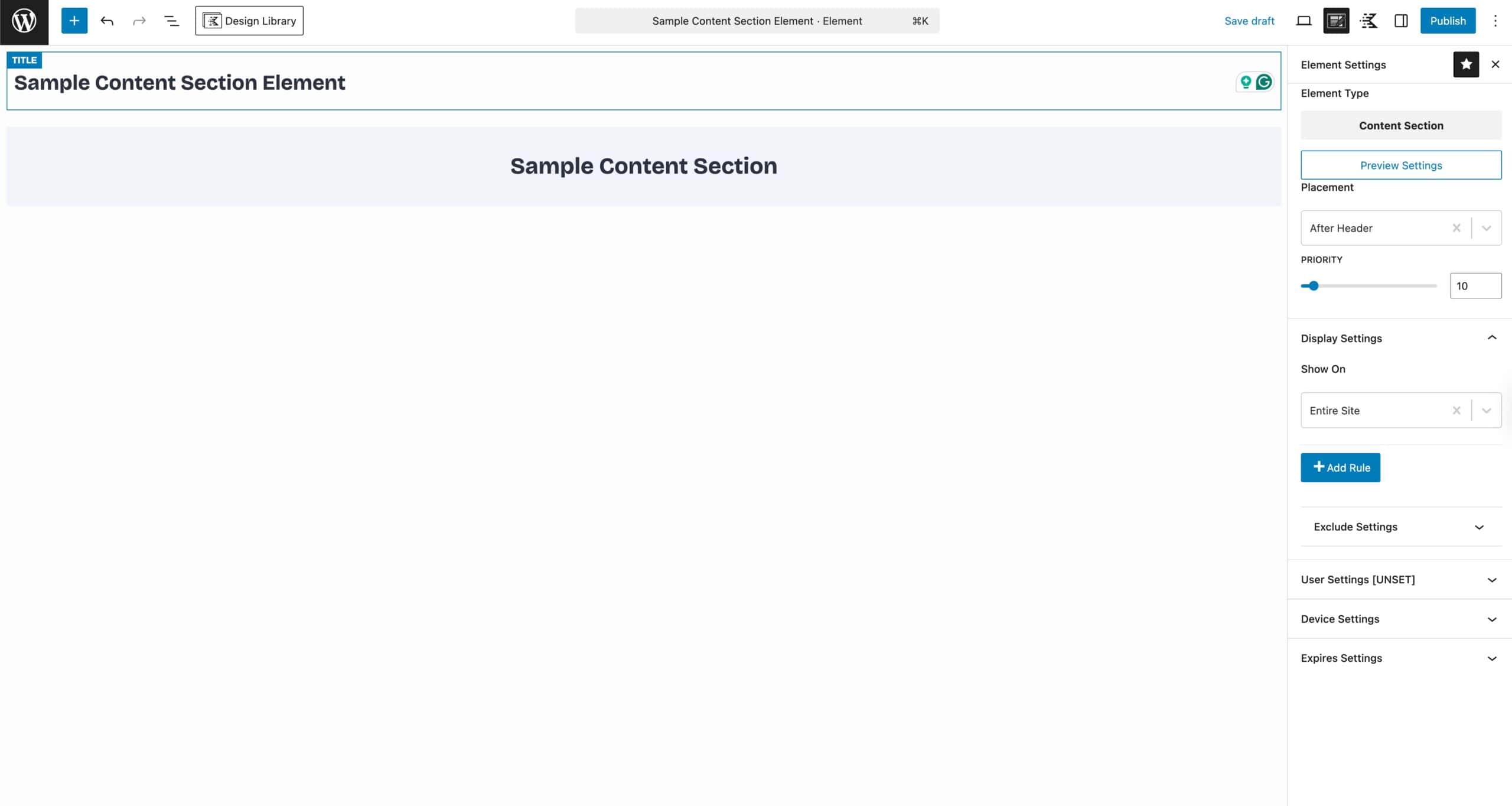
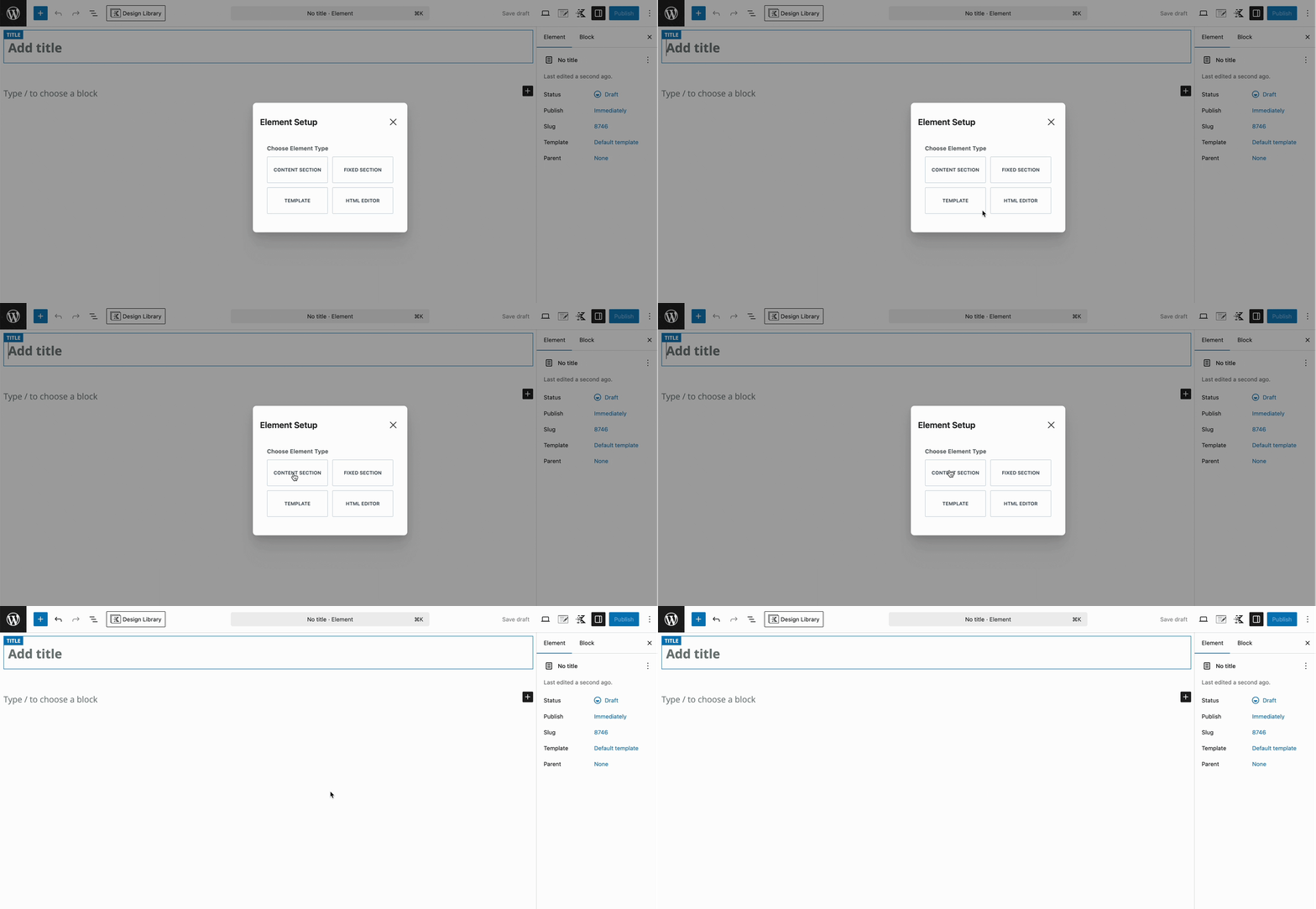
Select the Content Section element type. Within the element, you can add any content you wish using a combination of blocks.
Element Settings
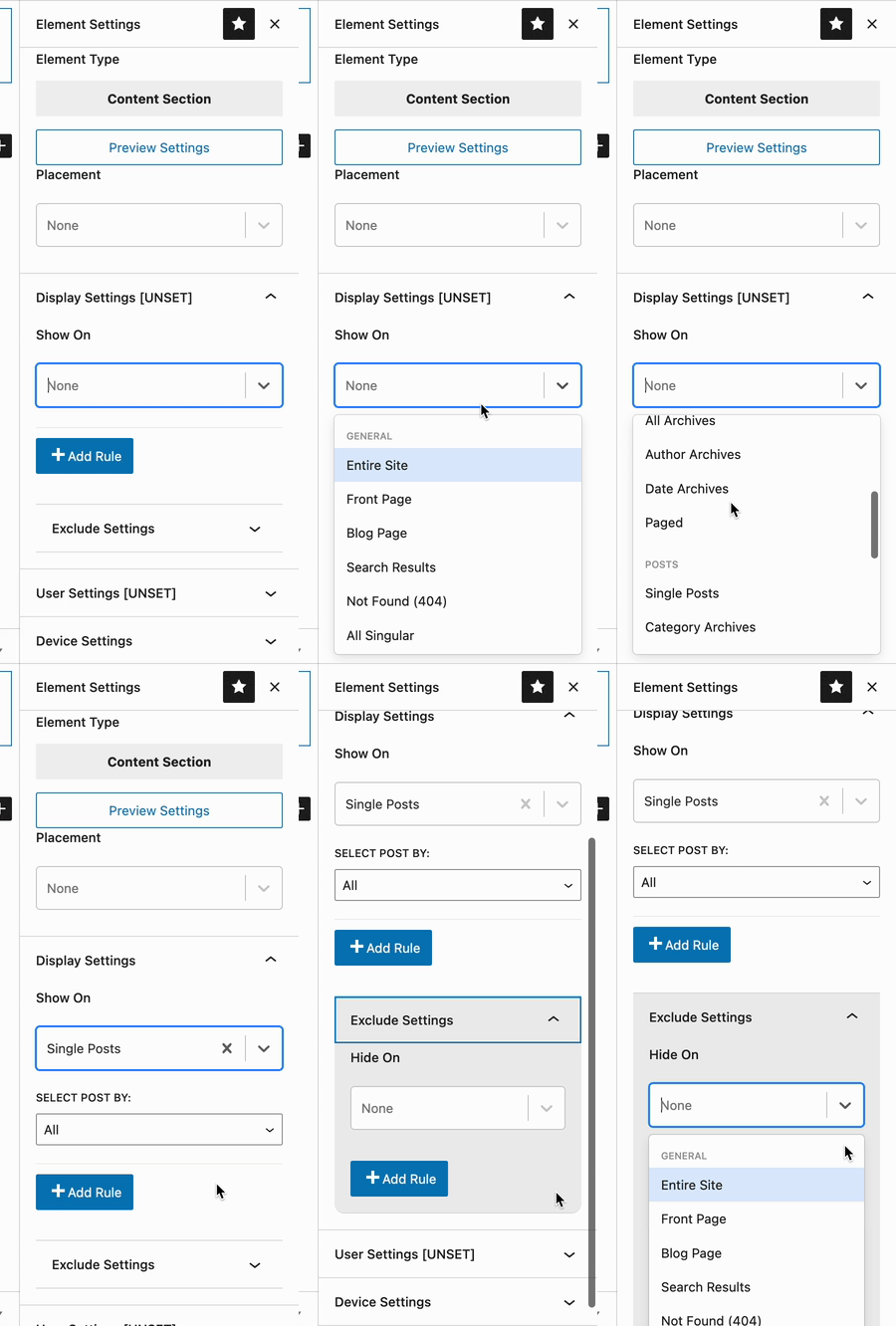
Use the Element Settings to control the placement, along with various display settings to determine where and who sees the element.
The Element Settings can be found at the top right corner of the element editor. Look for an icon with a paper and pencil.

Preview Settings
The Preview settings allow you to set the context and display size for the Element preview. The preview settings are helpful when designing an Element and will only affect what is seen the editor.
EDITOR WIDTH (PX): Setting the editor width can be helpful if you are creating an Element that is targeting an area which is limited in width such as the Sidebar.
SELECT PREVIEW POSTS TYPE: Select Posts, Pages or a Custom Post Type.
Select Preview Post: Choose a post to use as an example while creating your Element.

Placement Settings
There are numerous options for the Content Section Placement. Each placement option offers a Priority setting to further customize the placement choice. Setting the right placement for the right case is important. Below is a list the available placement options:
- BODY
- Before Site Wrapper
- After Site Wrapper
- HEADER
- Before Header
- After Header
- Replace Header
- CONTENT WRAP
- Before All Content
- After All Content
- ABOVE CONTENT HERO TITLE
- SINGLE: Above Title Content
- ARCHIVE: Above Title Content
- Replace Above Content Hero
- CONTENT AND SIDEBAR
- Before Content
- After Content
- Before Sidebar
- Replace Sidebar
- After Sidebar
- SINGLE INNER CONTENT
- Before Inner Content
- Before Inner Title Area
- Before Inner Title
- After Inner Title
- After Inner Title Area
- Before Entry Content
- After Entry Content
- After Inner Content
- INSIDE THE CONTENT
- Before First Heading Tag
- After First Heading Tag
- After First Paragraph
- After Second Paragraph
- After Third Paragraph
- After Fourth Paragraph
- COMMENTS
- Before Comments
- Before Comments List
- After Comments List
- After Comments
- ARCHIVE INNER CONTENT
- Before Archive Inner Title
- After Archive Inner Title
- FOOTER
- Before Footer
- After Footer
- Replace Footer
- 404 PAGE
- Before 404 Content
- After 404 Content
- Replace 404 Content
- MOBILE MENU OFF CANVAS AREA
- Before Mobile Off Canvas Content
- After Mobile Off Canvas Content
- HEADER ACCOUNT LOGIN MODAL
- Left of Login Form
- Before Login Form
- After Login Form
- Right of Login Form
- Replace Login Modal
- CUSTOM
- Custom Hook
Display Settings
Use the Display Settings to determine where to insert the element. Use the Add Rule button to include additional options.
- Available options: Entire Site, Front Page, Blog Page, Search Results, Not Found (404), All Singular, All Archives, Author Archives, Date Archives, Paged, Single Post, Category Archives, Tag Archives, Single Pages, Single Products, Brand Archive, Product Category Archives, Product Tag Archives, Product Brand Archives (Shop Kit), Events Archive, Single Events, Events Category Archives, Products Archives, and Products Search.
Use the Exclude button to add an exclusion. For example, if you wanted to show an element on all pages of a website, except one, you can use the exclude feature to prevent the element from showing on that specific page.
User Settings
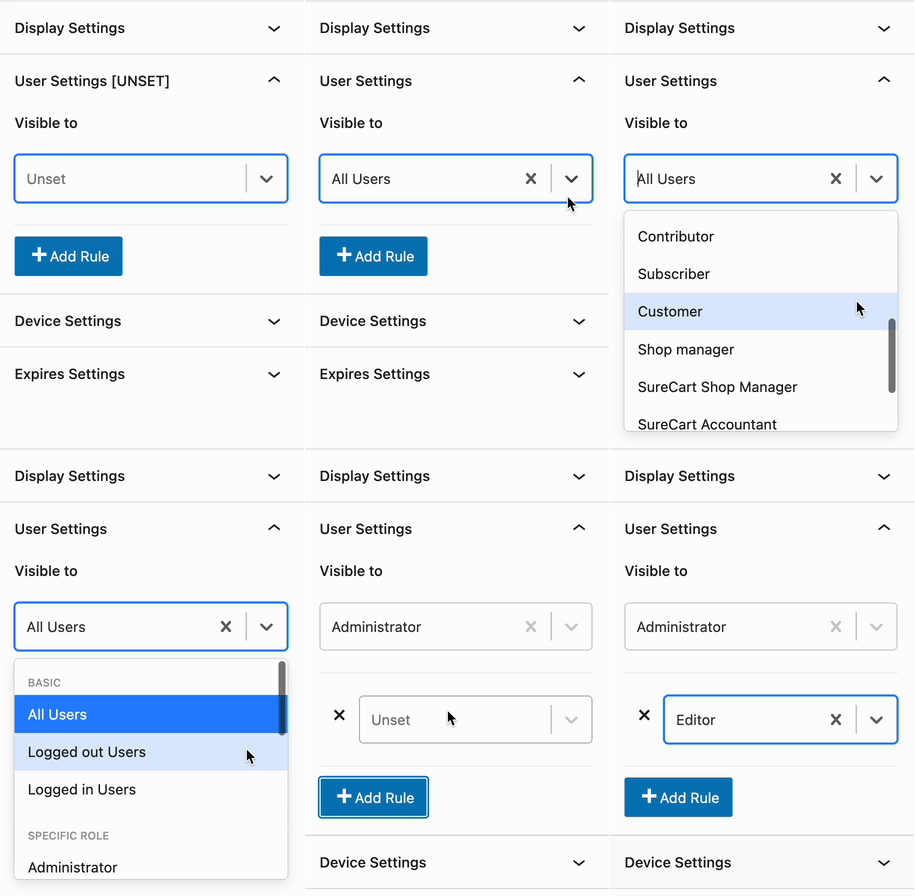
Determine which user role(s) will be able to see the element in effect.
- Options include: All Users (Default), Logged Out Users, Logged In Users, or based on the available current website roles.
- Use the Add Rule button to add more visibility options.
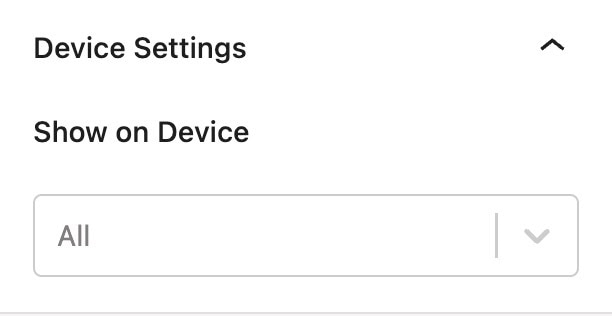
Device Settings
By default, all devices will see the element. Use the Device Settings to control which device types can see the element.
- Available options: Desktop, Tablet, and/or Mobile.
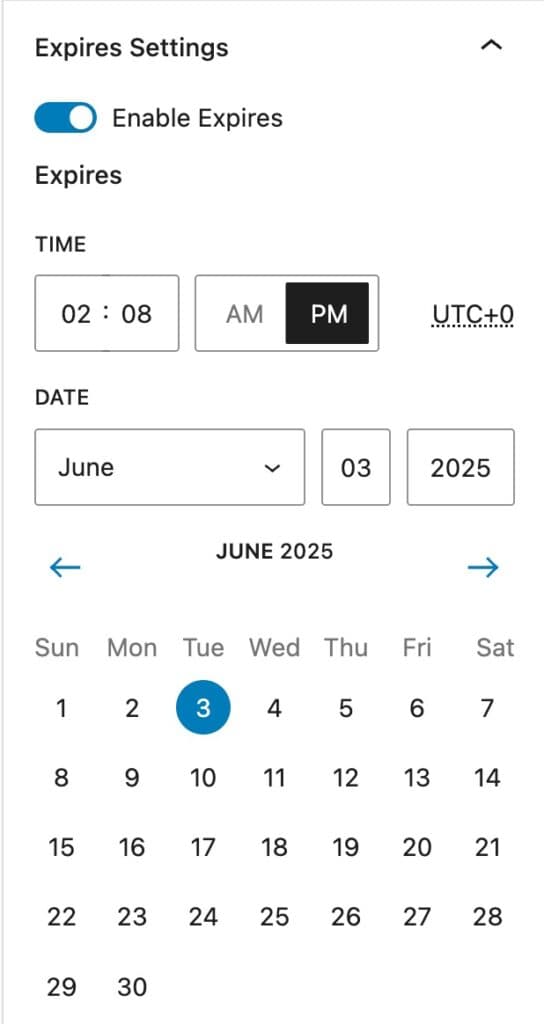
Expires Settings
Enable this option to add an expiration to the element. Once the expiration is met, the element will no longer take effect.