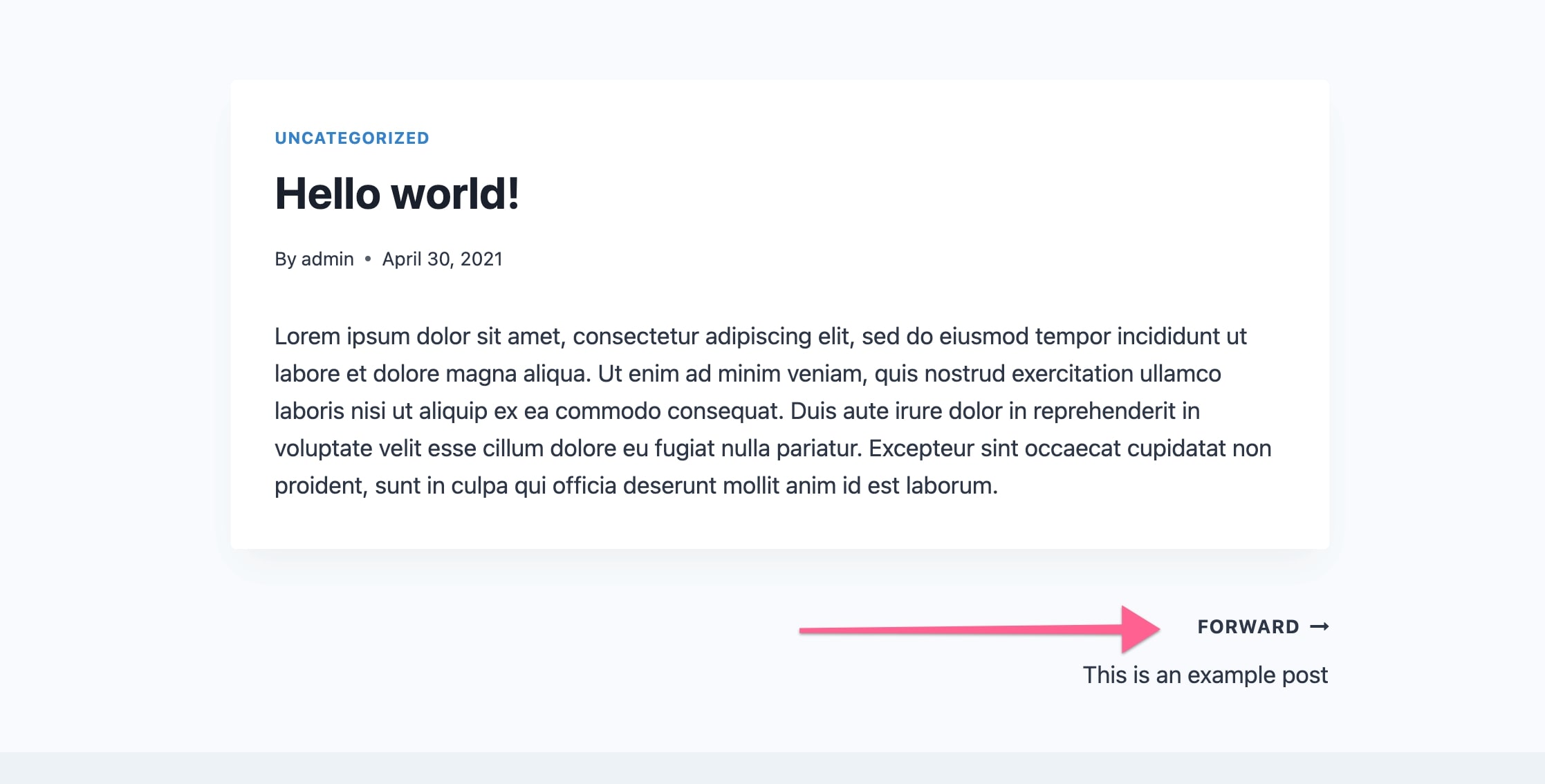
If you need to change a piece of theme or plugin-defined text on your site, a simple plugin to use is “Say What?”. The plugin doesn’t require any changing of code and is easy to set up. Also, it’s good to point out this plugin won’t add any large performance issues because it’s using the core method to translate text.
To get started, first download and install the plugin from here or from your WP Admin Dashboard, go to Plugins > Add New and search for Say What.
Finding the String You Want to Translate
Find the text that needs to be changed. For this example we’ll simply change the “NEXT” text under the blog posts to “FORWARD”
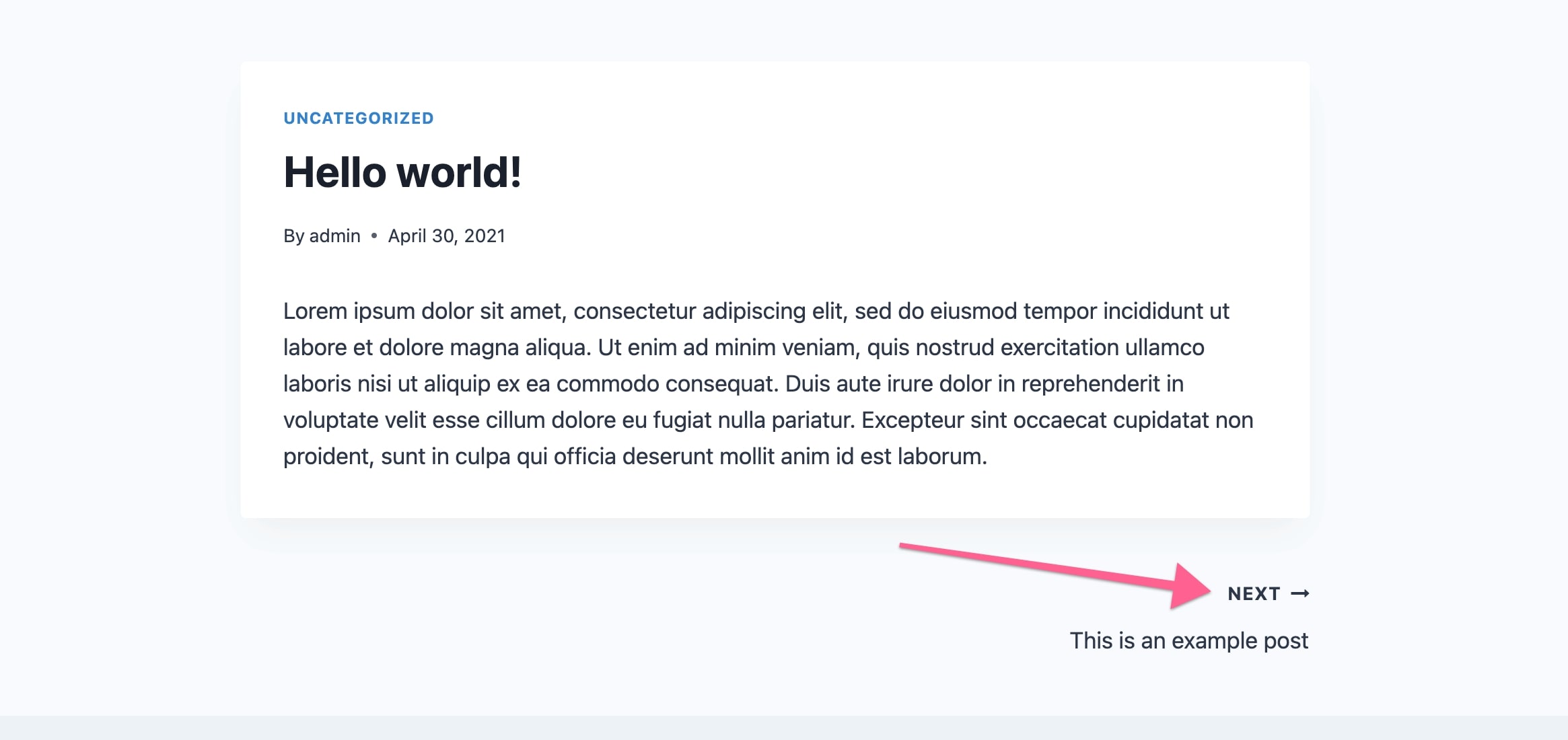
For the Say What plugin to work, you need to use the exact string that is in the theme or plugin with the same capitalization. However, this can be confusing because themes and plugins style text with transforms such as uppercase. So to make sure that you’re copying the string exactly as defined by the theme or plugin, use your browser’s inspect tool to view the underlying HTML.
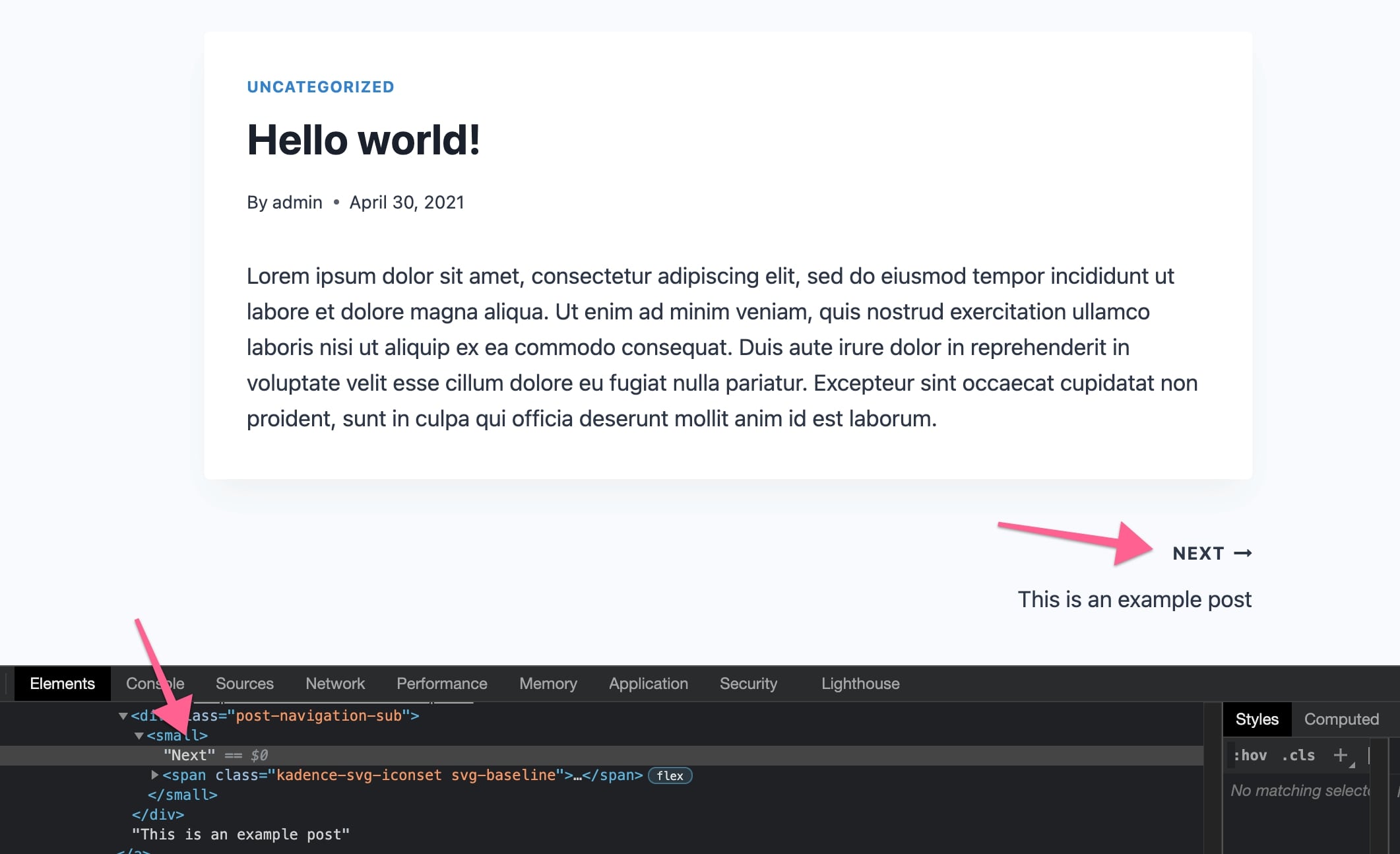
The exact string you need in our example is “Next” Not “NEXT”.
Finding the Correct Text Domain
Next determine the text domain. A “domain” allows themes and plugins to identify and isolate their own text strings. If you’re unsure of the theme’s text domain, you can find it in Appearance > Theme File Editor. Start by selecting your theme, and look for the text domain in the theme’s style.css file.
If the string is part of a plugin, navigate to Plugins > Editor, and select the plugin in question. For example, in the Kadence Blocks plugin, open the “kadence-blocks.php” file to see the text domain at the top of the file.
Below is a list of Kadence products with their text domain:
| Product | Text Domain |
|---|---|
| Kadence Theme | kadence |
| Kadence Pro Plugin – Addon for Kadence Theme | kadence-pro |
| Kadence Blocks | kadence-blocks |
| Kadence Blocks Pro | kadence-blocks-pro |
| Kadence Starter Templates | kadence-starter-templates |
| Kadence Cloud | kadence-cloud |
Change Text with Say What
Now that you have the string and text-domain, you can navigate to Tools > Text Changes to add a new text change.
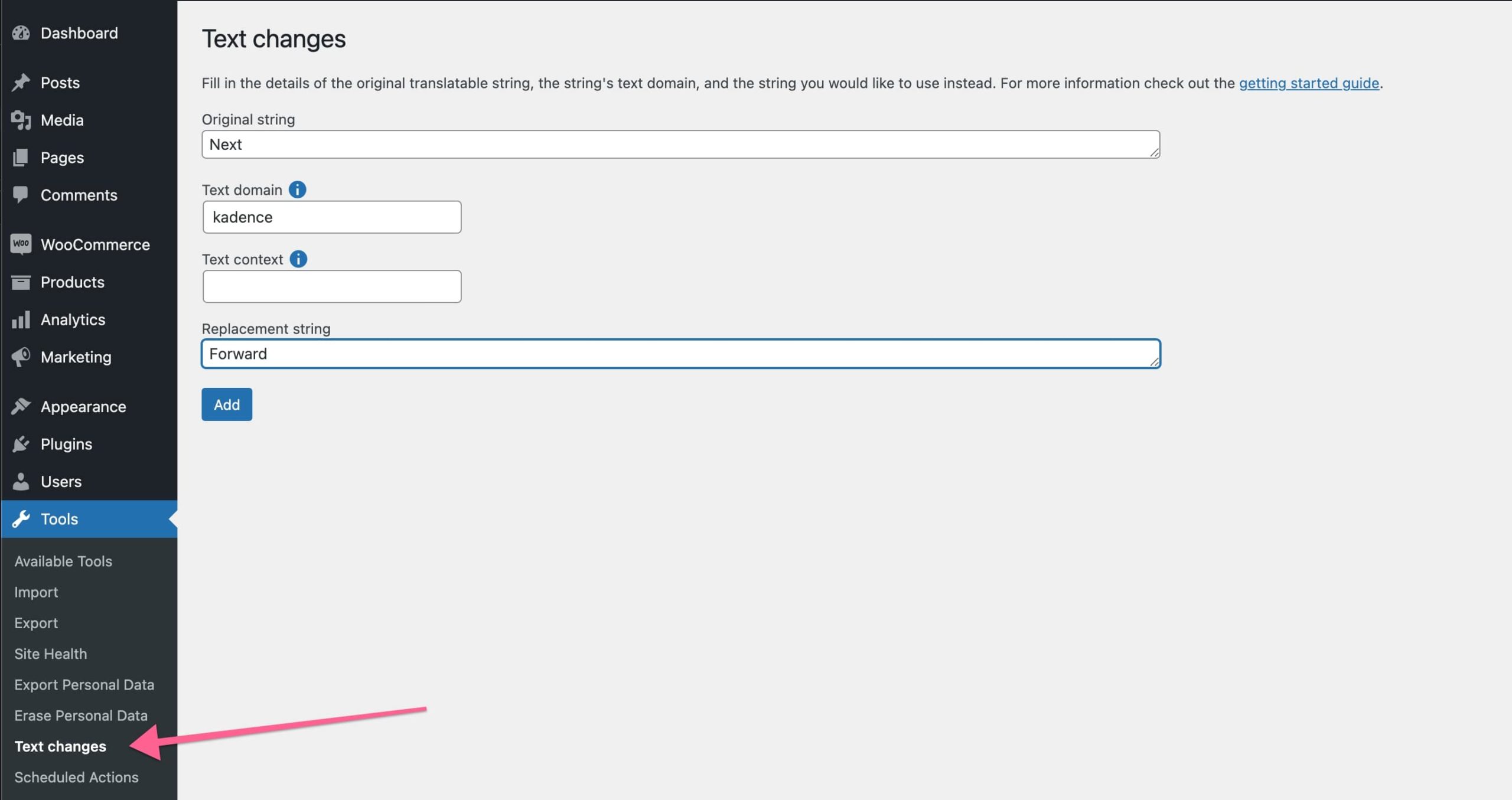
Once added check your site to verify the change.