
A mixed content error occurs when a secure page (loaded over HTTPS) tries to load insecure resources (over HTTP).
For example, your page might load securely, but:
- An image is still linked from
http://yourdomain.com/image.jpg. - A stylesheet or script is hardcoded with an
http://URL.
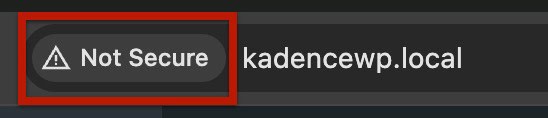
Modern browsers block these requests or show warnings like “Not fully secure”. This can result in content not loading properly, broken styles, and broken functionalities across your website.
What causes Mixed Content Errors
Mixed content usually comes from:
- Old hardcoded URLs in your theme or database (For example, images, videos, or scripts).
- External resources (like fonts, embeds, or scripts) that are called over HTTP.
- Incorrect WordPress or Site Address settings.
Example:
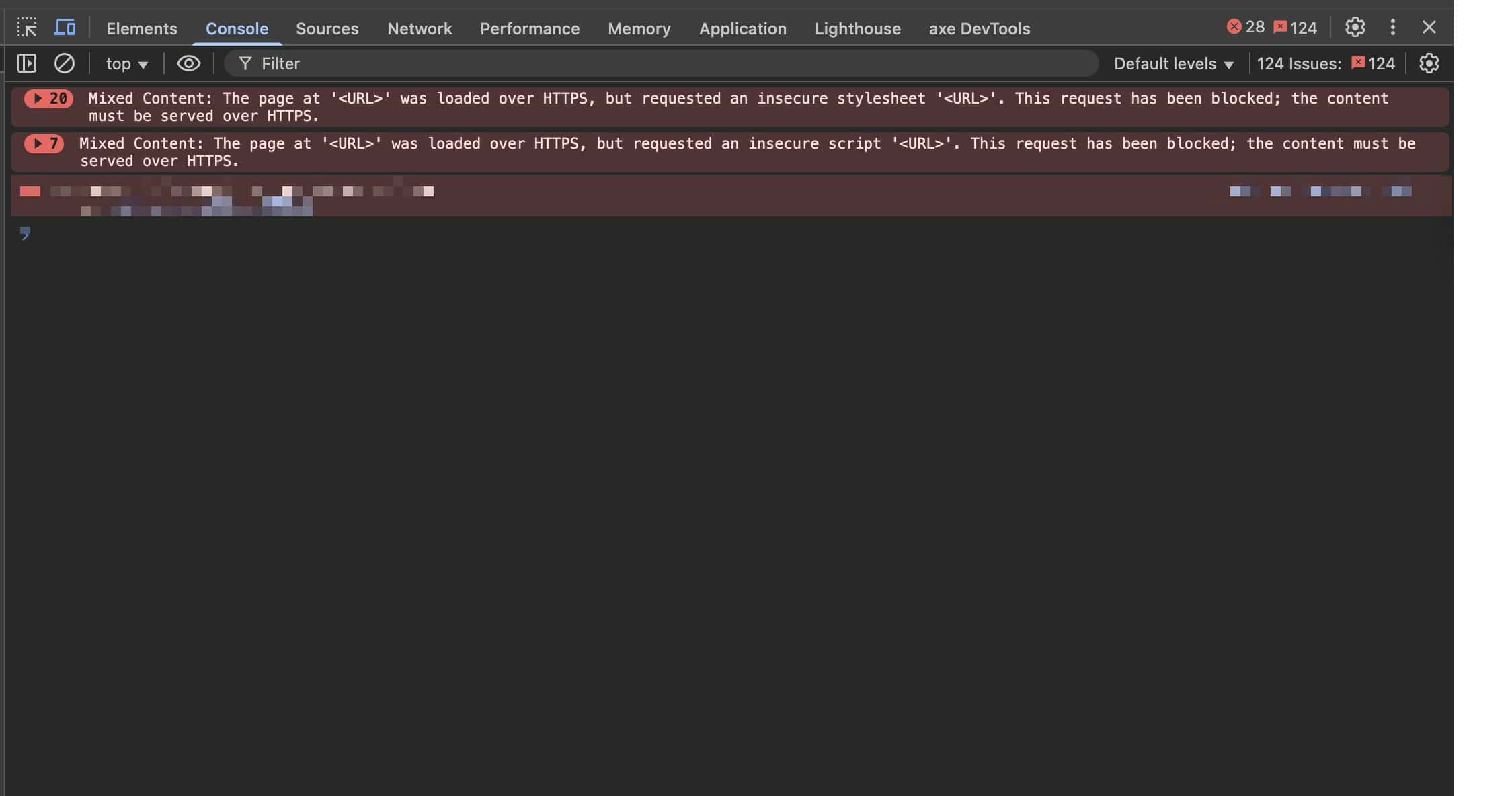
Mixed Content: The page at 'https://yoursite.com' was loaded over HTTPS,
but requested an insecure image 'http://yoursite.com/wp-content/uploads/2023/05/example.jpg'.
This request has been blocked; the content must be served over HTTPS.
How to Fix Mixed Content Errors
Here are the most common steps to resolve mixed content errors:
1. Confirm Your Site is using HTTPS
Go to WordPress Dashboard → Settings → General.
Make sure both the WordPress Address (URL) and Site Address (URL) use https://.
If your site is still set to http:// but you already have an SSL certificate installed on your domain, simply change the URLs to https://, save the changes, and clear your caches.
2. Update Your Media and Content URLs
Sometimes older posts or pages still point to http:// images.
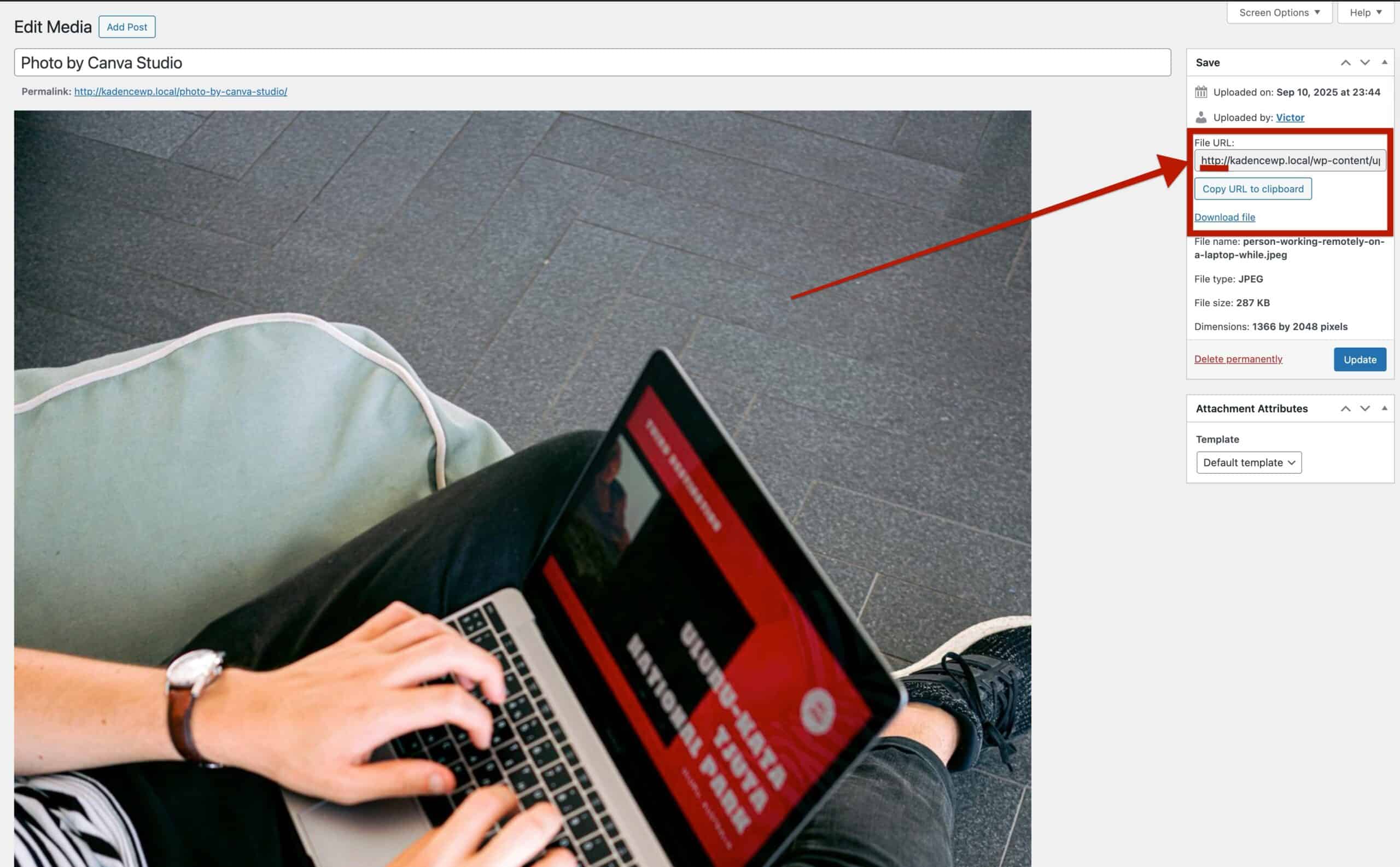
- If you are seeing mixed content issues with images, check how the image is sourced by using the Media Library and looking at the Image URL field.. If the image is using an
http://URL while your site is set tohttps://, you should remove the media image, re-upload it to WordPress, and then reapply it to your content.
- If you have many images or links that still point to
http://, this process can be sped up by using a search-and-replace plugin to update allhttp://URLs tohttps://in your database.- We have a complete guide on how to use the Better Search and Replace plugin to achieve this. You can view it here.
- Note: Use this option with care, since it replaces all matching text in your database. Always create a backup of your site before running a search-and-replace.
3. Check Theme or Plugin Resources
Some themes or plugins may enqueue scripts or styles over HTTP.
- Make sure you’re running the latest version of Kadence.
- If you spot a specific HTTP resource in your browser console, update or replace that resource with an HTTPS version.
4. Use a Mixed Content Fixer Plugin
If you still see errors after updating your URLs, you can use a plugin like Really Simple SSL to automatically fix mixed content on the fly.
This is often a quick solution, but it is recommended to correct the root cause when possible for the best long-term results.
Troubleshooting Tips
- Use your browser’s Developer Tools → Console to see exactly which resources are causing the error.
- You can learn more about how to access the Console Log by clicking here.
- The error will specify which URL is loading improperly, allowing you to further investigate it from there.
- If it’s an external script or image that doesn’t support HTTPS, you may need to host it locally or replace it with an alternative. This is rare, but if you are pulling files from outside of your website that do not use HTTPS, your only option is to host them elsewhere, such as locally on your server, with HTTPS enabled.
- After fixing these errors, always clear all forms of cache to ensure you are being served the proper files.
Conclusion
Mixed content errors happen when secure pages load insecure resources. They’re common after moving a site to HTTPS, but easy to fix by updating your URLs, checking theme/plugin resources, or using a fixer plugin.
With Kadence, our theme and blocks are built to work seamlessly over HTTPS. So once your content and settings are corrected, your site should display the secure padlock as expected.

