Kadence understands the importance of having a website that is up-to-date and looks professional. Unfortunately, sometimes it can be difficult to make changes to the footer of a website beyond the capabilities of the footer builder. While the footer builder in the theme customizer is a robust tool, you can replace it with an element if you need custom layouts, blocks, or functionality beyond its abilities. The advantage of replacing your footer with a Kadence element is that you edit the footer with the Gutenberg editor. The main disadvantage is that the footer builder settings don’t apply to an element that replaces the footer. This feature is only available to Kadence Theme Kit Pro users.
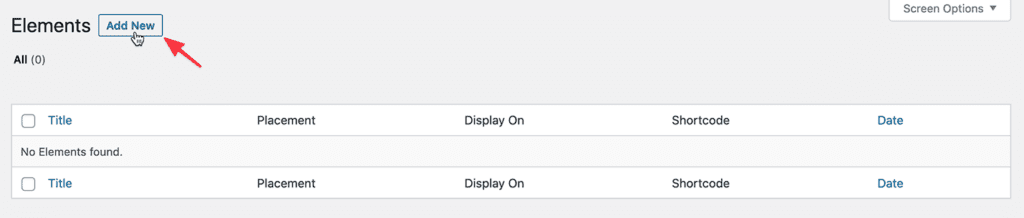
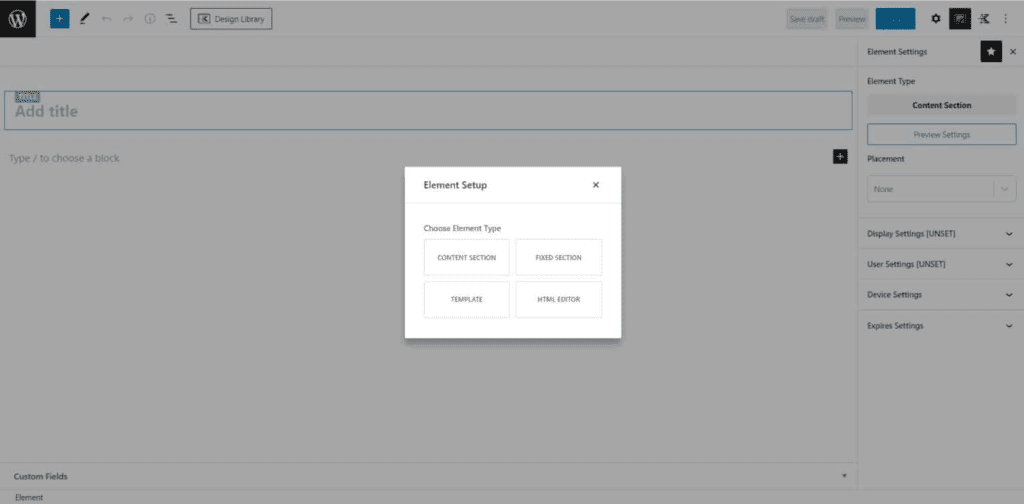
If you aren’t familiar with Kadence Elements, refer to our document on How to Use Element Hooks. For our current purposes, create a new Content Section element.
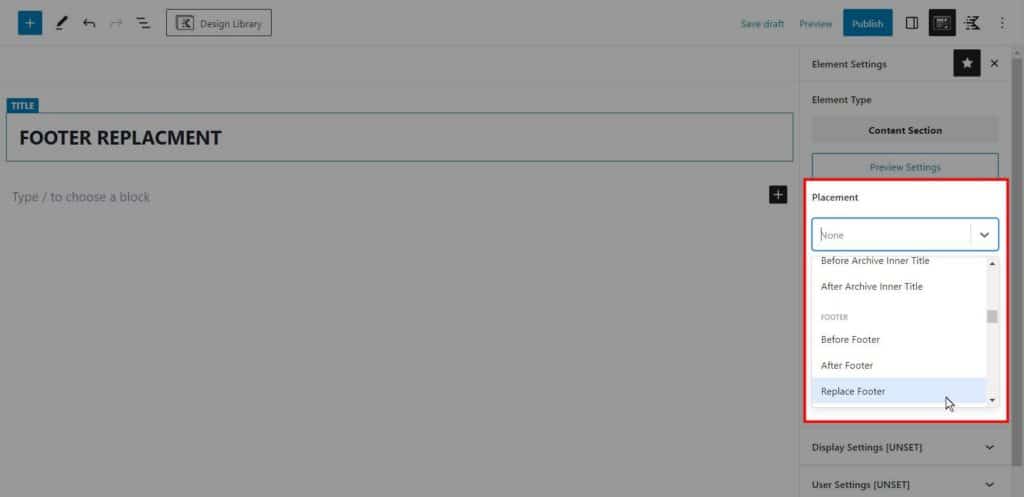
Placement Settings
You can place the element in a specific location when you select a content element type. For this example, set the Placement to Replace Footer.
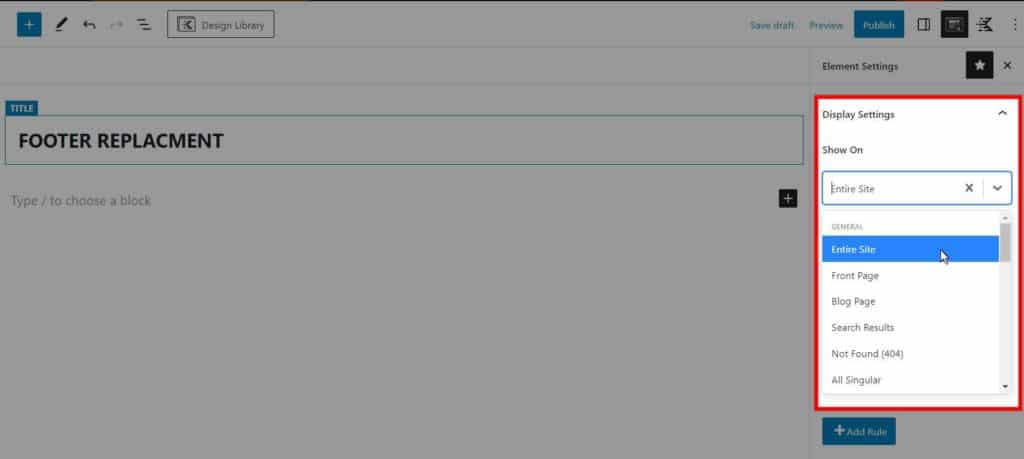
Display Settings
The next important setting is where the element shows. Set the element to show on the Entire site if you want the footer to appear on every page. You can create multiple elements for several footers to display on specific pages throughout your site. For example, you can design one footer for the front page and a different footer for the blog page.
Design and Publish
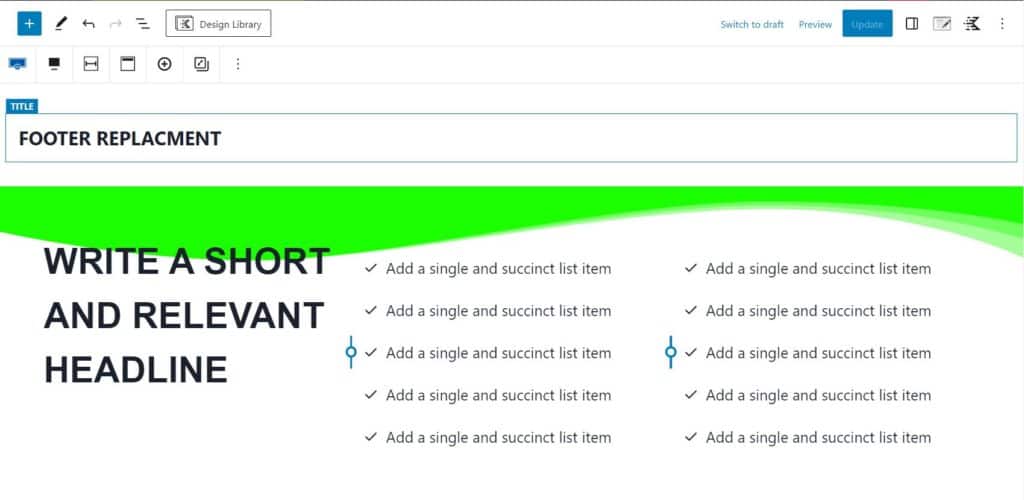
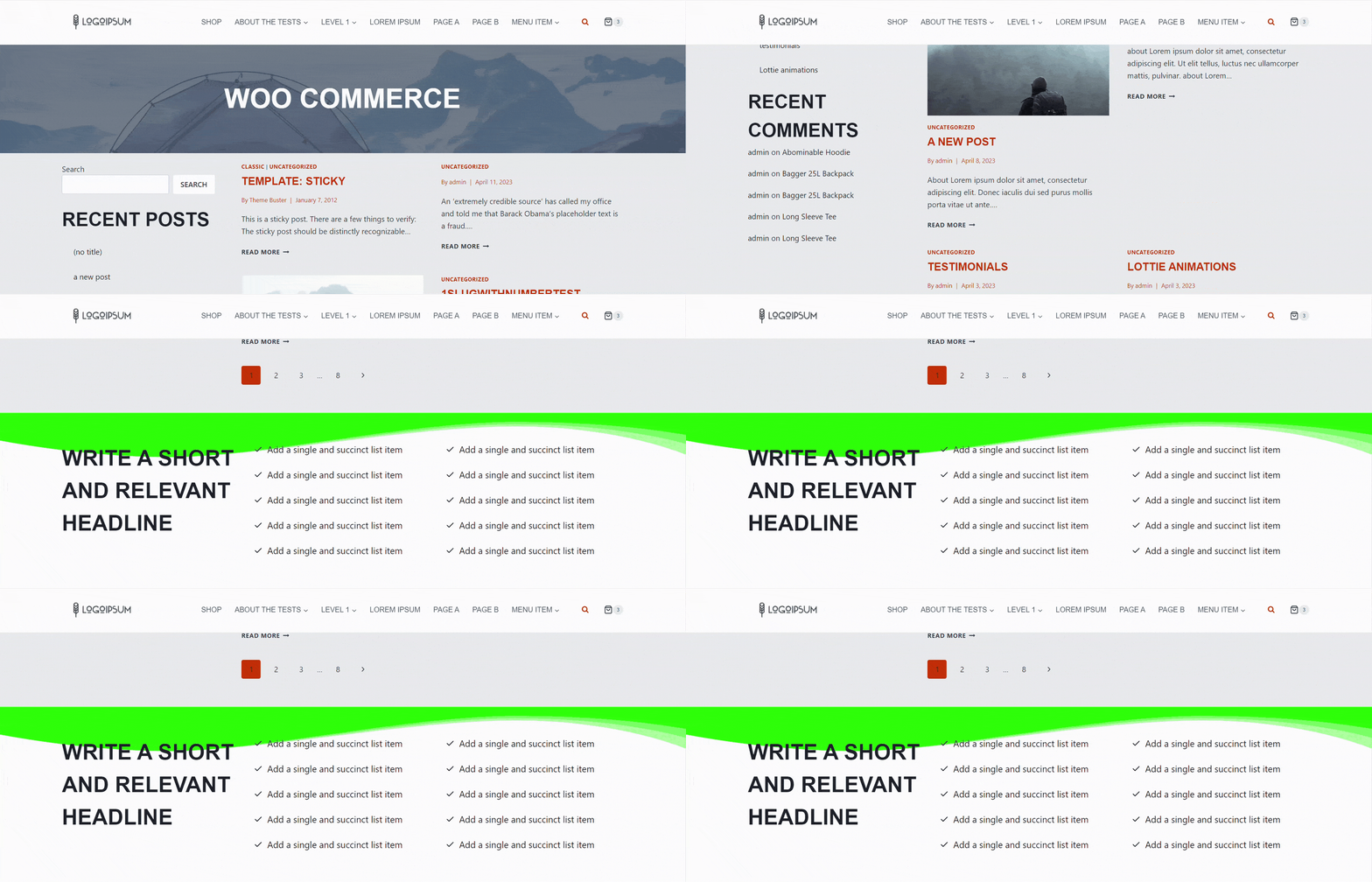
After you design your element, publish it to replace the footer of your site. Your footer will display according to placement, display, user, and device settings.
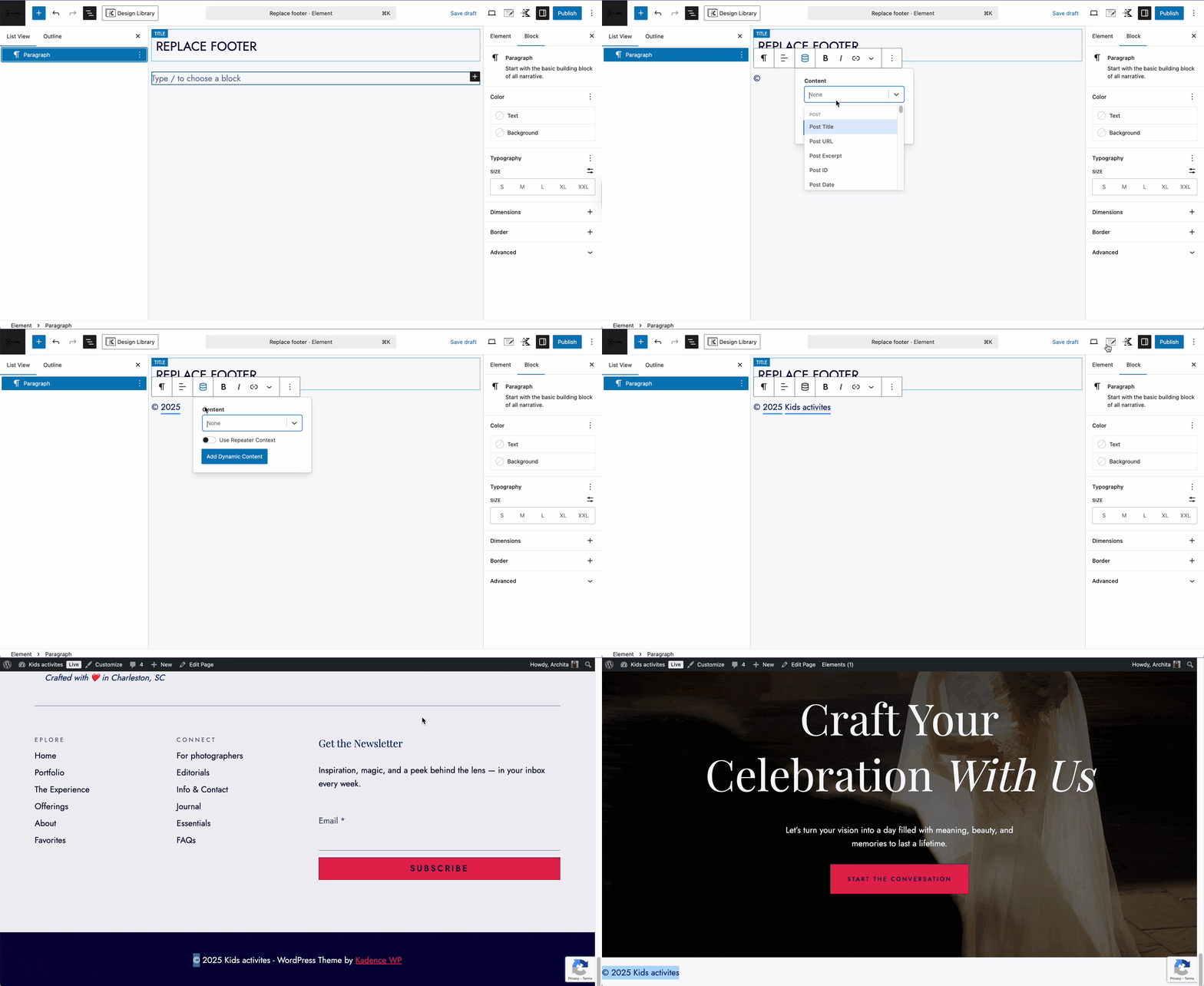
Add copyright and current year in the Hooked element
When building a custom footer with Kadence Elements and assigning it via Display Conditions, note that certain placeholders (such as {copyright} {year}) only render dynamically when used within the default Kadence Theme footer builder.
If these placeholders are added directly into a block inside a custom footer, they will appear as plain text rather than dynamic values. To achieve the same effect, you can use the Dynamic Content feature to insert the current year, site title, and other variables.
- Add a Text (Adv) block to your custom footer.
- Copy and paste the copyright symbol © into the block.
- In the block’s top toolbar, click the Dynamic Content icon.
- From the options, insert the dynamic value for Current Year.
- Insert the dynamic value for Site Title.
This will display the copyright symbol, the current year, and your site title automatically, keeping your footer up to date without manual changes.