
When using the Kadence Theme Classic Header in the WordPress Customizer, you have several options for setting Navigation Colors. You can customize the default navigation colors, the transparent header navigation colors, and the sticky header navigation colors. Learn more about how to customize these settings using the header options below.
Default Header
The Kadence Theme Classic Header navigation colors can be modified for the Default Header State from the Customizer -> Header settings.
- Click the gear settings icon beside the desired Header Navigation Element you wish to modify. (For example, the Primary Navigation or the Secondary Navigation).
- Click on the DESIGN (tab) and find the Navigation Colors setting. Here you can set the colors of the current navigation. The available colors include the Initial Color, Hover Color, and Active Color.

These colors represent the Default Header State, meaning a non-transparent and/or non-sticky header. Learn about how to control the Transparent Header and Sticky Header Navigation Colors below.
Transparent Header
To customize the navigation colors for your Kadence Theme Classic Header when using a Transparent Header, go to the Customizer -> Header -> Transparent Header settings. Then click on the Design Tab and locate the Navigation Colors setting. Here, you can set the Navigation Colors for the Transparent Header state.

You can also adjust additional Classic Header Transparent Elements, such as the ones listed below.
- Site Title Color: Initial Color
- Navigation Colors: Initial Color, Hover Color and Active Color
- Navigation Items Background: Initial Background, Hover Background and Active Background
- Button Colors: Color, Hover Color, Background, Background Hover, Border, Border Hover
- Social Colors: Color, Hover Color, Background, Background Hover, Border, Border Hover
- HTML Colors: Color, Link Color, Link Hover
- Transparent Header Background: Desktop, Tablet, Mobile
- Bottom Border: Desktop, Tablet, Mobile
Sticky Header
To customize the navigation colors for your Kadence Theme Classic Header when using a Sticky Header, go to the Customizer -> Header -> Sticky Header settings. Then click on the Design Tab and locate the Navigation Colors setting. Here, you can set the Navigation Colors for the Header when in the Sticky state..
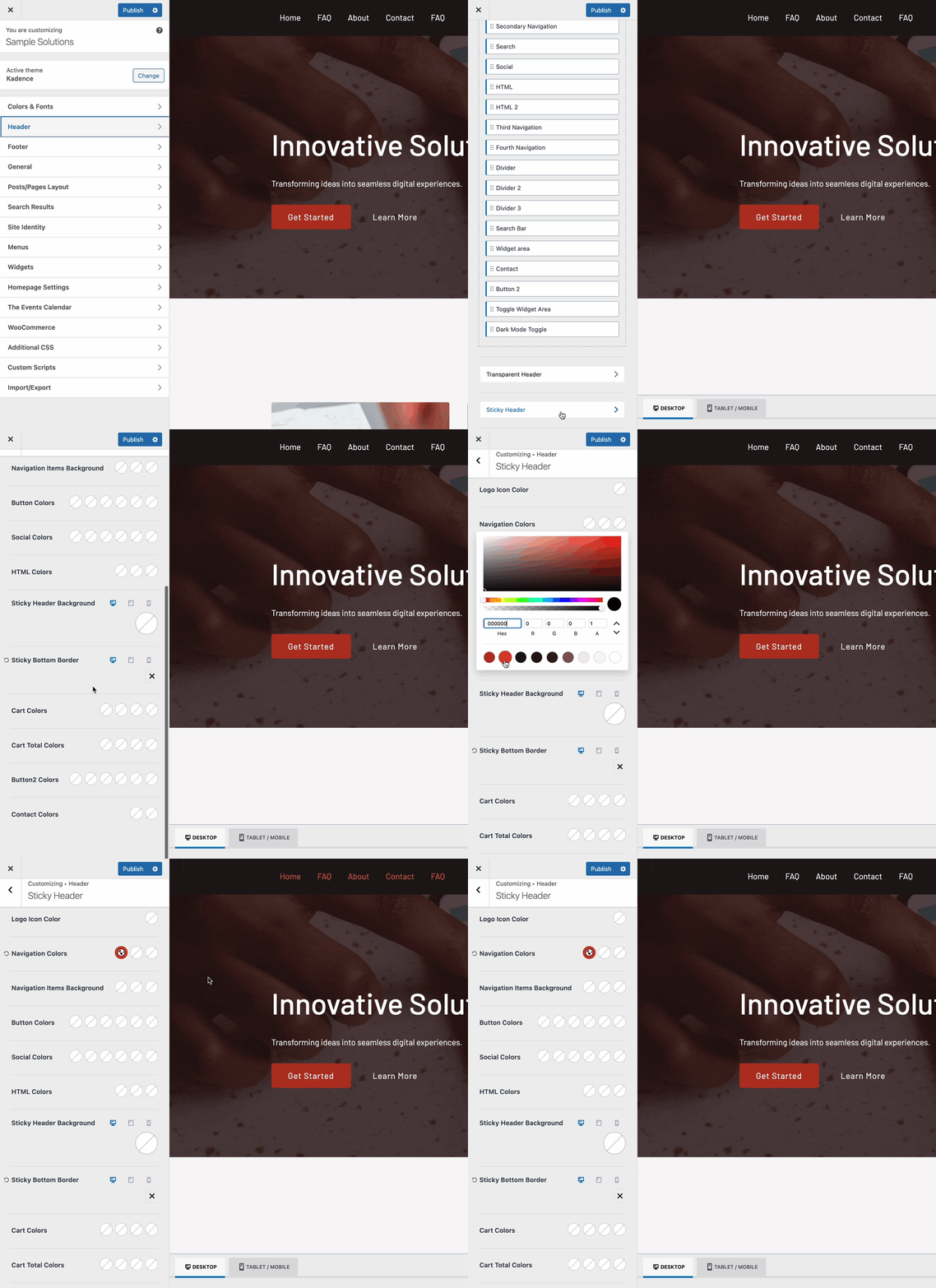
You can also adjust additional Classic Header Sticky Elements, such as the ones listed below.
- Site Title Color: Initial Color
- Navigation Colors: Initial Color, Hover Color and Active Color
- Navigation Items Background: Initial Background, Hover Background and Active Background
- Button Colors: Color, Hover Color, Background, Background Hover, Border, Border Hover
- Social Colors: Color, Hover Color, Background, Background Hover, Border, Border Hover
- HTML Colors: Color, Link Color, Link Hover
- Sticky Header Background: Desktop, Tablet, Mobile
- Sticky Bottom Border: Desktop, Tablet, Mobile

