
Skip to content
Help Center
  • Pricing
  • ProductsExpand
    • Premium PlansGet all the tools you need in one plan
    • Kadence ThemeLightning-fast performance theme for modern websites
    • Kadence BlocksDrop in ready designs with advanced controls for pixel perfect websites
    • Kadence Shop KitCreate a more effective WooCommerce shopping experience
    • Kadence ConversionsBoost sales and build engaged audiences with popups and banners
    • Kadence InsightsEasily create A/B tests. Optimize your pages to drive higher conversions.
    • View All Products
    • Get Kadence + Hosting
      In One Place

      Enjoy faster setup, top-tier performance, and worry-free WordPress hosting – Kadence Theme, Kadence Blocks, and Solid Security all pre-installed.

      Learn More

  • Kadence AI
  • Starter Templates
  • Blog
  • SupportExpand
    • Resource HubStart here for guides, Product docs, FAQs, and Troubleshooting tips, all in one place.
    • Contact SupportStuck on something? We’re here to help! Open a ticket for top-notch support.
    • Contact Our TeamGot pre-sales questions or need help choosing a plan? Open a ticket and our team will guide you.
    • About usCrafted with love in Missoula, Montana. Meet the team behind the mission.
Account Account
Get Kadence
Kadence Theme
  • Features
  • Pro
  • Starter Templates
  • HelpExpand
    • Documentation
    • Facebook Group
    • Submit a Ticket
    • Feature Requests
    • Roadmap
    • Changelog
Help Center
Kadence Theme

Getting Started

  • Installing the Kadence Theme
  • How to use the Kadence Theme Style Guide
  • Installing Kadence Starter Templates (Unlock AI and Pre-Designed Templates)
  • Getting Started with Kadence Site Assist
  • Starter Templates: AI Powered Vs Pre-Designed
  • Getting Started with a Pre-Designed Starter Template
  • Setting up Posts, Pages, and Archive Layouts in Kadence

Customize Settings

  • The Kadence Theme Performance Settings
  • How to use the Kadence Theme Color Palette
  • Typography Settings
  • How to Style Buttons in the Kadence Theme
  • How to Add a Sidebar
  • Sticky Sidebars
  • Page Layout Customizer Settings
  • Single Post Layout Customizer Settings
  • Archive Layout Customizer Settings
  • Kadence WooCommerce Customizer Settings
  • Understanding CSS Clamp and How It Works in the Kadence Theme
  • The Kadence Theme Breadcrumb Settings
  • How to add Scroll To Top
  • How to Enable Scroll to ID
  • How to Add an Author Box to Your Posts
  • Search Results Customizer Settings
  • How to customize the Kadence Footer
  • How to Import, Export, and Reset Kadence Theme Customizer Settings Using Starter Templates Plugin
  • How to Host Google Fonts Locally
  • How to Remove the Page Title in Kadence Theme
  • How to Enable the Kadence Lightbox Feature for Image Links

Header

  • How to Customize the Kadence Header
  • Kadence Classic Header Items
  • Customizing the Classic Header Navigation Colors (Default Header, Transparent Header, Sticky Header)
  • Editing a Row in the Header
  • Customizing the Mobile Navigation Area
  • Customizing the Topbar
  • Edit Dropdown Menu Styling
  • Social Media Icons in the Header
  • Working with the Sticky Header
  • How to Use a Transparent Header
  • Preventing the Theme Transparent Header from Overlapping Page Content

General WordPress

  • How to Change the Number of Posts Displayed on Your Blog Page in WordPress
  • How to specify different CSS styles for mobile, tablet, and PC layouts
  • Enabling ICO File Uploads in WordPress
  • How to Reset Your WordPress Website for Free
  • How to Create Patterns in WordPress (Reusable Blocks)
  • Understanding PHP Deprecated Notices on Your Site
  • How to create a staging website
  • Reserved Slugs and Terms
  • Using the WordPress Dashboard
  • How to Bulk Update Links and Text (Search & Replace)
  • How to Add a Featured Image to a WordPress Post
  • How to Regenerate Permalinks in WordPress
  • Simulating a Mobile Environment For Testing
  • How to Enable Categories and Tags for Pages
  • Set Site Favicon
  • How do I add Custom CSS
  • Adding Google Analytics
  • How To Backup Your WordPress Website
  • How to add a Custom Post Type
  • Fix: Page Not Updating
  • How to Find the Page or Post ID
  • How to prevent spam comments
  • How do I turn off comments?
  • How to Remove All Spam Comments

Troubleshooting

  • How to Reset Your WordPress Website for Free
  • Troubleshooting the “Updating page failed. You’re probably offline.” Error
  • How to Create a Screen Recording for Free
  • Website Favicon is missing on Google Search Results
  • How to Diagnose and Fix Common Google Ads Issues on your site
  • Fixing Mixed Content Errors in WordPress
  • How to resolve the ERR_HTTP2_PROTOCOL_ERROR console error?
  • Troubleshooting White/Blank Screens in the Editor or Customizer
  • Understanding PHP Deprecated Notices on Your Site
  • How to Download Previous Versions of the Kadence Theme and Plugins
  • Fix Starter Template Import Problems When Using Hostinger with Kadence
  • How to run the WordPress built-in database repair tool
  • Recommended Server Resources
  • Troubleshooting the “Update Failed: Service Unavailable” error when updating Pro Kadence WP plugins
  • How to Enable the WordPress Error Logs
  • WordPress Error “Incompatible Archive”
  • Temporarily Deactivating Plugins
  • How to View Console Log Errors
  • Clearing Your Website Cache
  • Getting 500 Errors
  • Broken Styles after version 1.1.15

Advanced

  • How to Use Category & Taxonomy Images with Kadence Dynamic Content
  • How To Add Custom Snippets with Code Snippets
  • Customizing Kadence Related Posts with kadence_related_posts_args Filter
  • How to Use a Post Grid/Carousel Block as Related Posts
  • Customize Pagination in Kadence Theme Using kadence_pagination_args
  • How to Enable Transparent Header on 404 Page
  • How to Customize the Kadence Comment Form
  • Add Thumbnails to Next/Previous Post Navigation
  • Adjusting the Kadence Theme’s scroll offset using a filter
  • Remove title tags on Kadence SVG Icons
  • Adding Kadence Breadcrumbs To Hooked Elements
  • Disable Default Kadence Theme Schema Markup
  • Adding Elements after Specified Paragraphs
  • Common Code Snippets for Kadence Users
  • How to translate using LocoTranslate
  • How to hook elements inside of post or page content
  • What is a Child Theme, Should I Install One, if so How?
  • Adding Custom Fonts to Kadence
  • How to make a custom 404 page
  • How to change a theme icon to something custom
  • Change Any Text on Your Site
  • Changing Various Heading HTML Tags
  • How to Display Custom Post Types with Kadence Template Elements
  • Adding Google Tag Manager with a child theme or code snippet plugin
  • Replace Author HTML (Multiple Author Support)
  • Theme hooks

Theme Kit Pro

  • Kadence Theme Kit Pro Plugin
  • How to create a Mega (multicolumn menu)
  • How to use Conditional Headers
  • Kadence Infinite Scroll
  • Kadence Maintenance Mode
  • How to add scripts in header/footer
  • How to use the Color Palette Switch (Dark Mode)
  • How to use Element Hooks
  • WooCommerce Addons
  • How to Add Icons to Your Classic WordPress Menu Items
  • Archive Custom Page Title Backgrounds (Kadence Theme Kit Pro)
  • Theme hooks
  • Header Addons
  • How to add contact information
  • How to add a toggle open menu for desktop
  • How to add a login and account Menu
  • Kadence Custom Fonts
  • How to open the side cart when a product is added to cart

Kadence Elements

  • How To Use Hooked Element Shortcodes
  • What are Kadence Hooked Elements?
  • Installing and Creating Kadence Elements
  • The Four Types of Kadence Elements
  • Kadence Element Settings
  • Kadence Content Section Hooked Elements
  • Kadence Template Hooked Elements
  • Kadence HTML Editor Hooked Elements
  • Kadence Fixed Section Hooked Elements
  • Switching between different Kadence Elements Types
  • Importing/Exporting Kadence Elements

Woocommerce

  • How to Track WooCommerce Cart Actions with JavaScript
  • How to add Extra/Payment Information to Your WooCommerce Product Pages
  • How to Add Image Switch on Hover for Product Archives
  • How to Add a Mini Cart to the Site Header
  • How to Change the WooCommerce Product Loop Title Tags

Hooked Element Guides

  • How to Use an Element to Replace the Archive Loop Item Content
  • How to Create a Custom Single Post Template with Kadence Hooked Elements
  • How to Create a Custom Archive Page Template with Kadence Hooked Elements
  • How to Replace Specific Posts’ Sidebar Content Using a Kadence Element
  • Programmatically Display Kadence Hook Elements
  • How to Design a Post Grid/Carousel using a Kadence Element
  • How to make a Dynamic Search Results Title in Kadence
  • Adding Kadence Breadcrumbs To Hooked Elements
  • How to Replace the Footer Using a Kadence Element
  • Home
  • Knowledge Base
  • Kadence Theme
  • Kadence Theme
  • Customize Settings
  • Header

How to Customize the Kadence Header

With the Kadence Theme, you have full control over building a custom Header using the Theme Header Builder. Simply drag and drop different Kadence Header Items into various sections of your header and use the available general and design settings to reach your desired design goals.

Kadence provides a range of free and premium Header Items that are highly customizable and add essential functionalities to your header. (For example, the Cart Item allows you to add a WooCommerce Popup Cart to the header, while the Account Item enables a Login Modal for user authentication.)

This document goes over all things related to building and customizing the Kadence Theme Header.
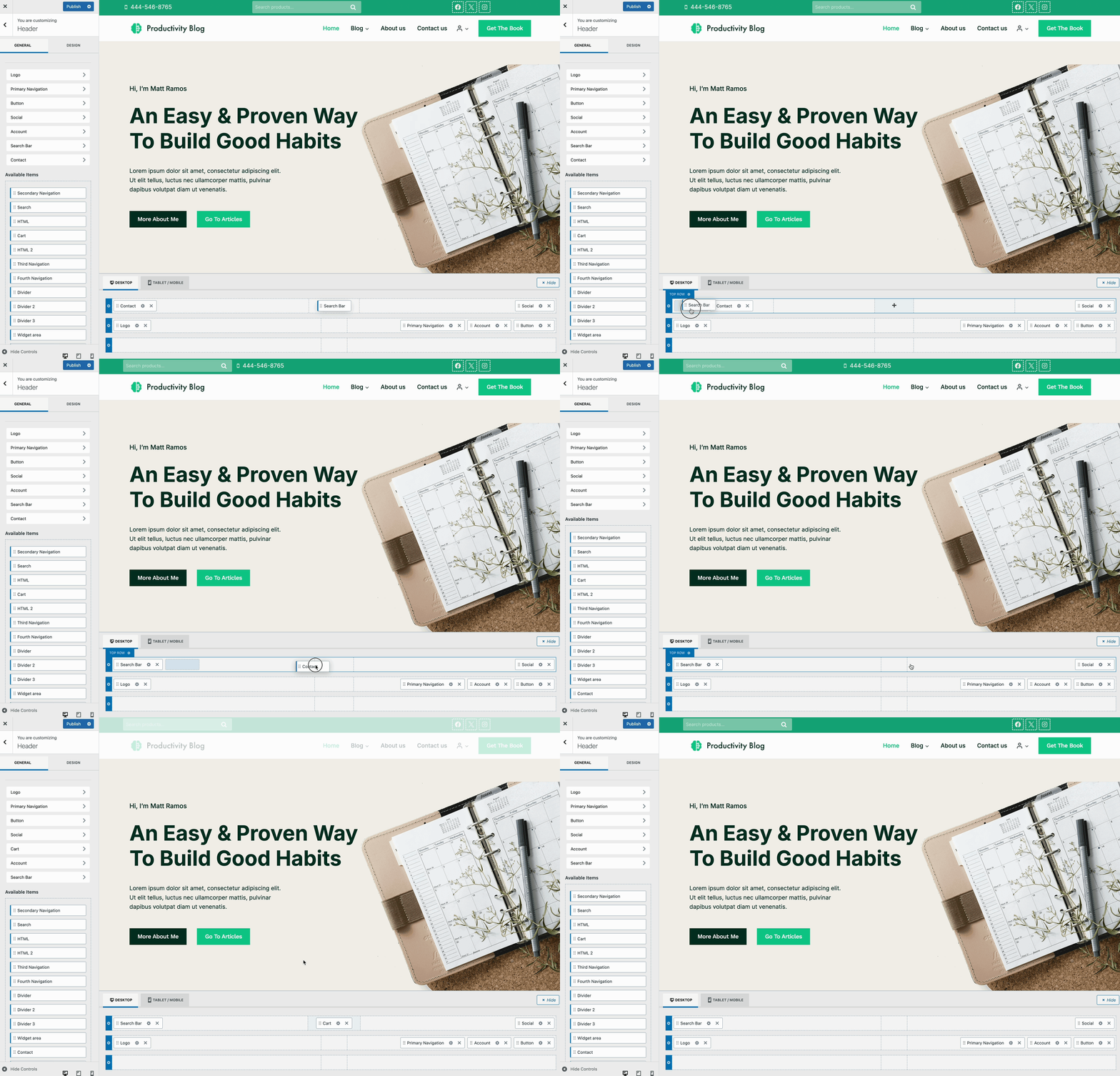
Classic Header Demo

The Kadence Theme Header features a drag-and-drop style Header Builder. Kadence also offers Advanced Headers, which allow Headers to be made using the block editor. Click here to read more about using Advanced Header / Navigation Blocks vs Kadence Theme Header Builder.

  • Editing the Header
    • Mobile/Tablet Headers
    • General Header Settings
    • Design Header Settings
  • Header Row Settings
    • General Row Settings
    • Design Row Settings
  • Transparent Headers
    • Transparent Design Settings
    • Transparent Header Page/Post Settings
  • Sticky Headers
    • Sticky Design Settings
  • Customizing Header Navigation Colors
  • Conditional Headers (Premium)

Editing the Header

The Theme Header can be accessed by going to the Dashboard -> Appearance -> Customize page. Then, find and click on the Header tab.
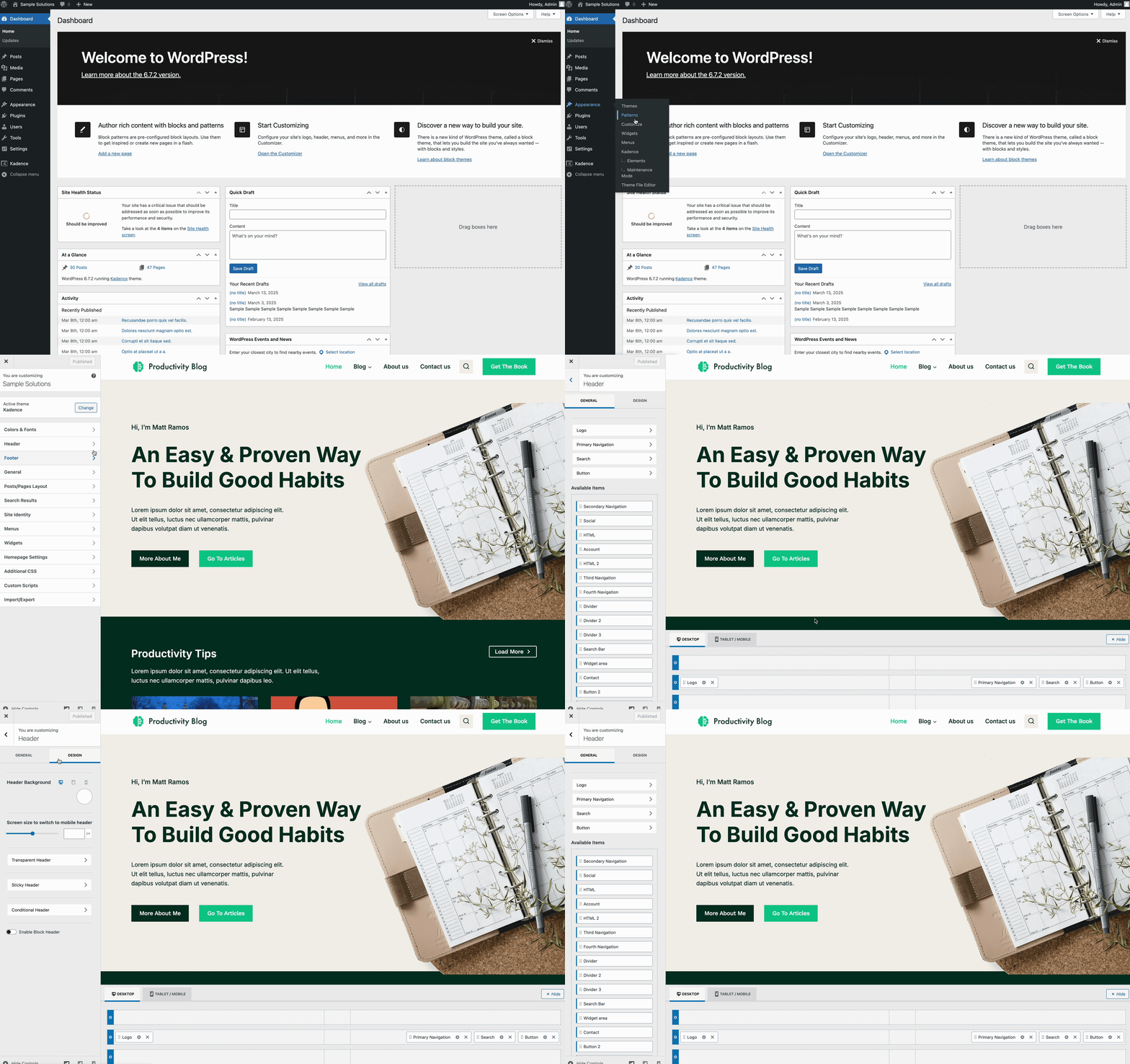
Accessing the Theme Header

Items can be dragged around to be rearranged. Use the Visual Builder to drag and arrange Header Items across different sections of the header.
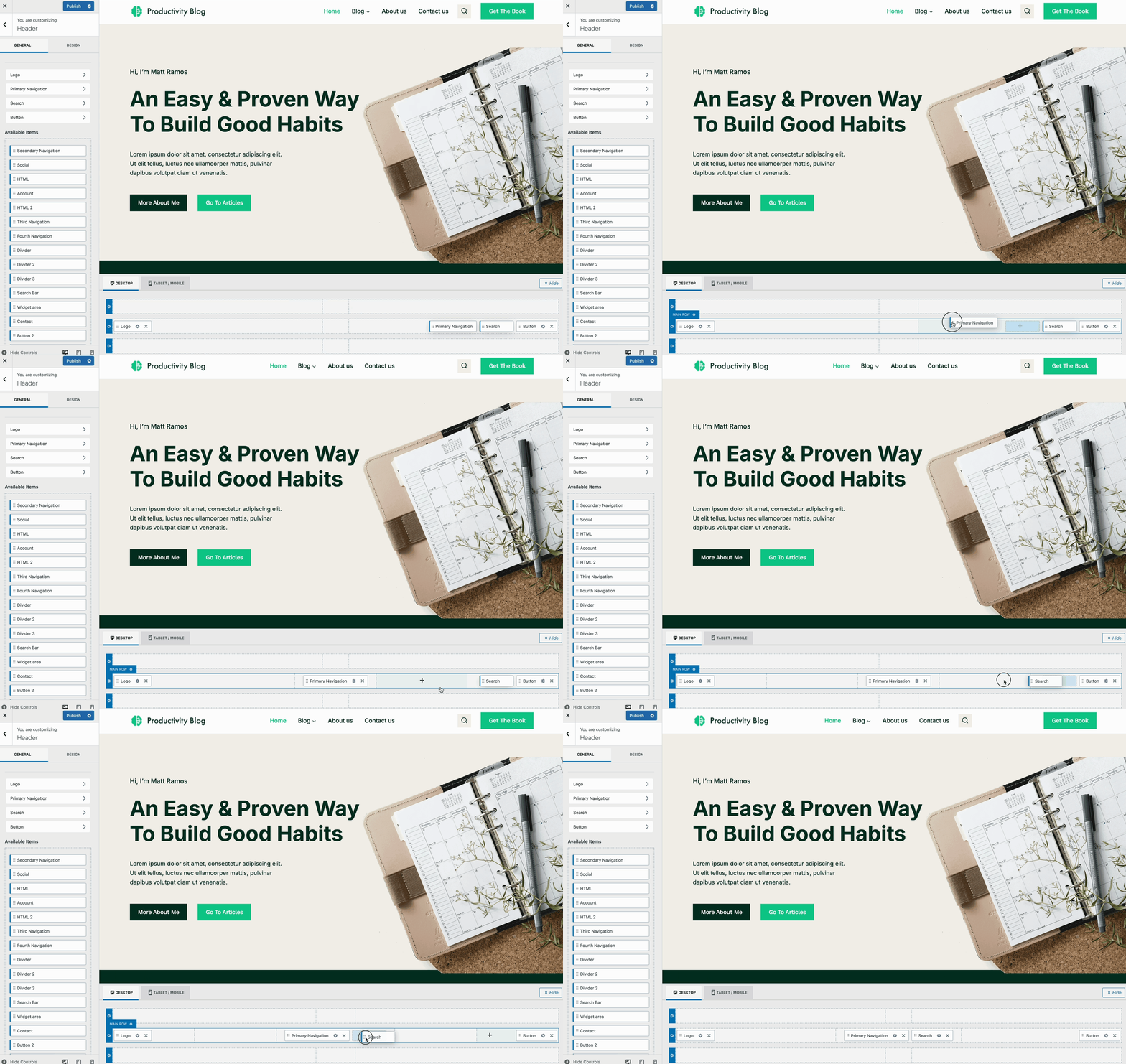
Moving header Items

Header Items can be dragged from the Available Items list in the Customizer settings or by clicking on the Plus Icon of a section within the Visual Builder.
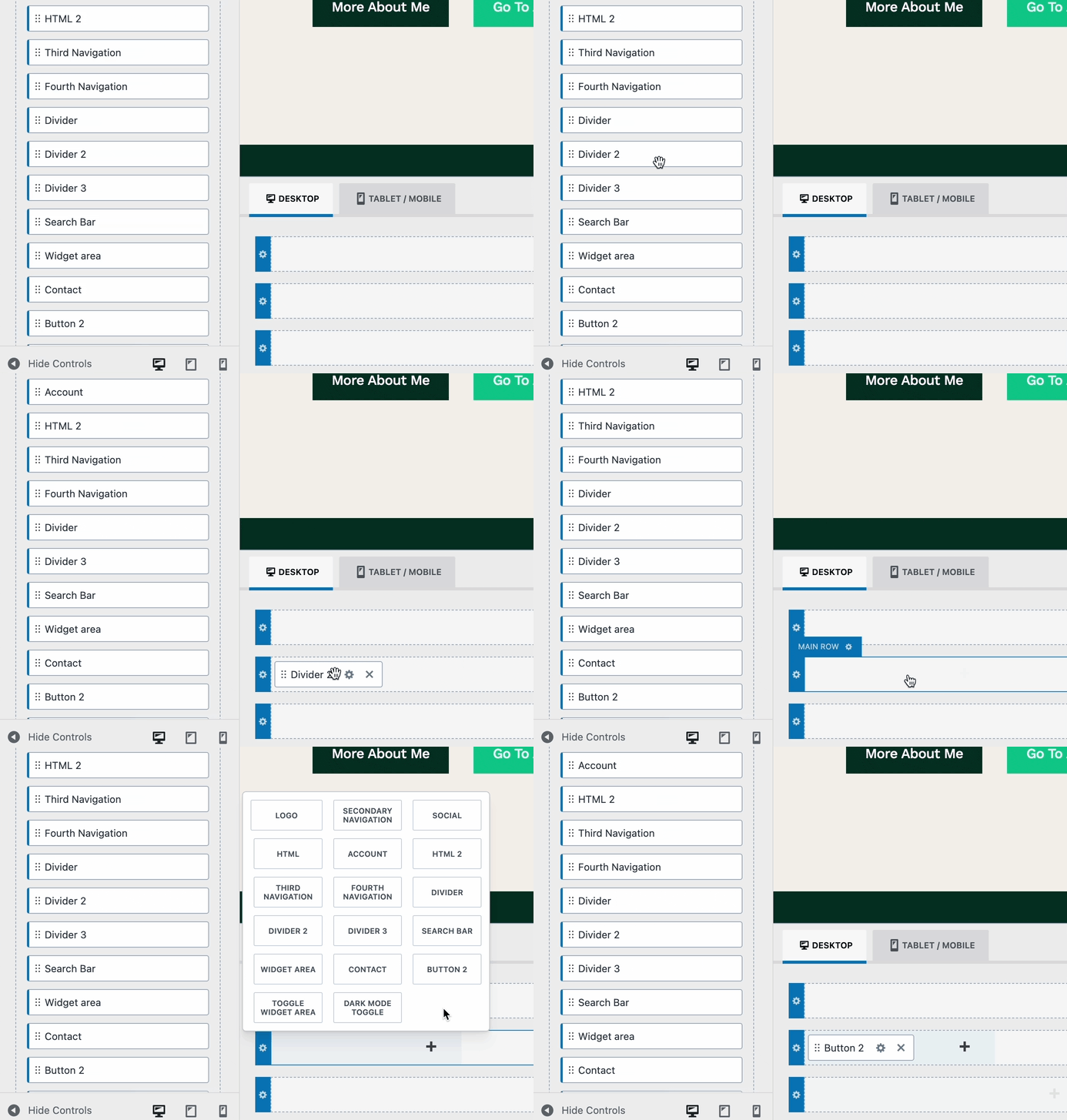
Adding Header Items

The Theme Header consists of three Header Rows. Each row contains three sections for the placement of Header Items.


Header Rows Highlighted
Header Sections Highlighted

Use the Settings Icon on the far left of each Header Row to control the individual Header Row Settings. (Learn more about the available Header Row Settings below.)
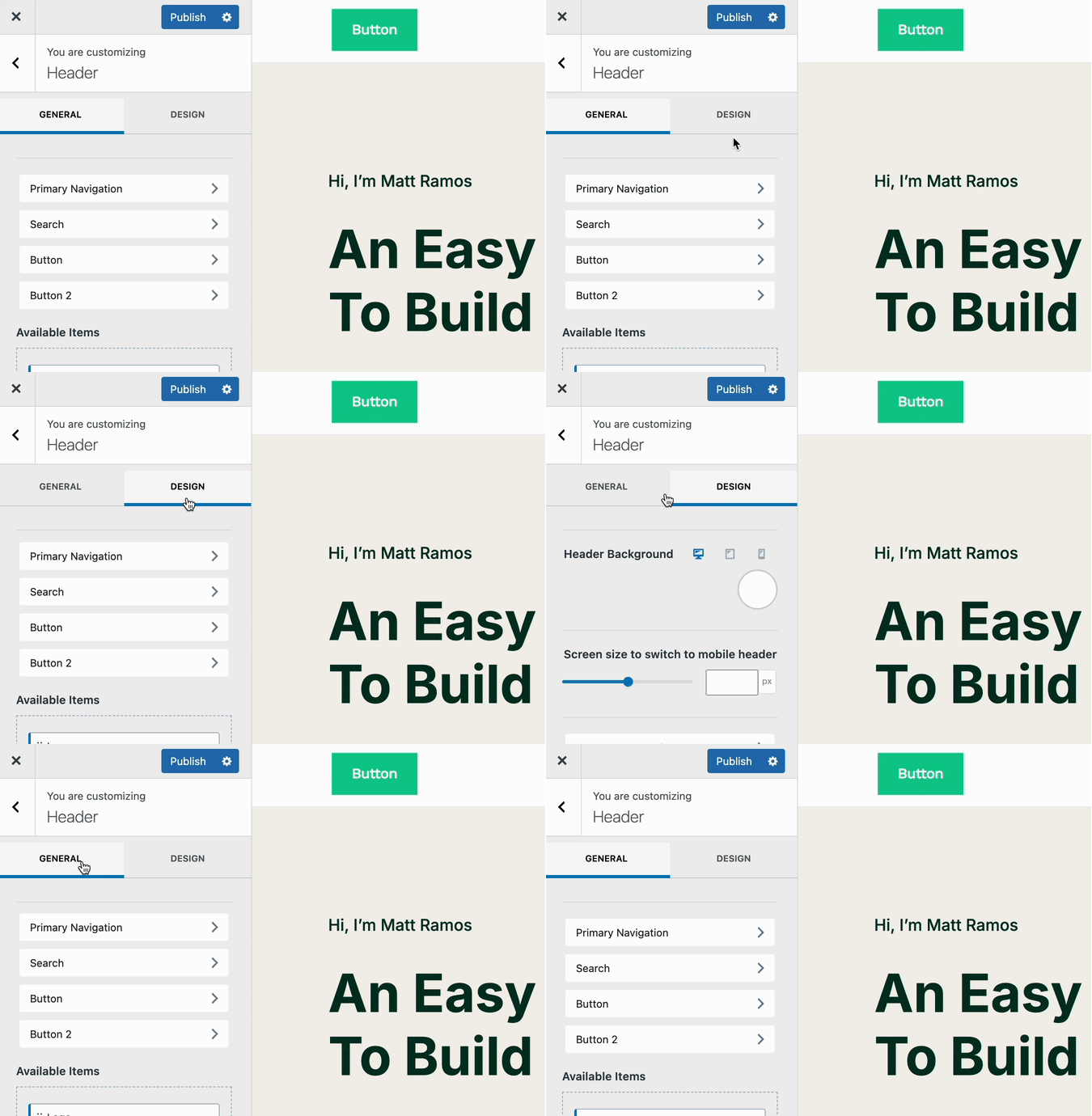
When customizing the Theme Header, Header Items, and Header Rows, use the General and Design settings to control their behavior and appearance. Learn more about the Theme Header General and Design settings below.

General and design settings

Mobile/Tablet Headers

Use the Tablet/Mobile tab within the visual header builder to access the mobile header layout. This view displays the mobile header rows as well as the Off Canvas Area, where you can configure your mobile navigation.

To set up mobile navigation, add the Trigger header item to one of the available header row sections. Then, place the Mobile Navigation header item into the Off Canvas area.

When the trigger is clicked, it will open the Off Canvas area, displaying your mobile menu as intended. Click here to learn more about customizing the mobile navigation area.
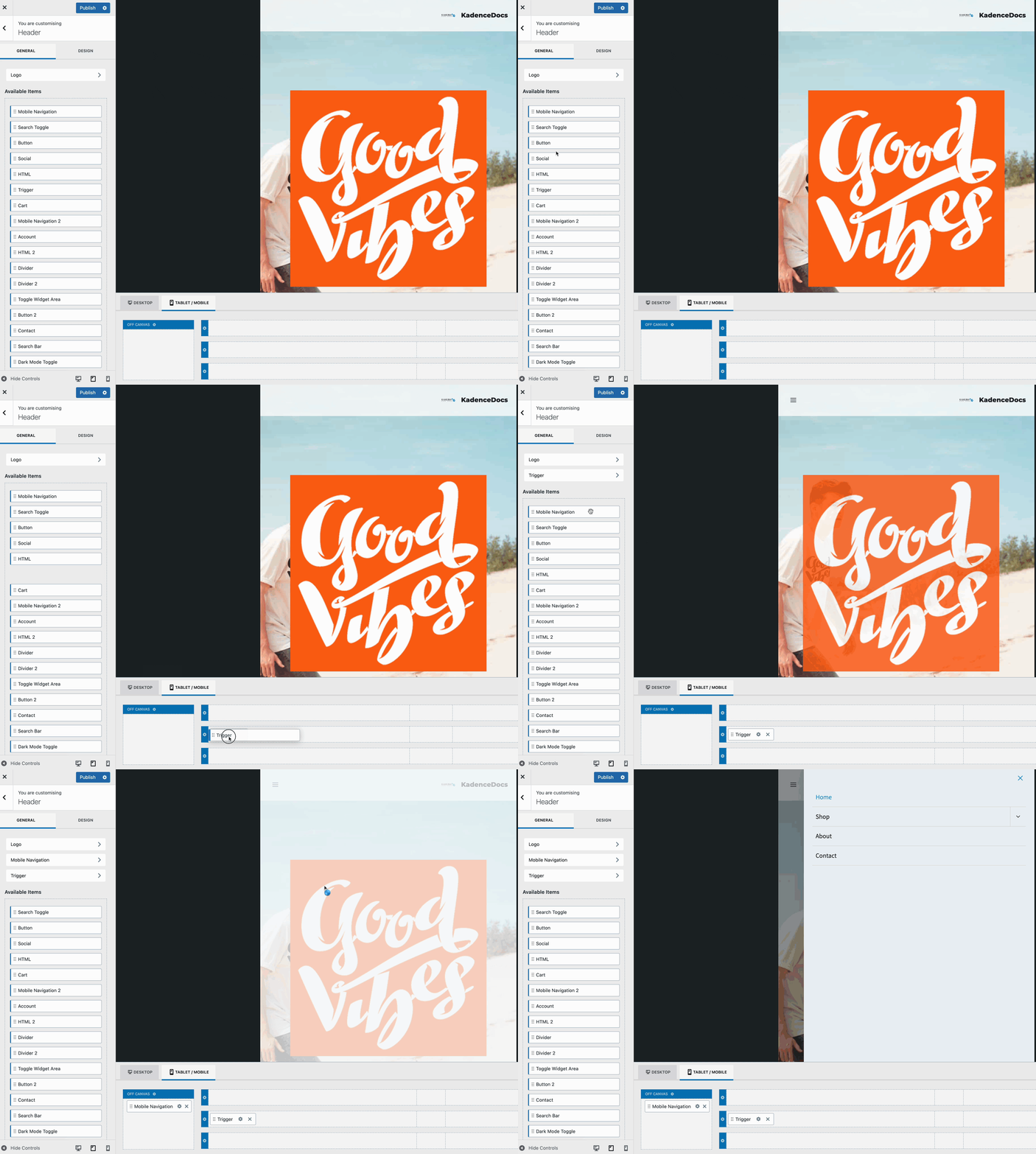
Editing The Mobile Header

General Header Settings

Use the General Header Settings to control the general functionalities of your header. You can access the Available Header Items, the individual Header Item Settings, and other features, such as Transparent, Sticky, and Conditional Headers.

At the top of the General settings, you’ll find a list of the current items in the Theme Header.

  • When you add an item to the Header, a corresponding tab appears, allowing you to modify its settings.
  • Likewise, removing an item from the Header will remove its associated tab and settings from the list.

The Available Items section contains elements that have not yet been added to the Header. You can drag and drop these items into the Visual Header Builder to incorporate them into your layout.

Click here to learn about each Header Item and their available settings.
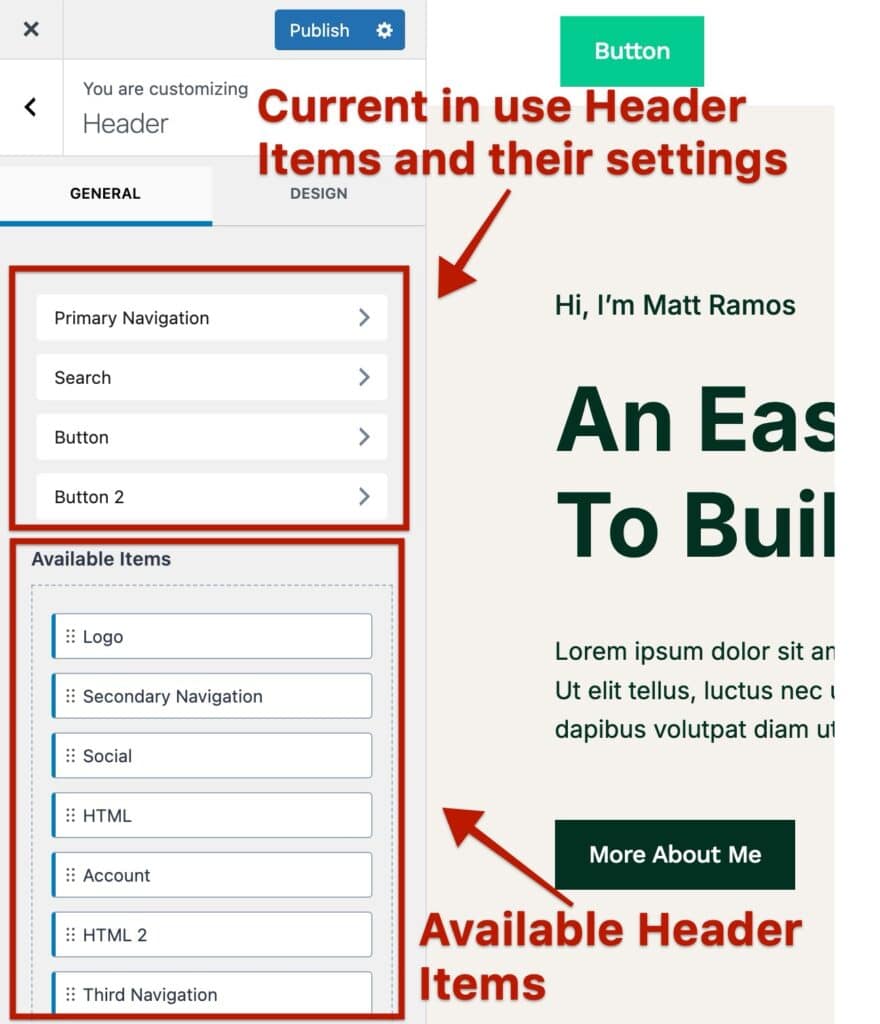
General Settings 1

Below the Available Items, you can find additional settings. Such as the Transparent Header, Sticky Header, and Conditional Header settings. This document covers each of these settings below.

  • Click here to learn more about the Transparent Header Settings.
  • Click here to learn more about the Sticky Header Settings.
  • Click here to learn more about the Conditional Header Settings.

The Enable Block Header setting can be used if you wish to use a Kadence Advanced Header instance instead of the Theme Header. Just enable this option and select the desired Advanced Header that you wish to use.
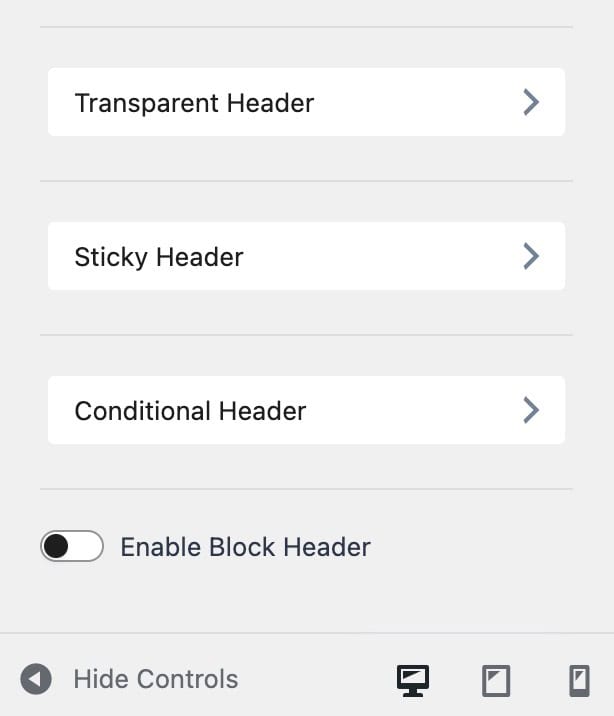
Additional General Settings

Design Header Settings

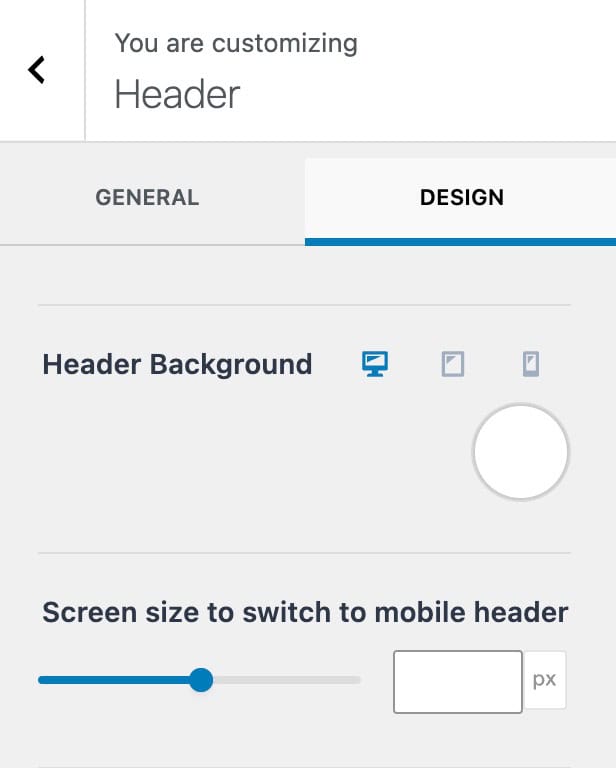
Use the Design Header Settings to control the general styles of your header.

Header Background: Set a background color for the header as a whole. This can be set for desktop, tablet, and mobile devices.

Screen size to switch to mobile header: This setting controls the theme header breakpoint for when the desktop header will become the tablet/mobile Header. The default value is 1024px.


Header Design Tab

Header Row Settings

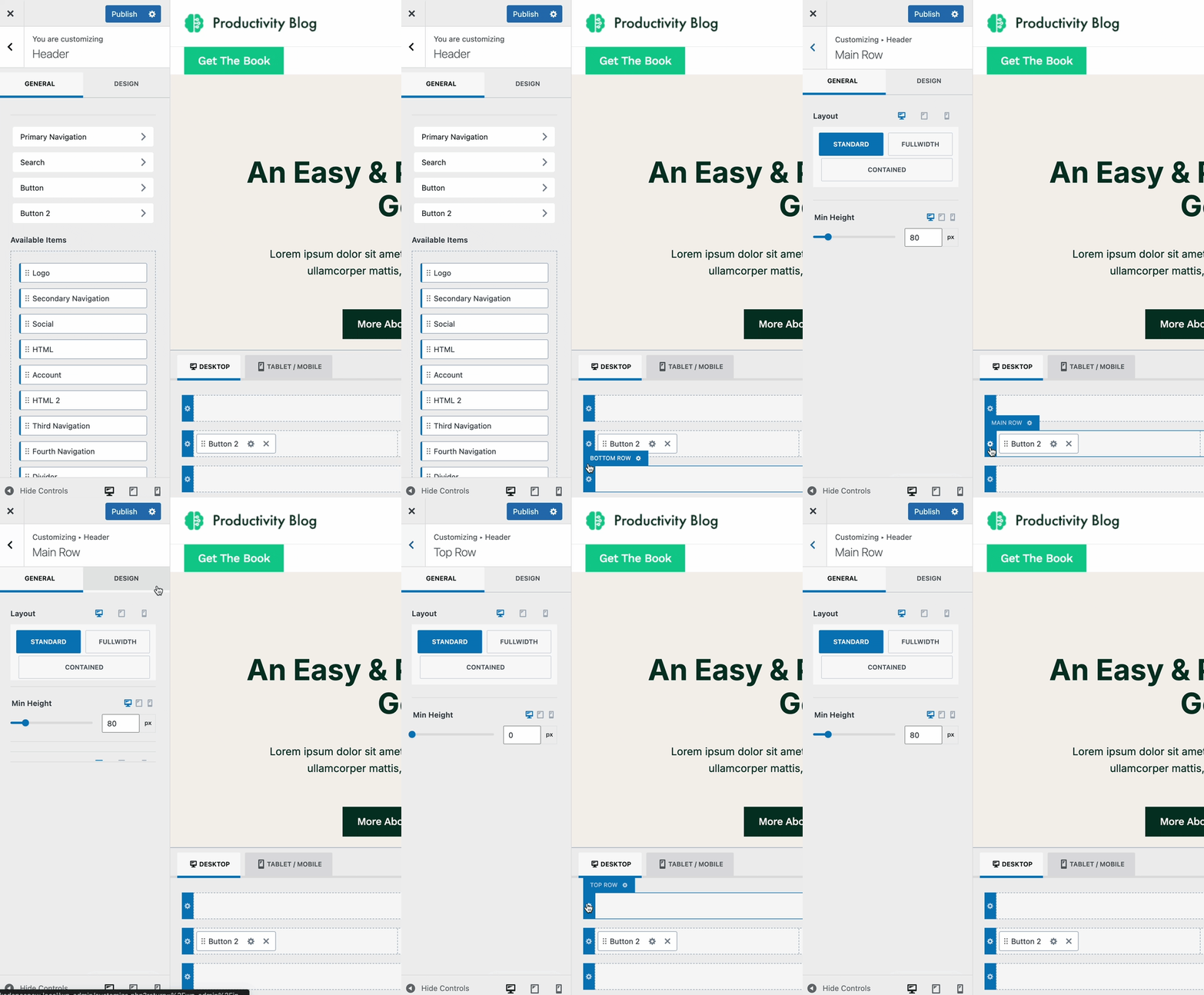
The theme header is made up of three header rows: top, main, and bottom. Each header row can be customized individually.

In the Visual Builder, click the settings icon on the far left of the desired header row to access its General Header Row Settings.

From there, you can also navigate to the Design Header Row Settings for further customization.
Row Settings Gif

General Row Settings

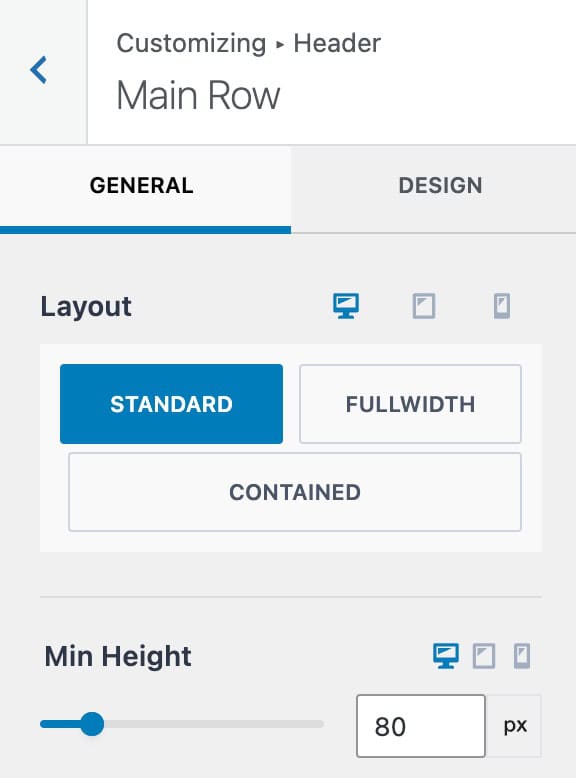
Layout: Set a Layout for the current header row. You can pick from the following options.

  • Standard – This option extends the Row Background to full width, while keeping the content contained to the theme content width.
  • FullWidth – This option extends the Row Background and content to full width.
  • Contained – This option contains both the Row Background and Content within the theme content width.

Min Height: Set a minimal height for the current header row.
General Row Settings

Design Row Settings

Row Background: Set a background color for the current row. This can be set for desktop, tablet, and mobile devices.

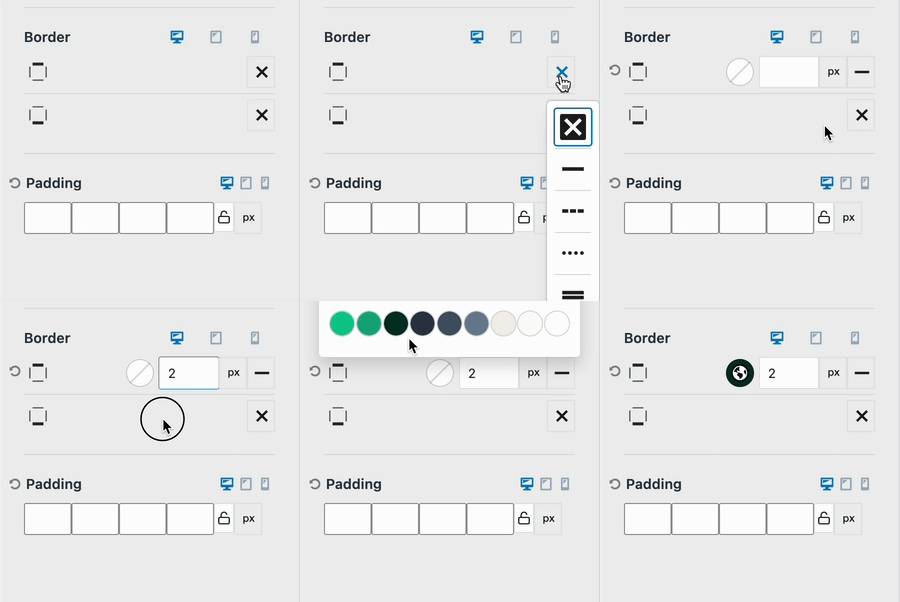
Border: Add a Border to the top and/or bottom of the current header row. Click on the x icon to select a border style. Then, you can use the input value to set the border width and color.
Set Border

Padding: Add padding to the current header row. This can be set for all sides of the header row and specified for desktop, tablet, and mobile devices.
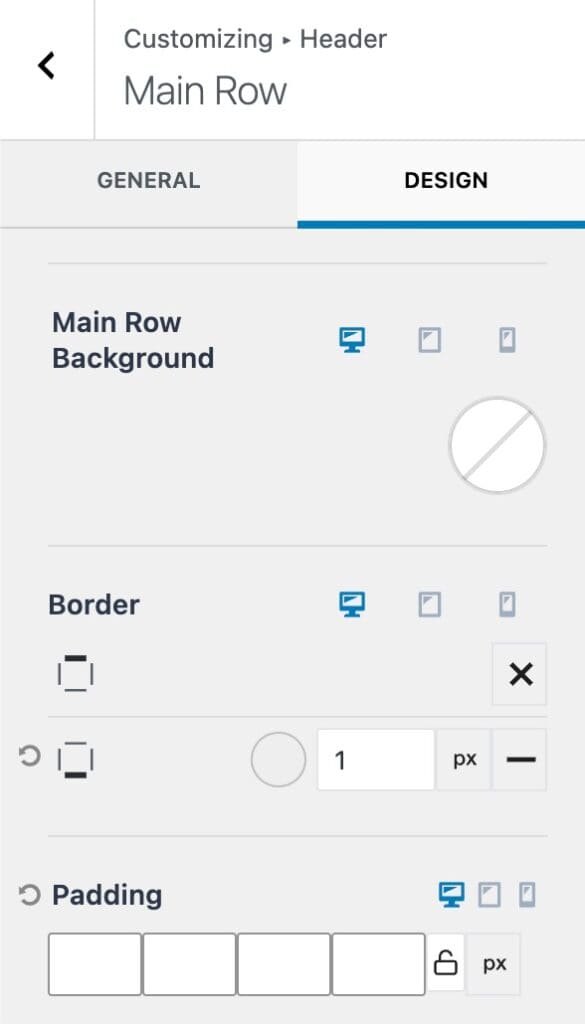
Design Row Settings

Transparent Headers

In the Customize -> Header settings, you can find the Transparent Header settings to enable and use the Transparent Header.

Once the Transparent Header is enabled, you will notice various options to disable the transparent header on different page types. This allows the transparent header to be used as needed.

Enable/disable the transparent header where needed accordingly. (If your website includes products, events, etc., you will also see options to disable/enable the transparent header on these pages.
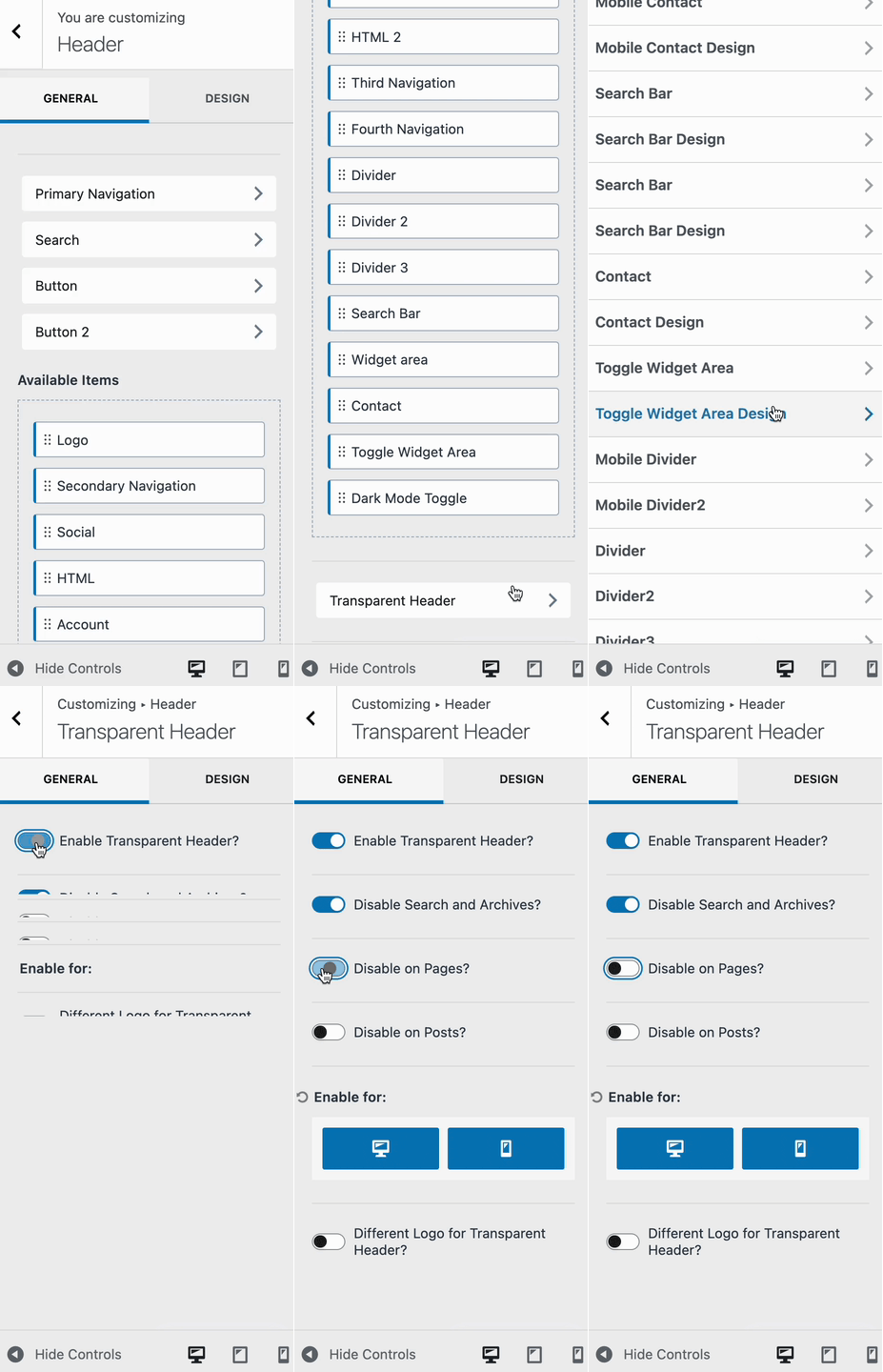
Enabling Transparent Headers

Different Logo for Transparent Header (optional): This setting allows you to enable and select a different logo for the header in the transparent state. This can help if your logo typically depends on a background color to be seen. You can upload a different color/version of your logo that works well on transparent backgrounds.

Transparent Design Settings

Use the Design tab to customize the styles of the Transparent Header. These styles take effect when the header is in its Transparent State, overriding any existing color settings.

For example, if your header is both Sticky and Transparent, the Transparent Header styles will apply initially. However, once the Header transitions into the Sticky State, the Sticky Header settings will override the Transparent ones.

There are numerous Design Settings available to customize the colors of various Header Items.

If a header color doesn’t appear correctly in the Transparent Header, you can likely adjust it within the Design Settings for that specific header item.

If a specific setting offers more than one color option, then you can adjust additional colors for different states. Such as the initial, hover, and/or active states.

Below is a list of all the available colors that can be modified.

Available Settings: Contact Colors, Search Bar Input Colors, Button Colors, Button2 Colors, Search Bar Input Background, Search Bar Border Color, Widget Area Colors, Mobile Divider Color, Mobile Divider 2 Color, Divider Color, Divider 2 Color, Divider 3 Color, HTML Colors, HTML2 Colors, Logged out Account Colors, Logged in Account Colors, Logged in Account Background, Logo Icon Color, Site Title Color, Navigation Colors, Navigation Items Background, Button Colors, Social Colors, HTML Colors, Transparent Header Background, Bottom Border, and Toggle Widget Colors.
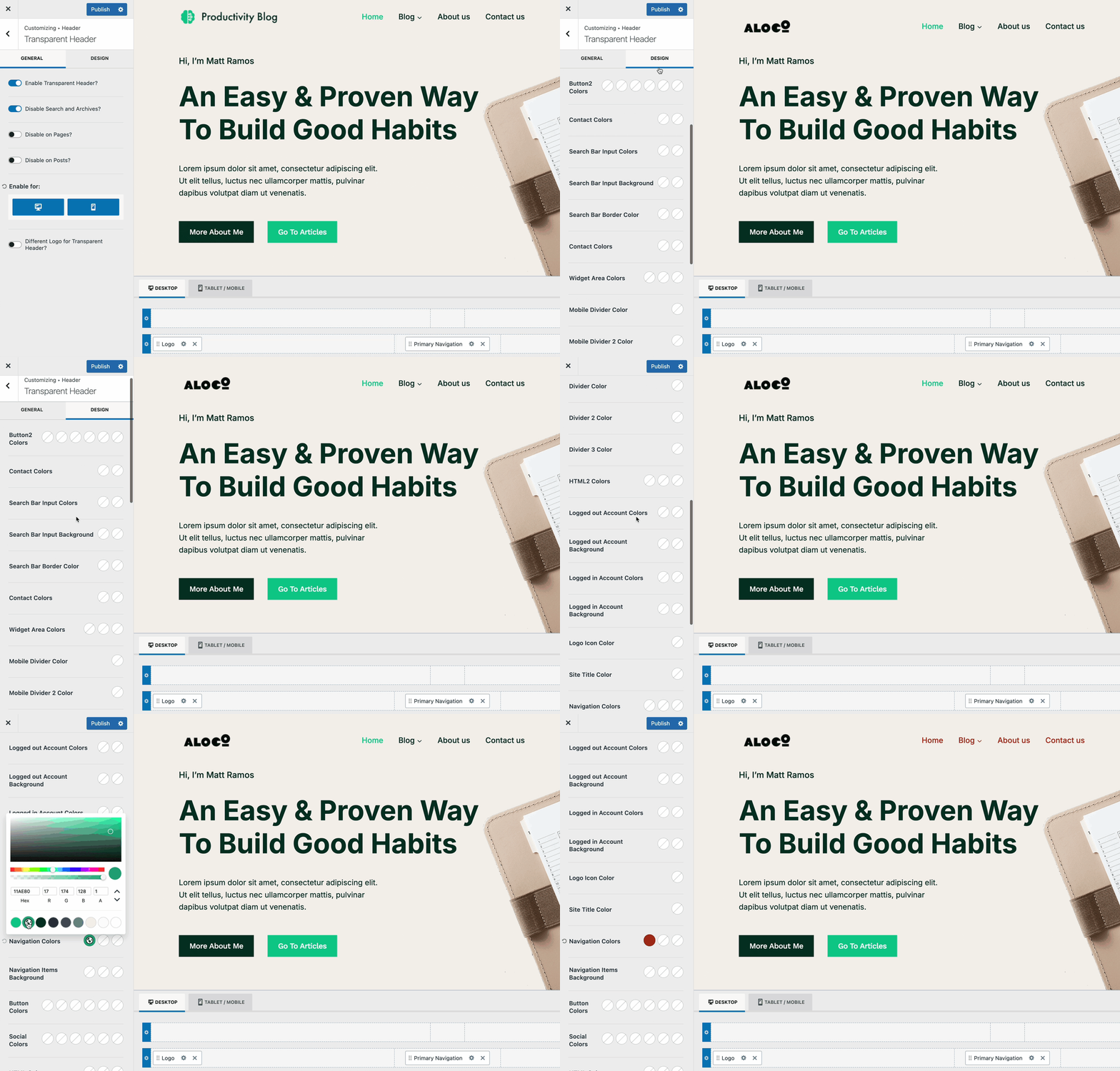
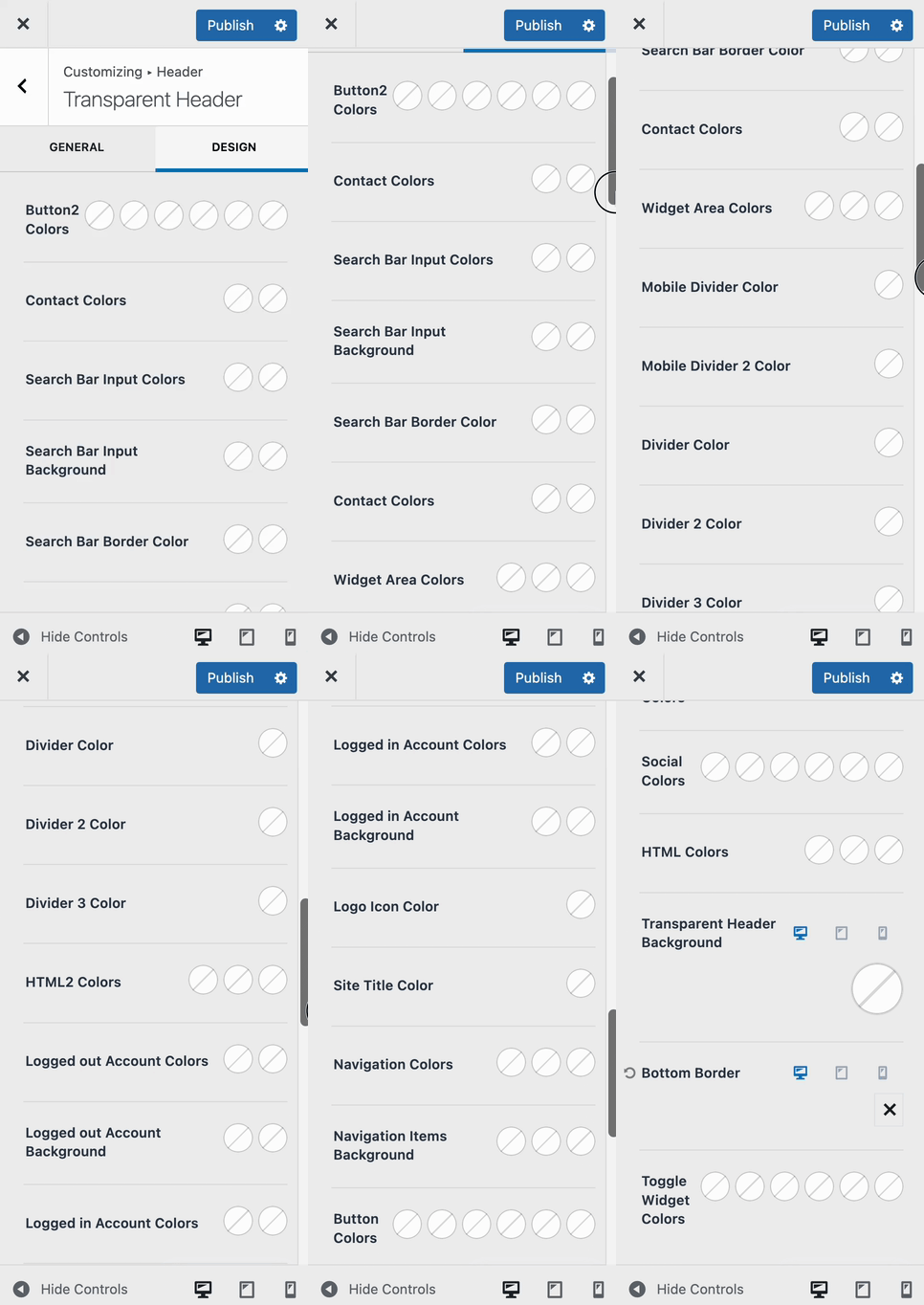
Transparent Header Demo
Transparent Design

Transparent Header Background: Use this setting to set a background color, gradient, or image whenever the header is in the transparent state.
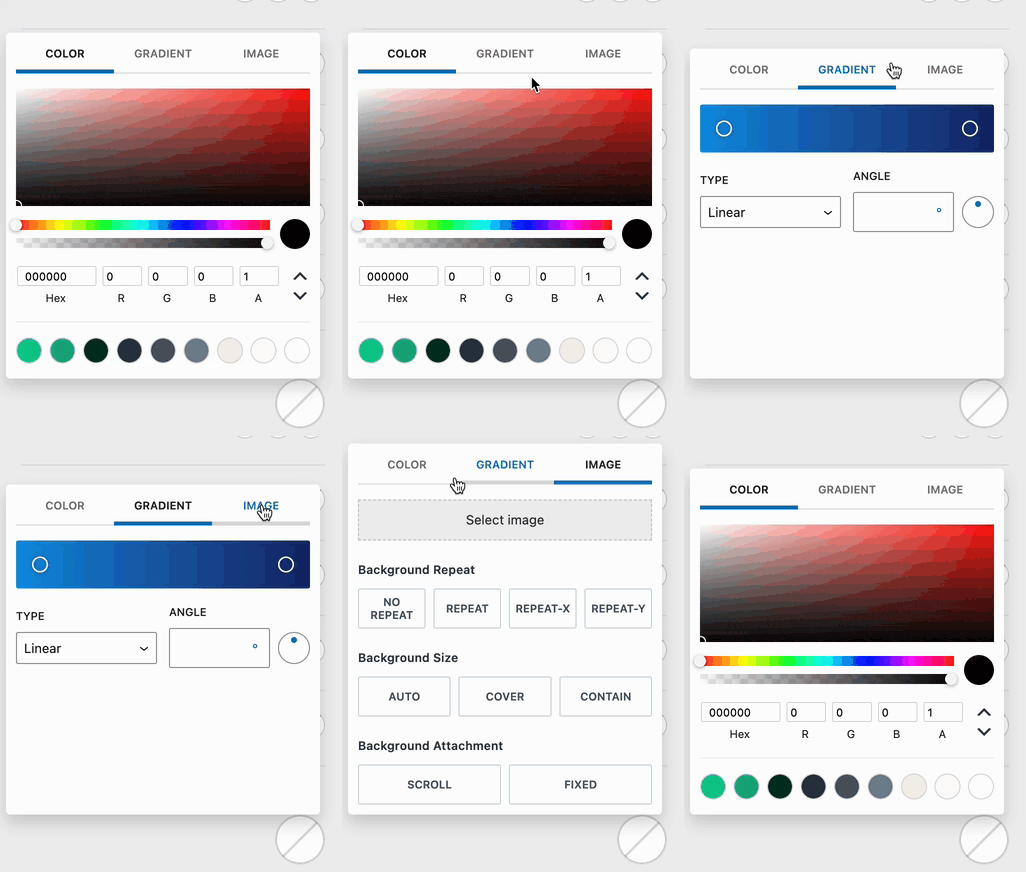
Header Background

Bottom Border: Add a border to the bottom of the header when in the transparent state. Once a border style is selected, you will be able to select additional customizations, such as the border size and color.
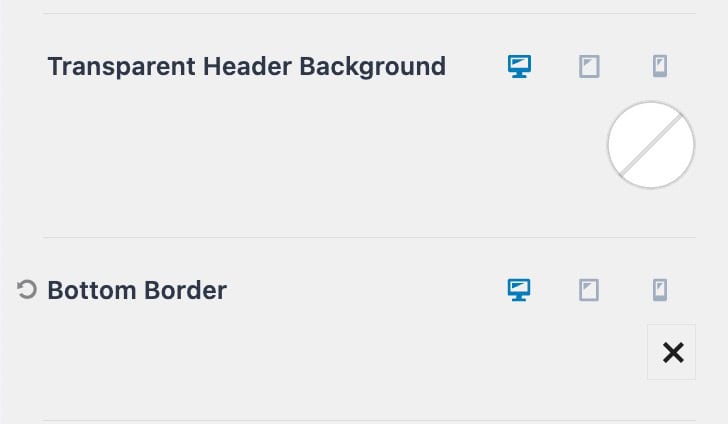
Transparent Backgrounds

Transparent Header Page/Post Settings

When using the Transparent Header, you may want to disable it for a specific Post or Page rather than across all content. This can be managed using the Kadence Post/Page Settings in the Editor

  1. Open the Post or Page you want to edit.
  2. In the WordPress Editor, navigate to the Post/Page Settings in the top right corner.
  3. Locate the Transparent Header setting and select your preferred option:
  • Default – Uses the global settings configured in the Transparent Header Customizer settings.
  • Disable – Turns off the Transparent Header for this specific Post/Page.
  • Enable – Forces the Transparent Header on for this specific Post/Page.
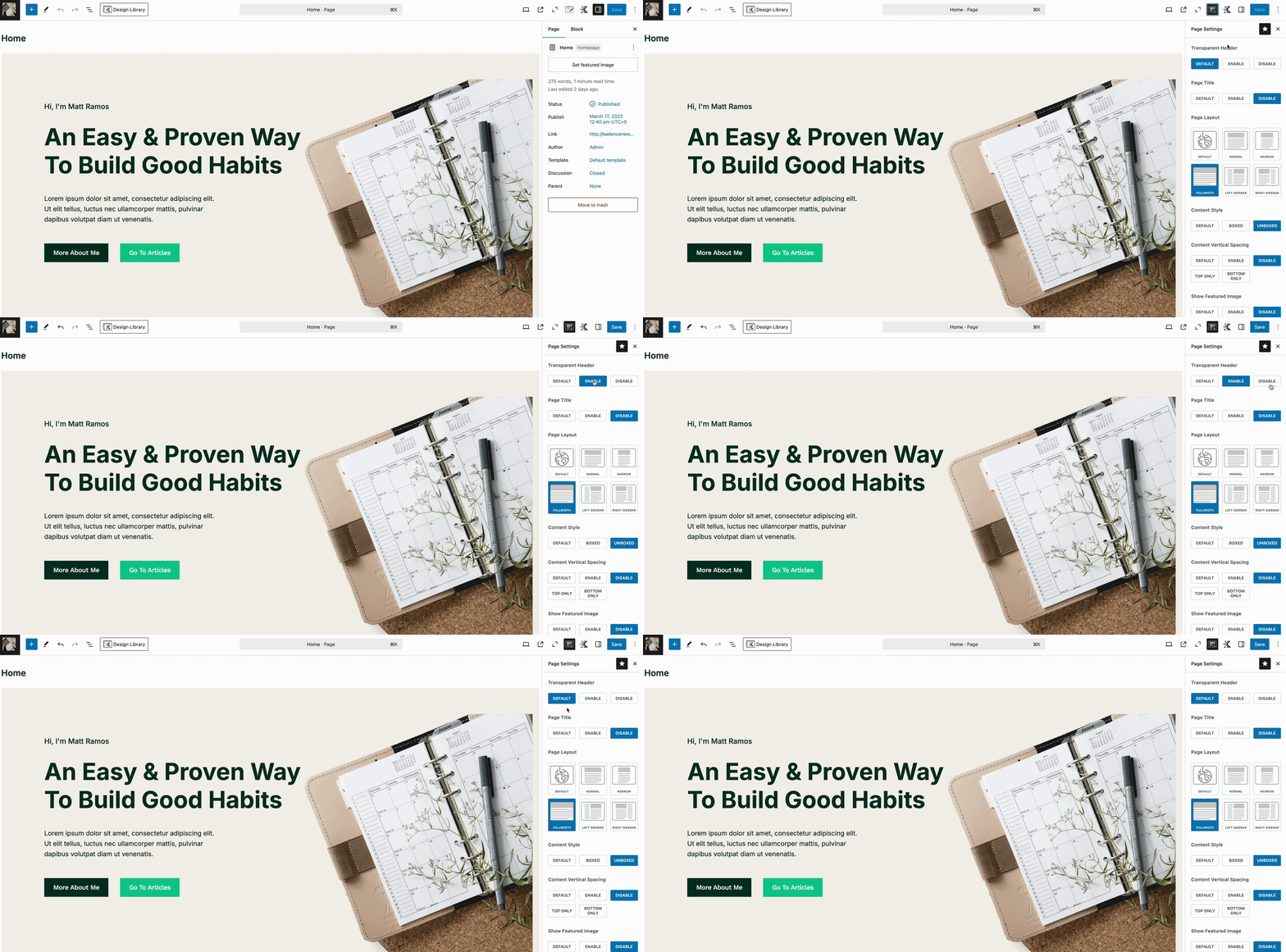
Transparent Page Settings

Sticky Headers

In Customize → Header settings, you can find the Sticky Header options to enable and configure a Sticky Header. A dropdown menu allows you to enable the sticky header based on your preference.

There are separate dropdowns for both desktop and tablet/mobile headers, each offering different sticky behavior options.

The selectable options include: Only Main Row, Top Row & Main Row, Whole Header, Only Top Row, or Only Bottom Row.
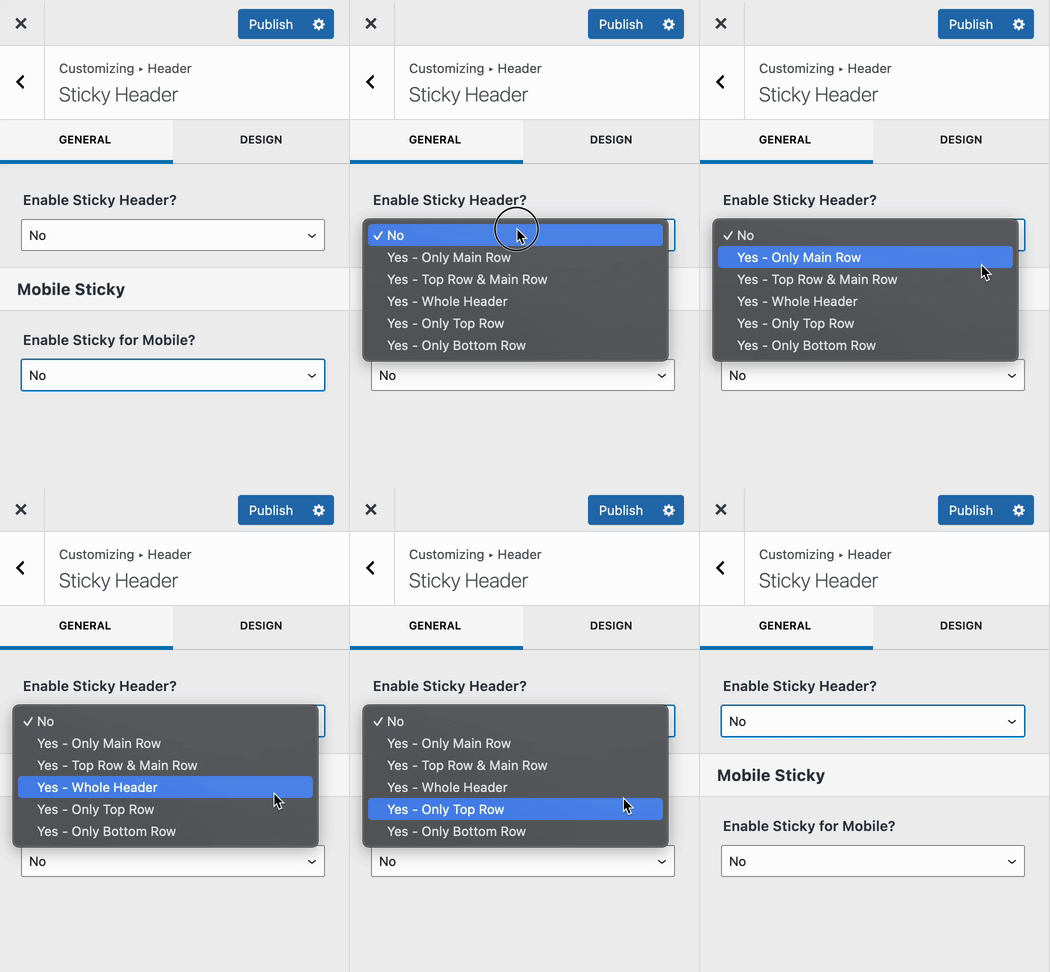
Enable Sticky Header

Once you have selected your preferred sticky header behavior, you will be presented with additional options to control its functionality.

Enable Reveal Sticky on Scroll Up: When enabled, the sticky header will initially disappear as the user scrolls down the page. However, it will reappear when the user scrolls back up the page.
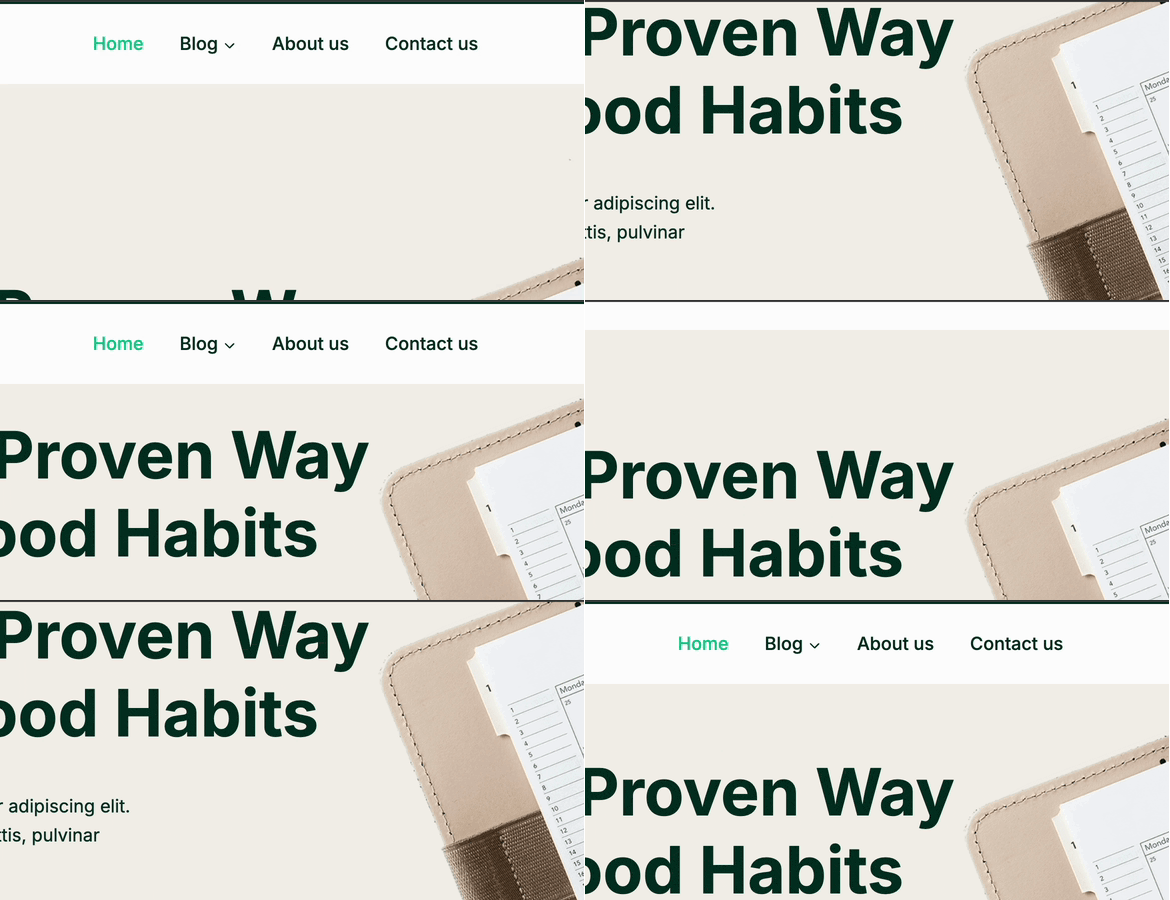
On Scroll Up

Enable Main Row Shrinking: This option allows you to reduce the height of the sticky header when it becomes sticky. When enabled, the main header row will reduce in height as it becomes sticky, using the specified shrink height
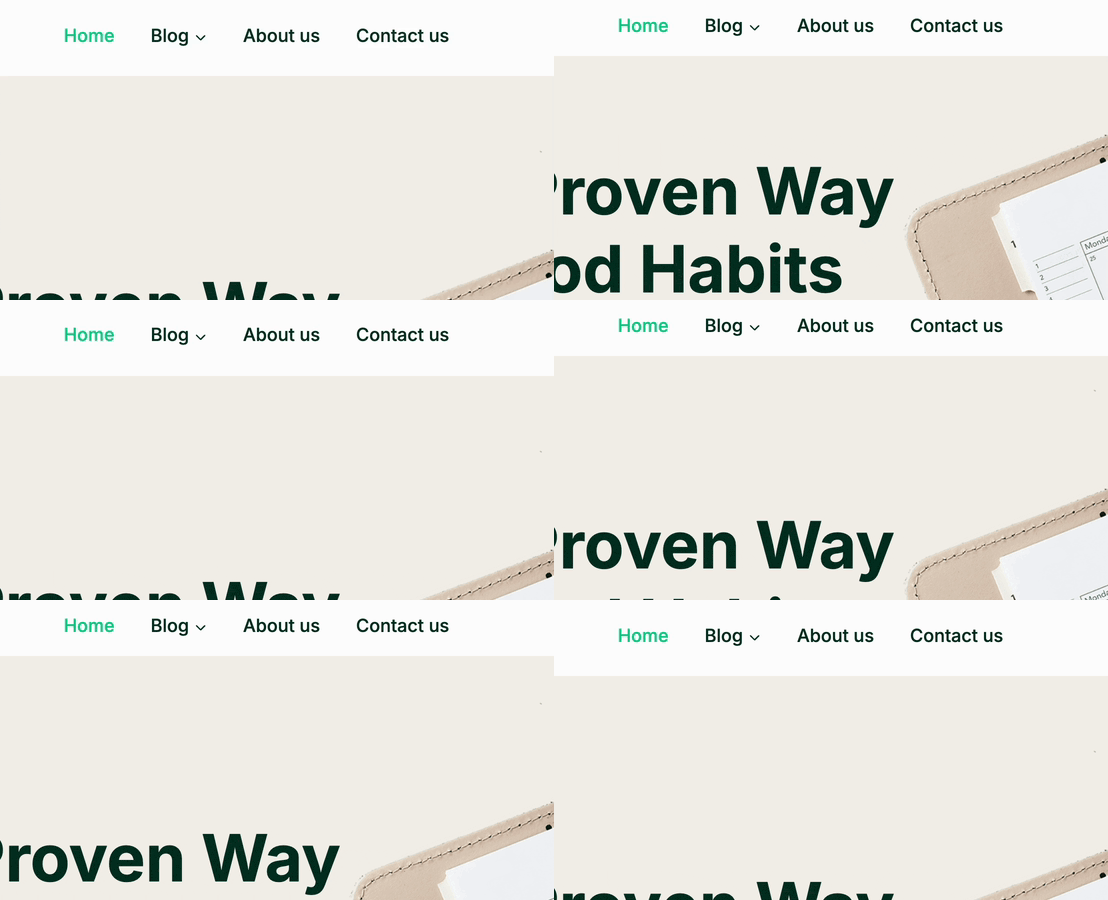
Main Row Shrinking

Different Header Logo (optional): This setting lets you assign a different Header Logo that’ll be displayed when the header enters the sticky state.
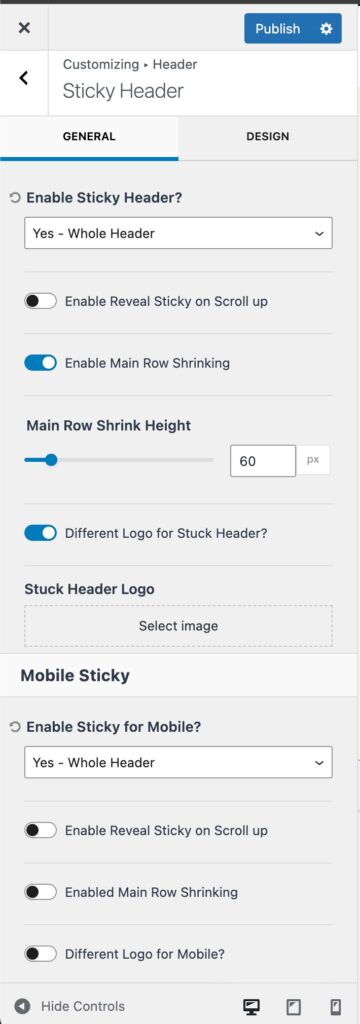
Sticky Header Settings

Sticky Design Settings

Use the Design tab to customize the styles of the Sticky Header. These styles take effect when the Header is in its Sticky State, overriding any current existing color settings.

For example, if your Header is set to Sticky, it will initially use the default header styles. Once the Header enters the Sticky State, it will switch to the Sticky Header settings, applying the defined styles for that state.

There are numerous Design Settings available to customize the colors of various Header Items.

If a setting offers more than one color option, then you can adjust colors for different states. This usually includes the Initial, Hover, and/or Active states.

Below is a list of all the available colors that can be modified.

Available Settings: Toggle Widget Colors, Site Title Color, Logo Icon Color, Navigation Colors, Navigation Items Background, Button Colors, Social Colors, HTML Colors, Sticky Header Background, Sticky Bottom Border, Button2 Colors, and Contact Colors.
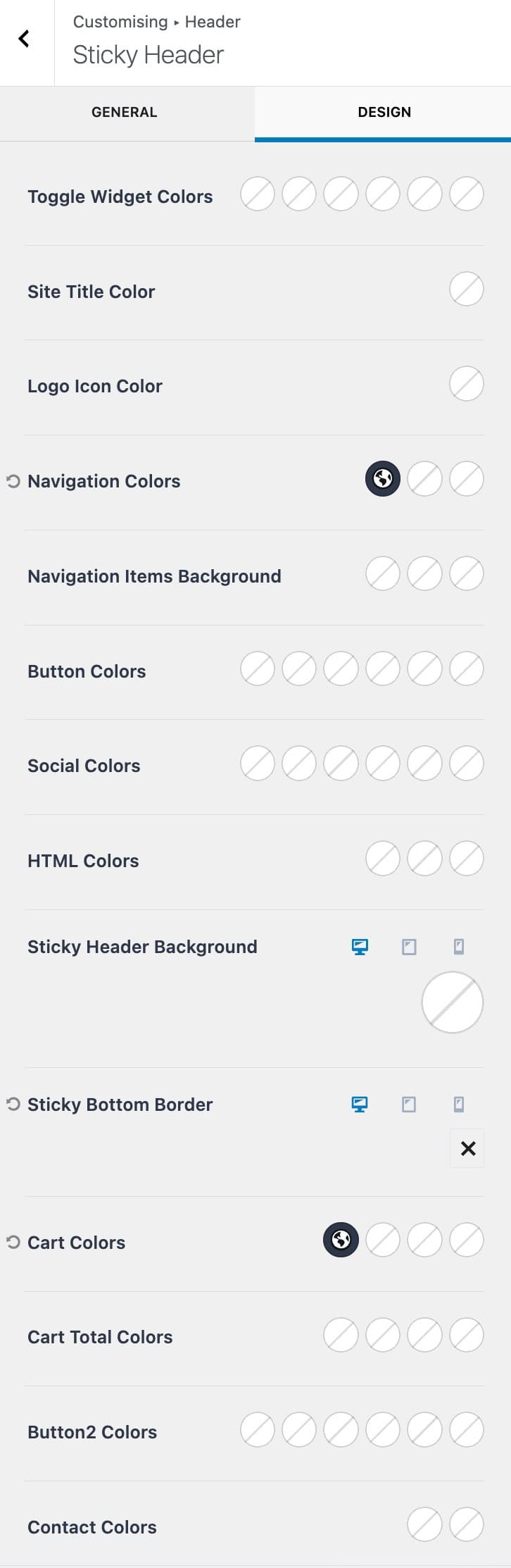
Sticky Header Design Settings

Customizing Header Navigation Colors

When using the Kadence Theme Classic Header in the WordPress Customizer, you have several options for setting Navigation Colors. You can customize the default navigation colors, the transparent header navigation colors, and the sticky header navigation colors. 

To learn more about customizing the Header Navigation Colors for different Header States, refer to the Customizing the Classic Header Navigation Colors (Default Header, Transparent Header, Sticky Header) document.

Conditional Headers (Premium)

The Conditional Headers feature, available in Theme Kit Pro, allows you to apply different headers on different posts, pages, and archives based on conditions. This is a premium feature that is available with Kadence Theme Kit Pro. Head over to the Dashboard -> Appearance -> Kadence page and enable the Conditional Headers option.

You can learn more about using Conditional Headers by clicking here.
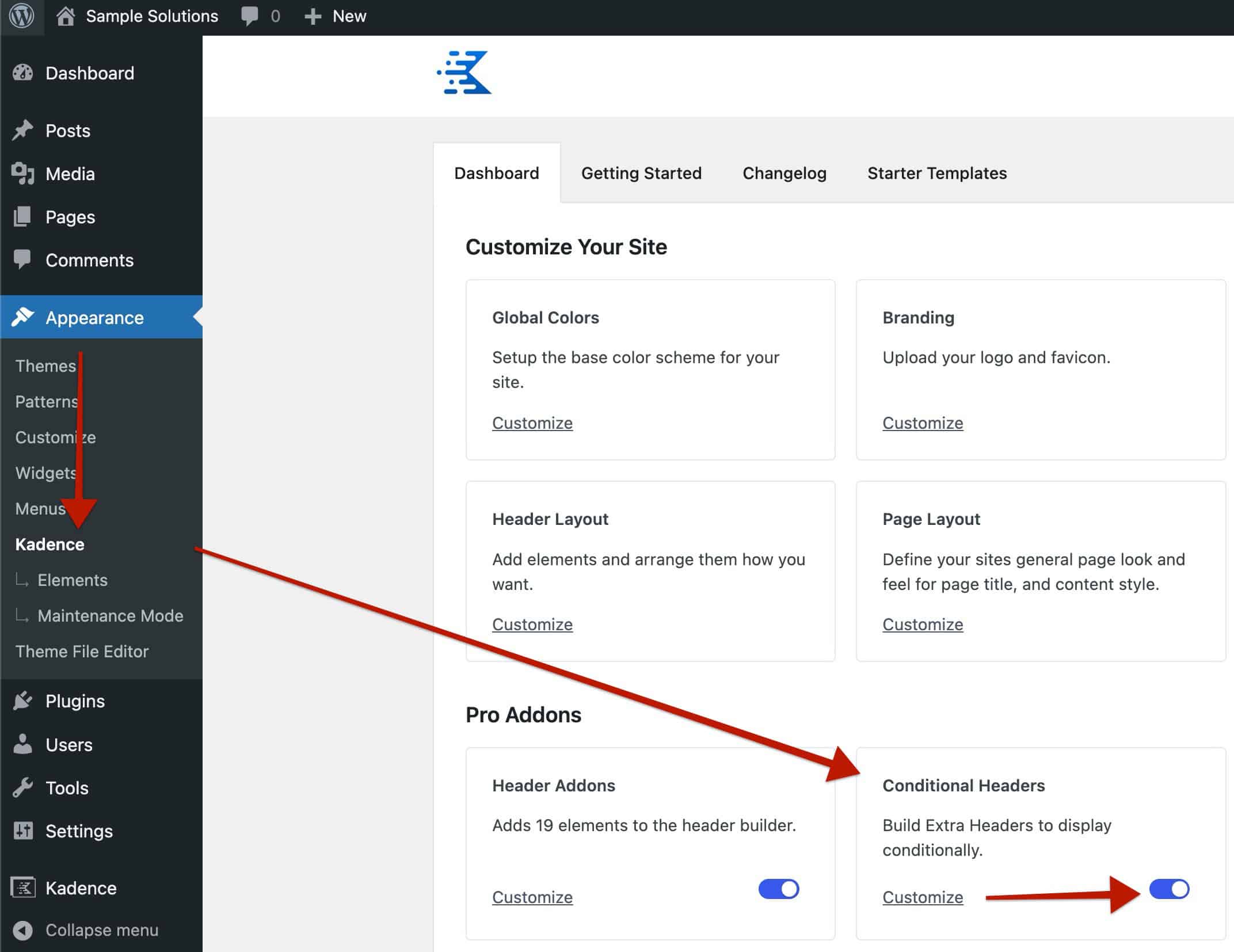
Enable Conditional Headers
Do you feel this document was helpful?
Kadence Classic Header Items
The Kadence WP Logo
Crafted in Missoula, Montana
  • Follow Kadence on Facebook
  • Follow Kadence on Youtube
  • X
  • Follow Kadence on Instagram
Trustpilot
Products
  • Kadence Plans
  • Kadence Theme
  • Kadence Blocks
  • Kadence AI
  • Kadence Starter Templates
  • Kadence Shop Kit
  • Kadence Conversions
  • Kadence Pattern Hub
  • View All
Resources
  • Blog
  • Podcast
  • Knowledgebase
  • Support ticket
  • Feature Requests
  • FAQ
  • WordPress Hosting Services
About Us
  • About Kadence
  • Become an affiliate
  • Contact us
  • Terms
  • Privacy Policy
  • Security
Our Partner Brands
  • SolidWP
  • LearnDash
  • The Events Calendar
  • GiveWP
  • MemberDash
Kadence Community
  • Kadence Marketplace
  • Join the Facebook Group
  • Subscribe to our YouTube Channel
© 2024 Kadence WP | All prices are in USD
Logo for StellarWP an umbrella brand of Premium WordPress plugins
  • Pricing
  • Products
    • Premium PlansGet all the tools you need in one plan
    • Kadence ThemeLightning-fast performance theme for modern websites
    • Kadence BlocksDrop in ready designs with advanced controls for pixel perfect websites
    • Kadence Shop KitCreate a more effective WooCommerce shopping experience
    • Kadence ConversionsBoost sales and build engaged audiences with popups and banners
    • Kadence InsightsEasily create A/B tests. Optimize your pages to drive higher conversions.
    • View All Products
    • Get Kadence + Hosting
      In One Place

      Enjoy faster setup, top-tier performance, and worry-free WordPress hosting – Kadence Theme, Kadence Blocks, and Solid Security all pre-installed.

      Learn More

  • Kadence AI
  • Starter Templates
  • Blog
  • Support
    • Resource HubStart here for guides, Product docs, FAQs, and Troubleshooting tips, all in one place.
    • Contact SupportStuck on something? We’re here to help! Open a ticket for top-notch support.
    • Contact Our TeamGot pre-sales questions or need help choosing a plan? Open a ticket and our team will guide you.
    • About usCrafted with love in Missoula, Montana. Meet the team behind the mission.
Account Login
  • Features
  • Pro
  • Starter Templates
  • HelpExpand
    • Documentation
    • Facebook Group
    • Submit a Ticket
    • Feature Requests
    • Roadmap
    • Changelog

