
The Kadence Form and Form (Adv) Blocks both support integration with ActiveCampaign. This is an integration available with Kadence Blocks Pro. Below, you will learn how you can start using Kadence alongside ActiveCampaign.
In order to use the Kadence/ActiveCampaign Integration, you must have the Kadence Blocks Pro plugin installed and activated on the website. You can click here to learn how to get started with Kadence Blocks Pro.
ActiveCampaign Setup
To fully integrate ActiveCampaign with Kadence Forms, you must set up an ActiveCampaign, create a Contact List for users to be added to, and connect an ActiveCampaign Key to your Kadence Form.
Get started by heading over to the ActiveCampaign. You can create a new account by signing up for the free trial or logging in to an existing one.

Creating a List
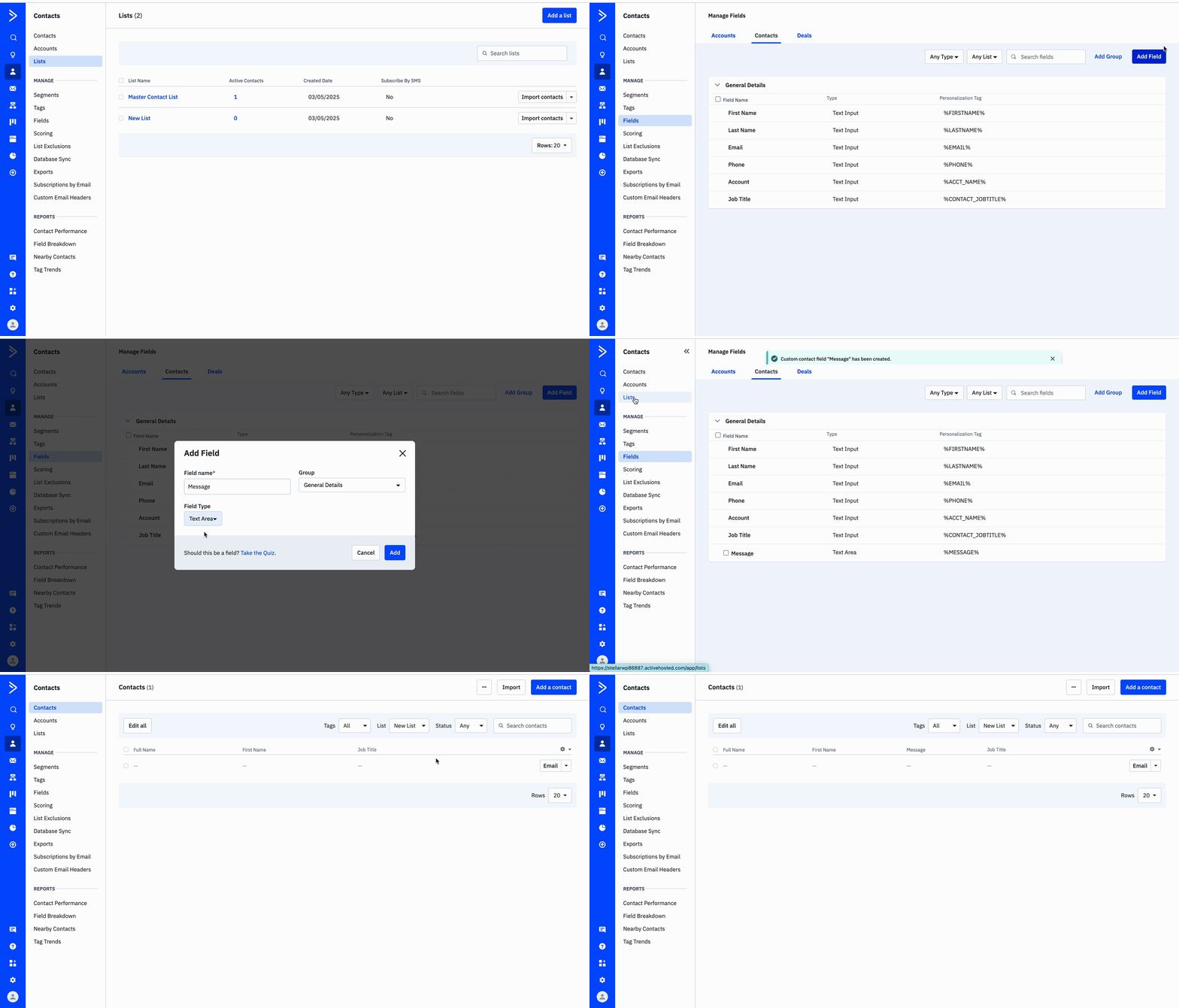
From the ActiveCampaign Dashboard, navigate to the Contacts Menu.

Under the Contacts parent menu, navigate to the Lists submenu and click on it

Click on the Add a list button to create a new list. In the popup, enter a name, website URL, and description, then click on the Save button. By default, you may have one pre-made list and can choose to use it, as preferred.

ActiveCampaign organizes contact information using fields. To modify these fields, click on the Fields Menu in the sidebar. You can use the pre-made fields available or add and use your own custom fields. These fields will map in and integrate with Kadence Form fields.
Obtaining an API Key
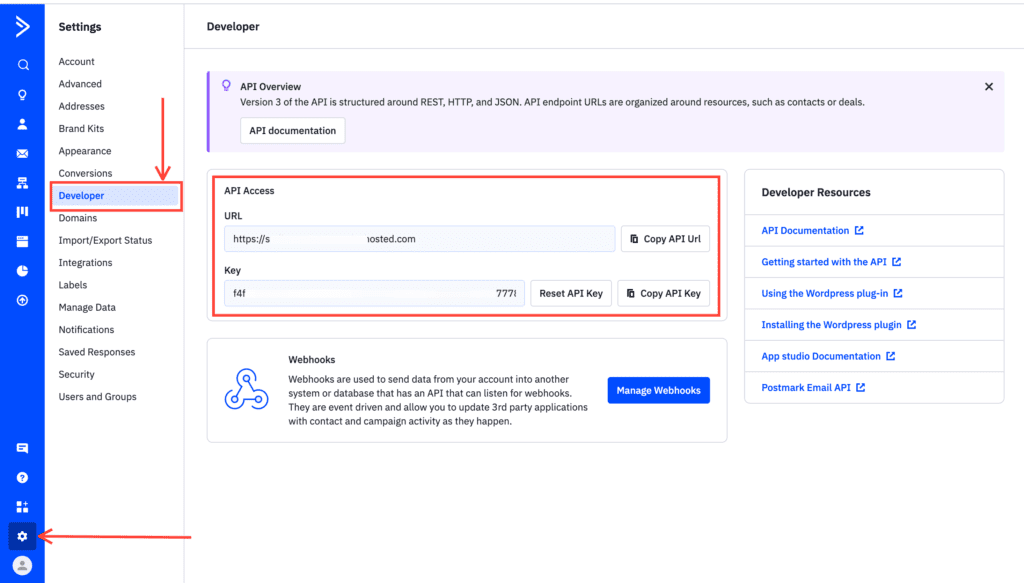
To connect ActiveCampaign with Kadence Form blocks, you need your API Access – API Key and API URL. This API Access allows secure communication between your Kadence Form and your ActiveCampaign account.
From the ActiveCampaign dashboard, click Settings (gear icon) on the bottom-left menu and then click the Developer option. Here you can access and copy your API URL and Key.
Using ActiveCampaign with the Kadence Form Block
Get started by adding a Form Block to a page.
Then, navigate to the Block Settings -> General Tab, expand the Actions After Submit tab, and select the ActiveCampaign checkbox.
Once ActiveCampaign is enabled, notice the new settings tab named ActiveCampaign Settings in the General Form Block Settings.
You can expand this tab to input your Active Campaign API Key and API URL. Once the key and URL is set, click on the Save button to successfully connect to your ActiveCampaign API.
Afterward, you will be able to select a List from your ActiveCampaign account.
Once you have selected a List, you will notice the Kadence Form Fields within the ActiveCampaign Block Settings. Here, you can map your appropriate Kadence Form Field to sync with the appropriate ActiveCampaign Fields.
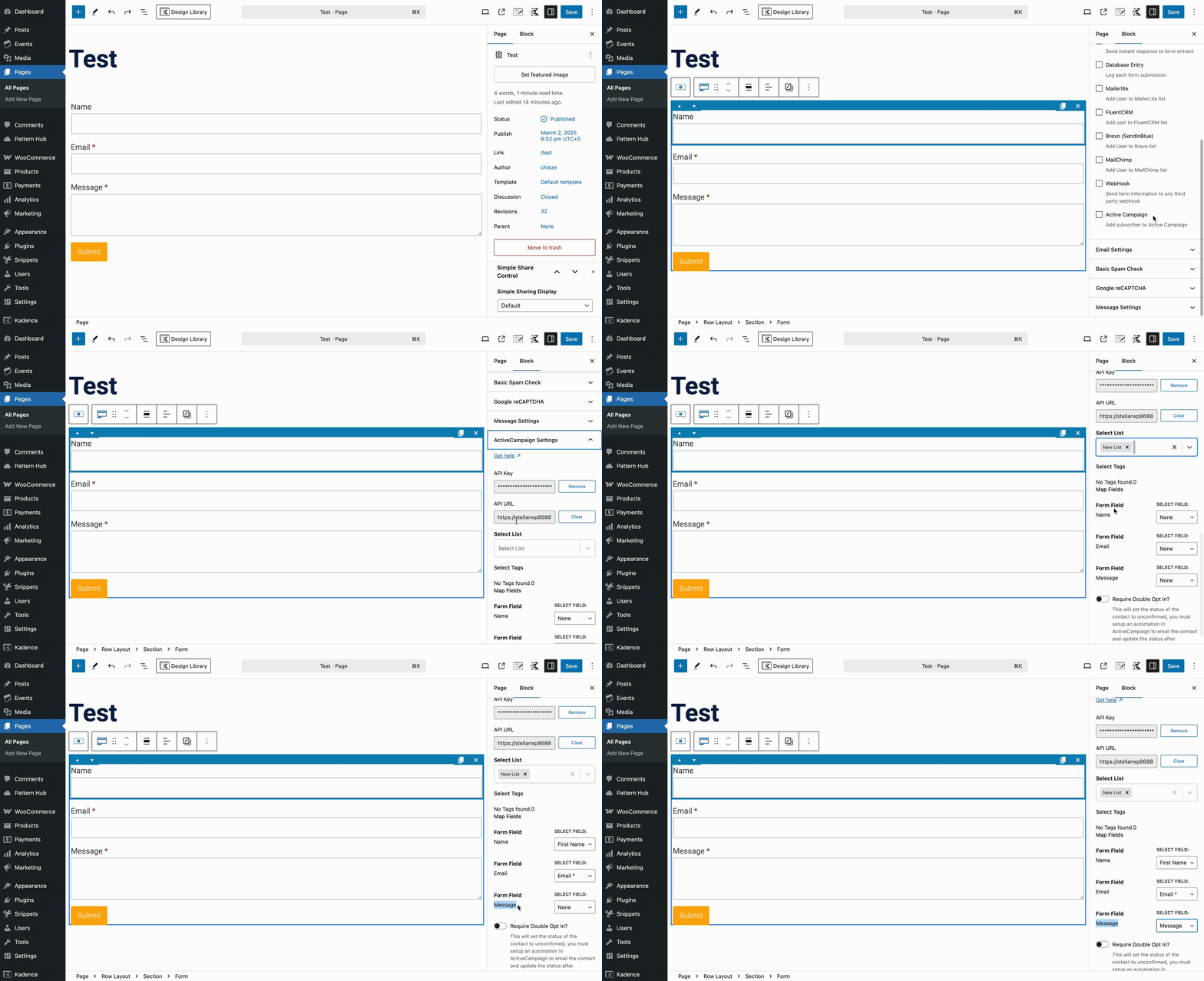
Once the Kadence Form is submitted, the appropriate fields will populate the attributes and add a new contact to the selected list on ActiveCampaign.

