
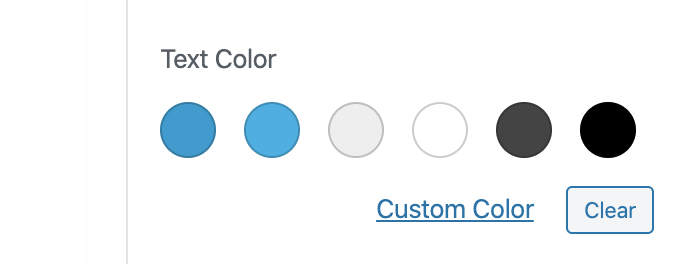
Gutenburg has a default color palette which most themes will override with their own custom colors. For example, when editing in the paragraph block this color palette would look something like the image below:
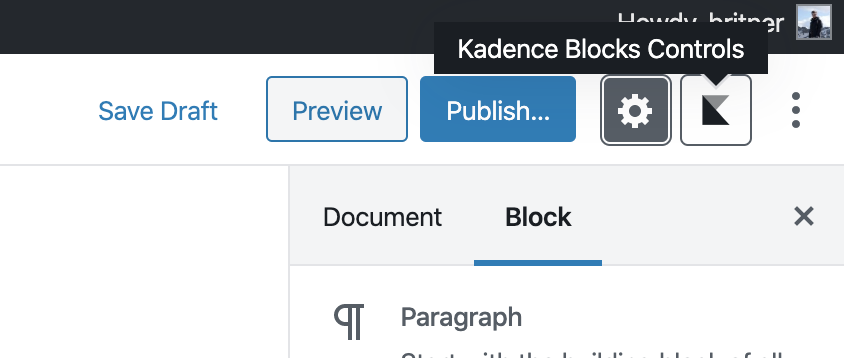
But let’s say you want to change this to be the colors you set for your website. You can do that through the Kadence Blocks controls. First, click on the Kadence Blocks logo icon in the top right corner.
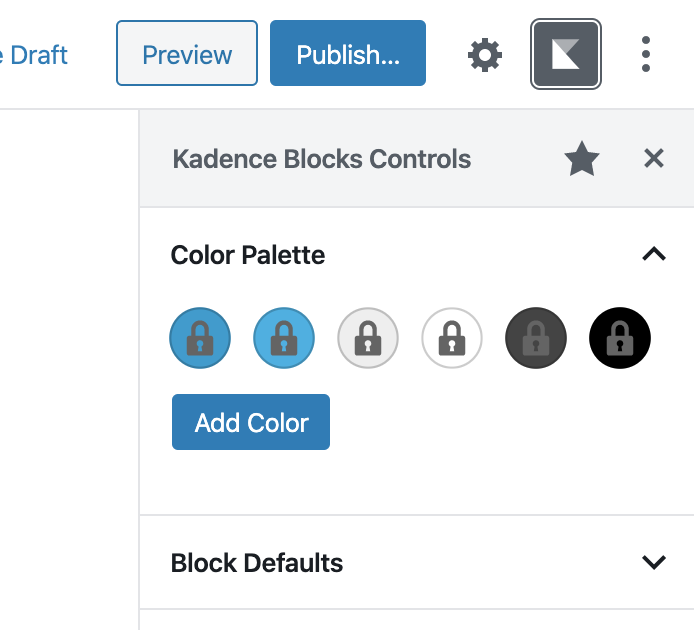
Next, you will see the color palette and there you can click the “add color” button.
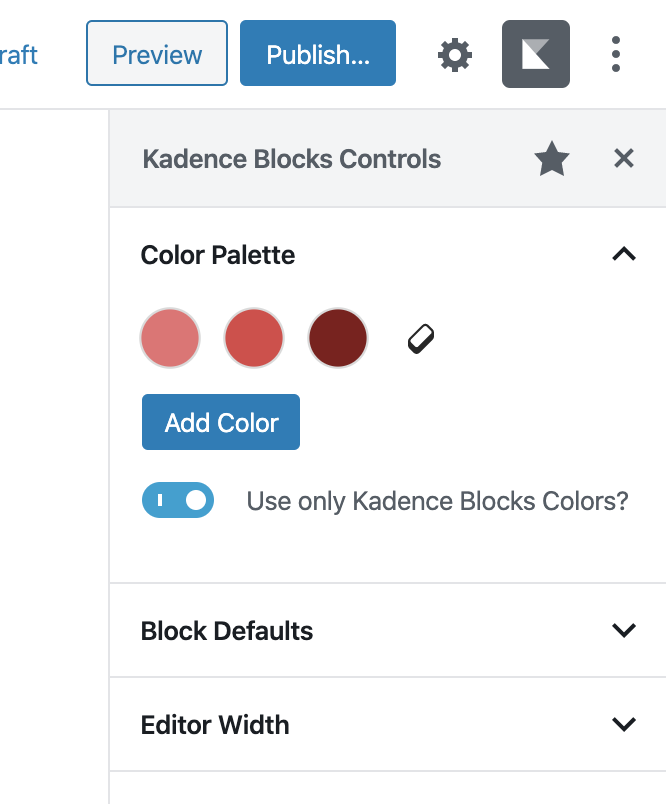
Once you’ve added a color (you can add as many as you want to use) you can turn off the theme colors so only your palette would show using the “Use only Kadence Blocks Colors?” switch.
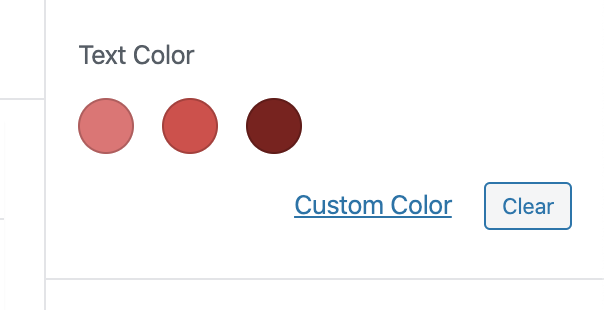
Now reload your page and once you open the paragraph block again you will see your new color palette instead of the theme or Gutenberg default.
Important Note: This feature is designed to give users quick access to a wider range of colors beyond the predefined theme palette. Unlike theme-defined colors, these additional colors are not intended to function as variables, meaning the blocks using these colors won’t dynamically update when changes are made to the palette.
When Is It Best to Use This Feature?
Best Practice: Since these additional colors don’t update dynamically if you change the theme palette, reserve them for elements that are unlikely to need updates or that can stand alone as a unique design for a particular context. For consistent branding and easier global updates, rely on the theme-defined palette whenever possible.

