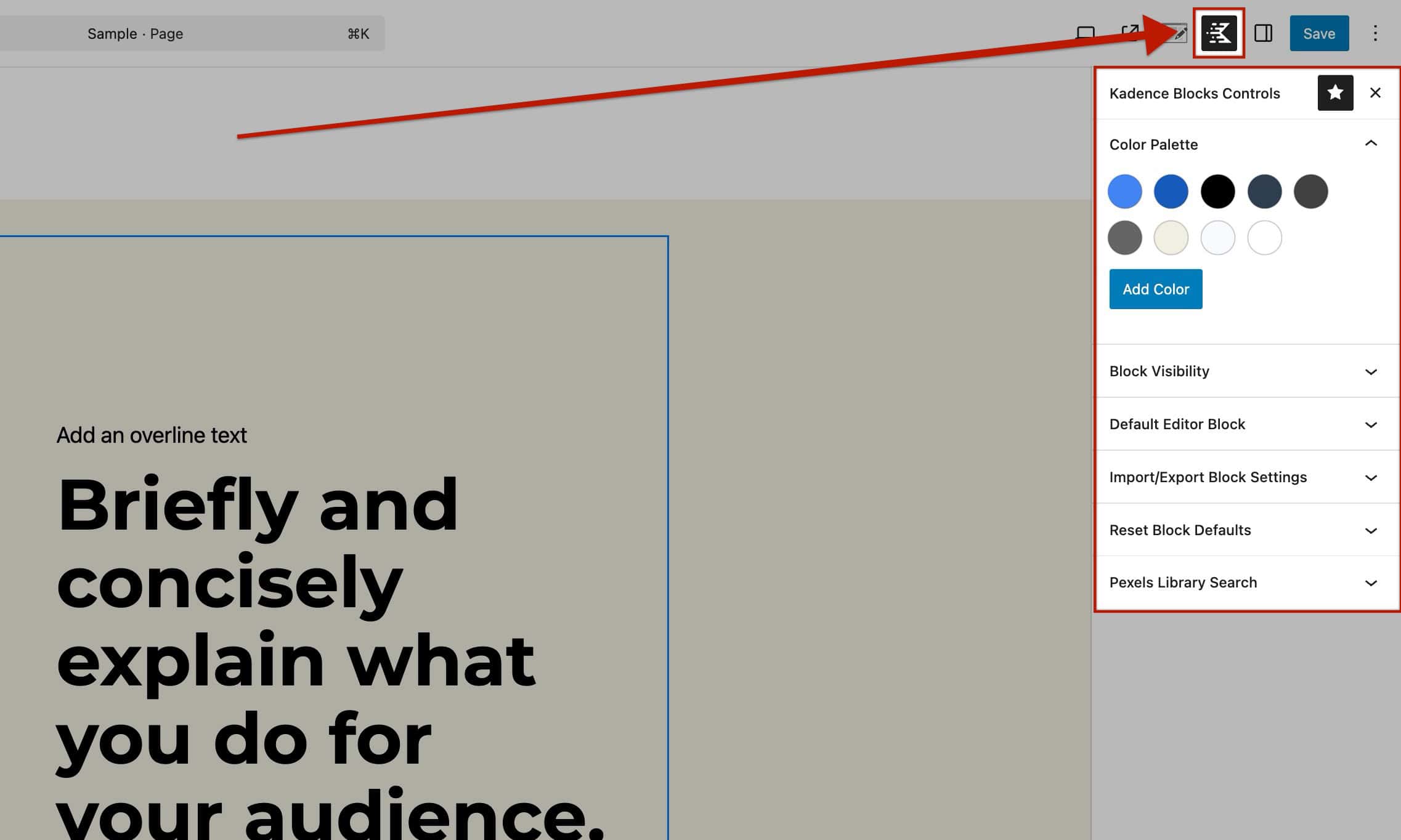
When using Kadence Blocks, you will gain access to the Kadence Block Controls. This is represented by a Kadence K Icon in the Top Right corner of the Gutenberg Editor. Here, you can adjust Block Visibility settings, access the option to Import/Export Block Settings, and more.
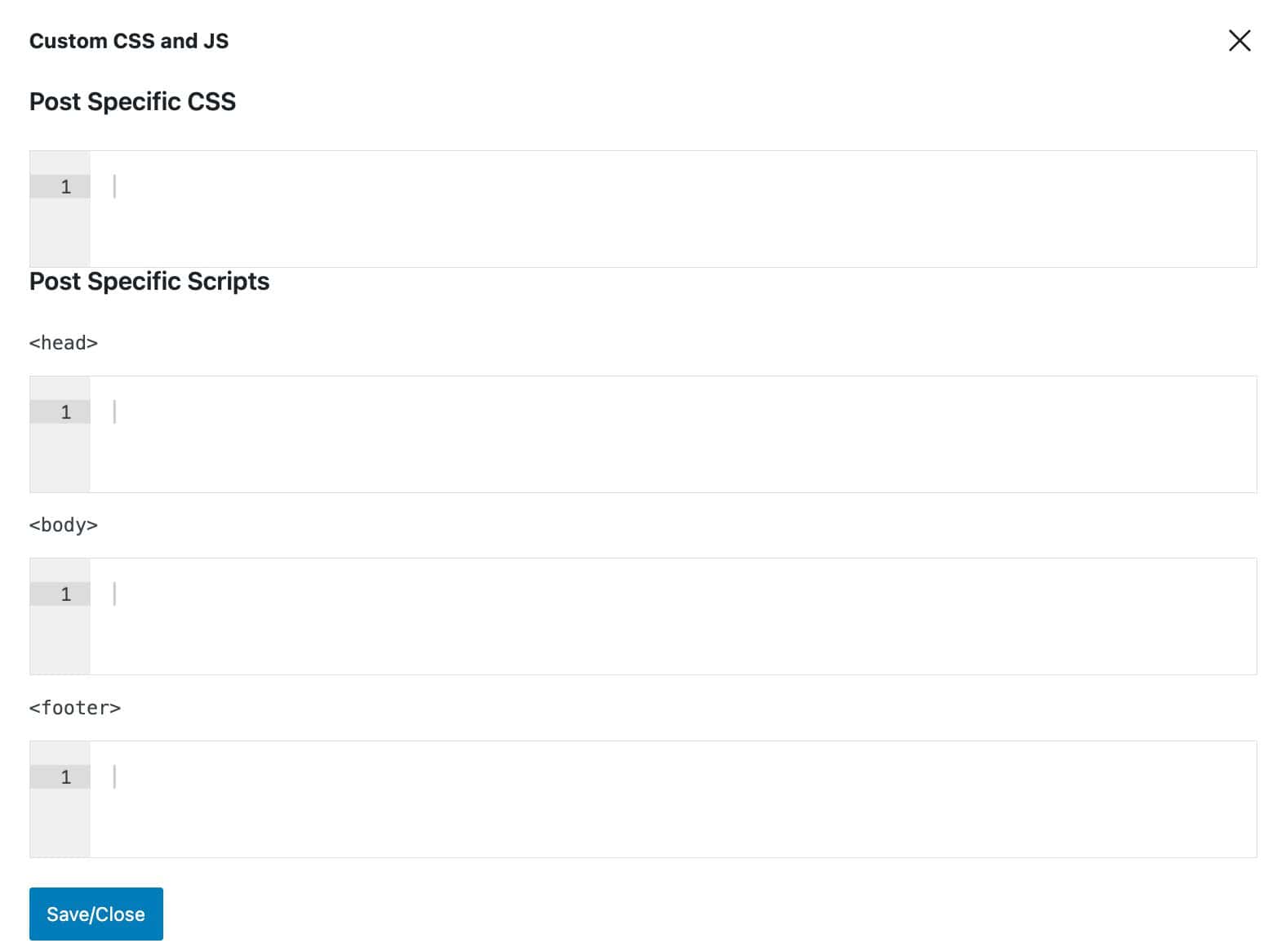
Kadence Blocks Pro users can also add Custom JS Scripts or CSS Codes on a post-to-post and page-to-page basis. (These codes can also be added to Custom Post Types, including Hooked Elements, Conversions, WooTemplates, etc.)
Color Palette
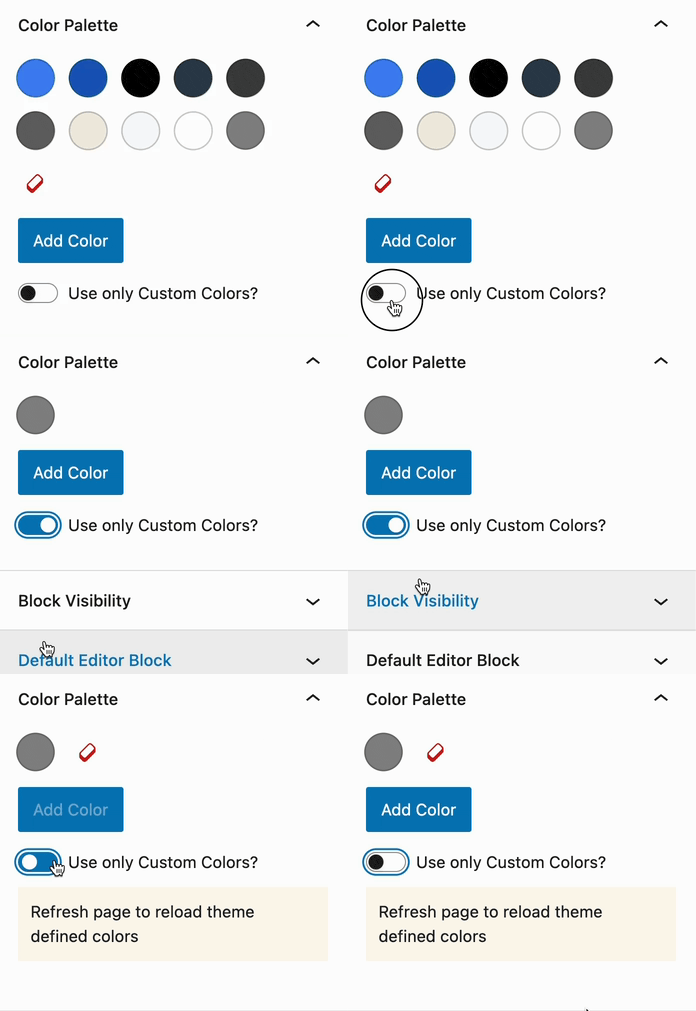
The Color Palette settings in the Kadence Block Controls allow you to define a set of colors for block styles inside the Block Editor. By default, it pulls in the current theme colors.
Enable the Use Only Custom Colors setting to make only the custom color palette available and remove the default theme color palette from the editor. (Refresh the page after enabling this setting to ensure your colors load properly.)
This feature is designed for specific use cases and does not function the same as Variable Colors in the Kadence Theme Color Palette. You can learn more about how to define a Color Palette in Kadence Blocks by Clicking Here.
Block Visibility
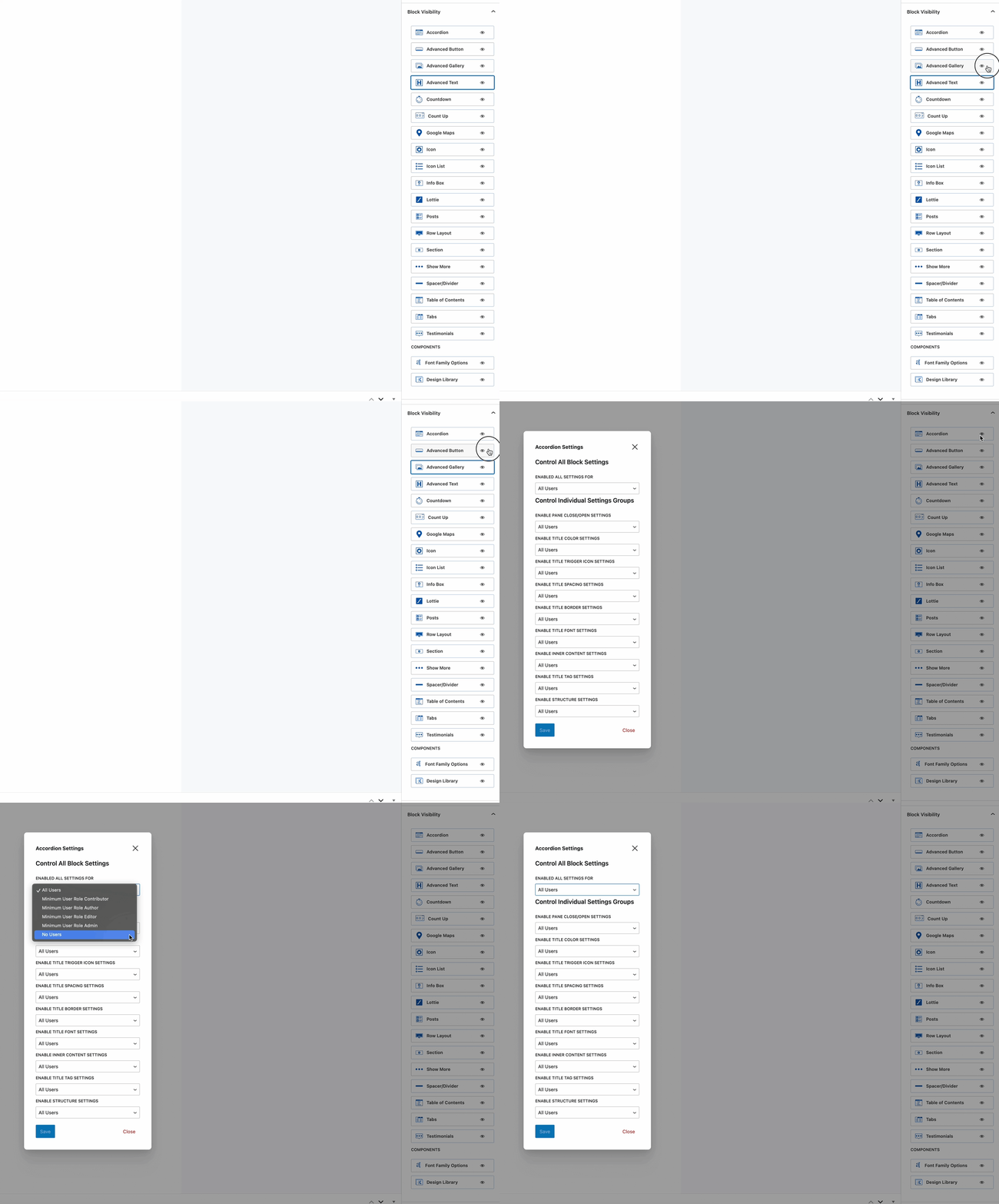
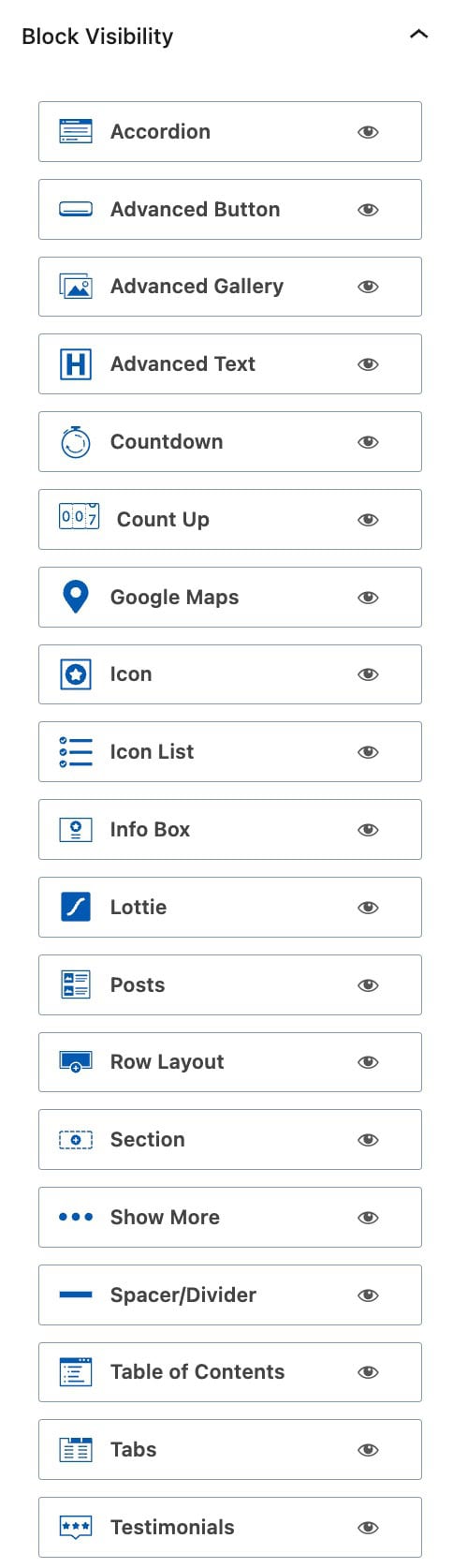
The Block Visibility settings allow you to hide specific Block Settings from the Editor based on the current User Role. Not every block or block setting will include settings related to this.
Click on a respective block to view the available Block Visibility Settings:
Default Editor Block
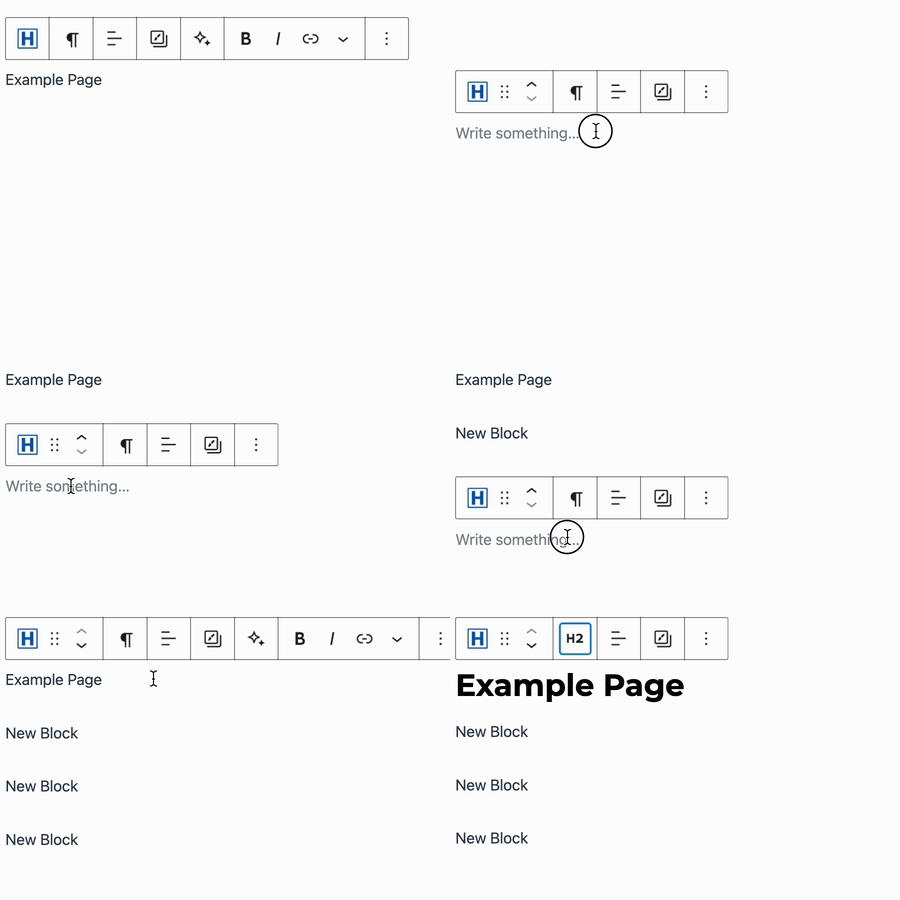
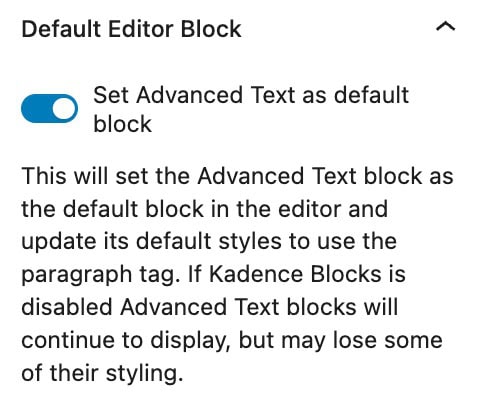
The Default Editor Block setting allows you to use Kadence Advanced Text Blocks as the default Paragraph Block used in the Block Editor.
(Rather than the default Gutenberg Paragraph Block.)
The Advanced Text Block will be preset to use the Paragraph Tag.
Import/Export Block Settings
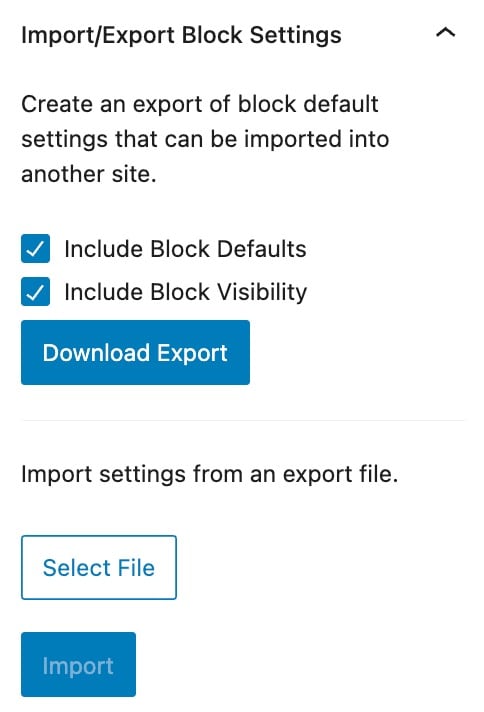
The Import/Export Block Settings options allow you to import or export the current website Block Settings.
When Exporting Block Settings, you can export the Block Default Settings, the Block Visibility Settings, or both. Check the appropriate options, then click on Download Export.
When Importing Block Settings, go to Block Controls → Import/Export Block Settings. Under the “import settings from an export file” setting, select the exported block settings file, then click on Import.
Reset Block Defaults
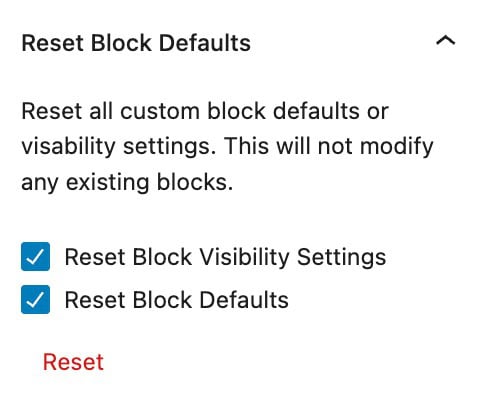
When configuring Advanced Block Settings, you can reset specific settings using the Reset Block Defaults option. There are two checkboxes available:
- Block Defaults – Resets the block’s default settings. Click here to learn more about Setting Block Defaults.
- Block Visibility Settings – Resets the Block Visibility settings.
Check in the options you wish to reset, then click the red Reset text to apply the changes accordingly. This allows you to selectively reset either the Block’s Default Settings, Visibility Settings, or both, as needed.
Pexels Library Search
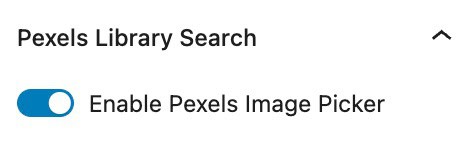
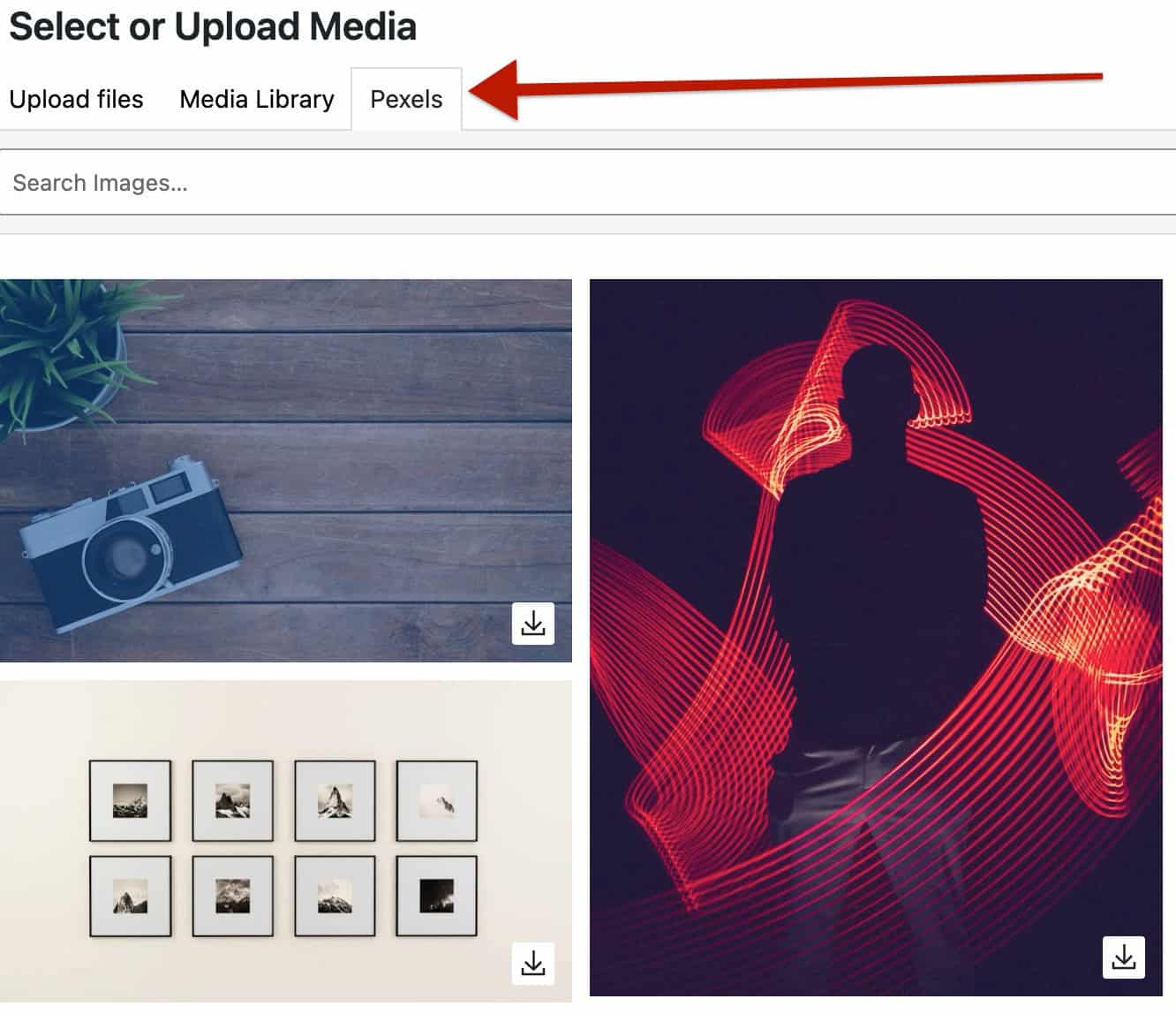
When using Kadence Blocks and selecting a Media, you have the option to search for and import copyright-free images from Pexels.
Enable or Disable this option based on whether you want to see the Pexels Image Picker in the Media Library or not.
(You can Click Here to learn more about the Pexels Image Picker.)
Custom CSS Indicator
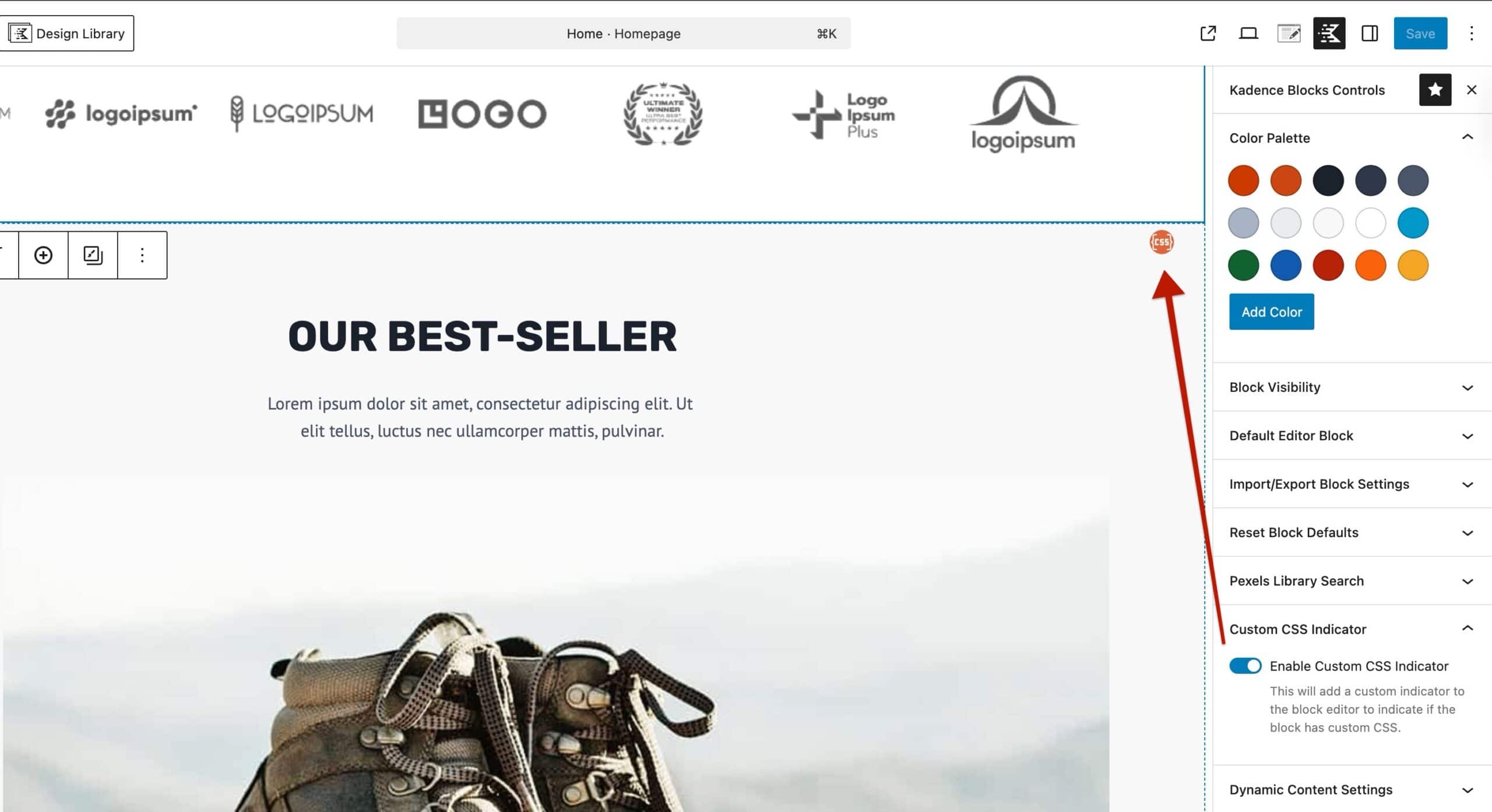
The Custom CSS Indicator setting can be toggled off or on. When enabled, when a block contains block-level custom CSS, there will be an orange CSS Icon to indicate that the current block has Custom CSS applied. This is useful for keeping track of block-level custom CSS.
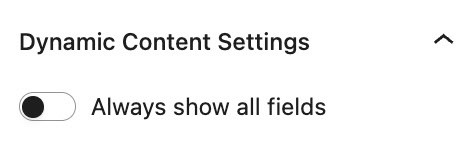
Dynamic Content Settings (Blocks Pro)
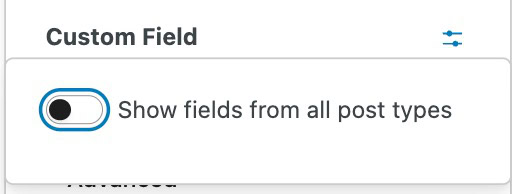
Enable the Always Show All Fields setting to ensure that all fields are displayed each time you access Dynamic Content, rather than only the fields associated with the current post.
This option is helpful if you often need to enable the Show Fields From All Post Types setting or want continuous access to Custom Fields from all Post Types in Dynamic Content.
Page Scripts (Blocks Pro)
Use the Page Scripts feature to add Custom CSS and/or Custom JS to the current Post or Page.
This will open a modal where you can add Custom CSS to the Post/Page, or insert Custom Scripts into the Head, Body, and/or Footer sections.