
You may find it necessary to change or update text, images or links in your WordPress database. Searching for the targeted content and manually updating a document is quite easy in WP Admin but what if the content appears on multiple or even hundreds of posts or perhaps in custom fields?
Better Search Replace provides a user-friendly way to search and replace text or URLs for your WordPress site. This plugin is perfect for developers and site owners performing database-level changes, particularly during site migrations or large-scale content updates. The following document will guide you through the installation and basic usage of this plugin.
Common Use Cases for Search and Replace
- You’ve changed your site’s domain name or migrated from a staging environment.
- A page URL has changed and all links need to be updated.
- An external URL that you frequently link to has changed.
- Update a commonly used image that was deleted or is outdated.
- Replace old “http” links with “https” to fix mixed content issues.
- Fix a common typo or spelling change (i.e. “e-commerce” → “eCommerce”).
- Your business name/branding has changed.
- Replace an old shortcode (i.e. [old_shortcode] → [new_shortcode]).
Plugin Installation
- In WP Admin, go to Plugins → Add Plugin
- Search for “Better Search Replace” (be sure to select the plugin by WP Engine).
- Click Install Now.
- Click Activate.

Using Better Search Replace
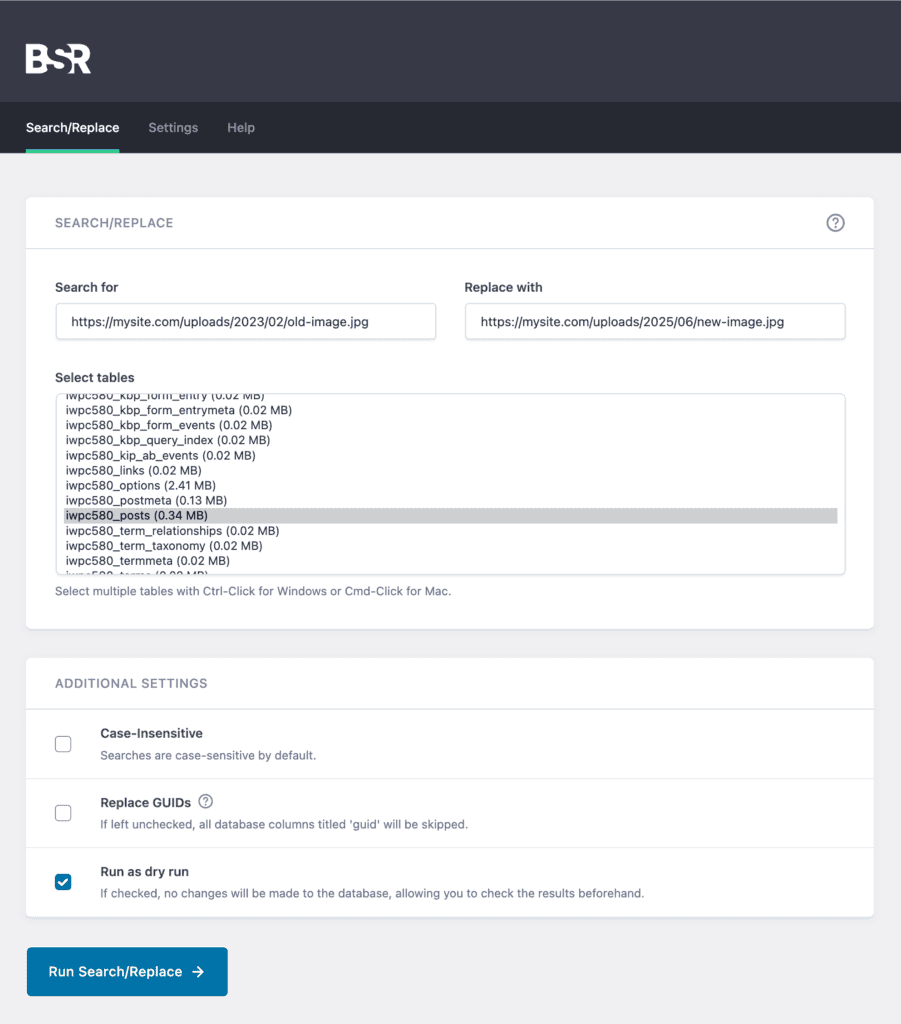
- Go to Tools → Better Search Replace.
- Enter a Search for value.
- Enter a Replace with value.
- Select tables to search (typically _posts and/or _postmeta)
- Leave Run as dry run checked.
- Click Run Search/Replace to see how many replacements will occur.
- Once you are comfortable, uncheck Run as dry run.
- Click Run Search/Replace again to complete the update.
Search/Replace Notes
- Selecting the _posts table will search the content of all pages, posts, and custom post types (including all revisions).
- Search will match partial URLs. Use caution when replacing similar URLs such as https://mysite.com/category/blogging/ which will also partially match https://mysite.com/category/blogging/seo/. One option would be to add quotes to the URL (i.e. “https://mysite.com/category/blogging/”)
- Searching will find and replace content in serialized values. This is common when array data is stored in the _postmeta or _options tables.
Troubleshooting
Under certain conditions, you may run into the following error:
An error occurred processing your request. Try decreasing the "Max Page Size", or contact support.To fix this, go to the plugin settings (Tools → Better Search Replace and click Settings in the menu bar) and reduce “Max Page Size” to 1000.

For additional assistance with this plugin, please reach out to the plugin developer.
Pro/Paid Features
Additional features such as previewing changes, regular expression search and more are available when you upgrade to WP Migrate.
Additional Plugin Options
Need to replace images/media or looking for other plugin options? Try one of these plugins:
- Search & Replace by WPCode – In addition to text/link search & replace, this plugin also includes replacing media files.
- Enable Media Replace by ShortPixel – In addition to replacing images and bulk updating your site, this plugin also allows you to replace an image using the same name (as well as ID and URL) so no need to update all of your posts.

