
Adding an author box is a great way to display information about the post’s author. The Kadence Theme offers a simple, built-in way to show an author box at the end of your blog posts.
How to Enable the Kadence Author Box
You can enable the Kadence Author Box feature in the Customizer.
- From the WordPress Dashboard, go to Appearance → Customize
- Navigate to Posts/Pages Layout → Single Post Layout
- Scroll to the section labeled Default Post Layout.
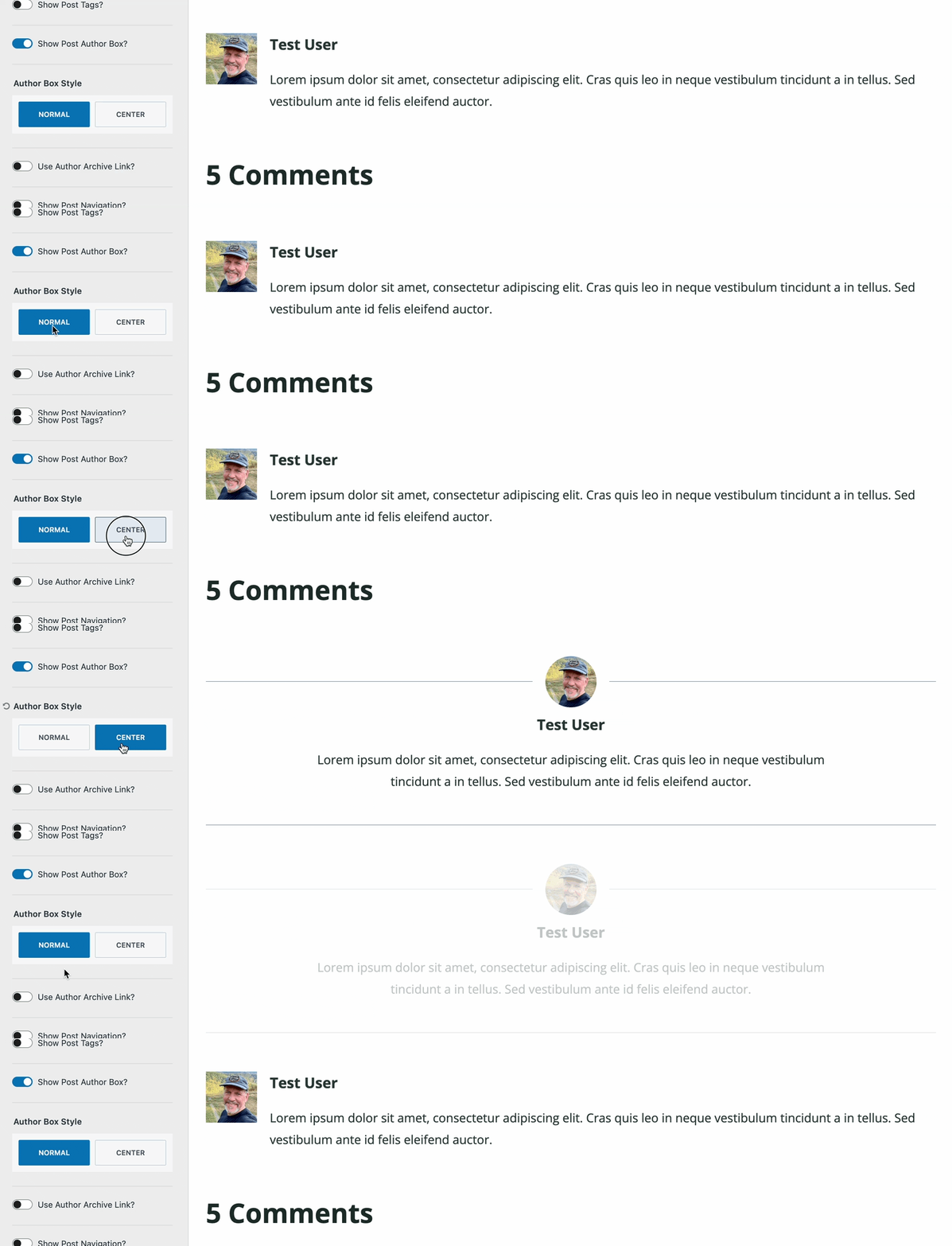
- Find the toggle for Show Post Author Box? and turn it ON.
- Choose an Author Box Style: Normal or Center.
- To link to the author archive, turn on Use Author Archive Link.
- Click Publish to save your changes.
Note: The author box will only appear on single post pages — not on archives, categories, or other listings.

How to Edit Author Bio Info and Image
The content of the author box comes from the user profile of the post author. To update the author info:
- From the WordPress dashboard, go to Users → All Users.
- Click on an author’s username to edit their profile.
- Optionally, adjust the user’s Display Name (this will show on the front-end of your site)
- Fill out the Biographical Info section with a short bio.
- Add a Profile Picture using Gravatar (WordPress uses this service by default).
- Under Extra profile information for author box, add the author’s social links.
- Click Update Profile to save your changes.
Once saved, the author box will automatically display the updated info after the content of each post written by that user.
The Kadence Author Box can further be customized using custom CSS. If you’re not familiar with adding custom CSS to your site, please see this document.
How to Change a Post’s Author
To change the post author, edit the post and click the author name in the post settings sidebar. Select the new author from the dropdown menu and save the post.
You can also use the Quick Edit feature from your post listing to change the author on single or bulk update multiple posts.

Alternate Solutions
If you prefer more control over the Author Box, there are several plugins available that can help. Here are a few that you might want to check into:
Be sure to check out our Replace Author HTML document for guidance on how to use Kadence filters for even greater control over your Author Box placement.

