
The ERR_HTTP2_PROTOCOL_ERROR occurs when there is a problem with HTTP/2 communication between your browser and the server.
Some common causes for this error include:
- Server misconfiguration
- Incompatible server settings
- Network issues
Identifying the Error
- Open your browser’s Developer Tools (usually F12 or Ctrl+Shift+I / Cmd+Opt+I on Mac)
- Go to the Console tab, and look for the following error:
Failed to load resource: net::ERR_HTTP2_PROTOCOL_ERROR
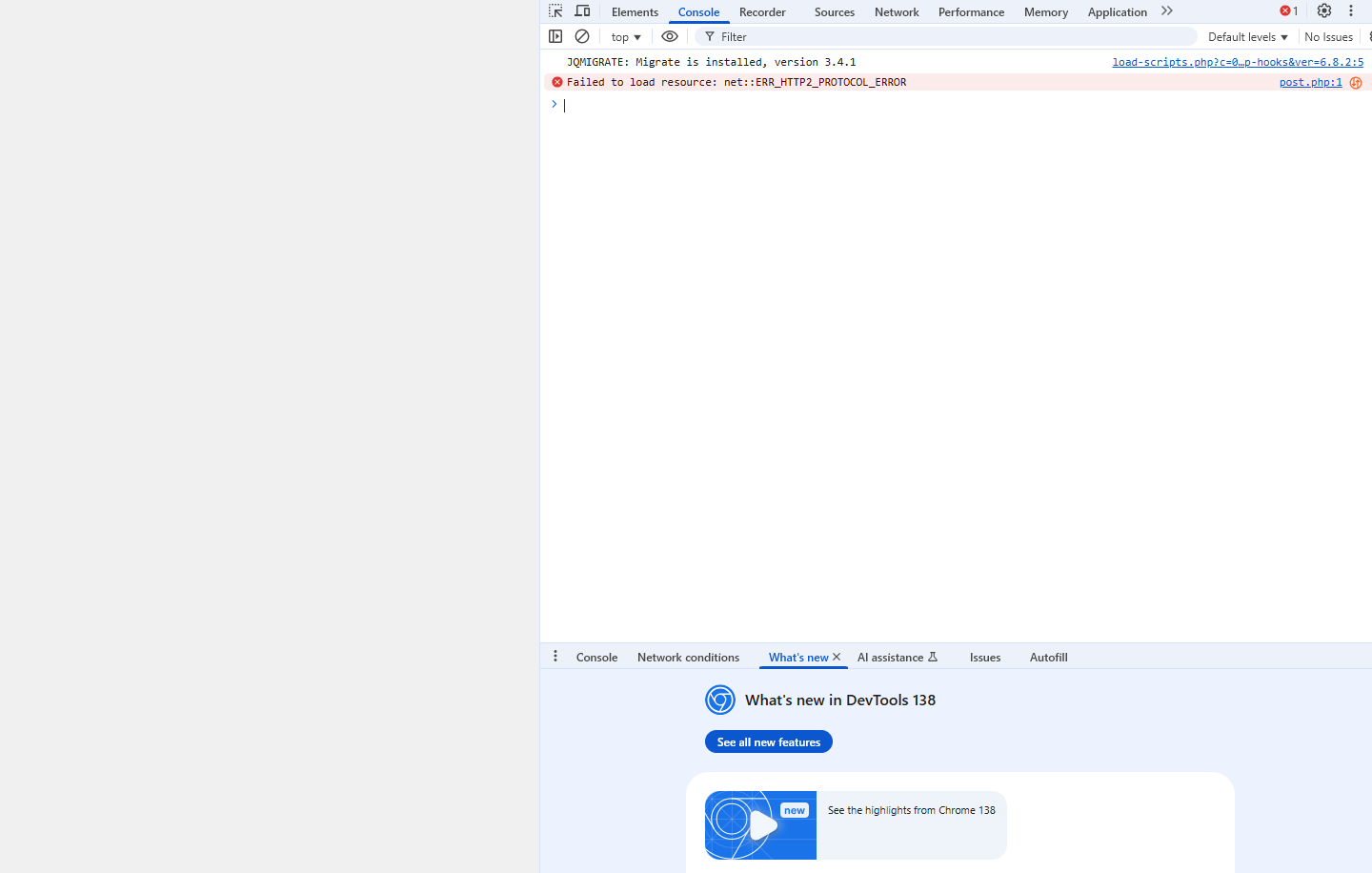
If you see this message while loading a page or editing content, it confirms the error is occurring.
Solutions
Below are some common solutions that can help resolve this error.
Update the .htaccess File
In some cases, the issue can be fixed by increasing the maximum allowed line length in your .htaccess file.
# BEGIN Line too long fix
<IfModule mod_substitute.c>
SubstituteMaxLineLength 20M
</IfModule>
# END Line too long fix
Tip: If you don’t have direct access to .htaccess, consider asking your hosting provider to help make this change for you.
After the update, clear all of your caching layers, including server cache, CDN cache, and/or browser cache.
Confirm Server Requirements
Ensure your hosting environment meets the Kadence recommended server settings. These are minimal requirements, and if they are not met, issues can be expected.
Review Server Error Logs
If the problem persists, ask your hosting team to review the server error logs for any related entries and share them so the root cause can be identified.
Additional Troubleshooting Steps:
- KadenceWP Troubleshooting Guide – This guide goes over general troubleshooting steps.
- How to view Console Logged Errors – Console errors in your browser can help identify what’s causing the white screen or failed editor load.
- How to enable the WordPress Error Logs – WordPress error logs can reveal PHP errors or warnings that may be causing issues behind the scenes.
- Support – Feel free to contact our support team for further assistance.

