
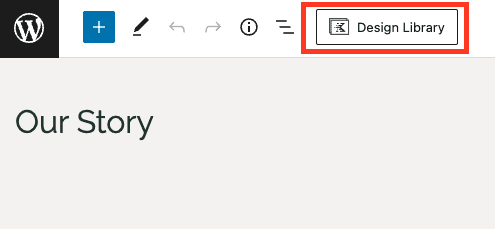
The Kadence Design Library is a valuable resource that you can use to enhance your website. It contains pre-designed patterns and pages that can be easily integrated into your website. The Design Library is so user-friendly that you can put a site together in no time. It also serves as a great source of inspiration when you’re struggling with a creative block. You can access the Design Library by clicking on the icon located at the top left of the editor, next to the list view icon.
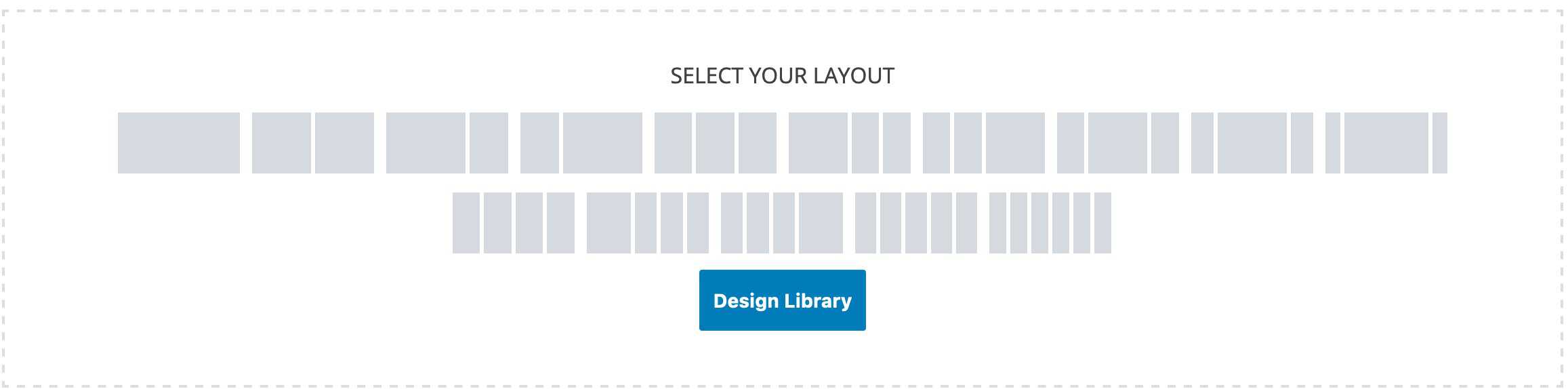
You can also access the Design Library when adding a new Row Layout Block to the page. When selecting your Layout, you will see a button to choose from the Design Library.
This document goes over the Classic Design Library. To learn about using the Kadence AI-Powered Design Library Click Here.
If you are looking for our old wireframes, sections, or starter packs, you can learn how to add them back by Clicking Here.
The Design Library
The Design Library is a compilation of patterns and pages that can be easily integrated into a website. It also enables the addition of Pattern Hub Connections to access Block Libraries created by different Kadence Creators. The Design Library can be used in conjunction with AI Context, allowing the generation of Patterns and Pages using your AI Context. To switch between the Regular Designs and AI Designs, there are two buttons, “By Design” and “With AI,” located at the top of the Design Library. You can learn about the Kadence AI Powered Design Library by Clicking Here.
Kadence Patterns
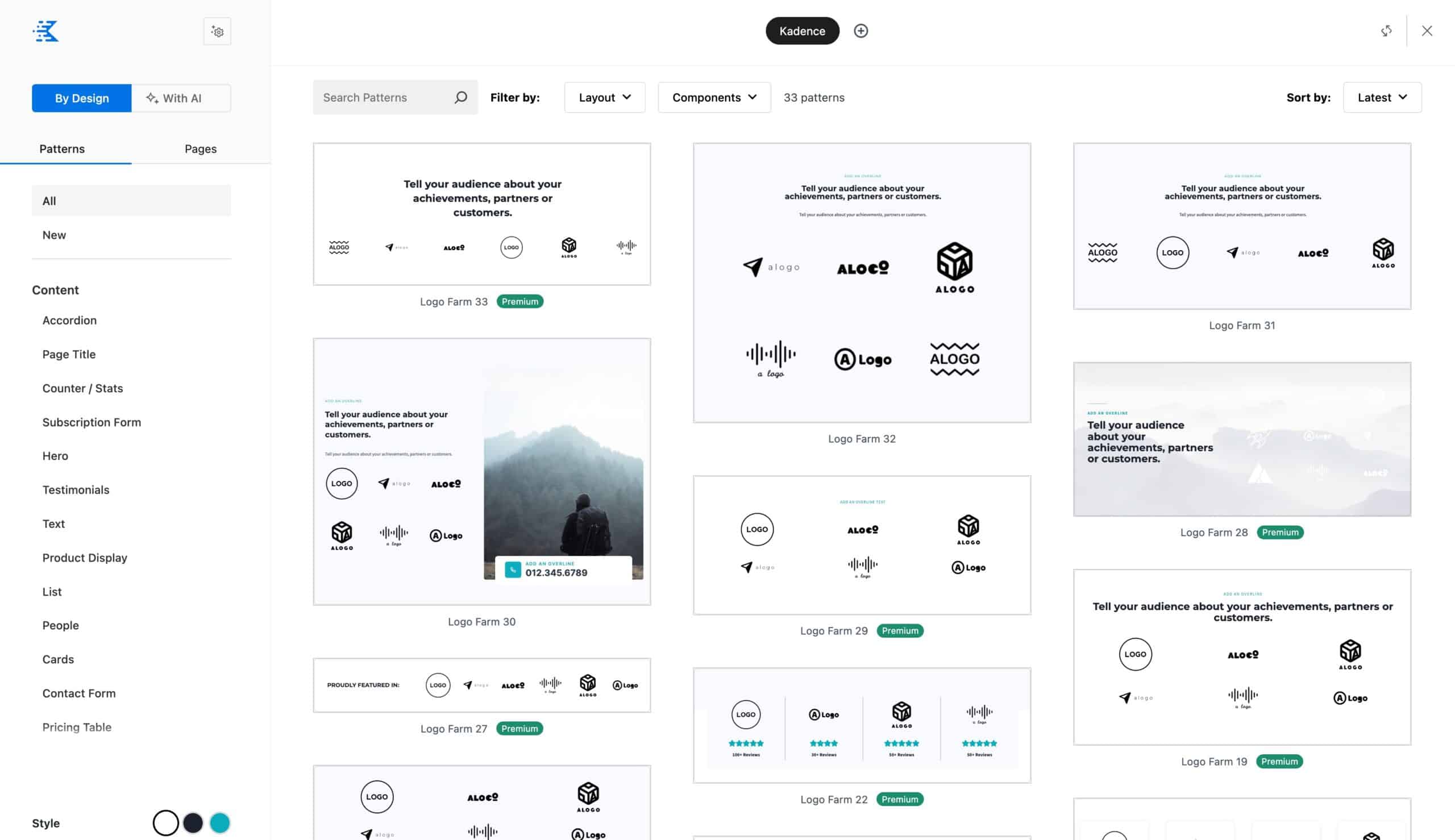
The Kadence Design Library provides a wide range of Patterns that can be utilized throughout your website. These Patterns can be used for various purposes, such as pre-built pricing tables that can be easily customized as per your preference.
You can choose from the following Patterns: Hero, Cards, Columns, Media and Text, Counter or Stats, Form, Gallery, Accordion, Image, List, Location, Logo Farm, Team, Post Loop, Pricing Table, Slider, Tabs, Testimonials, Text, Title or Header, Menu, Video, Product Loop, Featured Products, Divider, or Table of Contents.
You’ll notice some patterns labeled as Premium, which require either Creative Kit or Kadence Blocks Pro to use. You can get Kadence Blocks Pro by Clicking Here.
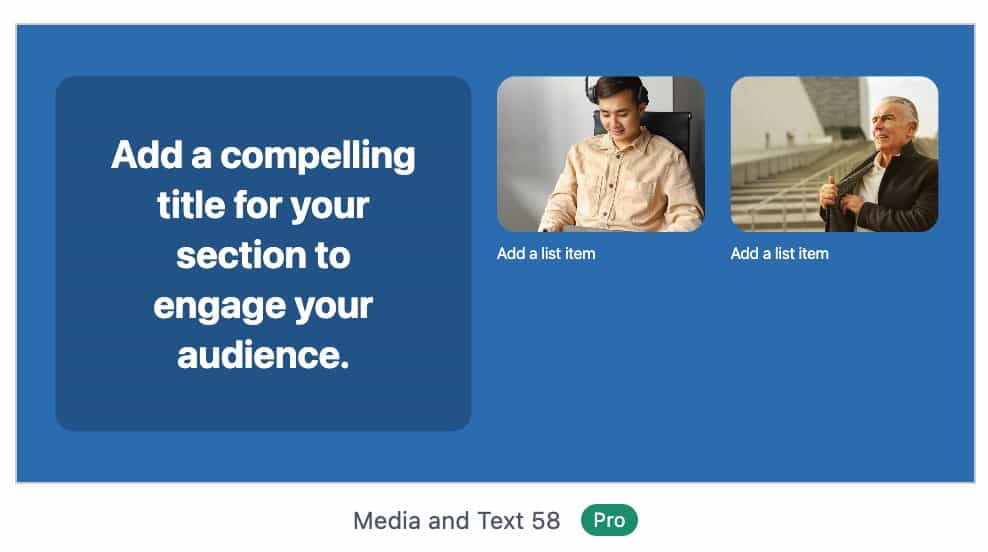
Filtering Patterns
Use the filters at the top of the design library to precisely sort through different available patterns.

Search Patterns: Search for a pattern based on a relevant term.

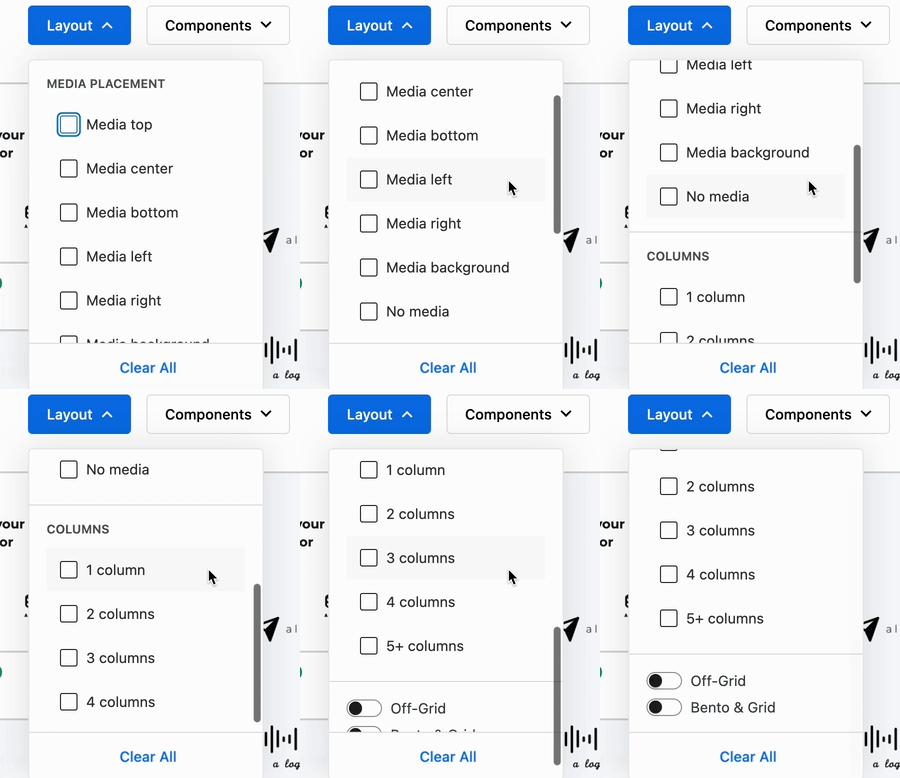
Layout: Filter patterns specifically based on the pattern layout.
You can filter options by the media placement, background style, number of columns (from 1 to 5+), and unique layout types like off-grid & bento + grid styles.
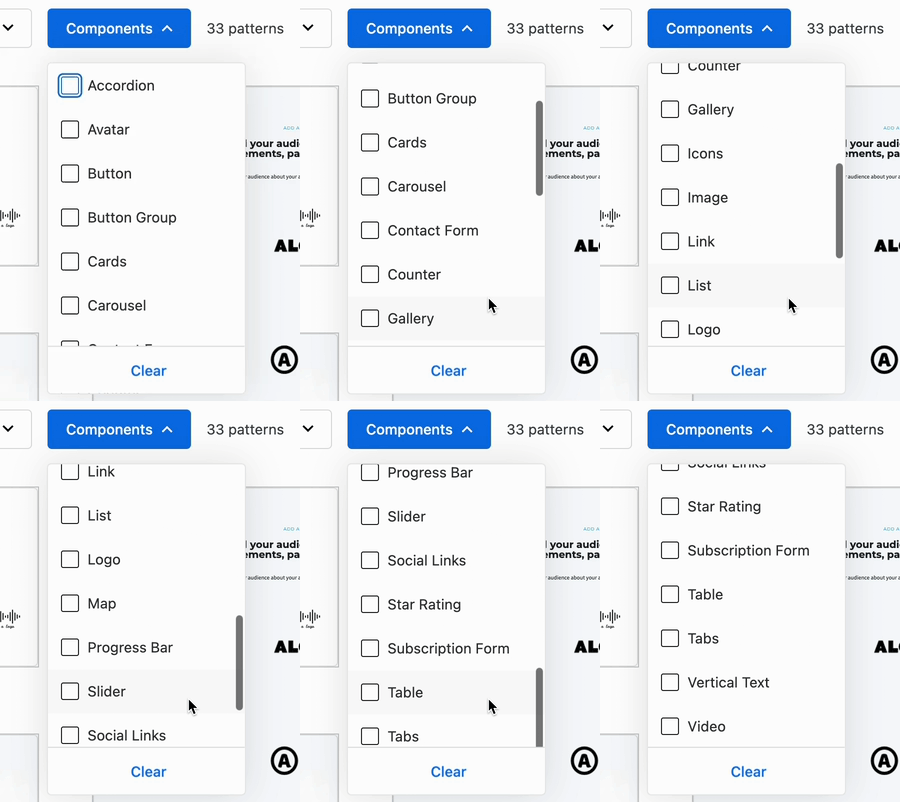
Components: Filter patterns based on which components may be included in the pattern.
This includes the following selectable options: Accordion, avatar, button, button group, card, carousel, contact form, counter, gallery, icon, image, link, list, logo, map, progress bar, slider, social links, star rating, subscription form, table, vertical text, and/or video.
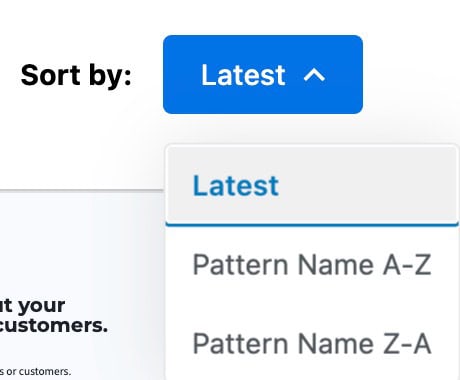
Sort By: Sort the order in which patterns will be displayed. This can be set to either sort by the latest patterns, pattern name A-Z, or pattern name Z-A.
Kadence Pages
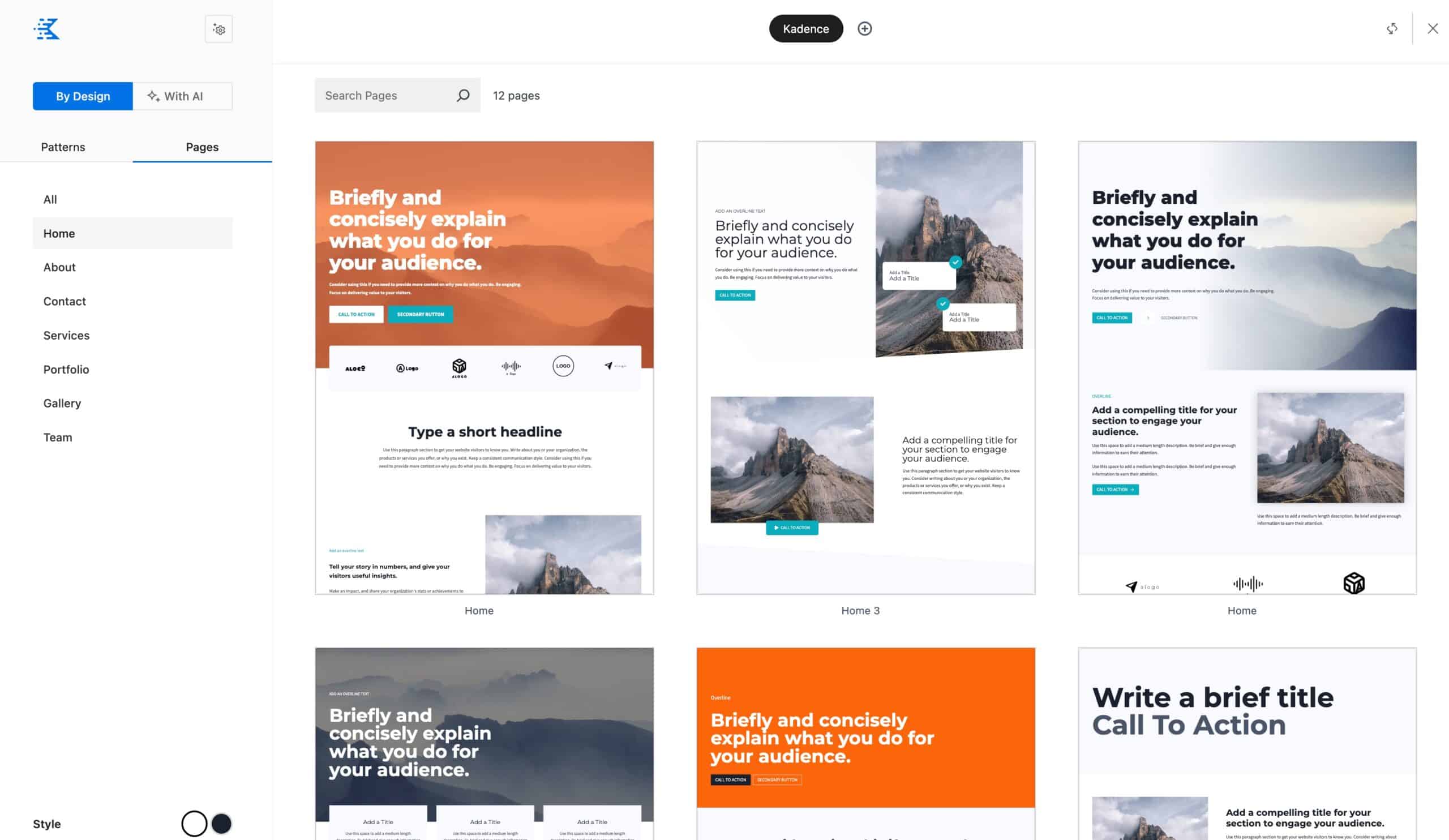
Additionally, you can get completely predesigned pages using Design Library Pages. These are full pages designed and ready to be used. You just need to customize the text and images.
You can pick from the following Page Categories: Home, About, Contact, Services, or Portfolio. Just select your Page, and the entire contents of the page will import.
Use the Search Bar to search for specific pages by name.

Design Library Settings & Collections
There are different Settings you can adjust for your Design Library. On the top left of the Design Library, you will see a Settings Icon. This provides you with some of the main Design Library Settings.
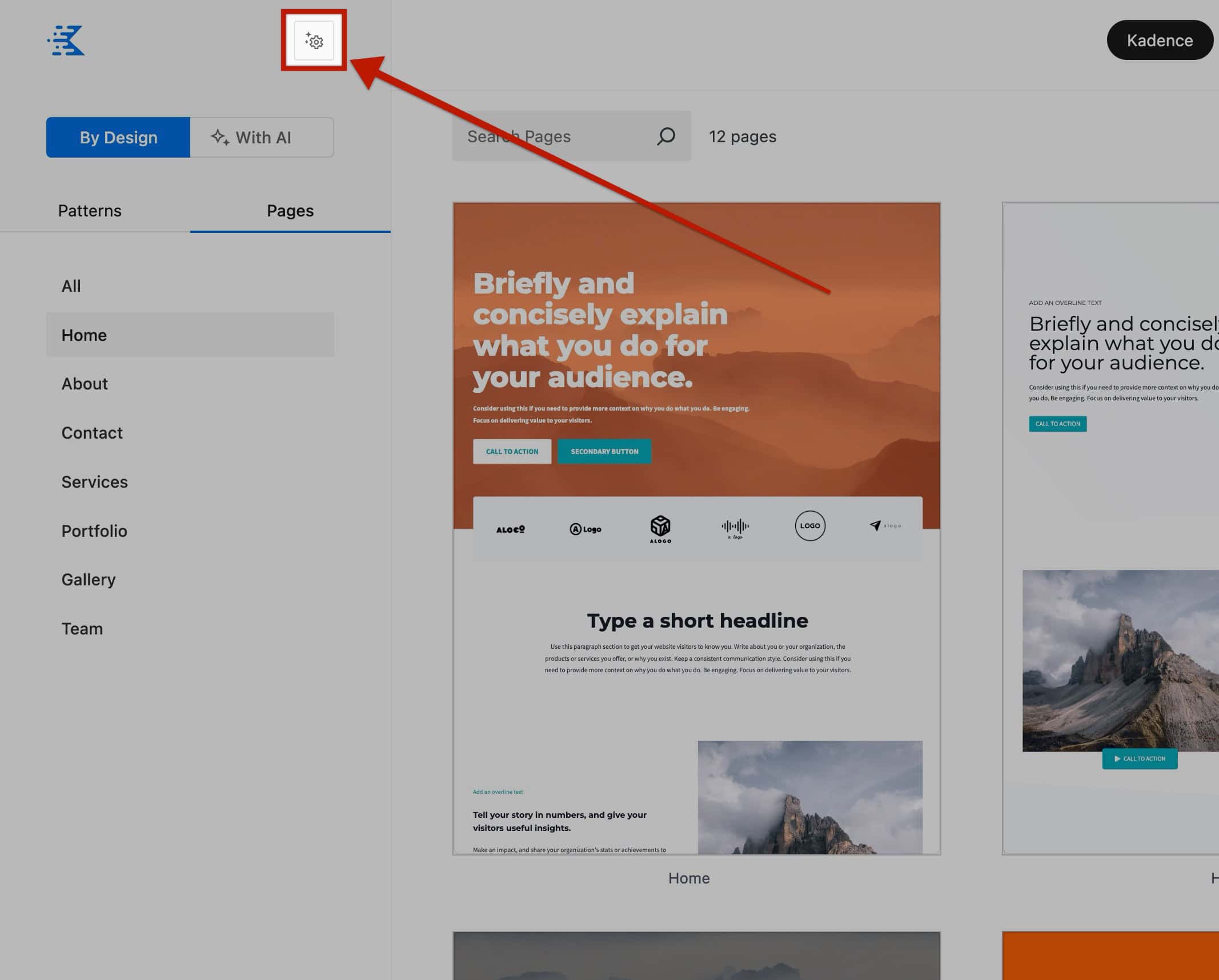
You can Activate Kadence AI or Update Kadence AI Details from the settings dropdown.
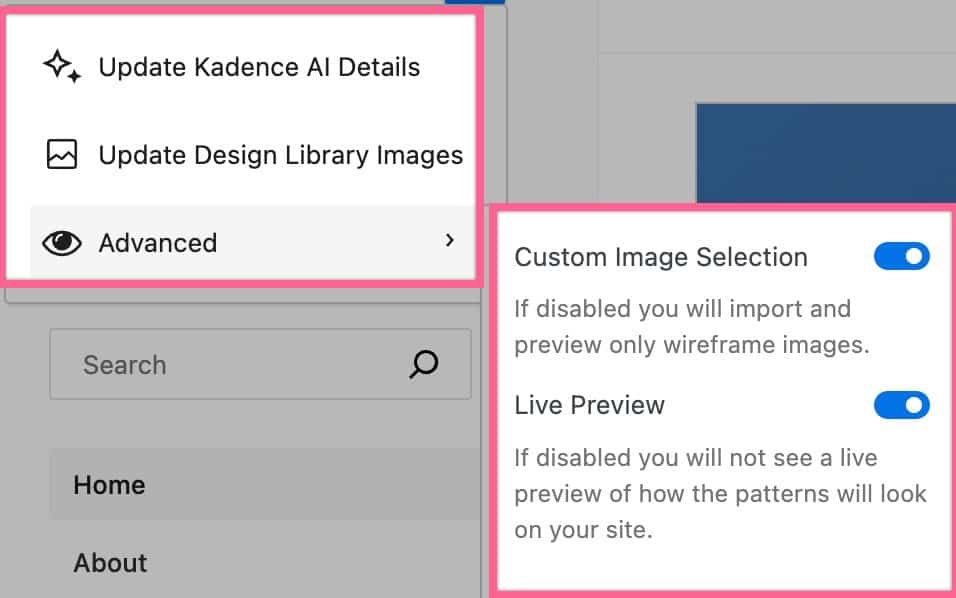
If you click on the Advanced dropdown item, you can select more Advanced Options.
The Custom Image Selection option can be disabled. If disabled, you will only import and preview wireframe Images.
Disabling the Live Preview will load the Pattern Previews as Images instead of in Live Mode.
You can view our dedicated document for Changing AI Image Collections by Clicking Here.
Design Library Collections (Images)
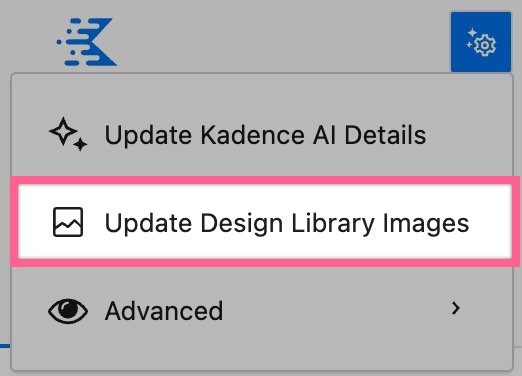
You can also Update the Design Library Images using the Collection Settings. Simply open your Design Library Settings and click on Update Design Library Images. This will bring you to your Collections Menu.
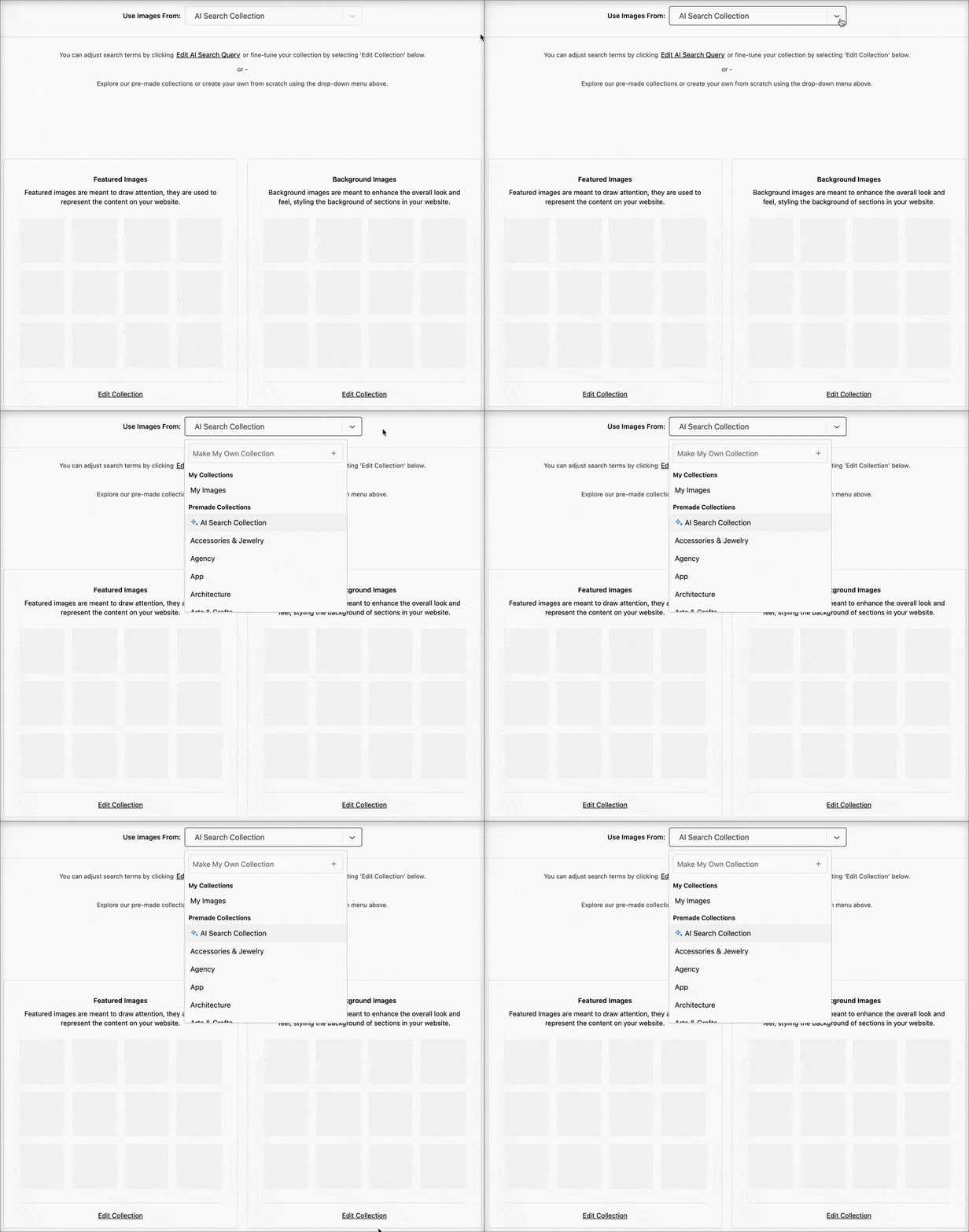
You have the option to browse through various collections or create and use your own collections.
To access your collections, you can click on the dropdown selection menu next to the “Use Images From” setting. You can either choose from your existing collections, Kadence Starter Collections, or Images pulled using Kadence AI.
If you wish to create your own collection, simply click on the Plus sign next to the “Make My Own Collection” dropdown menu item. You can then name and use your newly created collection. You can modify your Featured Image and Background Image collections as per your choice. To do so, click on the Edit Collection link below the respective collection type.
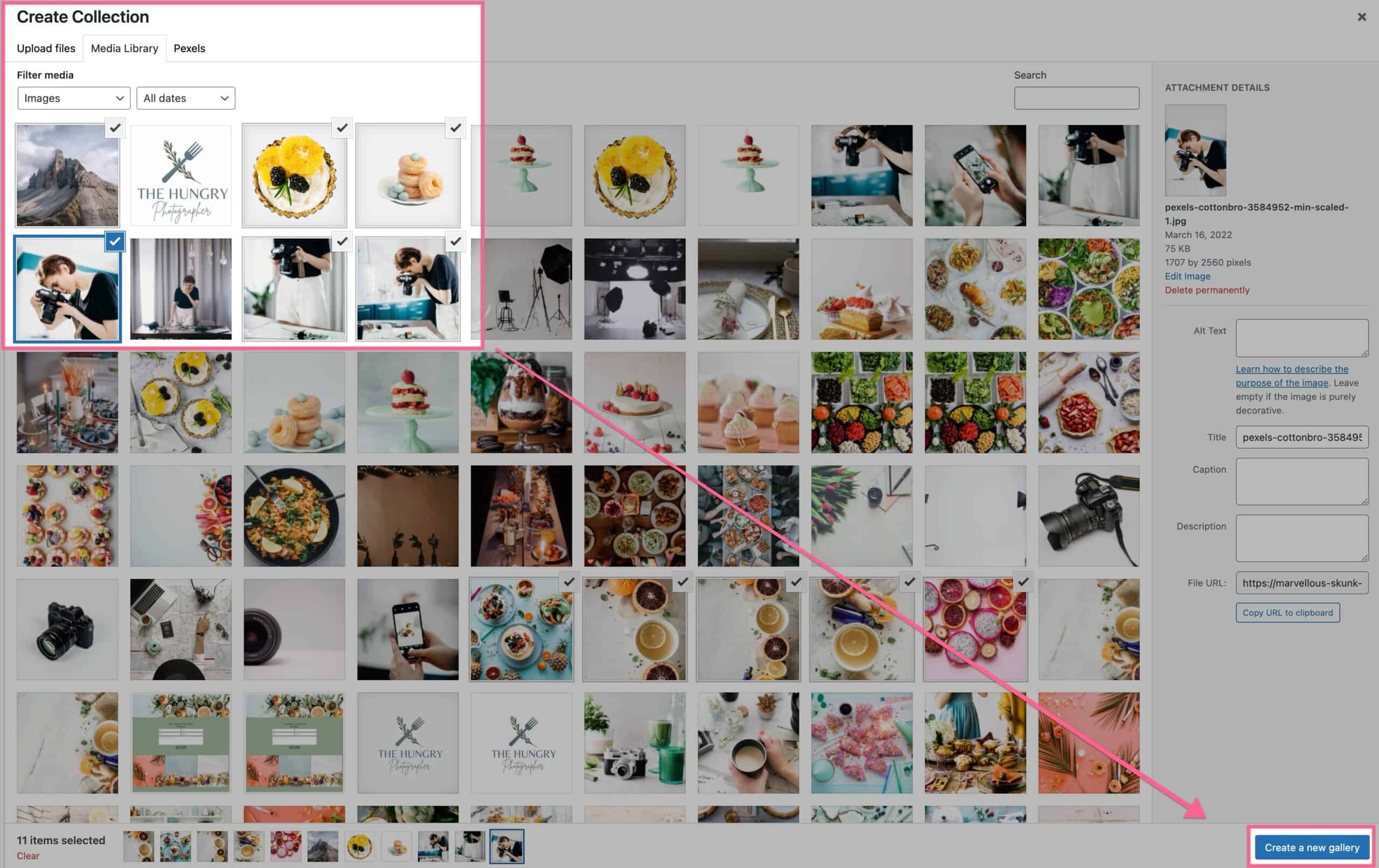
When editing a collection, you will be able to select Images you would like to add. Once you have selected the Images, click on the “Create a New Gallery” button.
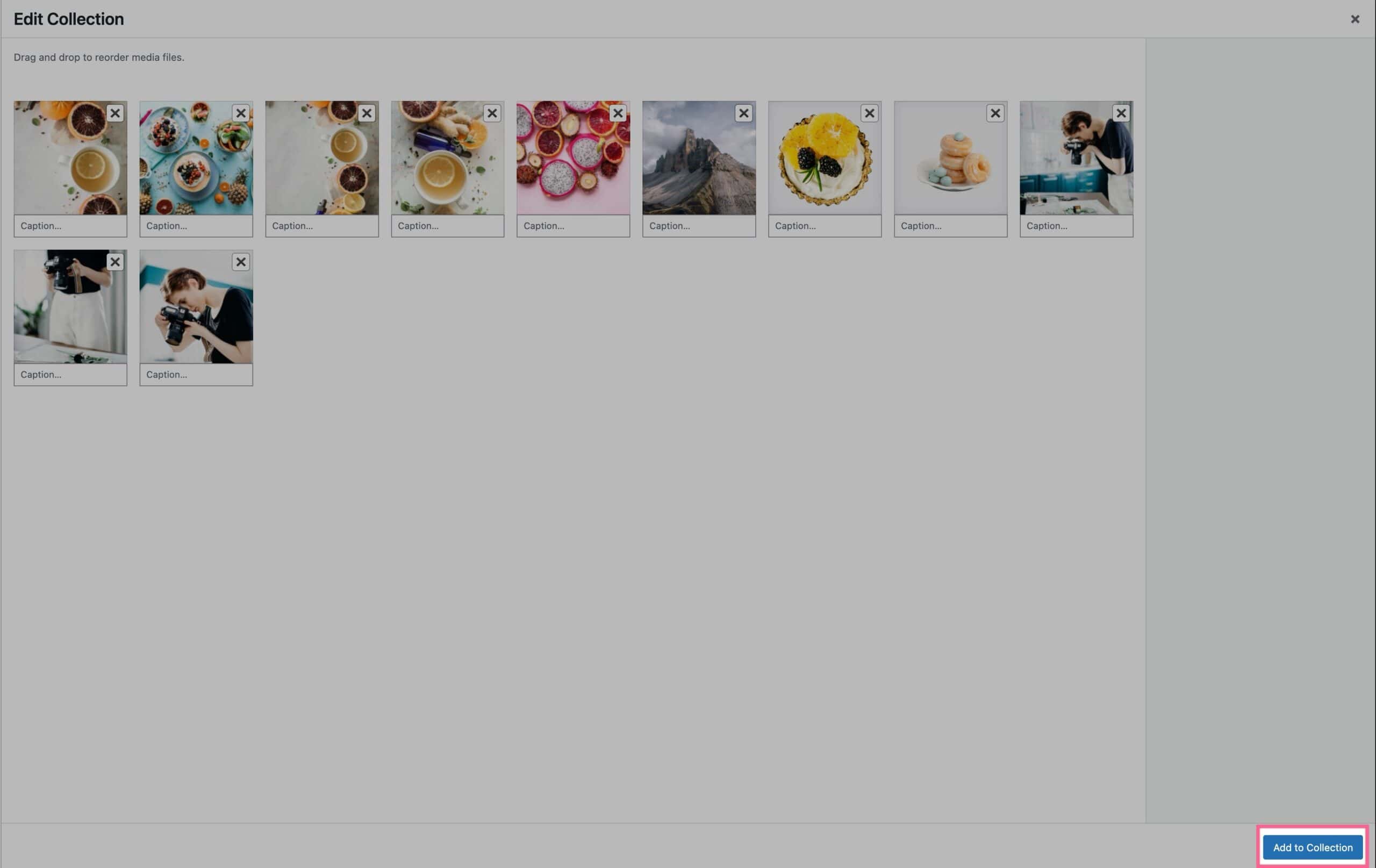
Then you can edit, add, or remove Images from the Gallery. Once finished, click on the “Add to Collection” button to add the Images to your Collection.
Once you are done editing your collection, click on the “Update My Design Library” button to save your changes and apply them to your Design Library. This will add your collection images to the design library and enable your Patterns and Pages to use your Collection Images instead of the default ones.
To learn about activating Kadence AI, Click Here. To learn about the Kadence AI-Powered Design Library, Click Here.
Color Styles
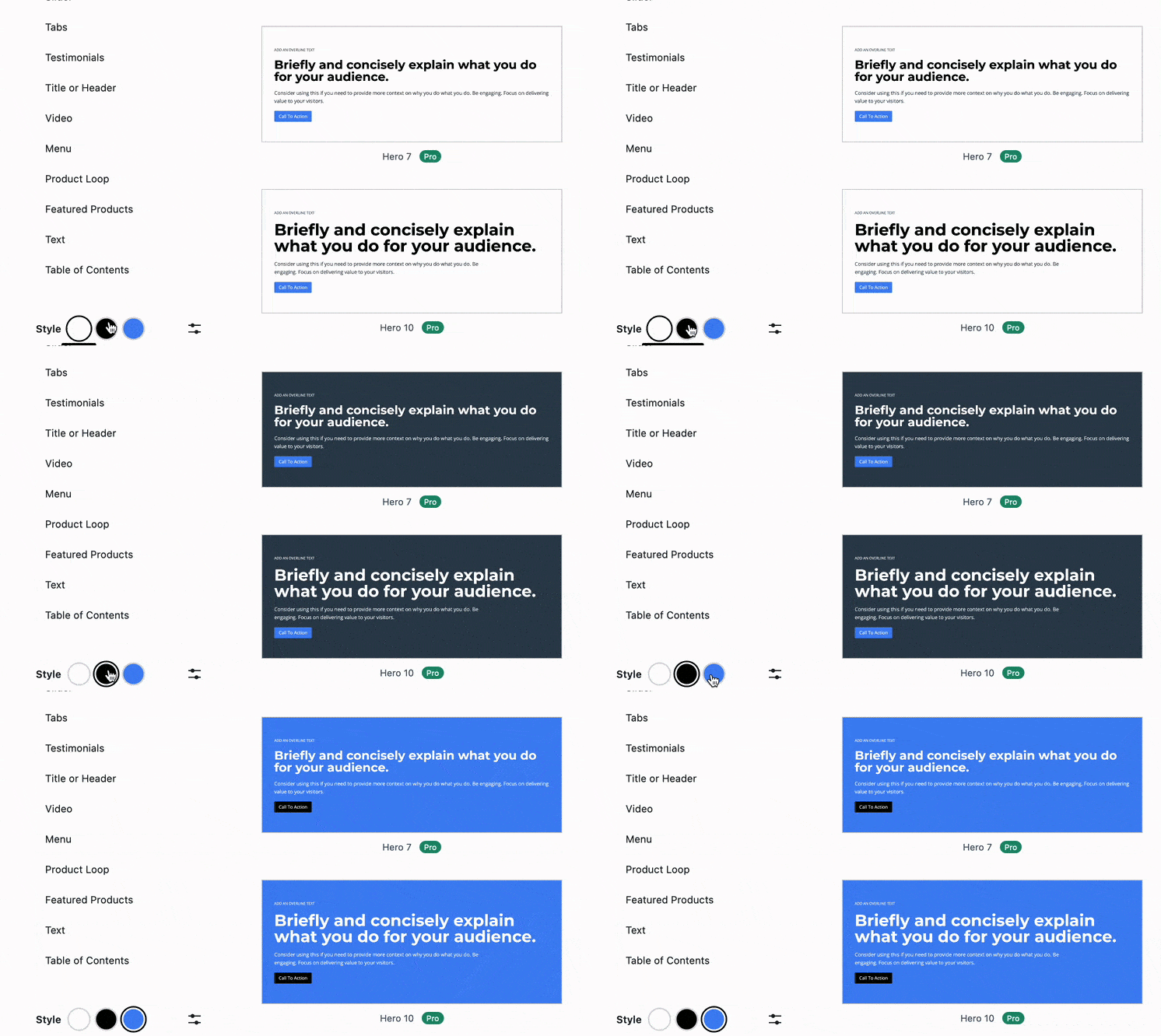
When selecting a Pattern, you will notice three Color Icons at the bottom of the Pattern category sidebar. The colors are Light, Dark, and Highlight colors. You can click on a color to view designs in that color style. These colors are set in your Color Palette. The Light Color comes from Color Palette #1. The Dark Color comes from Color Palette #2. The Highlight Color comes from the Color Palette #9. You can learn more by Clicking Here.
Pattern Hub Connections
The Design Library allows you to connect to Kadence Pattern Hubs which are custom libraries of reusable content patterns. If you’re a developer, you can create a Pattern Hub Library that you can use across different websites, allowing you to share your block designs. Some Kadence Creators sell access to Pattern Hubs that can be added to your Design Library.
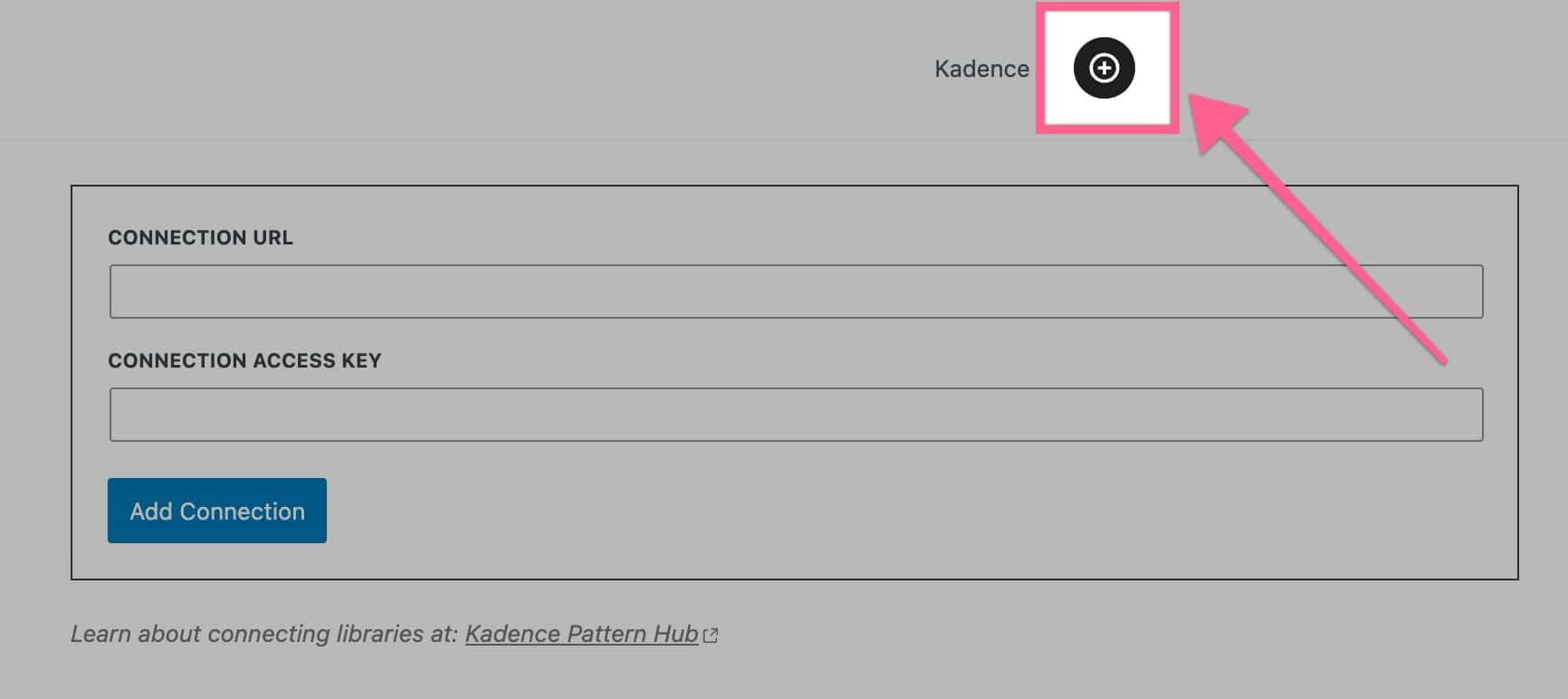
Each Pattern Hub library is defined by a unique Connection Key and Connection URL. By entering these credentials into the Kadence Design Library, you can establish a connection to a custom library. Once connected, you can easily browse and import patterns directly from the library into your WordPress site.
Adding a New Pattern Hub Connection
To connect to a Pattern Hub, you need the Connection URL and the Connection Access Key. Once you have these, you can add a new Pattern Hub Connection by clicking on the Plus Icon in your Design Library.
Removing a Pattern Hub Connection
If you’d like to remove a Pattern Hub connection, go to the Design Library and click the Plus Icon (like you’re adding a new one).

On the following screen, you should see your connections followed by the form to add a new connection. Click the Trash Icon next to the connection that you wish to delete.

Introducing Kadence Pattern Hub – Your WordPress designs at your fingertips.
Watch the video to learn just how powerful Kadence Pattern Hub is and how it can work for you. You can get Kadence Pattern Hub by Clicking Here.
Hiding The Kadence Design Library
You read that right. After all that blabbering on about how great Kadence Design Library is, now I want to give you the option to hide the button in the editor!
Stay with me, there is a reason for this madness.
Say this is a client site and you want to assign rules to who can and cannot view the design library. Maybe you don’t want them to know about your secret weapon! And who could blame you.
We’ve got your back.
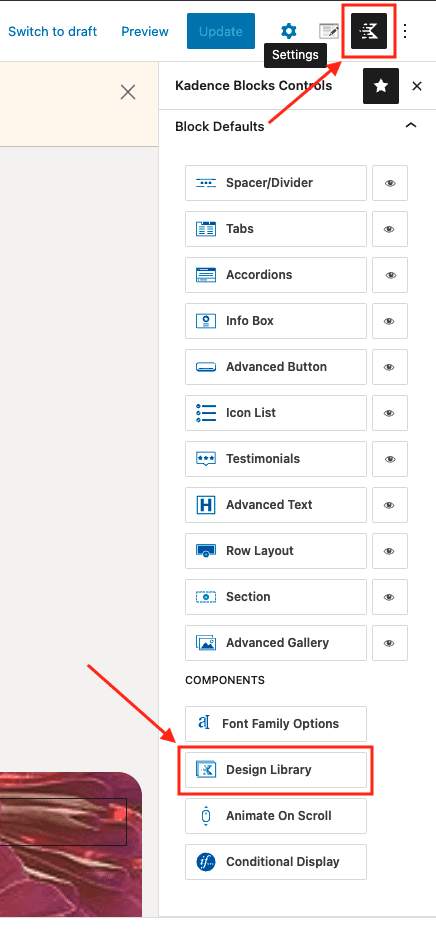
At the top right of your toolbar, you will see the Kadence icon. Hover over it, and you will see it referred to as “Kadence Block Controls.” Click this icon to open the Kadence Block Controls. Now, towards the bottom, in the Components submenu, you will see the option for the design library.
If you click that option, you will open this modal as shown below.
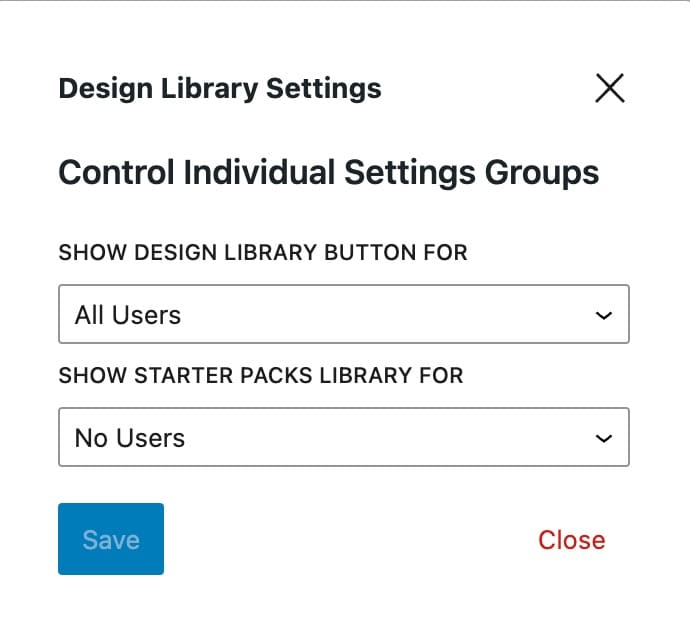
Now you can select which users are allowed to see what. Not everyone can handle seeing the behind the scenes. It can mess with people and who wants that.
The Show Design Library Button option is for the Design Library Button itself. The Starter Packs Library features our old Starter Template Pages Pattern Hub Library. You can learn more by Clicking Here.
Now get to work on building websites and your very own web design empire. You’ve got this and Kadence has your back!

