
Skip to content
Help Center
  • Pricing
  • ProductsExpand
    • Premium PlansGet all the tools you need in one plan
    • Kadence ThemeLightning-fast performance theme for modern websites
    • Kadence BlocksDrop in ready designs with advanced controls for pixel perfect websites
    • Kadence Shop KitCreate a more effective WooCommerce shopping experience
    • Kadence ConversionsBoost sales and build engaged audiences with popups and banners
    • Kadence InsightsEasily create A/B tests. Optimize your pages to drive higher conversions.
    • View All Products
    • Get Kadence + Hosting
      In One Place

      Enjoy faster setup, top-tier performance, and worry-free WordPress hosting – Kadence Theme, Kadence Blocks, and Solid Security all pre-installed.

      Learn More

  • Kadence AI
  • Starter Templates
  • Blog
  • SupportExpand
    • Resource HubStart here for guides, Product docs, FAQs, and Troubleshooting tips, all in one place.
    • Contact SupportStuck on something? We’re here to help! Open a ticket for top-notch support.
    • Contact Our TeamGot pre-sales questions or need help choosing a plan? Open a ticket and our team will guide you.
    • About usCrafted with love in Missoula, Montana. Meet the team behind the mission.
Account Account
Get Kadence
Kadence Theme
  • Features
  • Pro
  • Starter Templates
  • HelpExpand
    • Documentation
    • Facebook Group
    • Submit a Ticket
    • Feature Requests
    • Roadmap
    • Changelog
Help Center
Kadence Theme

Getting Started

  • Installing the Kadence Theme
  • How to use the Kadence Theme Style Guide
  • Installing Kadence Starter Templates (Unlock AI and Pre-Designed Templates)
  • Getting Started with Kadence Site Assist
  • Starter Templates: AI Powered Vs Pre-Designed
  • Getting Started with a Pre-Designed Starter Template
  • Setting up Posts, Pages, and Archive Layouts in Kadence

Customize Settings

  • The Kadence Theme Performance Settings
  • How to use the Kadence Theme Color Palette
  • Typography Settings
  • How to Style Buttons in the Kadence Theme
  • How to Add a Sidebar
  • Sticky Sidebars
  • Page Layout Customizer Settings
  • Single Post Layout Customizer Settings
  • Archive Layout Customizer Settings
  • Kadence WooCommerce Customizer Settings
  • Understanding CSS Clamp and How It Works in the Kadence Theme
  • The Kadence Theme Breadcrumb Settings
  • How to add Scroll To Top
  • How to Enable Scroll to ID
  • How to Add an Author Box to Your Posts
  • Search Results Customizer Settings
  • How to customize the Kadence Footer
  • How to Import, Export, and Reset Kadence Theme Customizer Settings Using Starter Templates Plugin
  • How to Host Google Fonts Locally
  • How to Remove the Page Title in Kadence Theme
  • How to Enable the Kadence Lightbox Feature for Image Links

Header

  • How to Customize the Kadence Header
  • Kadence Classic Header Items
  • Customizing the Classic Header Navigation Colors (Default Header, Transparent Header, Sticky Header)
  • Editing a Row in the Header
  • Customizing the Mobile Navigation Area
  • Customizing the Topbar
  • Edit Dropdown Menu Styling
  • Social Media Icons in the Header
  • Working with the Sticky Header
  • How to Use a Transparent Header
  • Preventing the Theme Transparent Header from Overlapping Page Content

General WordPress

  • How to Change the Number of Posts Displayed on Your Blog Page in WordPress
  • How to specify different CSS styles for mobile, tablet, and PC layouts
  • Enabling ICO File Uploads in WordPress
  • How to Reset Your WordPress Website for Free
  • How to Create Patterns in WordPress (Reusable Blocks)
  • Understanding PHP Deprecated Notices on Your Site
  • How to create a staging website
  • Reserved Slugs and Terms
  • Using the WordPress Dashboard
  • How to Bulk Update Links and Text (Search & Replace)
  • How to Add a Featured Image to a WordPress Post
  • How to Regenerate Permalinks in WordPress
  • Simulating a Mobile Environment For Testing
  • How to Enable Categories and Tags for Pages
  • Set Site Favicon
  • How do I add Custom CSS
  • Adding Google Analytics
  • How To Backup Your WordPress Website
  • How to add a Custom Post Type
  • Fix: Page Not Updating
  • How to Find the Page or Post ID
  • How to prevent spam comments
  • How do I turn off comments?
  • How to Remove All Spam Comments

Troubleshooting

  • How to Reset Your WordPress Website for Free
  • Troubleshooting the “Updating page failed. You’re probably offline.” Error
  • How to Create a Screen Recording for Free
  • Website Favicon is missing on Google Search Results
  • How to Diagnose and Fix Common Google Ads Issues on your site
  • Fixing Mixed Content Errors in WordPress
  • How to resolve the ERR_HTTP2_PROTOCOL_ERROR console error?
  • Troubleshooting White/Blank Screens in the Editor or Customizer
  • Understanding PHP Deprecated Notices on Your Site
  • How to Download Previous Versions of the Kadence Theme and Plugins
  • Fix Starter Template Import Problems When Using Hostinger with Kadence
  • How to run the WordPress built-in database repair tool
  • Recommended Server Resources
  • Troubleshooting the “Update Failed: Service Unavailable” error when updating Pro Kadence WP plugins
  • How to Enable the WordPress Error Logs
  • WordPress Error “Incompatible Archive”
  • Temporarily Deactivating Plugins
  • How to View Console Log Errors
  • Clearing Your Website Cache
  • Getting 500 Errors
  • Broken Styles after version 1.1.15

Advanced

  • How to Use Category & Taxonomy Images with Kadence Dynamic Content
  • How To Add Custom Snippets with Code Snippets
  • Customizing Kadence Related Posts with kadence_related_posts_args Filter
  • How to Use a Post Grid/Carousel Block as Related Posts
  • Customize Pagination in Kadence Theme Using kadence_pagination_args
  • How to Enable Transparent Header on 404 Page
  • How to Customize the Kadence Comment Form
  • Add Thumbnails to Next/Previous Post Navigation
  • Adjusting the Kadence Theme’s scroll offset using a filter
  • Remove title tags on Kadence SVG Icons
  • Adding Kadence Breadcrumbs To Hooked Elements
  • Disable Default Kadence Theme Schema Markup
  • Adding Elements after Specified Paragraphs
  • Common Code Snippets for Kadence Users
  • How to translate using LocoTranslate
  • How to hook elements inside of post or page content
  • What is a Child Theme, Should I Install One, if so How?
  • Adding Custom Fonts to Kadence
  • How to make a custom 404 page
  • How to change a theme icon to something custom
  • Change Any Text on Your Site
  • Changing Various Heading HTML Tags
  • How to Display Custom Post Types with Kadence Template Elements
  • Adding Google Tag Manager with a child theme or code snippet plugin
  • Replace Author HTML (Multiple Author Support)
  • Theme hooks

Theme Kit Pro

  • Kadence Theme Kit Pro Plugin
  • How to create a Mega (Multicolumn Menu)
  • How to use Conditional Headers
  • Kadence Infinite Scroll
  • Kadence Maintenance Mode
  • How to add scripts in header/footer
  • How to use the Color Palette Switch (Dark Mode)
  • How to use Element Hooks
  • WooCommerce Addons
  • How to Add Icons to Your Classic WordPress Menu Items
  • Archive Custom Page Title Backgrounds (Kadence Theme Kit Pro)
  • Theme hooks
  • Header Addons
  • How to add contact information
  • How to add a toggle open menu for desktop
  • How to add a login and account Menu
  • Kadence Custom Fonts
  • How to open the side cart when a product is added to cart

Kadence Elements

  • How To Use Hooked Element Shortcodes
  • What are Kadence Hooked Elements?
  • Installing and Creating Kadence Elements
  • The Four Types of Kadence Elements
  • Kadence Element Settings
  • Kadence Content Section Hooked Elements
  • Kadence Template Hooked Elements
  • Kadence HTML Editor Hooked Elements
  • Kadence Fixed Section Hooked Elements
  • Switching between different Kadence Elements Types
  • Importing/Exporting Kadence Elements

Woocommerce

  • How to Track WooCommerce Cart Actions with JavaScript
  • How to Add Image Switch on Hover for Product Archives
  • How to Add a Mini Cart to the Site Header
  • How to Change the WooCommerce Product Loop Title Tags

Hooked Element Guides

  • How to Use an Element to Replace the Archive Loop Item Content
  • How to Create a Custom Single Post Template with Kadence Hooked Elements
  • How to Create a Custom Archive Page Template with Kadence Hooked Elements
  • How to Replace Specific Posts’ Sidebar Content Using a Kadence Element
  • Programmatically Display Kadence Hook Elements
  • How to Design a Post Grid/Carousel using a Kadence Element
  • How to make a Dynamic Search Results Title in Kadence
  • Adding Kadence Breadcrumbs To Hooked Elements
  • How to Replace the Footer Using a Kadence Element
  • Home
  • Knowledge Base
  • Kadence Theme
  • Kadence Theme
  • Advanced

How to Display Custom Post Types with Kadence Template Elements

If you have content in custom post types with Advance Custom Fields, either the free or pro version of their plugin, that data can be accessed and displayed using Kadence Elements Templating and dynamic content. To do so, you will need to have the Kadence Theme Kit Pro plugin installed as well as Kadence Blocks Pro plugin installed. We recommend starting with the Kadence Express Plus if you’re using Kadence Elements Templating with Advanced Custom Fields. 

For this overview, we will assume that you have some familiarity with Advanced Custom Fields and we’ll focus on how to display your content using Kadence Elements Templating and Dynamic Content. For an overview of how and when to set up custom post types, refer to our blog tutorial on how and when you might want to use dynamic content and custom post types. 

Before working with Kadence Elements Templates and your custom post types, it is important to have some model content to work with. If you haven’t yet set up your custom post types with the content, do that first. 

Creative use of Custom Post Type Content

The great thing about working with Kadence Elements Templates and custom post types is that many Kadence  Blocks can access custom post type data to pull in dynamic images, dynamic categories, and much more.   

Accessing custom post types within Kadence Elements Templates

Before accessing custom post types in Kadence Elements Templates, ensure that you have Hooked Elements toggled on in the Kadence settings. Head to Appearance > Kadence and turn on Hooked Elements. This will add a sidebar menu item under Appearance > Kadence to easily access Elements. 

Click on Elements and then Add New. Next, you’ll see a dialog asking you to choose the type of Element you would like to create. For this example, we’re creating a template. 
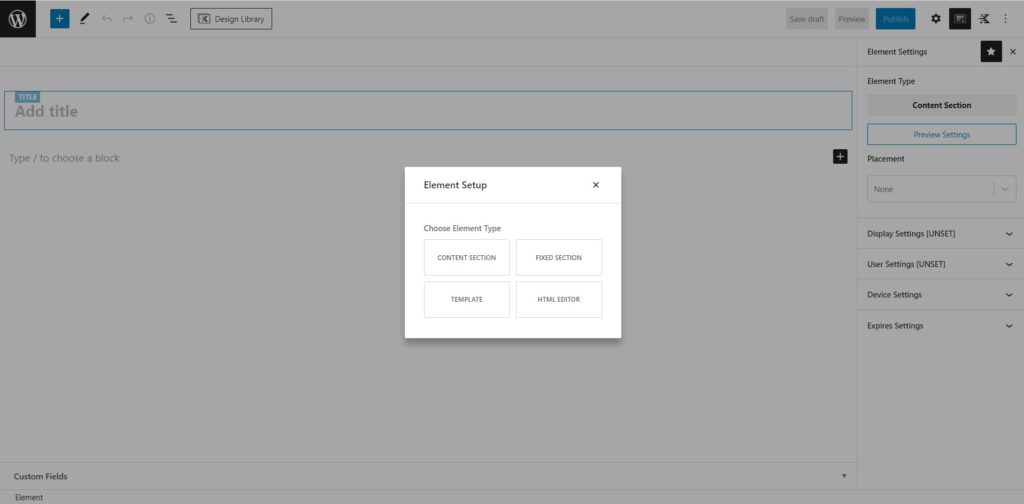
Kadence Elements Chose Type of Element
Choose the type of Kadence Element you are creating

Establish Template Settings

In the upper right corner, toggle into your Kadence Element Settings. 
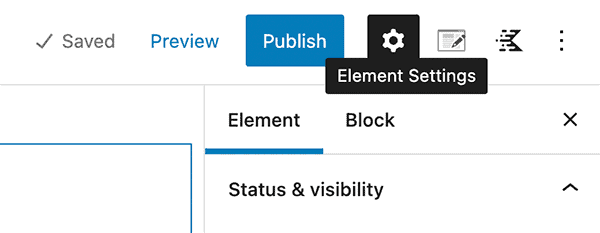
element settings
Toggle Element Settings on.

Set your Preview Settings. Here, you will choose which of your content entries you will use to model what your template will look like. 

For editor settings, if you are setting a full page template, you can leave this blank and it will inherit from your theme. If you are setting up a template that will be a different width, set it here. If you are setting up a template that will be repeated, for example in an archive page, you can set the width here. The purpose of this is to ensure that you are seeing a reasonable representation of what your front end will look like while you are designing your template in the block editor. 
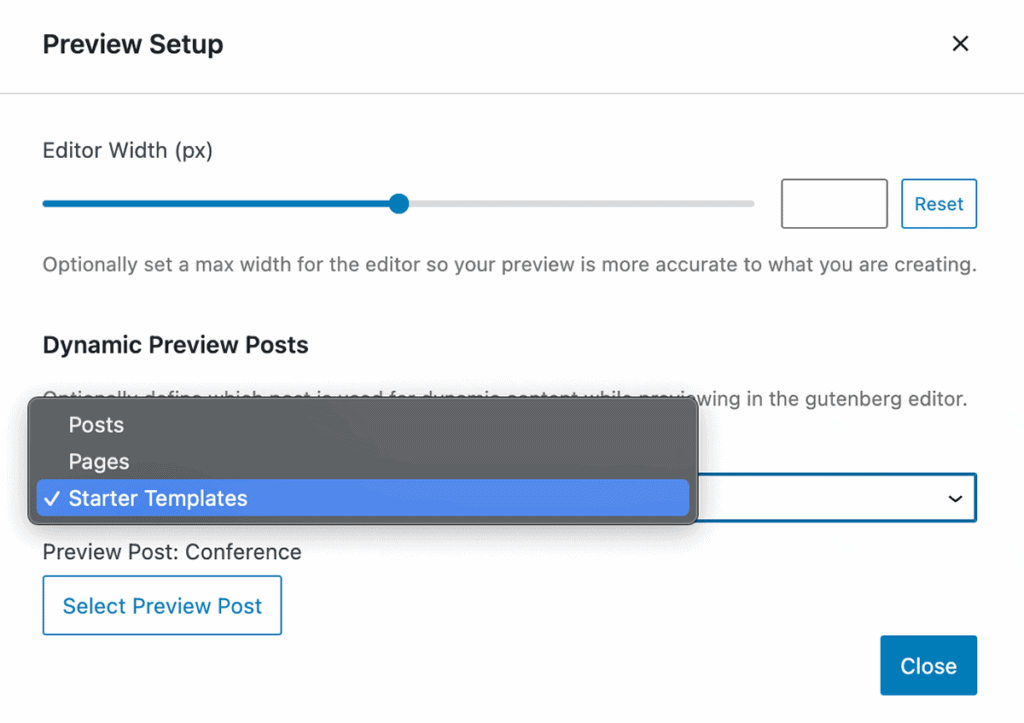
kadence elements preview settings
Set up your preview post settings so that you can work with specific data as you create your template.

Set your Placement Settings. Placement tells Kadence Elements where you will be placing the template you’re designing. In the case of a template, we are replacing content on a page somewhere on your site. 
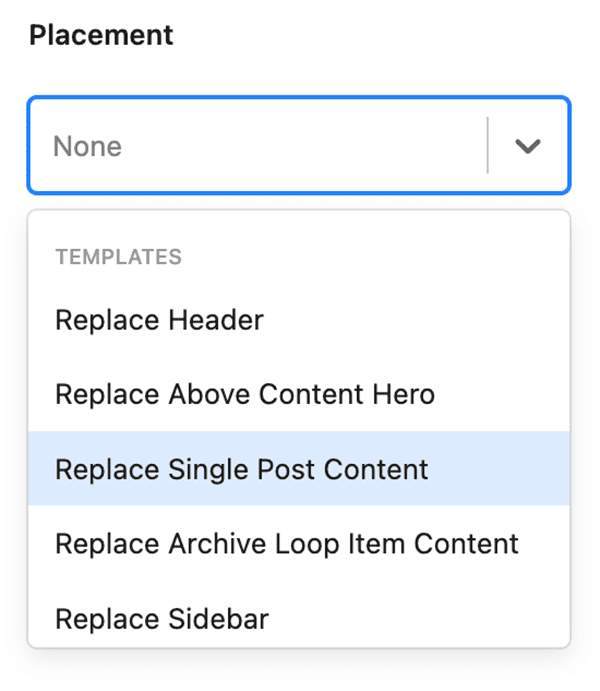
kadence elements placement settings
Kadence Elements Templates Placement Settings

Set your Display Settings. Display settings lets you determine where your element will be displayed. These can be set to display on specific portions of your site, or to exclude from specific portions of your site, and you can get as granular as you’d like with your settings.
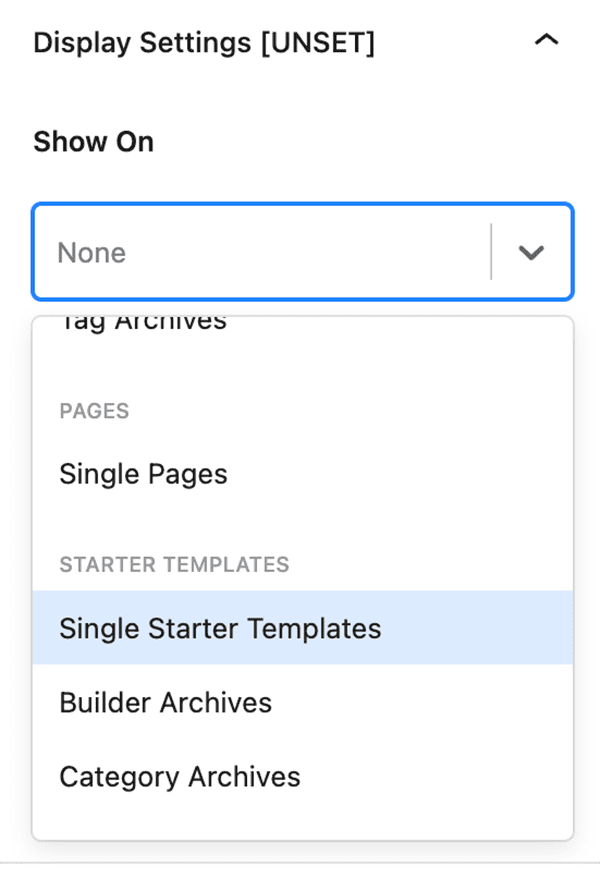
kadence elements display settings
For display settings, choose where your template will display. On this example, we’re displaying this template on our single starter template custom post type.

Set your User Settings. This is optional. User settings can be set by any user role that is set on your site. For example, you can choose to show to logged in users, logged out users, or any user role that you have. You can add rules so that you can show your template to administrators and shop managers, for example, by adding rules. Of course, keep in mind that if you’re limiting a Kadence Elements Template to show to a specific user role, then that user will need to be logged into your site in order to see it.

Set your Device Settings. This is optional. To add devices to your Kadence Template, choose which devices you would like your template to apply to: desktop, tablet, or mobile device. If this is not set, your template will show to all devices. 


Begin building your template

We recommend using the Row Layout Block and Section Block to contain your content, and you can nest the content within these as needed. Using the Row Layout Block and Section Block allows you to access dynamic content for backgrounds and even choose to display some content conditionally if desired.

As your layout will be uniquely yours containing your customized content, you’ll need to determine where and how your content should be displayed. Here, we’ll show how to access dynamic content with a few of the Kadence Blocks. Note that these are only available in the Kadence Blocks Pro version.

Dynamic Content in Templates

Any field in your custom post type is automatically accessible to Kadence Elements. That means that your Post Title, Post Excerpt, Post URL, Post ID, Post Date, Post Last Modified Date, Featured Image, Featured Image URL, Post Type, Post Status, as well as all of your custom post types are available to be displayed in your template. Here are some of the ways you can display your custom post type information on your Kadence Elements Template.

Wherever you see the dynamic content icon, you can access your custom fields in your template.
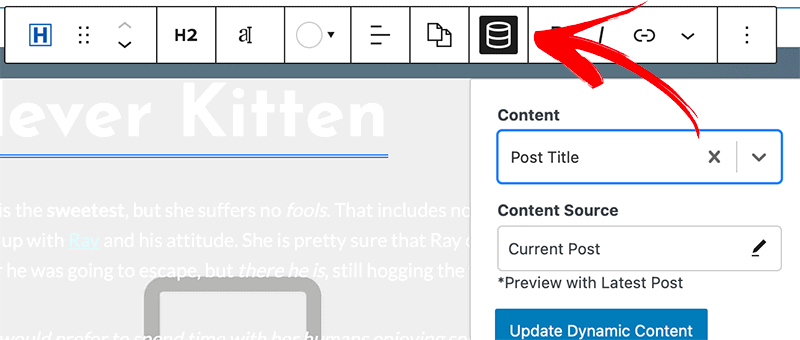
Row Layout Block Dynamic Content

Wouldn’t it be great to add a dynamic background that can be set on the custom post type? With Kadence Elements Templates, you can pull in a dynamic image that is set in your custom post type. In the right sidebar, go to Background Settings and then click the dynamic content icon. Click the toggle on for Enable Dynamic Background Image, then find the image that you would like to use. In our example, we have a field called “Background Image” that is being used for the background of the record being displayed. This could also easily be used as a banner image or any other dynamic display of an image background.
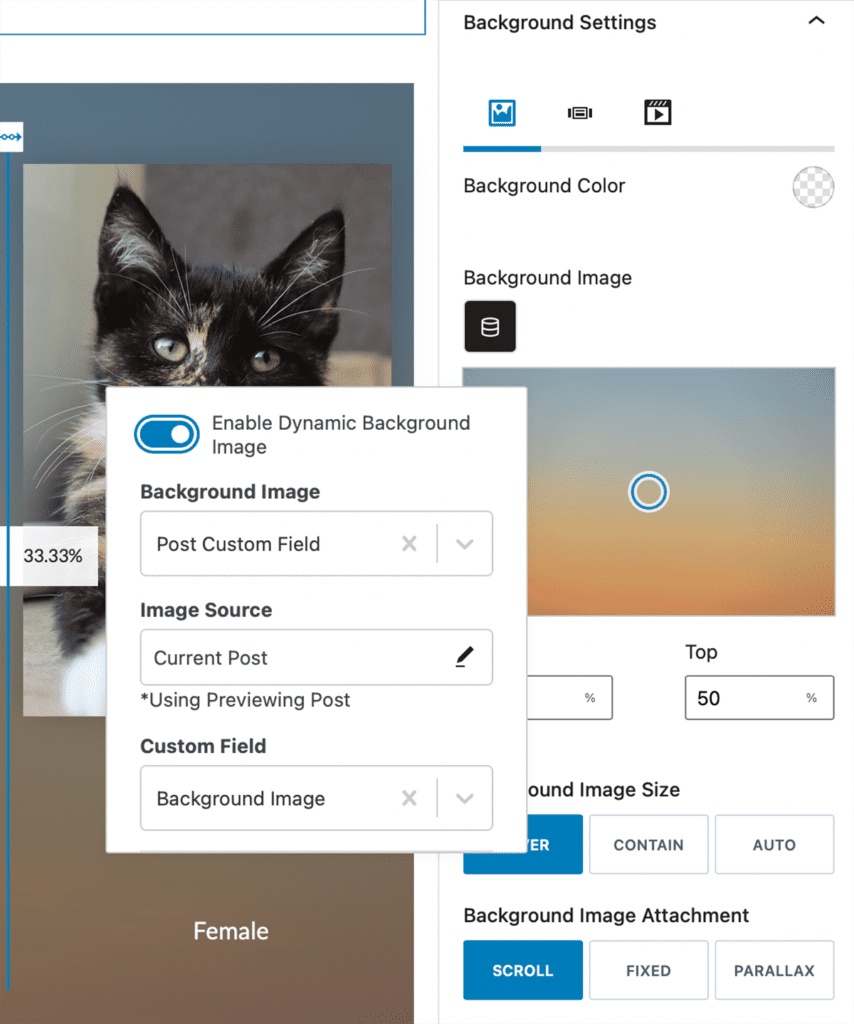
Section Block Dynamic Content

A Section Block can access a number of dynamic elements, and it can contain text, images, and other content that can access dynamic elements as well. And, Section Blocks can be contained within a Row Layout Block or inside of another Section Block, giving it a number of ways to display and contain dynamic content.

As with the Row Layout Block, you can set a Section Block to have a dynamic background within a template as well. First, Enable Dynamic Background Image, and find the custom field that contains the dynamic image you would like to show. This could also be the post featured image if desired.

Advanced Text Dynamic Content

The Advanced Text Block will likely be one of the primary blocks that you use in order to access your custom post type data. Accessing the data is easy. First, place the Advanced Text Block. Then, click the dynamic content icon on the block bar. Find the content you’d like to place. If it is within your Post Custom Fields, click the “Post Custom Field” to open additional dialogues to find the specific field.
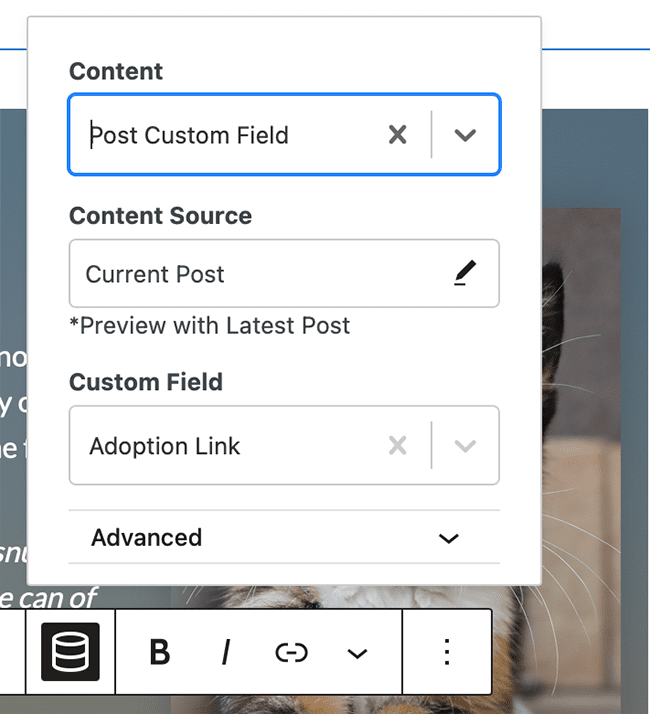
Find your post custom field to populate your Advanced Text Block content.

You can add fixed text interspersed with dynamic text within the Advanced Text Block.

Advanced Image Dynamic Content

The Kadence Advanced Image Block contains a number of settings above and beyond a standard image block, but the dynamic portion of the Advanced Image Block might be the most powerful. You can use the Advanced Image Block to access the post featured image or any other image field that you might have added to your custom post fields. To access your dynamic content, first place the Advanced Image Block. You’ll see an option to select an image, but this would be for fixed content. You can still add fixed images to a template, but to access dynamic images, head to the right sidebar and click the dynamic content icon under Image Settings.
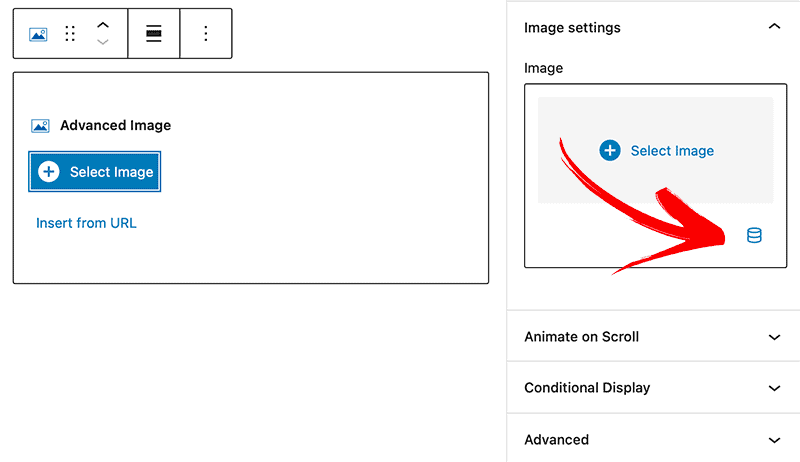
Add dynamic images to the Advanced Image Block.

Next, click the toggle to Enable Dynamic Image.
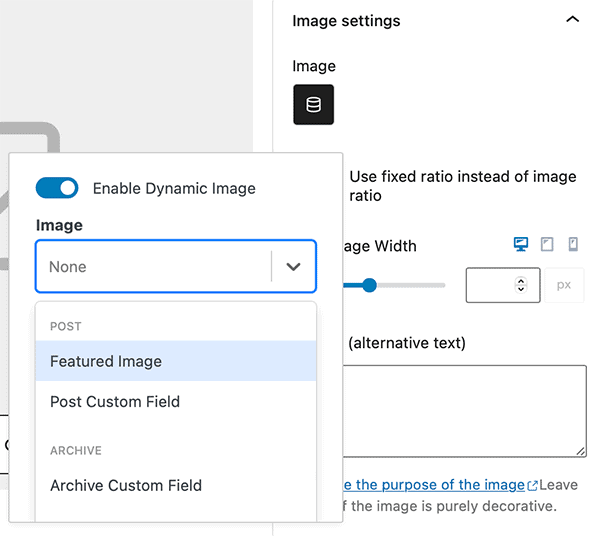
Choose your dynamic image, which can either be the featured image or a Post Custom Field.

You can also choose to animate the image on scroll, or even show the image conditionally. For example, if you do not want to show an image if there is none entered, you can choose to conditionally show the block if the image exists. In the example below, we are only showing the advanced image if the featured image URL is not empty (e.g., if there is a featured image, then show this advanced image block).

Advanced Button Dynamic Content

Both the text on your Advanced Button and the link to which your user will be directed can be set with Kadence Elements Templates. As well, you can set the text on the button to be static and the link dynamic, or you can have the text be dynamic and the link static. Both are easily set.

To set the text on an advanced button to your dynamic content, click the dynamic content icon and then find the dynamic content you’d like your button text to contain.

In our example Advanced Button Block below, we’ve intermingled static content and the Post Title for the button text, and we’ve added the “Adoption Link” custom post field for the dynamic link.
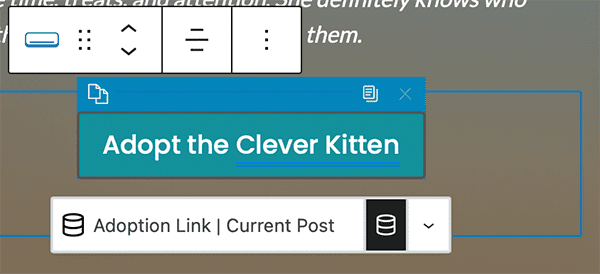
Dynamic text on the button is shown with a blue underline.

Dynamic HTML Block

Often, we need to provide our users the ability to add minor HTML such as bolding, italics, or even links to the content that we need to display dynamically. In these cases, the WYSIWYG editor available in Advanced Custom Fields combined with the Kadence Dynamic HTML Block is the perfect solution.

Within the Dynamic HTML Block, choose your Content Source. Ensure that the content you’re pulling in is within the WYSIWYG field in ACF.
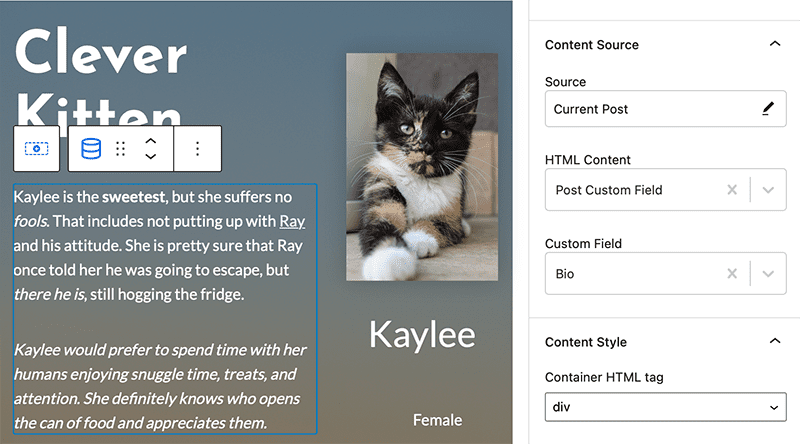
Choose the content source via the block settings in the sidebar.

Dynamic List Block

The Dynamic List Block is a perfect way to display information that was entered in as checkboxes or select drop downs. This block can also be used for post taxonomies, but in this implementation, we’re using custom post types. Find the field you’re displaying via the block settings in the sidebar.
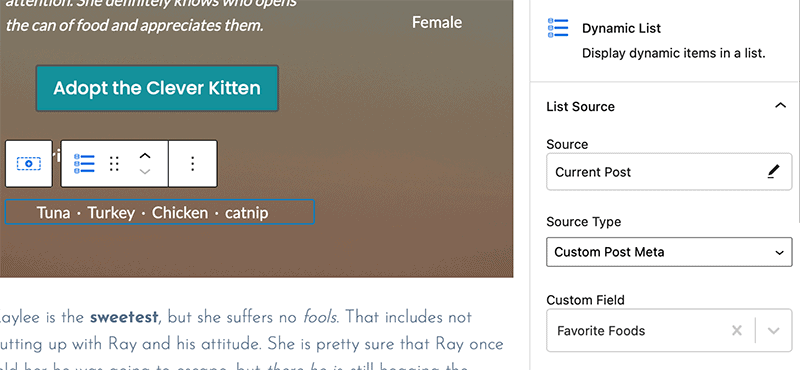

Choose the Dynamic List content in the sidebar.
Do you feel this document was helpful?
Changing Various Heading HTML TagsAdding Google Tag Manager with a child theme or code snippet plugin
The Kadence WP Logo
Crafted in Missoula, Montana
  • Follow Kadence on Facebook
  • Follow Kadence on Youtube
  • X
  • Follow Kadence on Instagram
Trustpilot
Products
  • Kadence Plans
  • Kadence Theme
  • Kadence Blocks
  • Kadence AI
  • Kadence Starter Templates
  • Kadence Shop Kit
  • Kadence Conversions
  • Kadence Pattern Hub
  • View All
Resources
  • Blog
  • Podcast
  • Knowledgebase
  • Support ticket
  • Feature Requests
  • FAQ
  • WordPress Hosting Services
About Us
  • About Kadence
  • Become an affiliate
  • Contact us
  • Terms
  • Privacy Policy
  • Security
Our Partner Brands
  • SolidWP
  • LearnDash
  • The Events Calendar
  • GiveWP
  • MemberDash
Kadence Community
  • Kadence Marketplace
  • Join the Facebook Group
  • Subscribe to our YouTube Channel
© 2024 Kadence WP | All prices are in USD
Logo for StellarWP an umbrella brand of Premium WordPress plugins
  • Pricing
  • Products
    • Premium PlansGet all the tools you need in one plan
    • Kadence ThemeLightning-fast performance theme for modern websites
    • Kadence BlocksDrop in ready designs with advanced controls for pixel perfect websites
    • Kadence Shop KitCreate a more effective WooCommerce shopping experience
    • Kadence ConversionsBoost sales and build engaged audiences with popups and banners
    • Kadence InsightsEasily create A/B tests. Optimize your pages to drive higher conversions.
    • View All Products
    • Get Kadence + Hosting
      In One Place

      Enjoy faster setup, top-tier performance, and worry-free WordPress hosting – Kadence Theme, Kadence Blocks, and Solid Security all pre-installed.

      Learn More

  • Kadence AI
  • Starter Templates
  • Blog
  • Support
    • Resource HubStart here for guides, Product docs, FAQs, and Troubleshooting tips, all in one place.
    • Contact SupportStuck on something? We’re here to help! Open a ticket for top-notch support.
    • Contact Our TeamGot pre-sales questions or need help choosing a plan? Open a ticket and our team will guide you.
    • About usCrafted with love in Missoula, Montana. Meet the team behind the mission.
Account Login
  • Features
  • Pro
  • Starter Templates
  • HelpExpand
    • Documentation
    • Facebook Group
    • Submit a Ticket
    • Feature Requests
    • Roadmap
    • Changelog
