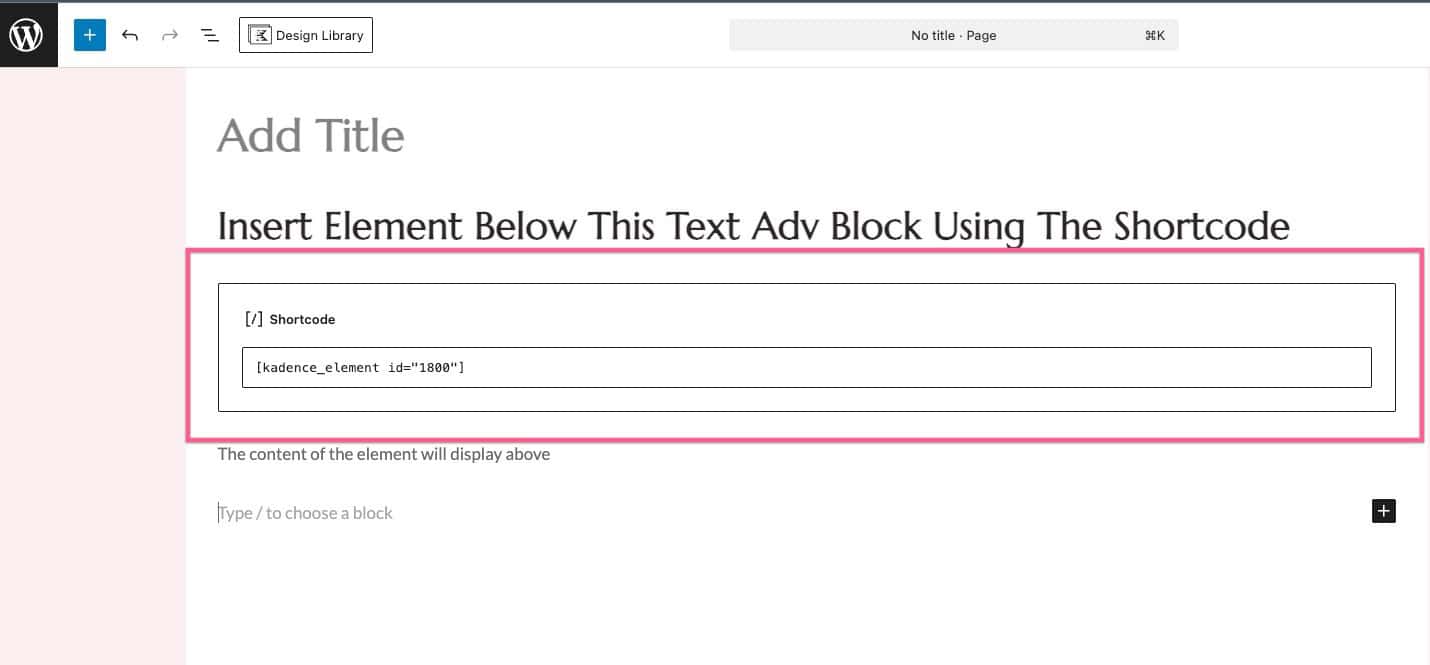
Kadence Elements allows custom content to be added throughout a site. Normally, Elements are placed using Placement Settings or custom hooks. Each Element also has a unique shortcode. This shortcode can be added inside pages, posts, widgets, or templates to display that Element exactly where needed.
Shortcodes follow the Element’s unique ID, for example: . The ID ensures the correct Element displays.
What Is A Hooked Element Shortcode?
A shortcode is a small piece of text placed inside the WordPress editor to display dynamic content. Each Kadence Element automatically generates its own shortcode based on its Element ID.
This allows the same Element to be:
- Inserted into multiple pages
- Reused across different post types
- Positioned more precisely than standard placement options allow
The shortcode does not replace Display Settings. Instead, it works together with them.
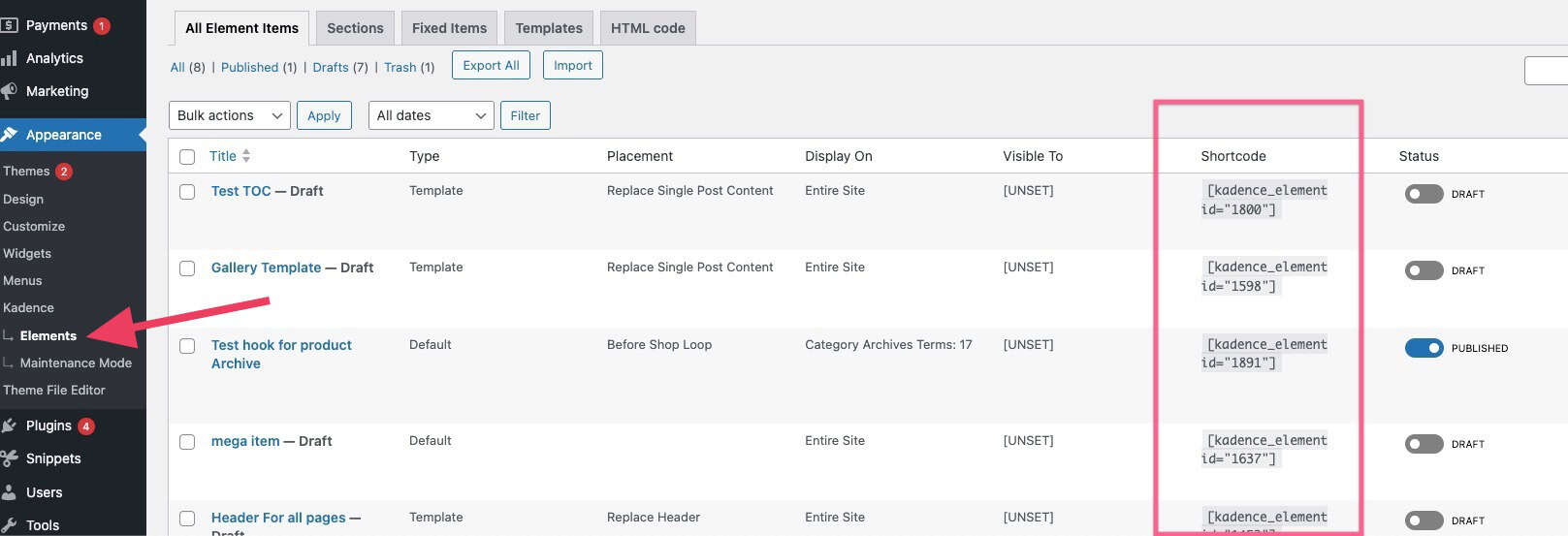
How To Find The Shortcode
- In the WordPress dashboard, go to Appearance > Kadence > Elements.
- Locate the desired Element in the list.
- Copy the shortcode shown in the Shortcode column.
How Display Settings Affect Shortcodes
The Element Display Settings control where an Element is allowed to appear. These settings still apply when using a shortcode.
Elements can be limited to:
- Specific pages or posts
- Certain post types
- Entire site
Important: If the page does not match the Element’s Display Settings, the shortcode will not display anything. Most shortcode issues are caused by visibility rules, not the shortcode itself.
How To Create A Shortcode For Universal Use
If the goal is to use the same Element in multiple locations:
- Open the Element under Appearance > Kadence > Elements.
- Scroll to Display Settings.
- Set the rules to show Entire Site.
- Save the Element.
This setup allows the shortcode to work anywhere it is inserted. Display conditions, such as user or device visibility, can still be applied when needed.
How To Insert A Hooked Element Shortcode
Shortcodes can be inserted inside the WordPress Block Editor.
Insert Into A Page Or Post
- Open the page or post in the editor.
- Add a Shortcode block. (Paragraph blocks can also be used.)
- Paste the Element shortcode.
- Click Update or Publish.
- View the page on the front end to confirm it displays correctly.