
Want to make your WordPress site feel more modern and engaging? Adding animations that trigger as you scroll down the page is a simple way to bring your content to life. Whether it’s images fading in or text sliding up, these subtle effects can make a big impact.
In this guide, we’ll show you how to easily add scroll animations to your WordPress site using Kadence blocks.
NOTE: This feature requires the Kadence Express Plan or higher. Please see our Pricing page to view your purchase options. This feature can be unlocked either through the Kadence Creative Kit or the Kadence Blocks Pro plugins.
What is Animate on Scroll?
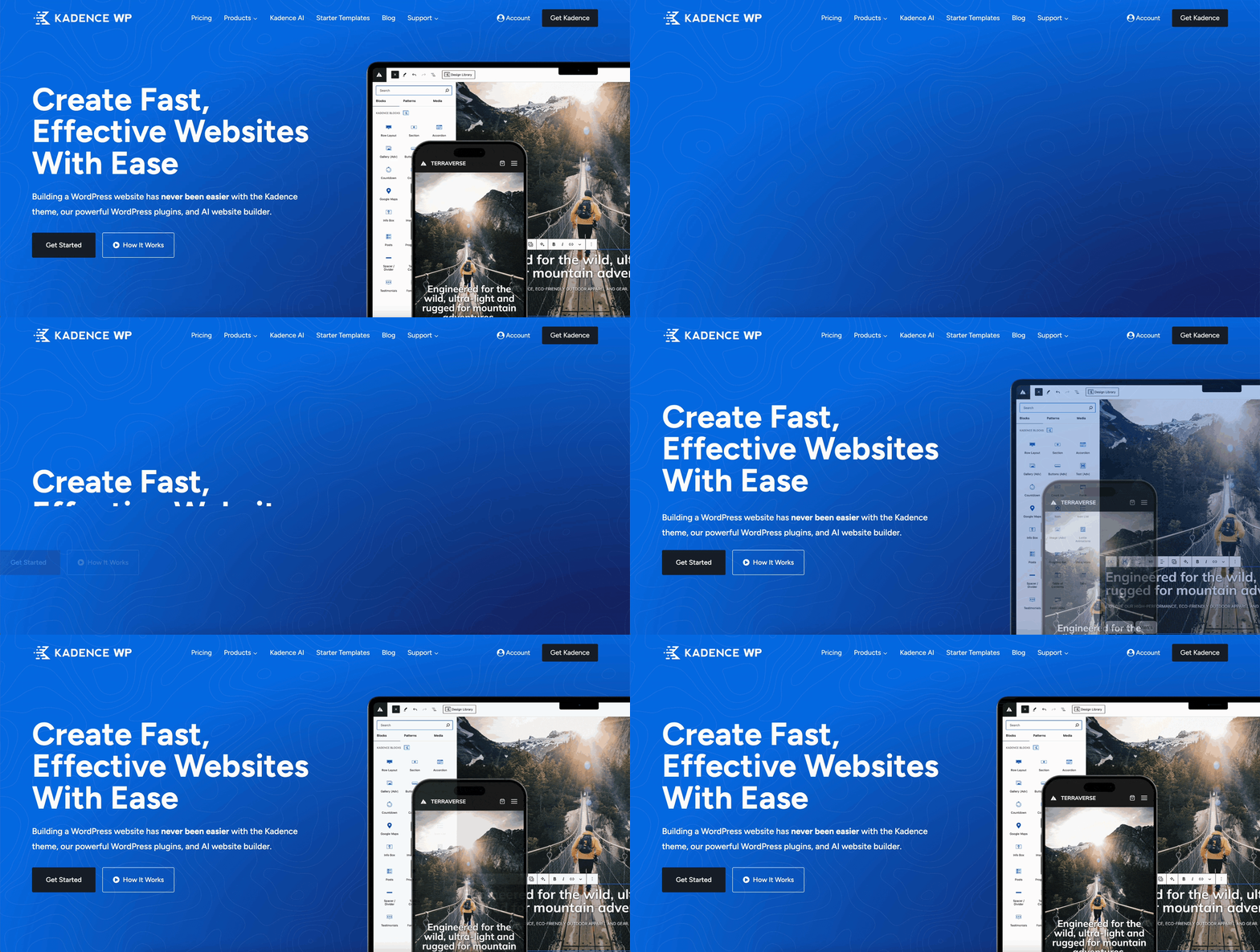
Animate on scroll is a feature that adds motion to your page, making it feel more interactive and interesting. Instead of everything appearing all at once, content is revealed gradually, guiding the visitor’s attention and making the experience more engaging. Animations can include effects like:
- Fade
- Flip
- Slide
- Zoom
- Cover
What Blocks Can Be Animated?
Kadence blocks that can be animated include:
Pro Tip: You can animate any content by including it inside an animated Section block.
How To Animate A Block
Step 1: Insert one of the blocks listed above.
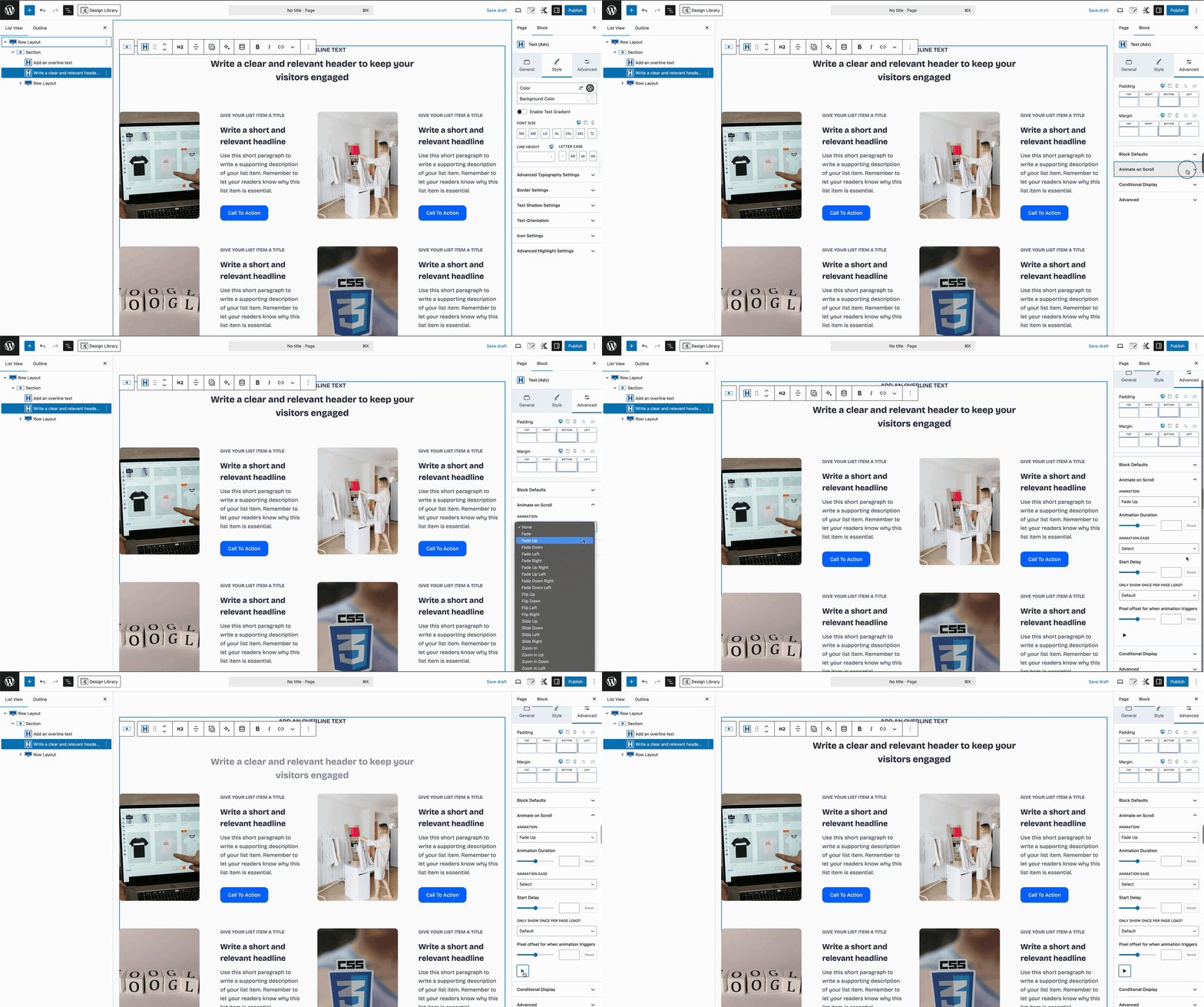
Step 2: Click the Advanced settings tab and open the Animate on Scroll section
Step 3: Select an Animation and adjust your settings
Animation Settings
Animation: Select an animation from the dropdown. Selecting an animation will reveal the additional settings.
Animation Duration: Choose how long the animation will last, start to finish. Use the slider to select 50 – 3000ms (0.05 – 3 seconds). Default/empty is 400ms (0.4 seconds).
Animation Ease: Select one of several easing functions or leave blank for no easing.
Start Delay: Select the time delay for the animation to start as the element scrolls into view. Select 50 – 3000ms (0.05 – 3 seconds) delay. Default/empty is 0 seconds.
Only Show Once Per Page Load: Default/False will show every time the user scrolls down. True will only show once per page load.
Pixel offset for when animation triggers: Slide to adjust from -300 – 300 pixels. Default/empty is 0.
To preview your animation in the editor, click the play ▶ button.

Default Settings
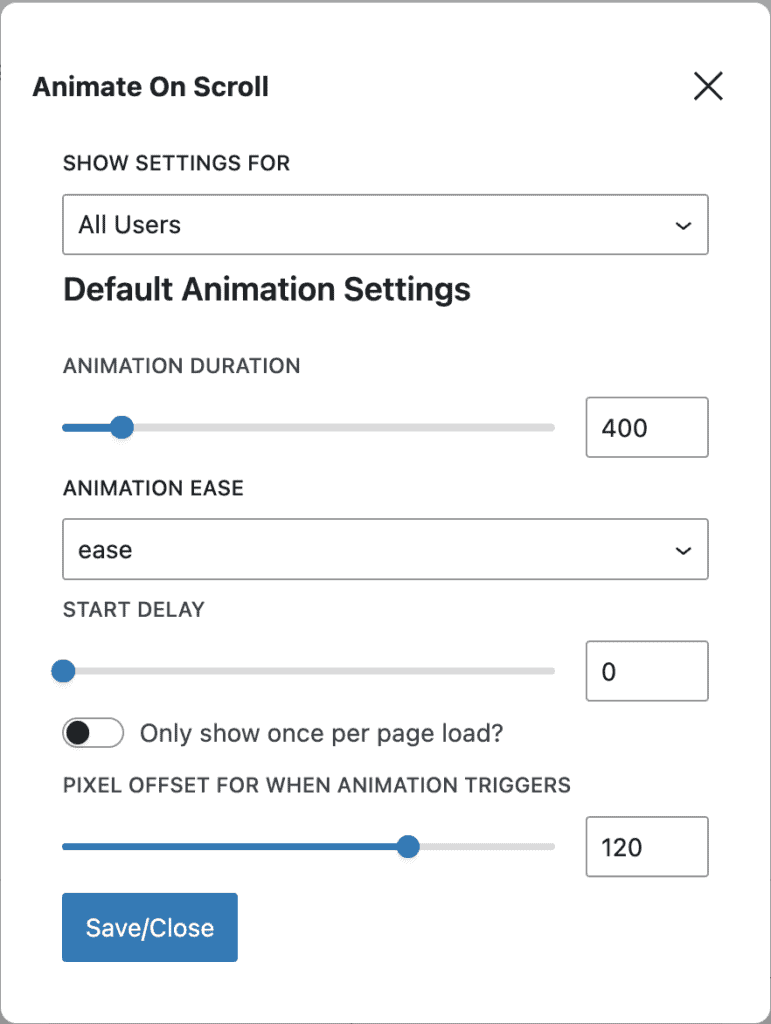
You can set default settings by going to Kadence Blocks Control > Block Visibility > Animate on Scroll
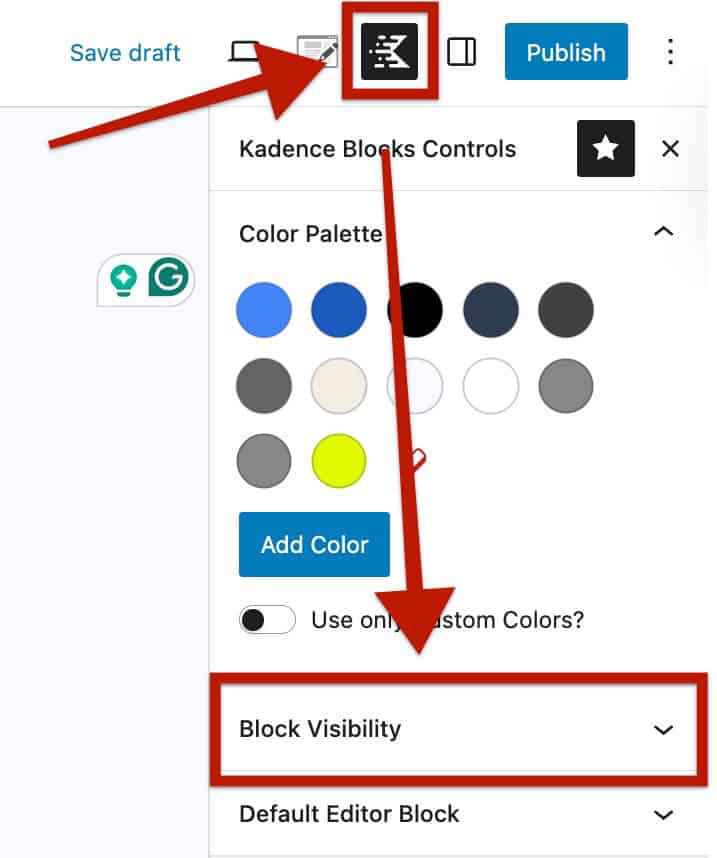
From here, you can configure the Default Animation Settings:
- Animation Duration
- Animation Ease
- Start Delay
- Only show once per page load
- Pixel Offset for When Animation Triggers
After making changes, click Save/Close to apply your default settings.
Note: These defaults will only apply to newly added blocks. Existing blocks will keep their current animation settings.
Animate on Scroll Tips
When using scroll animations, less is more. Animations should enhance the user experience, not distract from it. A good rule of thumb: if an animation helps draw attention or guide the visitor’s eyes, it’s likely worth including. If it’s just for decoration, consider leaving it static.
Here are a few tips for deciding how many and which elements to animate on a WordPress page:
Focus on Key Content
Animate the most important elements you want visitors to notice, such as:
- Headings or section titles
- Feature images or product highlights
- Call-to-action buttons (e.g., “Contact Us” or “Buy Now”)
- Testimonials or statistics
Avoid Overuse
Too many animations can feel overwhelming or slow down your site. Avoid animating:
- Every paragraph of text
- Small icons or decorative elements
- Navigation items (unless it’s intentional and subtle)
- Nesting animations (i.e., animating a block inside another animated block)
Animate on scroll can impact performance, especially on slower computers or mobile devices. Some performance tips include:
- Animate fewer elements (i.e., less is more)
- Use lightweight effects (i.e,. use fade or slide versus zoom or flip)
- Stagger animations (i.e., delay animations to avoid multiple simultaneous animations)
- Limit animation duration (i.e,. 600ms or less)
Keep It Consistent
Stick to one or two animation styles across the page to maintain a clean, professional look. For example, use a fade-up for content sections and a slide-in for images.
Test Responsiveness
Kadence Animate on Scroll settings apply to all screen sizes. Be sure to test your animations on tablets and mobile devices. What looks great on a desktop might feel too busy or confusing on smaller screens.

