
When posting forms on your website, it is ideal to use some form of spam prevention to prevent malicious actors. A popular option is Cloudflare Turnstile, an effective, trusted form of spam prevention. The Kadence Form (Adv) Block specifically supports Turnstile integrations. This guide will overview how to set up Cloudflare Turnstile and use it with your Kadence Forms.
Want to add Turnstile protection to other forms on your website, such as the login form? Check out the premium Kadence CAPTCHA plugin here.
Setting up CloudFlare Turnstile
To use the Kadence Forms with Cloudflare Turnstile, a Cloudflare account must be created, and the website should be added to the Cloudflare Turnstile list of sites. A Cloudflare account can be created here.
From the Cloudflare Dashboard, find the Turnstile Tab. Click on it and click on the Add Site button
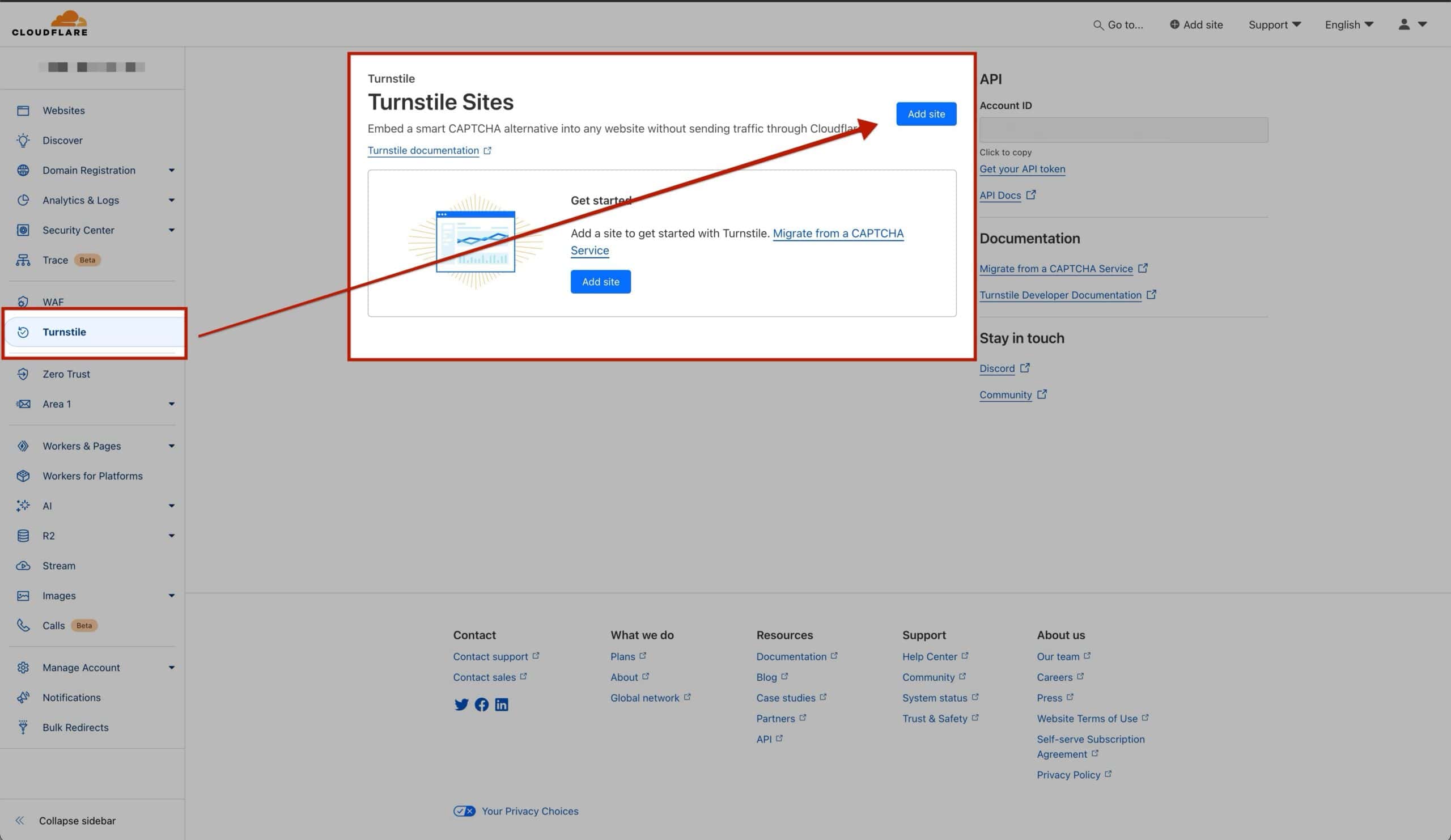
This will require some website details to be filled out.
Set the Site Name to a preferred name for the website. This name serves as a unique identifier within Cloudflare Turnstile.
The Domain setting specifies the domain where the Turnstile Keys will be applied. This domain should match the one where the Kadence Forms are implemented. You can manually enter a custom domain or select from existing connected websites in the Cloudflare account.
Choose between Managed, Non-interactive, or Invisible for the Widget Mode. Managed provides a straightforward Turnstile widget with minimal setup, while Non-interactive operates discreetly in the background. Invisible hides the widget entirely from users.
Decide if you want to opt for pre-clearance for this site. Pre-clearance simplifies access for verified users by automatically recognizing them based on previous verifications. This means that once users are verified through an initial process, they won’t need to go through additional verification steps each time they access your site.
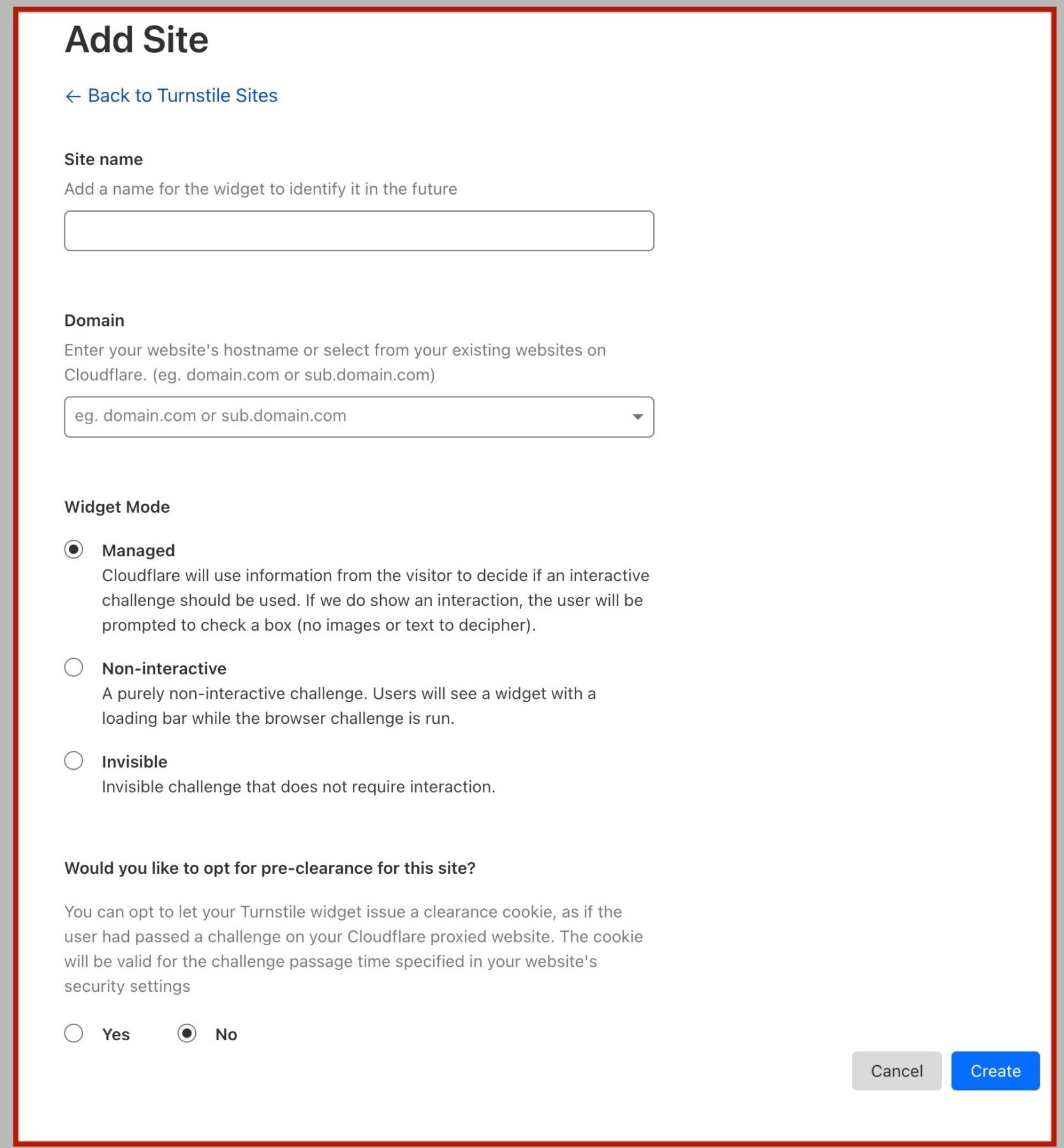
Ensure all details are accurate before completing the registration process for the site with Cloudflare Turnstile. Then click the Create button.
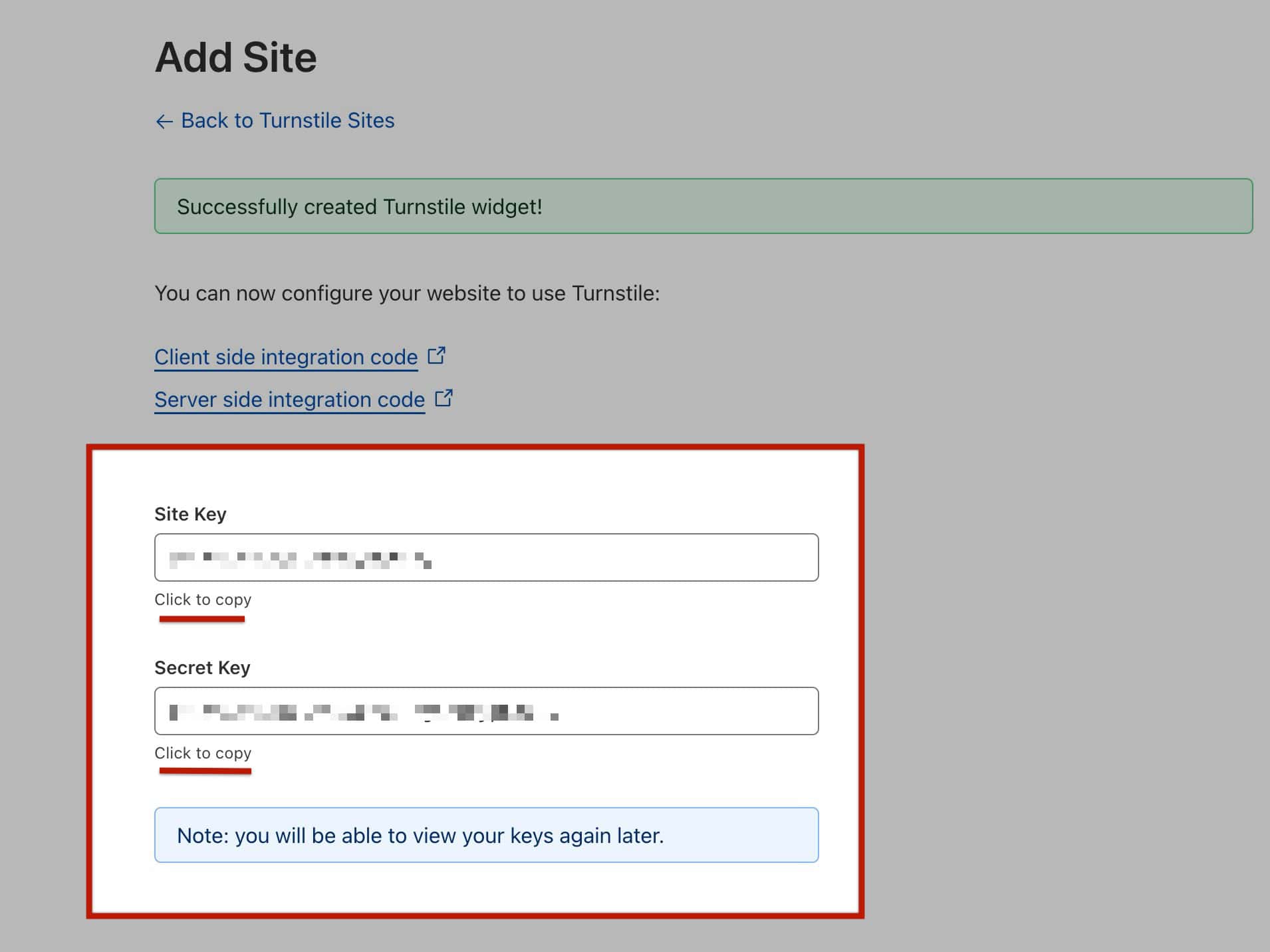
Once the website is added, a pop-up will display presenting the Site Key and Secret Key. These two keys are required for Kadence to integrate with Turnstile. It is important to save this page and key details for future reference. (These keys can also be accessed later in the Cloudflare Dashboard)
Adding Tunrstile Keys to Form (Adv) Blocks
The Form (Adv) Block supports the use of Cloudflare Turnstile. This is done by clicking on the blue plus icon to add a new block inside the Form (Adv) Block. Then, navigate to the Misc tab and add the CAPTCHA block to the form.
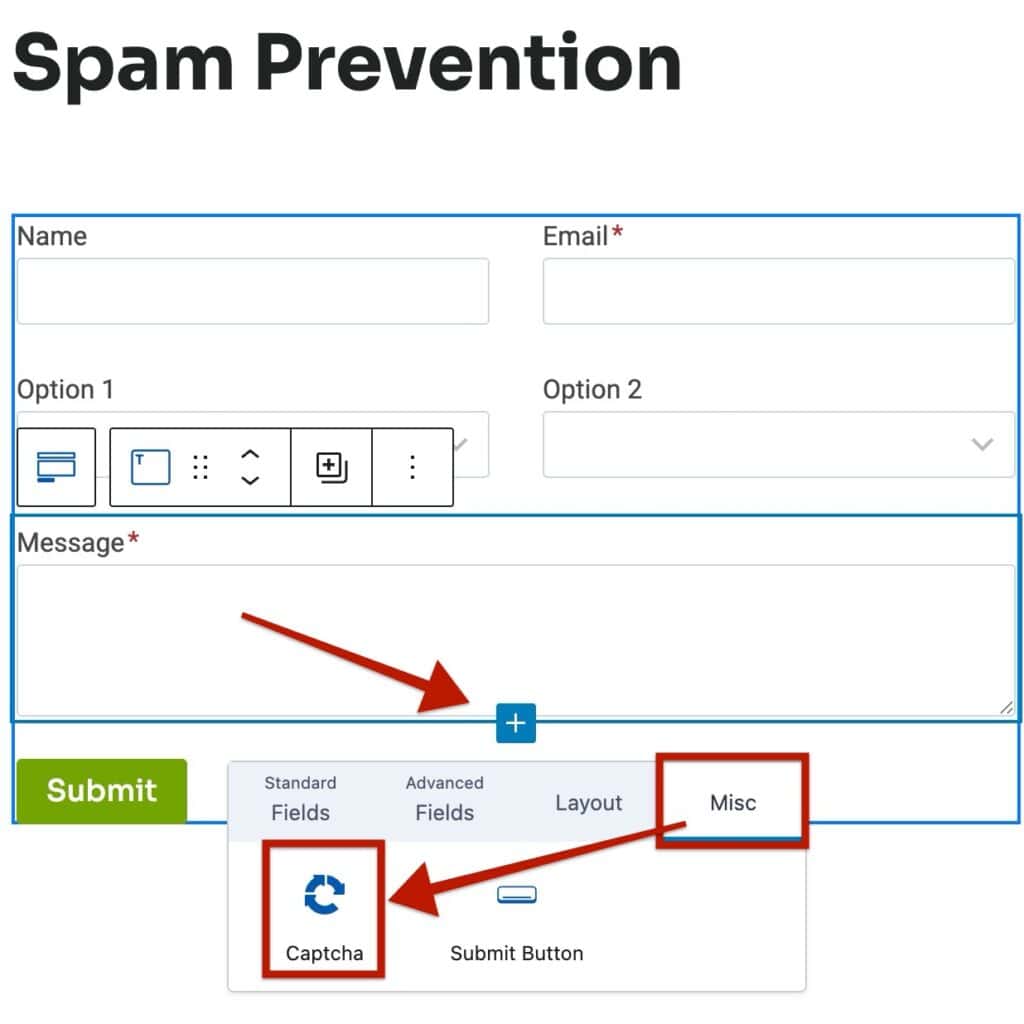
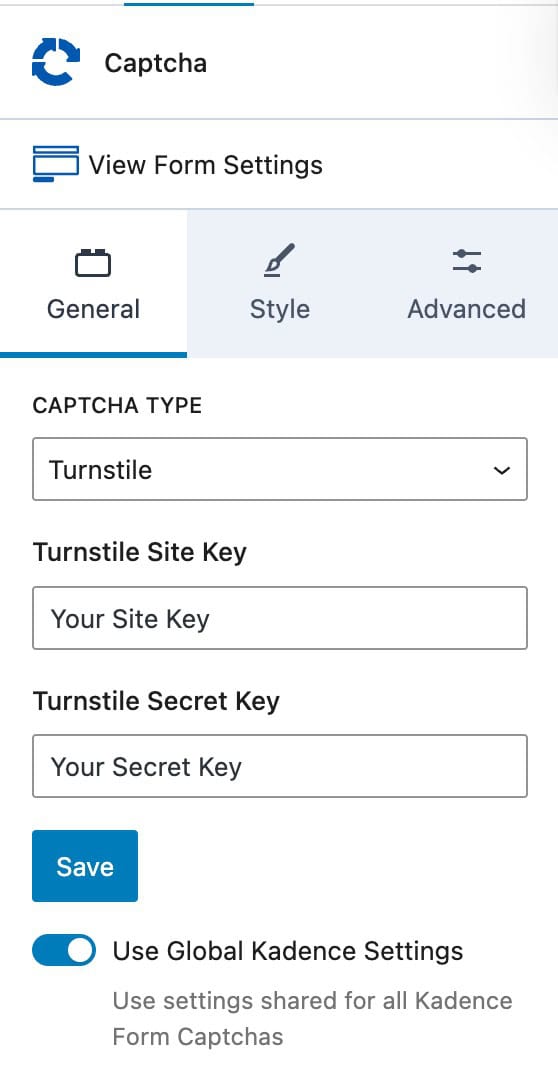
Afterward, select the CAPTCHA block and use the General Block Settings to set up Cloudflare Turnstile.
Under CAPTCHA TYPE, select the Turnstile option. Then, you can fill out your Site Key and Secret Keys accordingly.
(Don’t forget to press Save after entering your keys)
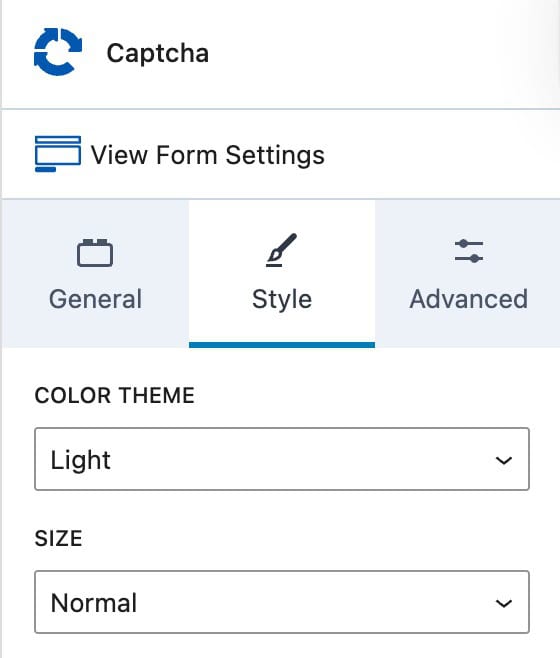
You can also use the Style Block Settings to specify a Color Theme of Light or Dark and a Size of Normal or Compact.
Once everything is set up, the Form (Adv) Block will validate users through Cloudflare Turnstile.

