
Spam form submissions can be a frustrating problem for websites owners. Fortunately, WordPress provides a built-in feature called Disallowed Comment Keys, which allows you to specify words and/or phrases that should be blocked from comments and form submissions. By leveraging this feature with a small custom code snippet, you can automatically reject form entries that contain these unwanted terms, helping to keep your inbox free from spam. This guide walks you through how to integrate Disallowed Comment Keys with Kadence Advanced Forms to help prevent spam submissions.
The Code Snippet
Add the following PHP code snippet to your site. This can be added using a code snippets plugin or, if you’re using a child theme, to your functions.php file.
/**
 * Reject Kadence Advanced Form submissions based on Disallowed Comment Keys
 */
add_filter( 'kadence_blocks_advanced_form_submission_reject', function( $reject, $form_args, $processed_fields, $post_id ) {
    // Get the disallowed keys from WordPress settings
    $disallowed = trim( get_option( 'disallowed_keys' ) );
    if ( empty( $disallowed ) ) {
        return $reject;
    }
    $disallowed_keys = array_filter( array_map( 'trim', explode( "\n", $disallowed ) ) );

    // Combine all 'value' fields
    $submitted_content = '';
    foreach ( $processed_fields as $field ) {
        if ( isset( $field['value'] ) ) {
            if ( is_array( $field['value'] ) ) {
                $submitted_content .= ' ' . implode( ' ', $field['value'] );
            } else {
                $submitted_content .= ' ' . $field['value'];
            }
        }
    }
    $submitted_content = strtolower( $submitted_content );

    // Check against disallowed keys
    foreach ( $disallowed_keys as $word ) {
        $word = strtolower( trim( $word ) );
        if ( $word && preg_match( '/\b' . preg_quote( $word, '/' ) . '\b/i', $submitted_content ) ) {
            return true;
        }
    }
    return $reject;
}, 10, 4 );
Update Disallowed Comment Keys
Before your custom filter can block spam in Kadence Advanced Forms, you need to define which words or phrases should be disallowed. WordPress makes this easy with the Disallowed Comment Keys list. By populating this list, you tell your site which terms should automatically trigger a rejection when found in form submissions. Follow the steps below to set up your disallowed words.
- Go to your WordPress dashboard and navigate to: Settings → Discussion
- Scroll down to the “Comment Moderation / Disallowed Comment Keys” section.
- In the Disallowed Comment Keys textarea, enter the words or phrases you want to block.
- Place each word or phrase on its own line.
- Click Save Changes at the bottom of the page.
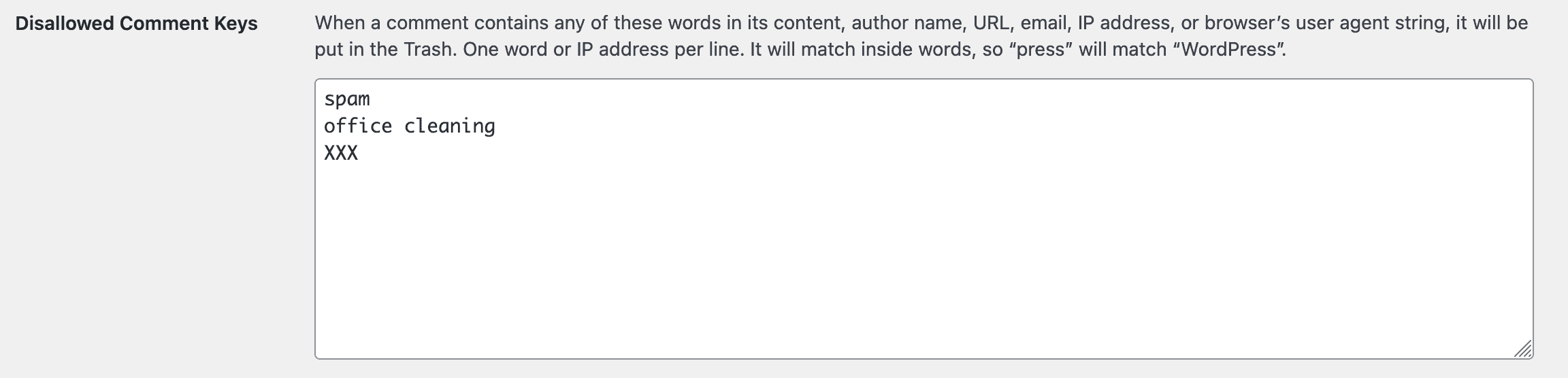
Once configured, these words and phrases will be checked against form submissions using the custom Kadence filter, helping you automatically block spam.
NOTE: The above code snippet is designed to avoid partial matches. For example, adding the word “spam” to the list will not block the word “spammer”
Conclusion
By combining WordPress Disallowed Comment Keys with a custom Kadence Advanced Form filter, you can effectively block spam submissions before they reach your inbox. Any submission containing a disallowed word or phrase will be automatically rejected, and importantly, rejected submissions are not saved in your database and are not sent via email.
Regularly updating your Disallowed Comment Keys list and using whole-word matching helps keep your forms protected while avoiding accidental blocking of legitimate submissions. With this approach, you can maintain clean, spam-free form entries and focus on the messages that truly matter.

