
When adding forms to your website, it’s important to include spam protection to help prevent unwanted or automated submissions. The free Kadence Form (Adv) Block includes built-in support for hCaptcha, making it easy to secure your forms with reliable, privacy-focused spam prevention. This is a free feature within the Kadence Blocks plugin.
This guide will walk you through setting up and integrating hCaptcha with the Kadence Form (Adv) Block.
Setting up hCaptcha
To use the Kadence Form (Adv) Block integrates nicely with hCaptcha to protect your forms. To get started, you should either log in to an existing hCaptcha account or create a new account here ⧉. Once you are logged in or an account is created, you will be presented with the hCaptcha dashboard.
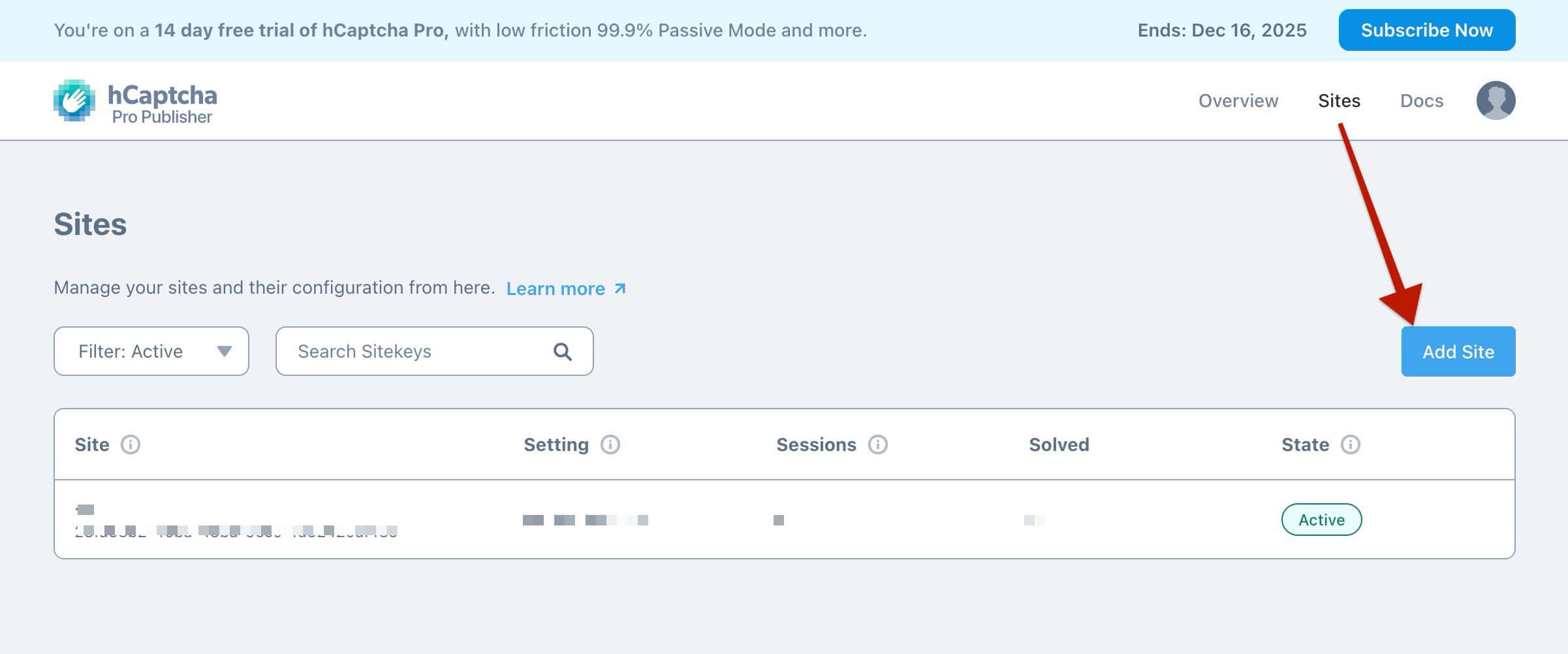
From the hCaptcha dashboard, navigate to the Sites page. Then, click on the Add Site button to begin adding a new site.
When adding a new site, you can fill out the initial details. This includes giving the site a name for recognition.
Under the Domains section, enter your website’s domain and click the (+) icon to add it. Be sure to include every domain where hCaptcha will be used. If the domain isn’t listed here, the integration will not work for that website. Add the domain for any site where you plan to enable hCaptcha protection.
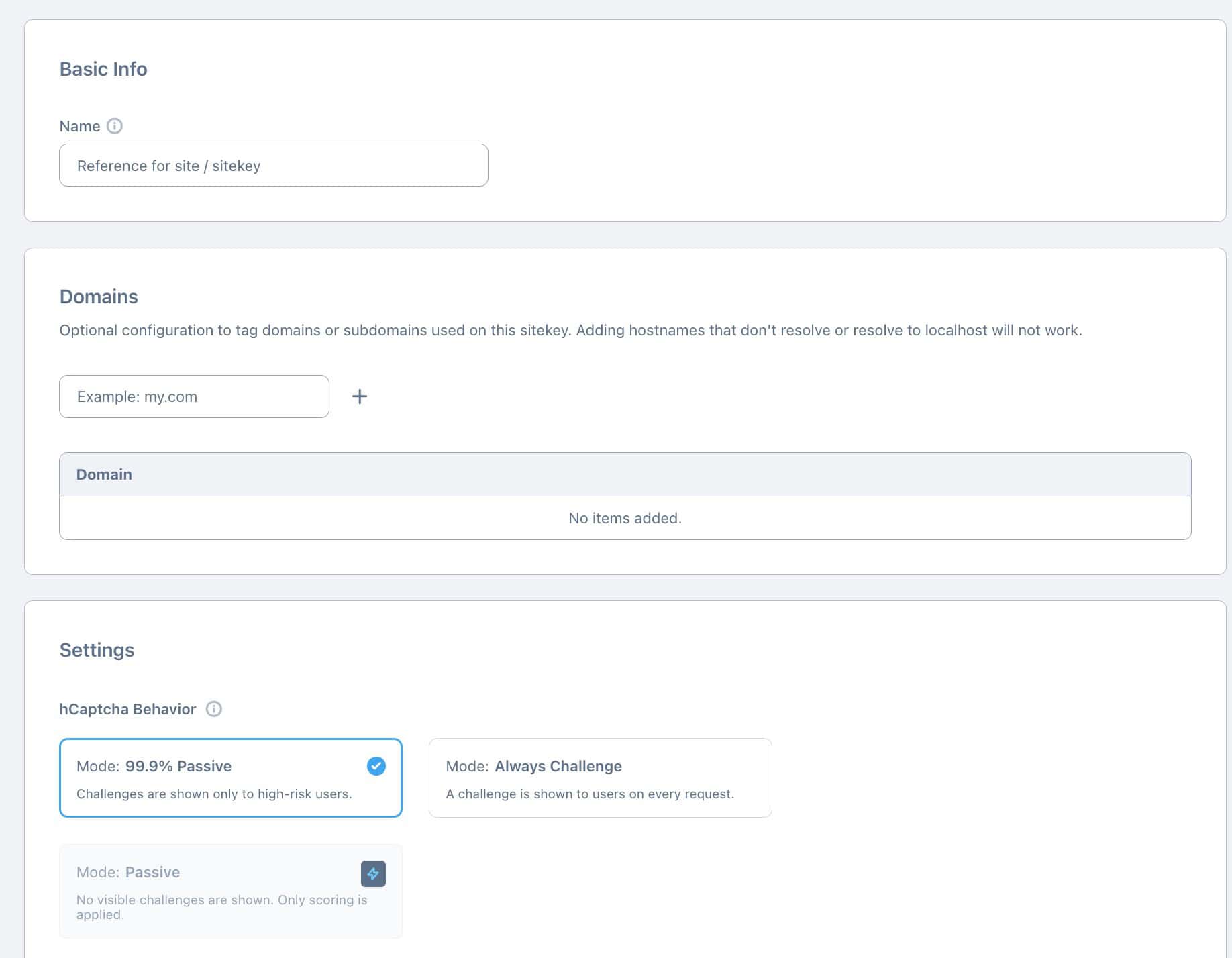
Once your domain is added, you can adjust the hCaptcha Behaviour to your preferred method.
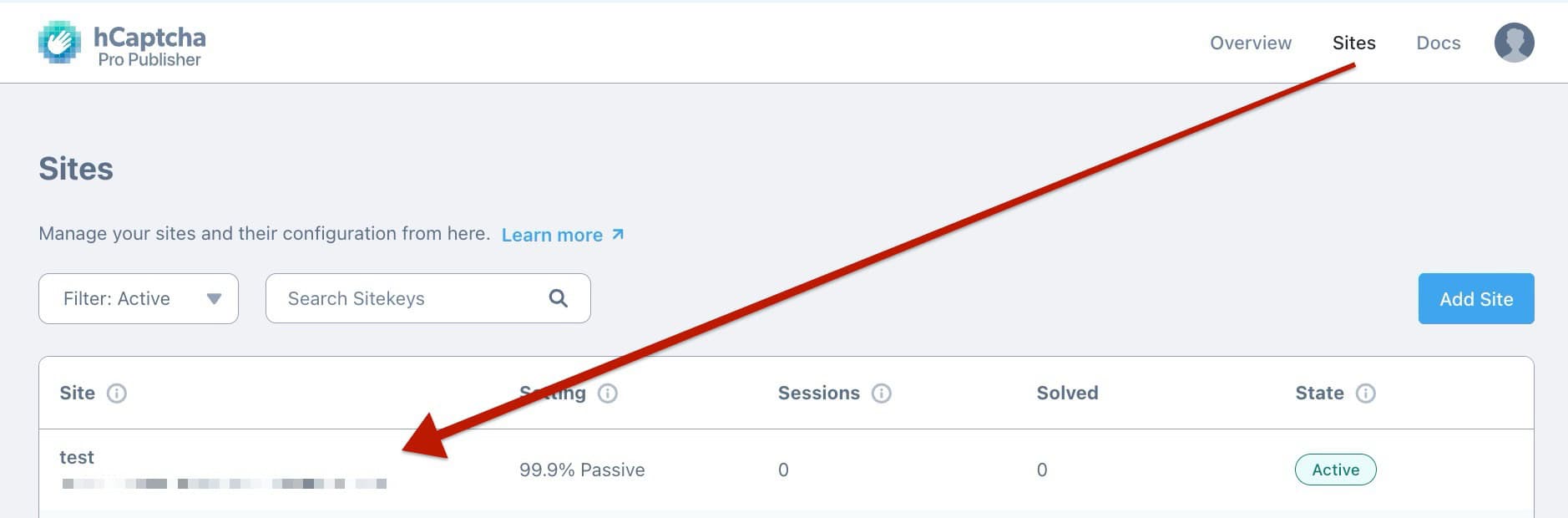
Once finished, save the changes. Then, navigate back to the Sites page. You will see your newly created site listed. Click on it to open the settings.
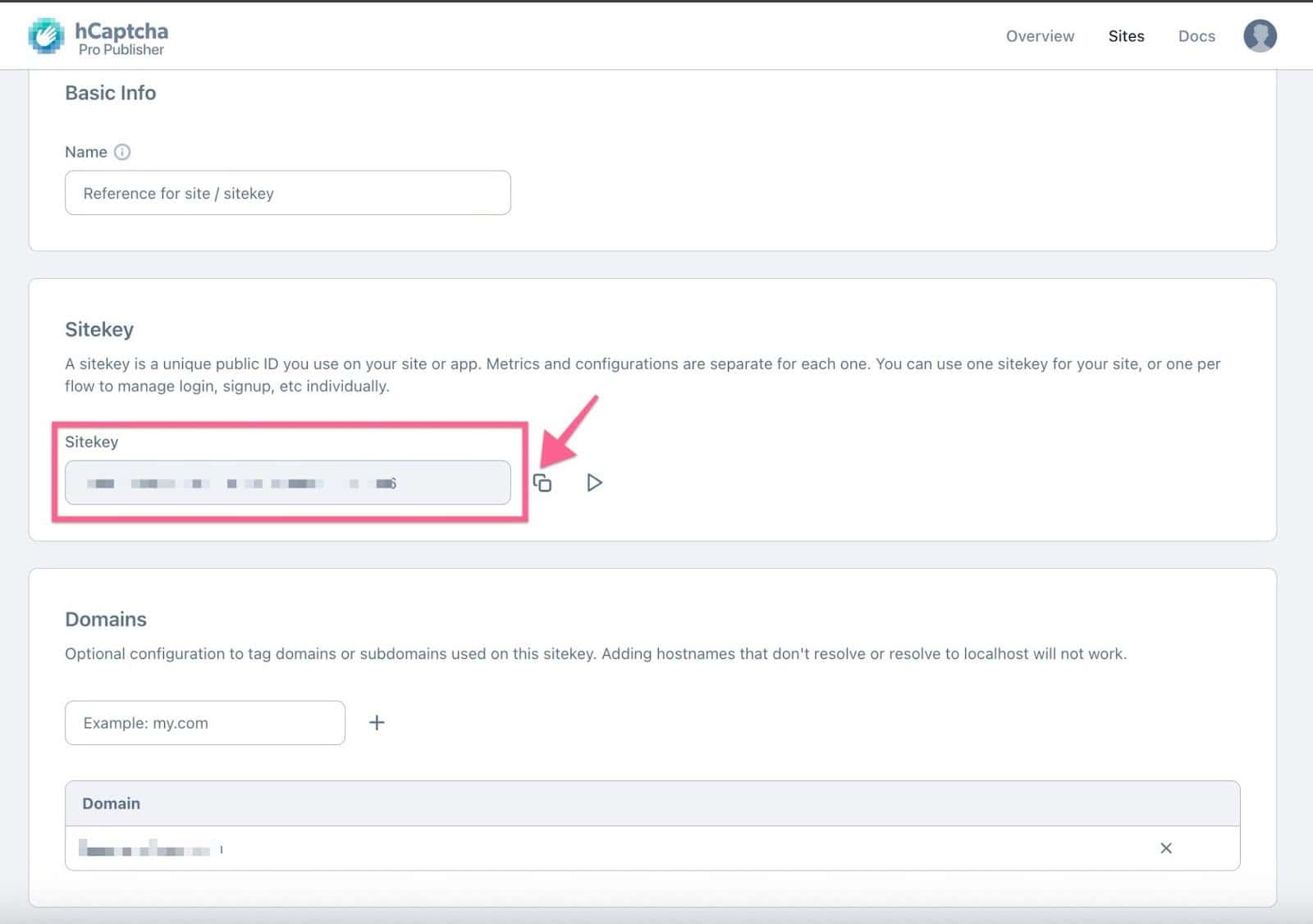
When editing the settings, you will now notice that a Site Key is available for the website. Copy it and save it somewhere safe to be used in the Kadence Form (Adv) Block later.
Next, you’ll need to save your Secret Key. Both the Site Key and Secret Key are required for the Kadence Form (Adv) Block to integrate with hCaptcha.
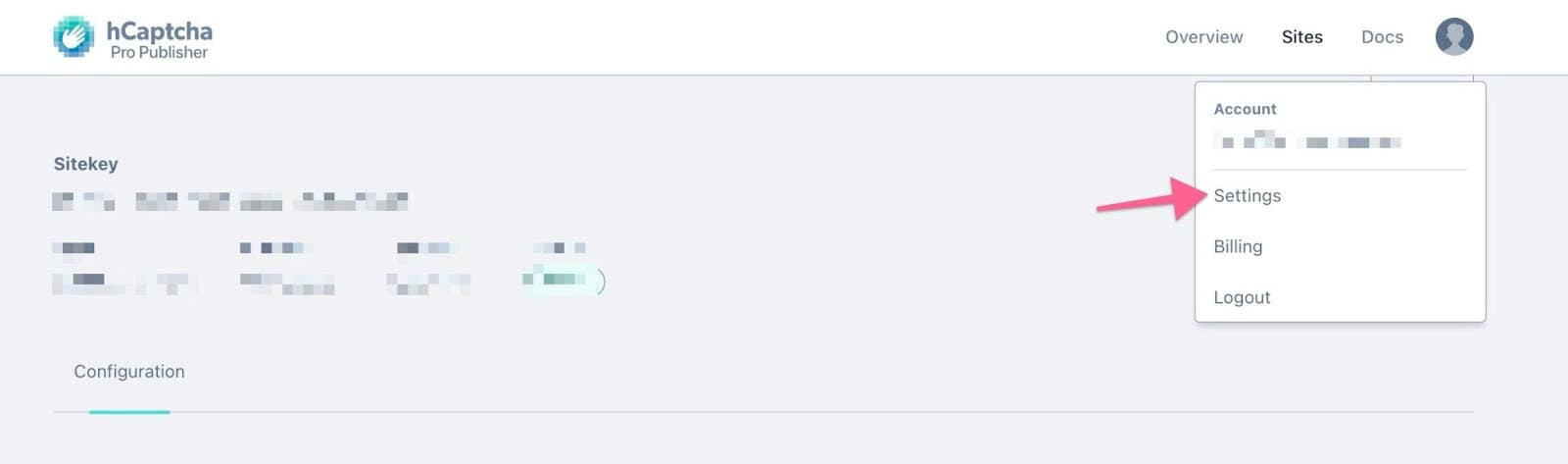
To access your Secret key, click your account profile picture in the hCaptcha dashboard, then select Settings.
On the Settings page, you’ll see the Website Secret section. Click Generate New Secret, then copy the secret key and store it somewhere safe, as you’ll need it when configuring the Kadence Form (Adv) Block.
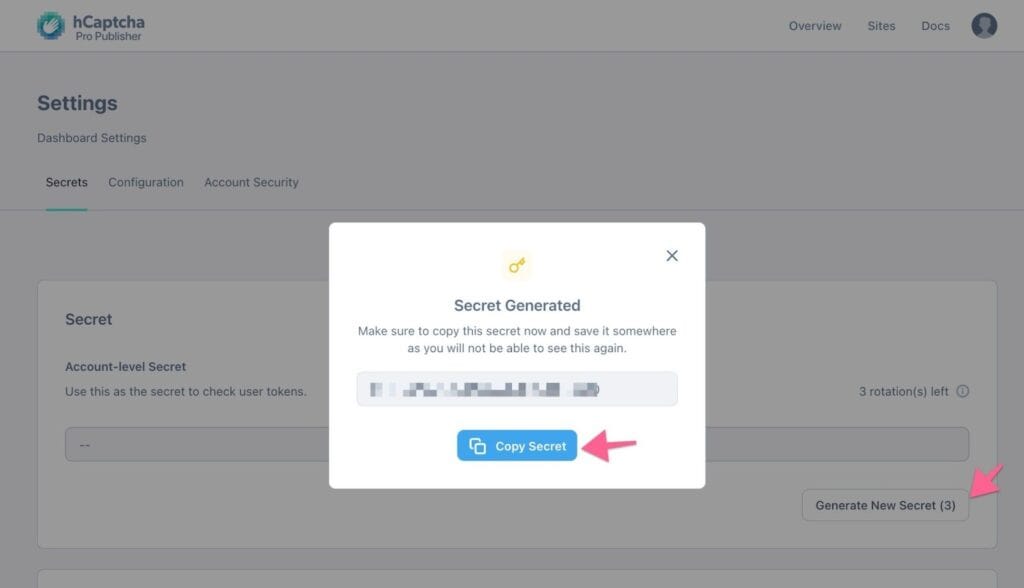
Note: Keep in mind that the secret key cannot be viewed again after it’s generated, so saving it securely is important.
Adding hCaptcha keys to Form (Adv) Blocks
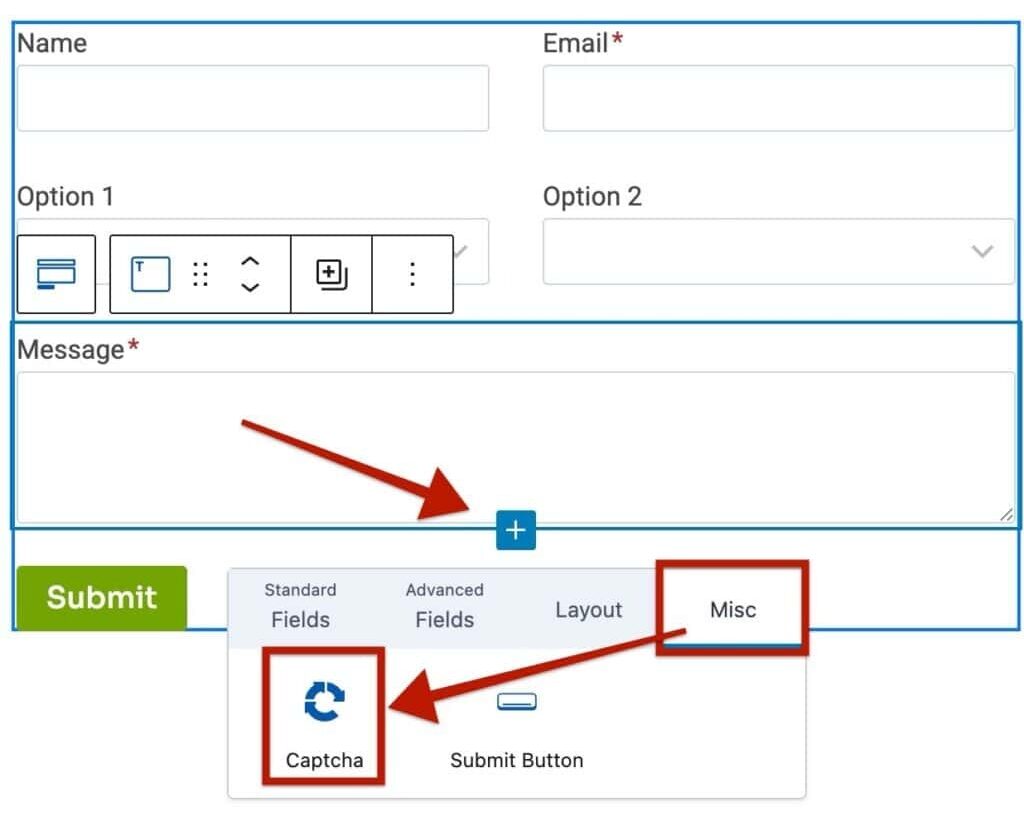
The Form (Adv) Block supports the use of hCaptcha. This is done by clicking on the blue plus icon to add a new block inside the Form (Adv) Block. Then, navigate to the Misc tab and add the CAPTCHA block to the form.
Afterward, select the CAPTCHA block and use the General Block Settings to set up hCaptcha.
Under CAPTCHA TYPE, select the hCaptcha option.
Then, you can fill out your Site Key and Secret Keys accordingly.
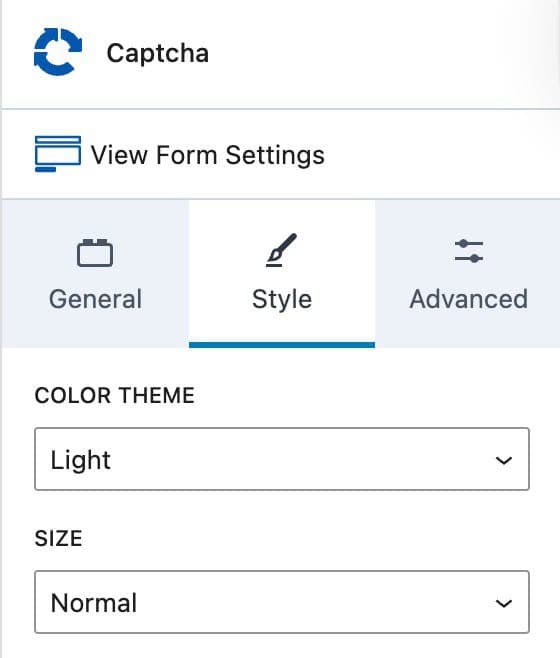
You can also use the Style Block Settings to specify a Color Theme of Light or Dark and a Size of Normal or Compact.

You can also use the Style Block Settings to specify a Color Theme of Light or Dark and a Size of Normal or Compact.
Once everything is set up, the Form (Adv) Block will validate users through hCaptcha.

