
Kadence Forms uses a default email template to format form notification emails. This template controls the layout, spacing, fonts, and basic styles used in emails sent from a form.
Kadence Blocks allows this template to be safely overridden at the theme level. This makes it possible to adjust styles or markup without editing plugin files directly. Theme-level overrides are upgrade-safe and are the recommended way to customize the email output.
This guide explains how to copy and override the form-email.php template so it can be manually edited as needed.
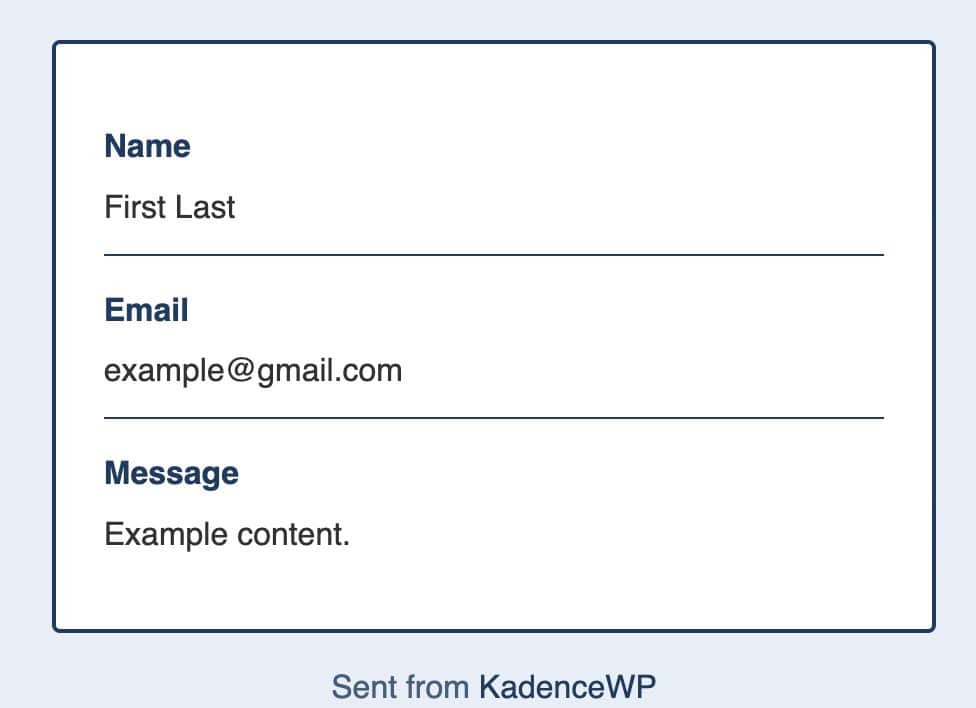
Custom Form Styles:
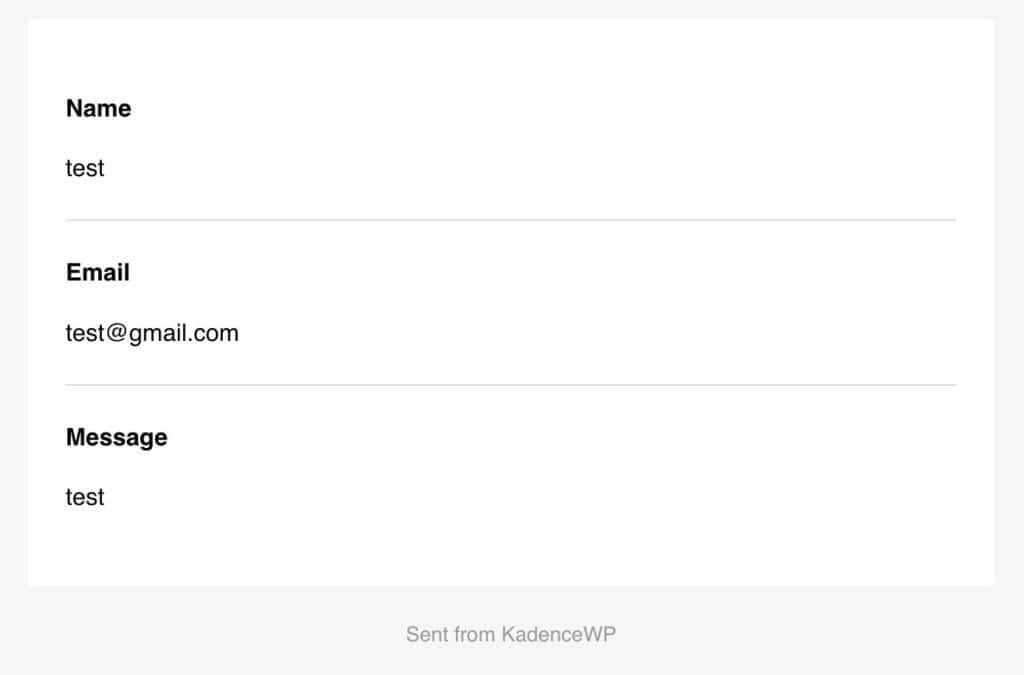
Default Kadence Form Styles:
Before You Begin
Before starting, make sure the following are in place:
- Access to the WordPress file system via local environment, FTP, SFTP, or a file manager.
- A custom theme or child theme is in use.
- Kadence Blocks installed and activated.
- A backup of the site files
⚠️ Important: Changes should always be made in a theme or child theme. Editing plugin files directly will be overwritten during updates. Learn more about Child Themes and download an example from here.
Where the Default Template Lives
The default Kadence Forms email template is included with the Kadence Blocks plugin.
Default file location:
/wp-content/plugins/kadence-blocks/includes/templates/form-email.php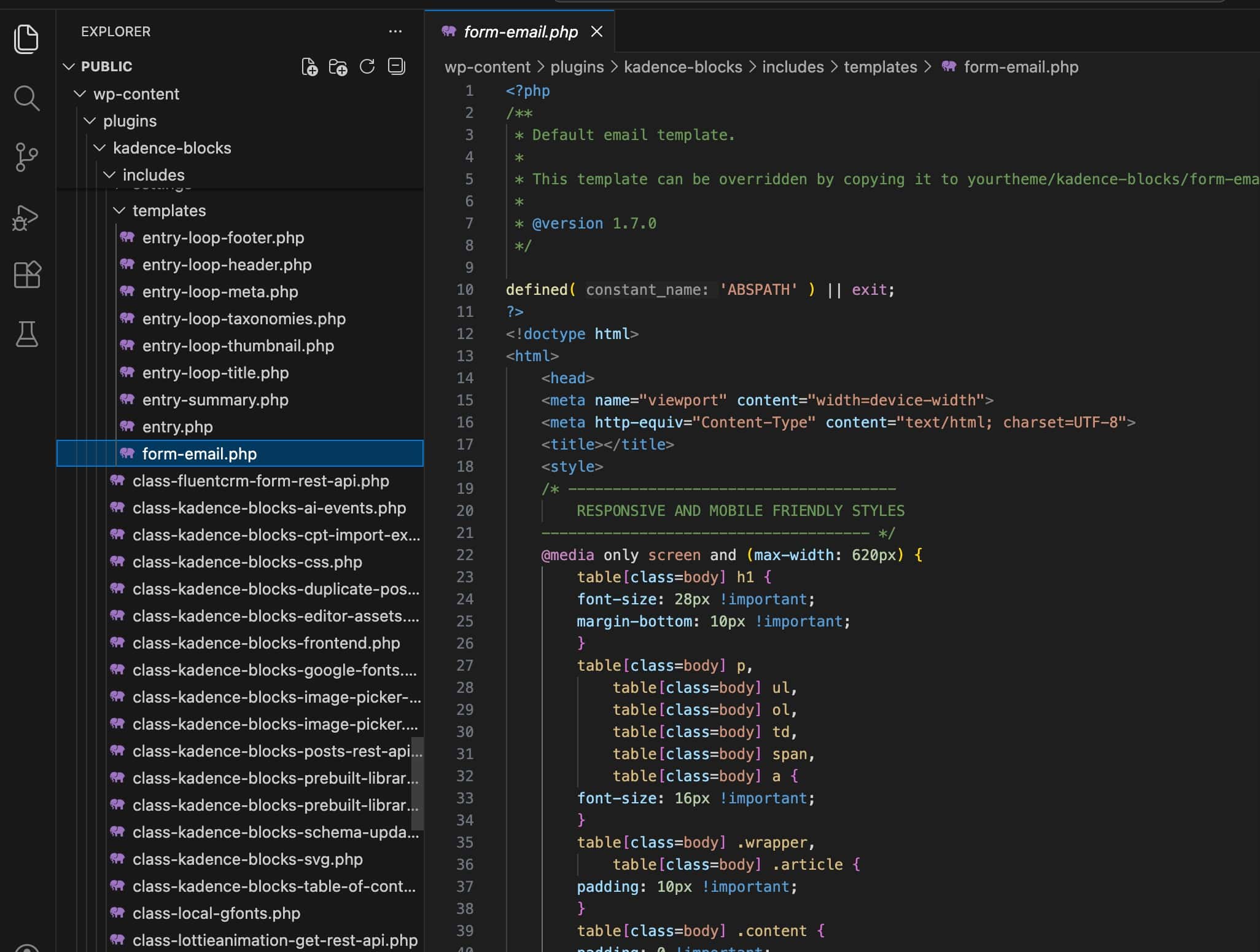
This file includes a header comment similar to the following:
/**
 * Default email template.
 *
 * This template can be overridden by copying it to yourtheme/kadence-blocks/form-email.php.
 *
 * @version 1.7.0
 */
This comment confirms that the template is designed to be overridden from a child theme.
How to Override the Email Template
Follow these steps to create a custom version of the email template.
Step 1. Locate the Plugin Template File
Using FTP or a file manager, navigate to:
/wp-content/plugins/kadence-blocks/includes/templates/
Find the file named form-email.php.
Step 2. Copy the Template File
Copy the form-email.php file to a safe location on the local computer. This copy will be used as the starting point for customization.
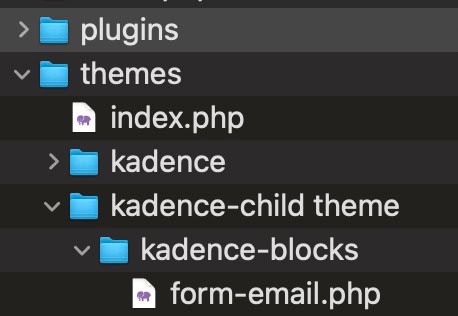
Step 3. Create the Override Folder in the Theme
Inside the active child theme directory, create the following folder path if it does not already exist:
/wp-content/themes/your-theme-name/kadence-blocks/
⚠️ Important: The folder name must be exactly kadence-blocks for the override to work.
Step 4. Add the Template to the Theme
Paste the copied form-email.php file into the new folder:
/wp-content/themes/your-theme-name/kadence-blocks/form-email.php
Once this file exists, Kadence Blocks will automatically load it instead of the default plugin version.
Editing the Email Styles
The email template is a PHP file that outputs HTML markup and inline styles. Most email clients rely on inline CSS, so styles are usually applied directly within HTML attributes.
Common customization examples include:
- Adjusting font sizes or colors
- Changing padding or spacing
- Modifying background colors
- Adding or removing layout elements
Edits can be made directly inside the copied form-email.php file using a code editor.
When editing the template, it is recommended to only adjust HTML markup and inline styles unless you are comfortable working with PHP. Changes to logic may cause email errors if field data is not handled correctly.
Important: Email clients have limited CSS support. Complex layouts or advanced CSS features may not render consistently.
Testing Changes
After saving changes, submit a test form on the site to confirm the email output.
Recommended checks include:
- Reviewing the email in multiple email clients.
- Confirming content alignment and spacing
- Verifying links and dynamic form values
If emails do not appear as expected, revert recent changes and test again. On some hosting environments, server-side or plugin caching may delay template changes. Therefore, clearing the cache before testing is recommended.
Troubleshooting
If the custom template does not appear to load:
- Confirm the folder path is correct and spelled exactly
kadence-blocks. - Confirm the file name is
form-email.php. - Clear any server or plugin caching.
- Make sure the correct theme or child theme is active.
Next Steps
For additional customization options:
- Review the Kadence Forms block settings for available email options.
- Consider using a child theme if one is not already in place.
- Test changes in a staging environment before applying them to a live site.
Custom email templates offer flexibility while keeping updates safe. With the override in place, styles and markup can be adjusted as needed without relying on plugin edits.

