
The Kadence Row Layout Block includes the ability to use Top and Bottom Dividers that make it easy to visually separate sections of a page.
For users who want more control over the divider shapes, Kadence Blocks provides a way for advanced users to add custom SVG dividers by modifying existing ones via a custom PHP snippet using a WordPress filter. This method is update-safe and allows custom dividers to appear and behave just like the built-in divider options within the Row Layout Block.
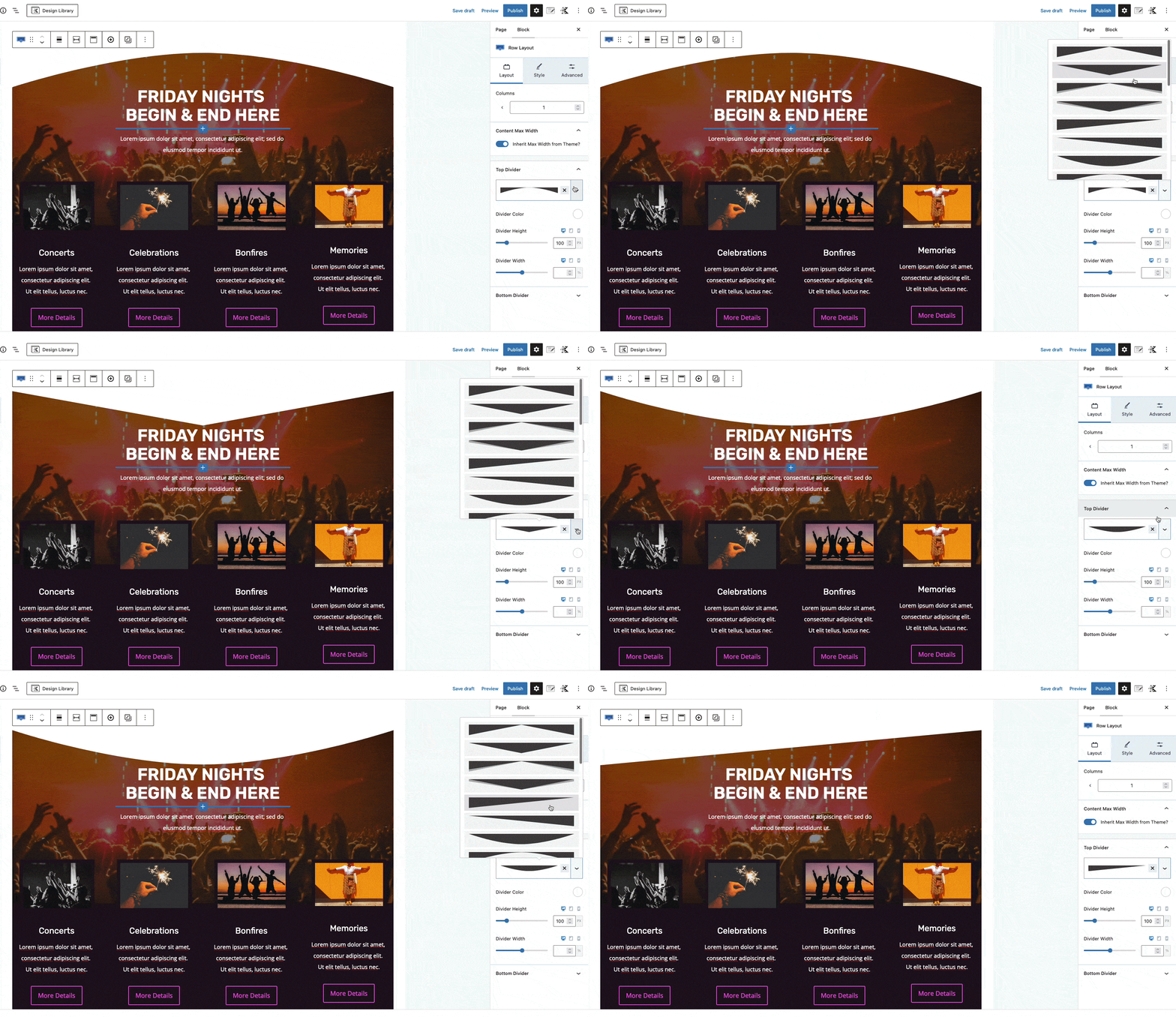
The Filter
Custom dividers can be added or modified using the kadence_blocks_row_divider_paths filter:
This filter allows users to:
- Add additional divider shapes
- Override existing divider shapes
Adding a Code Snippet
For this method, you will be required to modify and use a Custom Code.
Custom Codes can be added to one of the following locations:
- A child theme’s functions.php file.
- A code snippets plugin.
- A custom plugin.
Tip: Do not edit the Kadence Blocks plugin files directly. Changes made to plugin files will be overwritten during updates. For more information on how to safely add code snippets, please refer to: How to Add Custom Snippets.
Divider Path Structure
Row Layout dividers are generated programmatically and are not loaded from external SVG files. Each divider is defined as an array in the following key/value format:$paths['divider_key'] = 'path';
- divider_key is a unique internal identifier used by Kadence
- path contains the SVG data (for example, <path d=”M1000…” />)
Modifying an Existing Divider
Existing dividers can be modified by targeting their array key (See Kadence Built-in Divider Shape Reference below).
The following example replaces the SVG path for the built-in curve divider.
add_filter( 'kadence_blocks_row_divider_paths', function( $paths ) {

	if ( isset( $paths['crv'] ) ) {
		$paths['crv'] = '<path d="M0,40C0,40 250,-20 500,40 750,100 1000,40 1000,40L0,40Z" />';
	}

	return $paths;
});
Note: This change will apply globally to all existing and future Row Layout Blocks that use the specified divider. The custom SVG will not show directly in the editor, but will on the front end. For this reason, it is recommended to preview your changes in a new tab when editing Custom Row Dividers.
Preparing SVG Files
When creating or exporting SVGs for use as Row Layout dividers, the following requirements apply.
SVG Requirements
- Each divider must be defined as a single string of <path> elements.
- Some dividers may include multiple <path> elements in one string (for layered effects).
- Do not include <svg> wrappers – Kadence Blocks automatically adds the <svg> wrapper with the correct viewBox attributes.
- Avoid SVG features that are not supported:
- Gradients
- Masks
- <defs> or external references
- The SVG should be horizontally oriented, meaning it spans left to right across the row.
- The path should fit within the 1000 × 100 viewBox for optimal results.
Note: There is no separate viewBox setting per path; all dividers share the <svg viewBox="0 0 1000 100" preserveAspectRatio="none"> wrapper.
Recommended Workflow
- Create the divider shape using an SVG editor (for example, Illustrator, Figma, Inkscape, etc.)
- Export the file as an SVG.
- Open the SVG file and locate the <path> element(s).
- Copy the contents of the <path> element(s), including the “d” attribute.
- Paste the <path> element(s) string into the $paths array in your filter.
Example containing multiple paths and style attributes:
$paths['threelevels'] = '<path style="opacity: 0.33" d="M0 95L1000 0v100H0v-5z"></path><path style="opacity: 0.66" d="M0 95l1000-67.944V100H0v-5z"></path><path d="M0 95l1000-40.887V100H0v-5z"></path>';Tip: If your SVG contains multiple <path> elements, include them all in the same string. You can use the style attribute for opacity or layering effects.
Summary
The kadence_blocks_row_divider_paths filter provides a supported way to extend or customize Row Layout dividers. This approach maintains editor compatibility and ensures custom dividers remain update-safe.
Kadence Built-in Divider Shape Reference
The following divider shapes are included with Kadence Blocks and are available in the Row Layout Block. The internal key for each shape is provided in parentheses. These keys can be used with the kadence_blocks_row_divider_paths filter to modify or replace shapes.
- Chevron (ct)
- Chevron Inverted (cti)
- Double Chevron (ctd)
- Double Chevron Inverted (ctdi)
- Tilt Left (sltl)
- Tilt Left Inverted (sltli)
- Tilt Right (sltr)
- Tilt Right Inverted (sltri)
- Curve (crv)
- Curve Inverted (crvi)
- Curve Left (crvl)
- Curve Left Inverted (crvli)
- Curve Right (crvr)
- Curve Right Inverted (crvri)
- Single Wave (wave)
- Single Wave Inverted (wavei)
- Multi-Layer Waves (waves)
- Multi-Layer Waves Inverted (wavesi)
- Mountain Peaks (mtns)
- Small Triangle (littri)
- Small Triangle Inverted (littrii)
- Three Layer Steps (threelevels)
- Three Layer Steps Inverted (threelevelsi)

