
This tutorial explains how to change what happens when a Form (Adv) is submitted by using the kadence_blocks_advanced_form_actions filter. This filter makes it possible to adjust which submit actions run right before Kadence processes the submission, including turning submit actions on or off based on what was entered.
A common use case is making an email marketing action (like Mailerlite) run only when a visitor checks a consent box. Kadence supports Mailerlite as a submit action in the Form (Adv) settings.
Before You Begin
Important: Safety First
- Add custom PHP code using one of these safe options:
- A child theme’s functions.php, or
- A code snippets plugin (recommended for most sites)
- Test changes on a staging site when possible.
- Create a full backup before adding or changing code.
What This Filter Does
kadence_blocks_advanced_form_actions runs during form processing and allows you to modify the list of submit actions before Kadence runs them. You can conditionally enable or disable integrations based on submitted field values.
- $processed_fields (the submitted fields after Kadence prepares them)
- $post_id (the page/post where the form block exists)
This is a good place to conditionally control which submit actions run based on submitted field values.
Example
This example makes the Mailerlite submit action run only when an Accept field named “subscribe” is checked.
Kadence’s Mailerlite integration is enabled as a submit action in the Advanced Form block settings. This filter can then add or remove MailerLite from the actions list at submit time.
Adding the Code Snippet
Add the code below using either a snippets plugin or a child theme’s functions.php.
// Filter Kadence Advanced Form submit actions before they run
add_filter( 'kadence_blocks_advanced_form_actions', 'custom_adv_form_actions', 10, 4 );

function custom_adv_form_actions( $actions, $form_args, $processed_fields, $post_id ){

	$accept = false; // assume checkbox not accepted by default

	// Loop through processed form fields
	foreach ( $processed_fields as $field ) {

		// Check by FIELD NAME (not label) for reliability
		if ( isset($field['name']) && $field['name'] === 'subscribe' ) {

			// Accept field returns a truthy value when checked
			if ( ! empty( $field['value'] ) ) {
				$accept = true;
			}
		}
	}

	// List of possible action keys:
	// mailerlite, fluentCRM, sendinblue, mailchimp, convertkit, getresponse, activecampaign, webhook

	// Find the MailerLite action in the actions array
	$action_key = array_search('mailerlite', $actions);

	// If checkbox NOT accepted, remove MailerLite action
	if ( ! $accept && $action_key !== false ) {
		unset( $actions[$action_key] );
	}

	// Return the modified actions list
	return $actions;
}
Confirming the Form Field Name
For this example snippet to work, the Advanced Form needs an Accept field that includes “subscribe” in the field name.
A typical setup looks like:
- Field type: Accept
- Field name: subscribe
Tip: Keeping the field name simple (like subscribe) makes long-term maintenance easier.
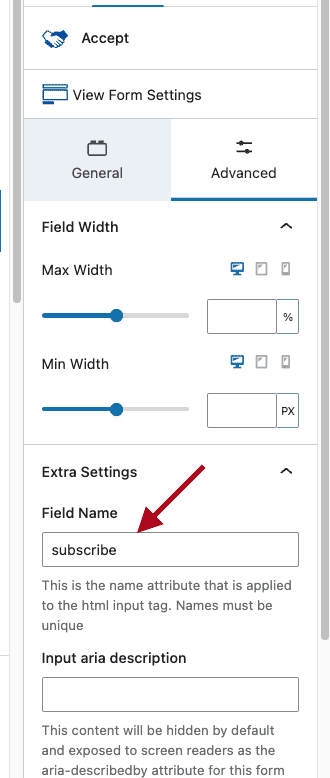
Enabling the Mailerlite Submit Action
Kadence requires Mailerlite to be enabled in the Advanced Form’s submit actions so the integration settings exist and can run when enabled.
The official Mailerlite integration guide covers how to enable Mailerlite and connect an API key and audience settings.
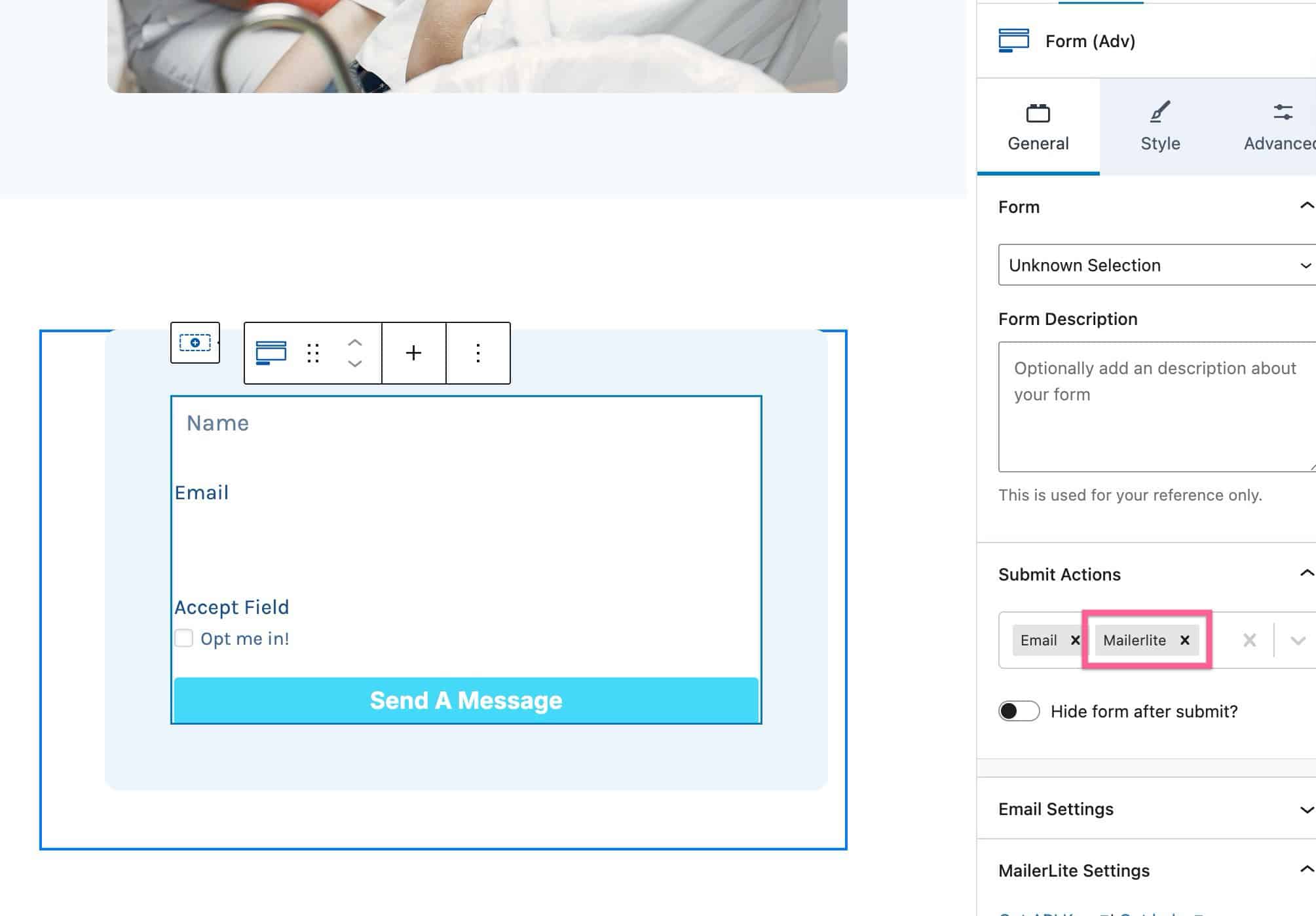
How This Example Works
- The filter checks submitted fields ($processed_fields) and finds the Accept field related to subscribing.
- If the checkbox was accepted, the Accept field returns a truthy value. The snippet checks for a non-empty value rather than matching specific text, which makes it reliable across languages and label changes.
- If it was not accepted, the snippet removes Mailerlite from the actions list before Kadence runs submit actions.
Targeting Specific Forms
If you only want this logic to apply to one specific form, add a post ID check at the top of the function:
// Only run on form with post ID 1234

if ( $post_id !== 1234 ) {

return $actions;

}
Best Practices
- Limit changes to the correct form when possible (for example, by checking the
$post_id, or checking a unique form attribute in$form_argsif available in the site’s setup.) - Use a staging website for testing.
Related Resources
- Form (Adv) Block documentation
- Integrating Kadence Forms with Mailerlite
- Custom Upload Directory in Kadence Form (Adv) Block
- How To Set Your Own Conditions for Successful Form (Adv) Submissions (Helpful for understanding how Kadence passes submission data)

