Skip to content
Help Center
  • Pricing
  • ProductsExpand
    • Premium PlansGet all the tools you need in one plan
    • Kadence ThemeLightning-fast performance theme for modern websites
    • Kadence BlocksDrop in ready designs with advanced controls for pixel perfect websites
    • Kadence Shop KitCreate a more effective WooCommerce shopping experience
    • Kadence ConversionsBoost sales and build engaged audiences with popups and banners
    • Kadence InsightsEasily create A/B tests. Optimize your pages to drive higher conversions.
    • View All Products
    • Get Kadence + Hosting
      In One Place

      Enjoy faster setup, top-tier performance, and worry-free WordPress hosting – Kadence Theme, Kadence Blocks, and Solid Security all pre-installed.

      Learn More

  • Kadence AI
  • Starter Templates
  • Blog
  • SupportExpand
    • Resource HubStart here for guides, Product docs, FAQs, and Troubleshooting tips, all in one place.
    • Contact SupportStuck on something? We’re here to help! Open a ticket for top-notch support.
    • Contact Our TeamGot pre-sales questions or need help choosing a plan? Open a ticket and our team will guide you.
    • About usCrafted with love in Missoula, Montana. Meet the team behind the mission.
Account Account
Get Kadence
Kadence Blocks
  • Features
  • Pro
  • Blocks
  • HelpExpand
    • Documentation
    • Submit a Ticket
    • Facebook Group
    • Feature Requests
    • Roadmap
    • Changelog
Help Center
Kadence Blocks

Kadence Blocks

  • Row Layout Block
  • Text (Adv) Block
  • Buttons (Adv) Block
  • Image (Adv) Block
  • Gallery (Adv) Block
  • Section Block
  • Testimonial Block
  • Table of Contents Block
  • Form Block
  • Form (Adv) Block
  • Table (Adv) Block
  • Accordion Block
  • Tabs Block
  • Info Box Block
  • Google Maps Block
  • Show More Block
  • Icon Block
  • Icon List Block
  • Progress Bar Block
  • Posts Block
  • Count Up Block
  • Countdown Block
  • Vector Graphic Block
  • Lottie Animations Block
  • Repeater Block
  • Spacer/Divider Block
  • The Kadence Header (Adv) Block
  • The Kadence Navigation (Adv) Block
  • The Kadence Navigation Link Block
  • Search (Adv) Block
  • Site Identity Block
  • Kadence Blocks Default Icon Selections

Getting Started

  • Installing Kadence Blocks
  • Getting Started with Kadence Performance
  • Kadence AI-Powered Design Library
  • Setting custom widths in multi-column Row Layout Blocks
  • How to define a color Palette with Kadence Blocks
  • How to delete/remove a Block
  • How to Duplicate and Copy/Paste Block Styles
  • Setting Block Defaults
  • Kadence Blocks Pexels Integration

Block Tutorials

  • How to Import and Export Blocks or Sections Between Websites
  • How to Use Flexbox Layouts with Section Blocks
  • How to Make a Top Section Sticky with Kadence Blocks
  • Using Padding and Margin in Kadence Blocks
  • Responsive Breakpoints in Kadence
  • Using GIFS and Lottie Animations with Kadence Blocks
  • Adding a Full-width Row
  • Modal Block Quick Start Guide
  • Image Overlay Quick Start Guide
  • How to hide Kadence blocks via WordPress Gutenberg Preferences
  • How To Add Animate on Scroll Effects To Your Page
  • How to add Custom CSS Classes and HTML IDs to Kadence Blocks
  • How to Show Events Using the Kadence Post Grid/Carousel Block
  • How to use Popup Modal Filters with Advanced Query Loops
  • Create a Full Screen Landing Page
  • Displaying Shortcodes in the WordPress Editor
  • Advanced Navigation Sub Menus and Mega Menus
  • Creating Sticky and Transparent Advanced Headers
  • Getting started with Advanced Header/Navigations
  • Building Headers and Footers in Full Site Editing with Kadence Blocks
  • Split Content Quick Start Guide
  • Applying Block-Level Custom CSS in Kadence Blocks
  • How to Access the Kadence Design Library
  • Adding Video Backgrounds to Row Layout
  • Pexels Picker
  • Adding Classic Wireframes, Starter Packs, and Sections to the New Design Library
  • How to customize the design library color palette
  • Adding Privacy Policy link to Kadence Form
  • Set Equal Column Heights with the Row Layout Block
  • How to Control the Hero or Title Section Sitewide and Per Page in Kadence
  • How to Change the Query Loop (Adv) “All” Button Text

Kadence Blocks Pro

  • Kadence Blocks Pro Plugin
  • Product Carousel Block
  • User Info Block
  • Portfolio Grid/Carousel Block
  • Query Loop (Adv) Block
  • Post Grid/Carousel Block
  • The Kadence Block Controls
  • Dynamic Content
  • Display Blocks Conditionally (Conditional Display)
  • Advanced Slider
  • Video Popup Block
  • Image Overlay Block
  • Split Content Block
  • Modal Block
  • Using a Dynamic List Block
  • Dynamic Content: Custom Input and Showing Fields from all Post Types
  • Dynamic HTML Block
  • Using Custom SVG Icons with Kadence Blocks Pro
  • Kadence Custom Fonts
  • Post Grid/Carousel Block – Configure a Blog List

Troubleshooting Blocks

  • Troubleshooting the “Error, Unable to access library database, please try re-syncing” error on the Kadence Blocks Design Library
  • Troubleshooting Query Loop (Adv) Blocks, Filters, and Search issues
  • Kadence Blocks Errors when SCRIPT_DEBUG is Enabled
  • Troubleshooting White/Blank Screens in the Editor or Customizer
  • How to Force Reindex Advanced Queries
  • How to Download Previous Versions of the Kadence Theme and Plugins
  • Resolving Autoplay Problems in Advanced Slider/Gallery Blocks
  • Recommended Server Resources
  • Troubleshooting Kadence Form (Adv) Email Delivery
  • How to Recover a Broken Block

Advanced

  • How to Modify SVG Dividers in Kadence Row Layout Blocks
  • How to Override the Kadence Forms Email Template
  • Prebuilt Layouts
  • How To Set Your Own Conditions for Successful Form (Adv) Submissions
  • How to Block Form (Adv) Spam Using WordPress Disallowed Comment Keys
  • Custom Queries for the Portfolio Grid/Carousel Block (Filter)
  • Customizing the Kadence Blocks Pro Post Grid/Carousel block’s Query to show multiple post types
  • Custom Queries for the Posts Block (Filter)
  • How to Set a Gradient Border for the Section block
  • Run JavaScript when Query Loop (Adv) Updates
  • Custom Upload Directory in Kadence Form (Adv) Block
  • Populate Select, Checkbox, and Radio field option values programmatically in Form (Adv)
  • Query Loop (Adv) Block: Split Character Filter
  • How to add Multiple Markers in the Kadence Google Maps Block
  • Custom Queries for the Post Grid/Carousel Block (Filter)
  • How to Run JavaScript After a Kadence Form is Successfully Submitted (On Event)
  • Dynamically Displaying ACF or Metabox Relationships in Query Loop (Adv) blocks
  • How to Customize the Kadence Blocks Variable Font Sizes (SM, MD, LG, XL, 2XL, and 3XL)
  • Using Tooltips with Kadence Blocks
  • Custom Queries for the Advanced Query Loop Block (Filter)
  • Adding a Custom Font to Kadence Blocks

Advanced Headers

  • How to use Advanced Headers Globally and Conditionally in Kadence
  • The Kadence Header (Adv) Block
  • Using Advanced Header / Navigation Blocks vs Kadence Theme Header Builder
  • Advanced Header Best Practices
  • Getting the most out of Navigation Link Blocks
  • Creating Sticky and Transparent Advanced Headers
  • Advanced Navigation Sub Menus and Mega Menus
  • The Kadence Navigation Builder
  • The Kadence Visual Builder & Off Canvas Settings
  • Importing & Exporting Advanced Headers & Navigations

Kadence Form Integrations

  • How to Modify the Form (Adv) Submit Actions using a Filter
  • How to integrate hCaptcha with Kadence Form (Adv) Blocks
  • How to Integrate Kadence Forms with Cloudflare Turnstile
  • How to Integrate Google reCAPTCHA with Kadence Forms
  • How to Integrate Google Analytics with Kadence Forms
  • Integrating Kadence Forms with FluentCRM
  • Integrating Kadence Forms with Kit (ConvertKit)
  • Kadence Forms and Database Entries
  • Kadence Forms and Auto Respond Emails
  • Integrating Kadence Forms with Webhooks
  • Integrating Kadence Forms with Mailchimp
  • Integrating Kadence Forms with Brevo
  • Integrating Kadence Forms with ActiveCampaign
  • Integrating Kadence Forms with Mailerlite
  • Home
  • Knowledge Base
  • Kadence Blocks
  • Kadence Blocks
  • Advanced Headers

Creating Sticky and Transparent Advanced Headers

Use Kadence Advanced Headers to create both Sticky Headers that remain fixed as users scroll and Transparent Headers that seamlessly blend with the content beneath them.

This document provides an overview of the Sticky and Transparent Header features within the Header (Adv) Block.

Transparent Header Example:

Transparent Header Sample

Sticky Header Example:

Sticky Header Sample
Table of Contents
  • Getting Started
  • Using a Transparent Header
  • Using a Sticky Header
  • Making Sticky + Transparent Headers
    • Making Sticky Headers Transparent
    • Making Transparent Headers Translucent

Getting Started

To begin, add the Header (Adv) block to your page. You will then be prompted to either create a new Advanced Header or select from an existing one. This initial setup will guide you through configuring your header to meet your specific needs.
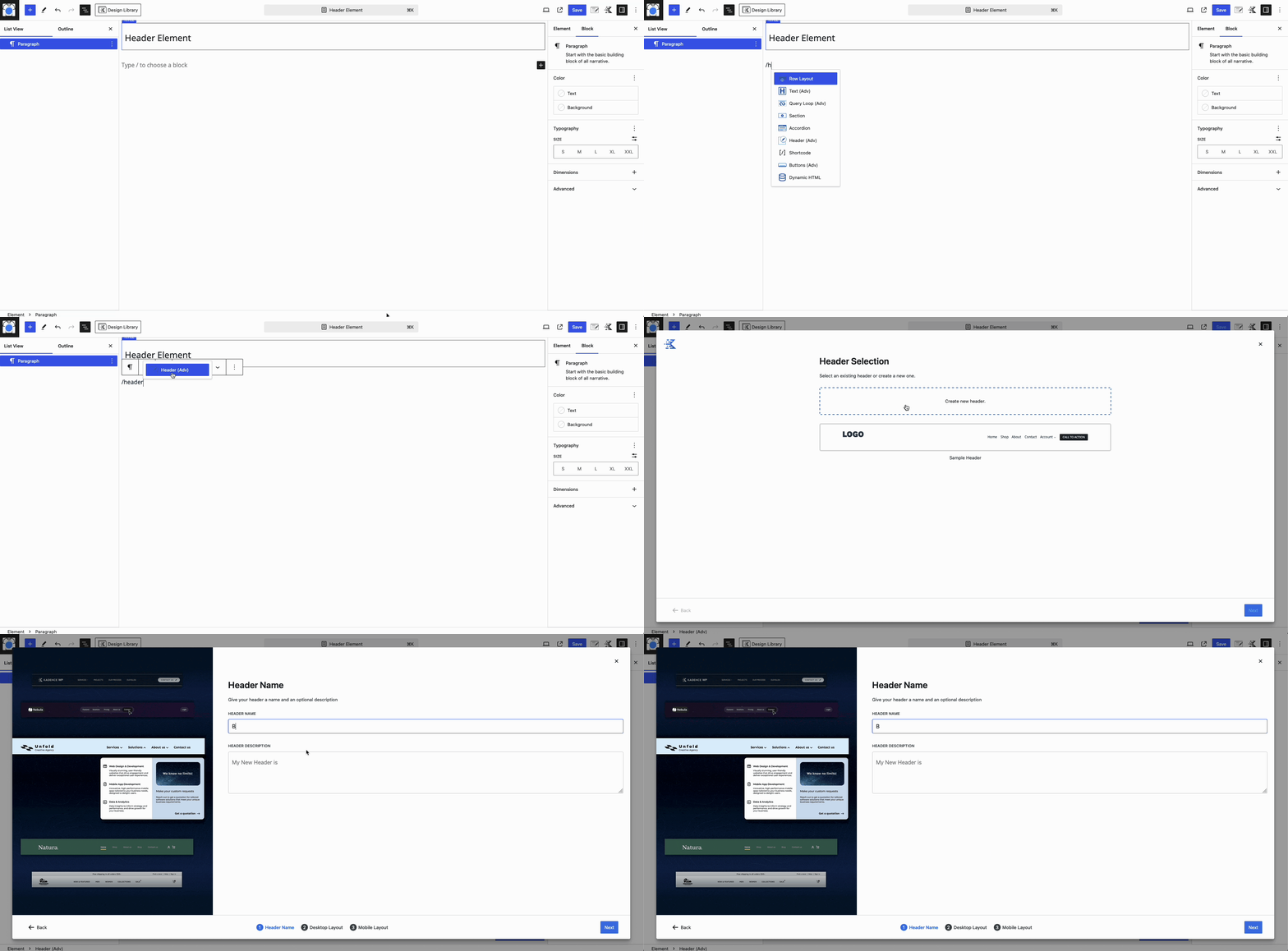
Adding a Header

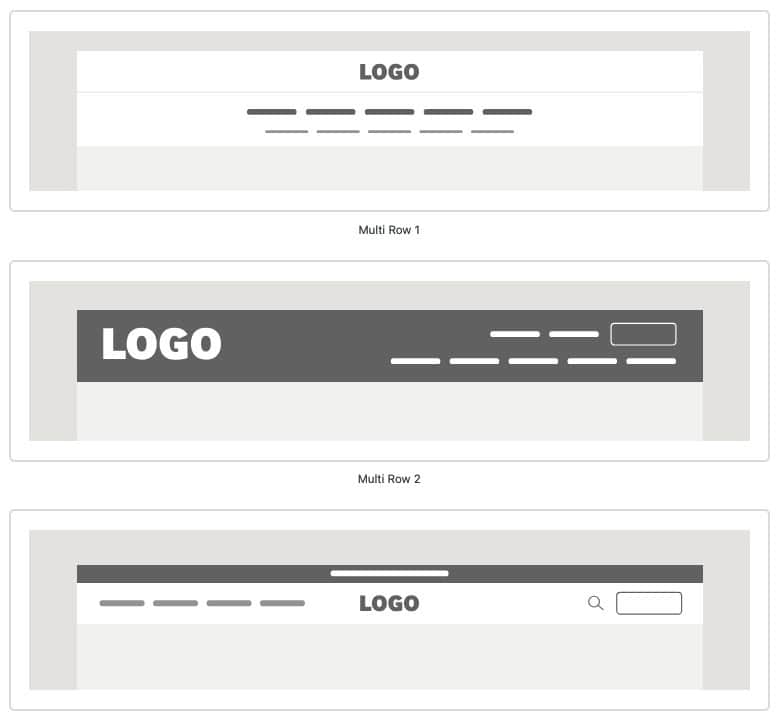
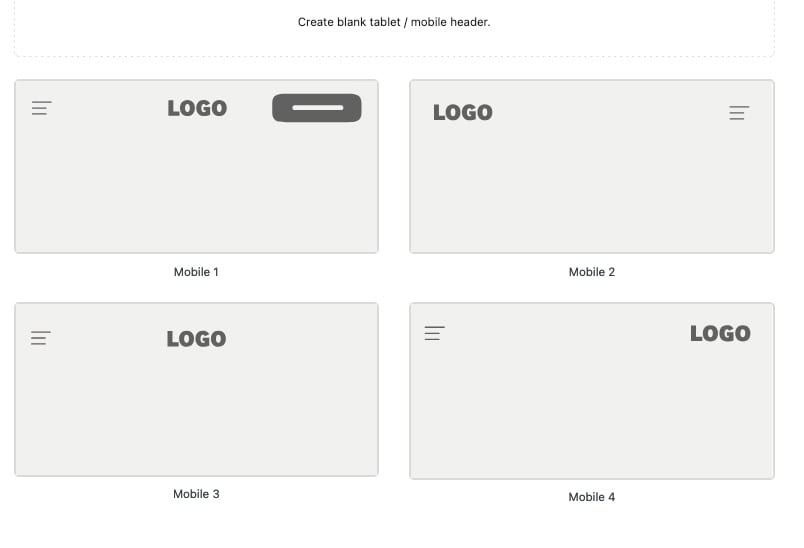
When setting up a new Advanced Header, you have the option to start from a blank template or choose from a variety of pre-built options. Kadence offers prebuilt templates, including Basic and Multi-Row headers, as well as mobile-specific designs. These designs are pre-populated and designed using Blocks and can be edited to meet your design goals.

Basic Desktop Layout Examples:
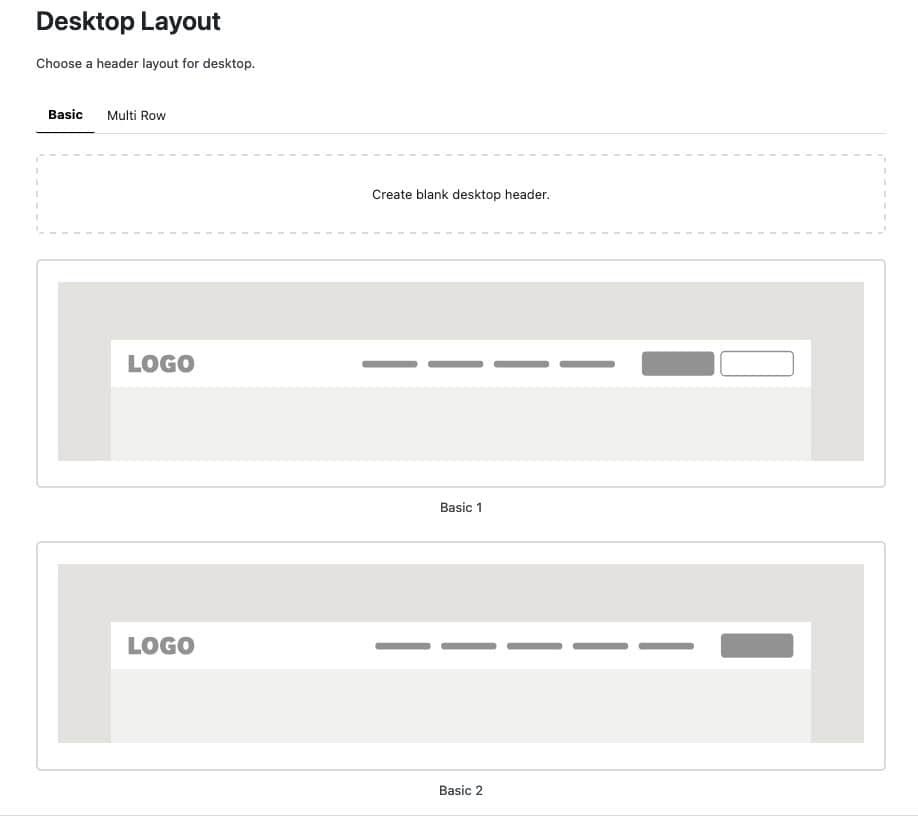
Desktop Templates

Multi-Row Desktop Layout Examples:

Multi Columns

Tablet/Mobile Layout Examples

Mobile Templates

Once a Header is added, use the Visual Builder to add blocks and design the layout of your Header. Learn more about getting started with Advanced Headers and Navigation Blocks by clicking here.

Using a Transparent Header

To enable a Transparent Header, select the Header (Adv) Block, then go to Block Settings -> General Tab. Find the Transparent Header setting and toggle it to Yes.
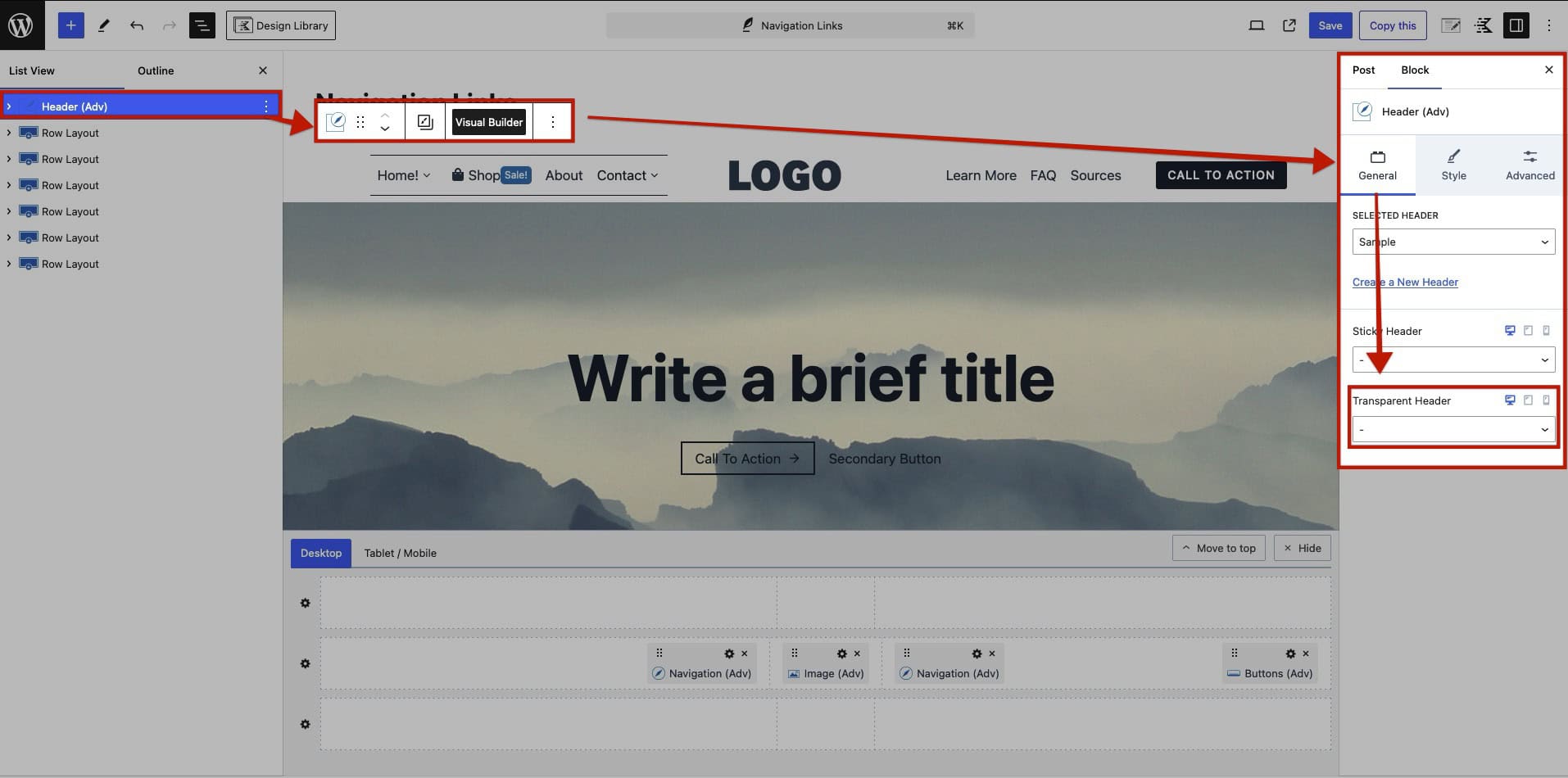
Enable Transparent

Once the Transparent Header is enabled, the Auto Spacing Under setting will appear below it. This setting automatically adds spacing to the first container of the page, equivalent to the height of the header, to prevent content from overlapping when using a Transparent Header.
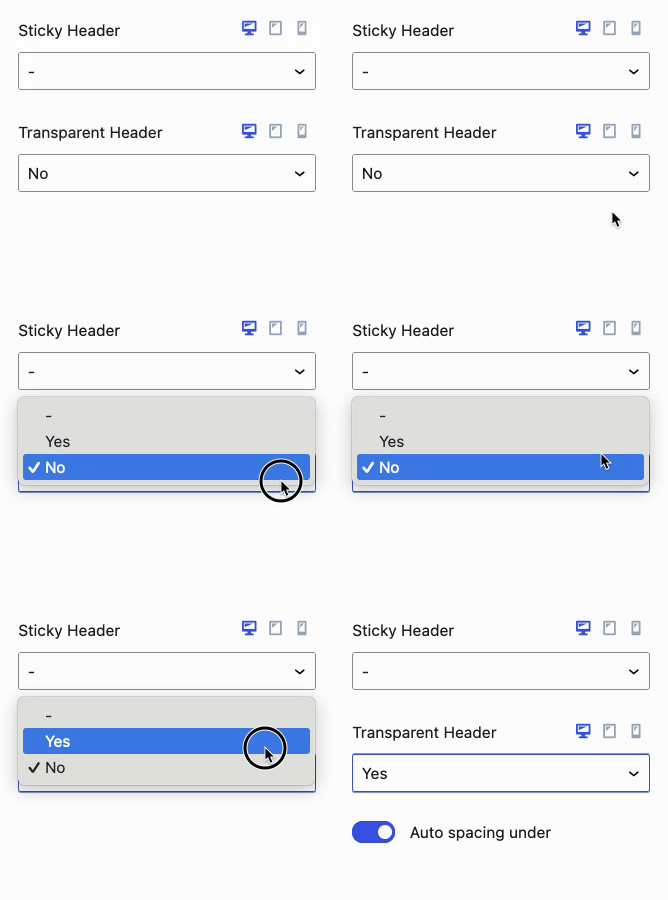
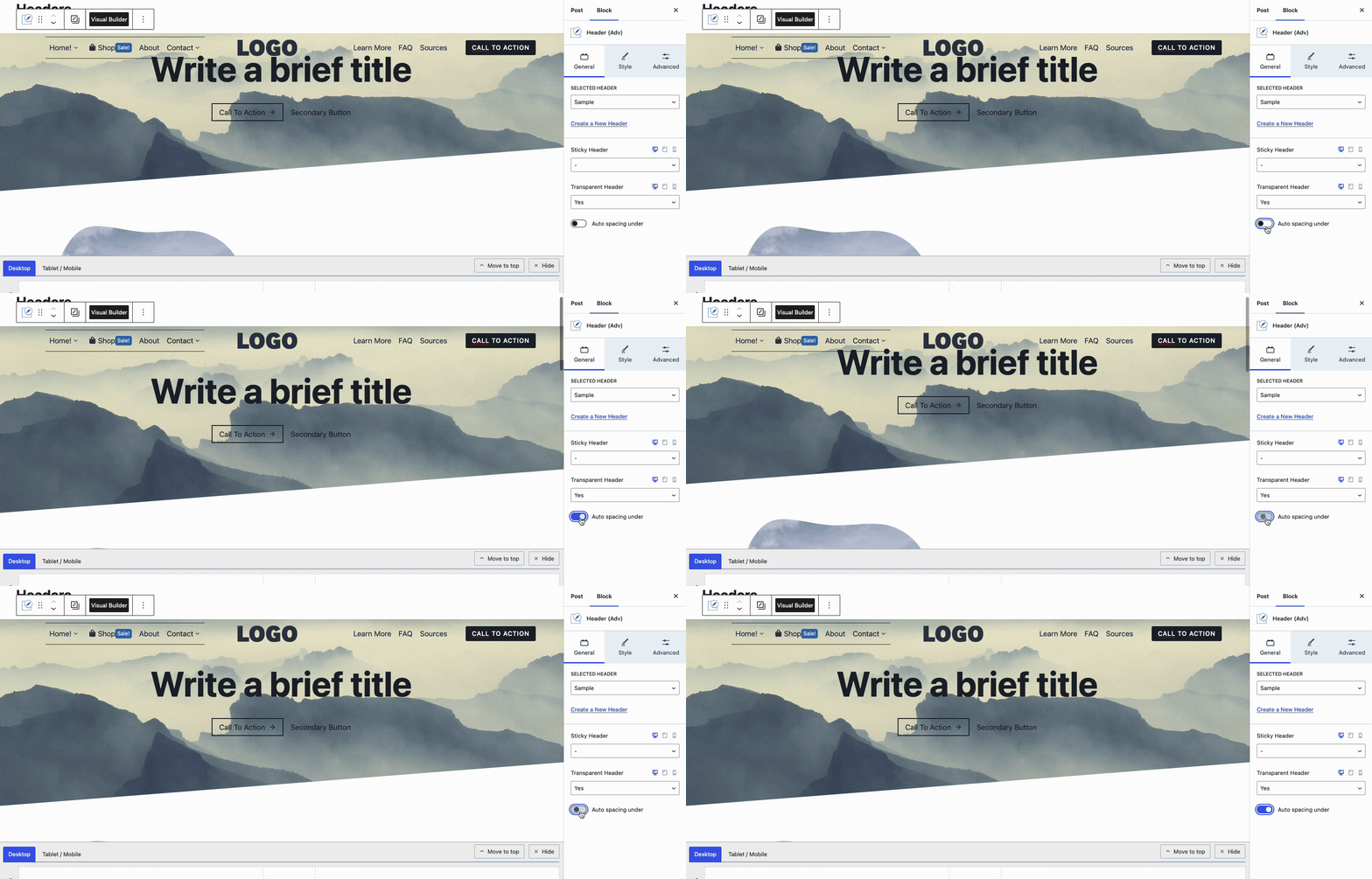
Enabled Transparent Header
Auto Spacing Under Demo

Once the Transparent Header is enabled, additional Block Settings are added to both the Header (Adv) Block and Navigation (Adv) Block.

The Header (Adv) Block will gain the Transparent Background and Transparent Border Styles Block Settings.
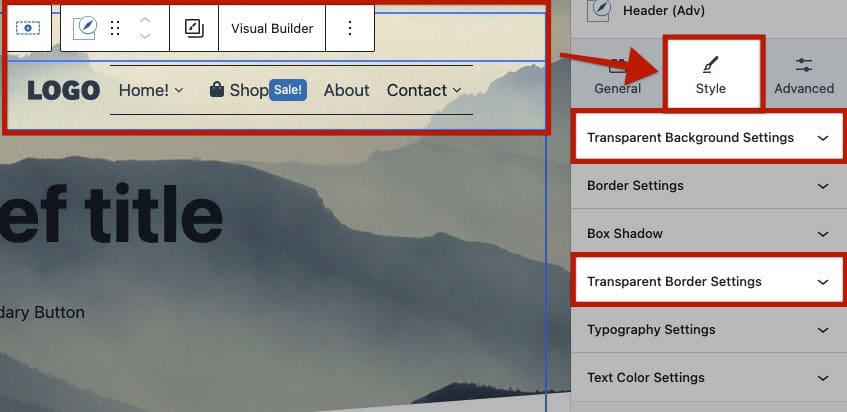
Header Transparent Styles

The Navigation (Adv) Block will gain the Transparent Styles Block Settings.
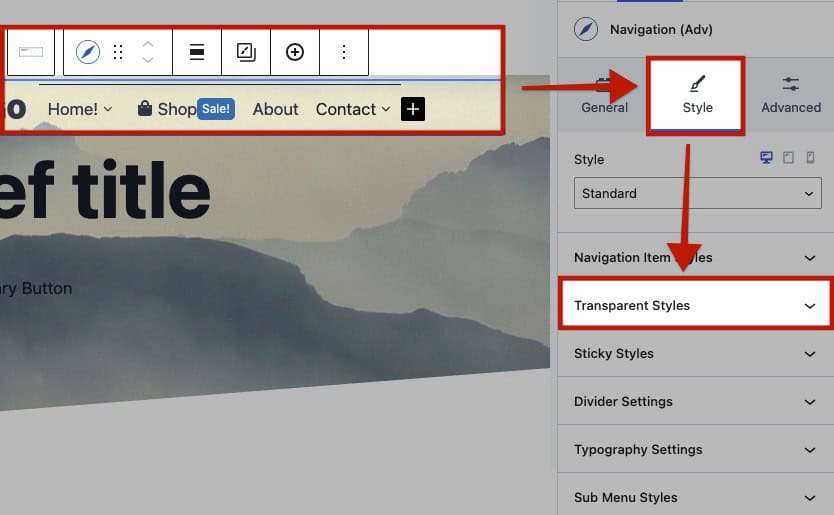
Transparent Nav styles

Transparent Background Settings: These settings apply to the Header whenever it is in the Transparent state.

Type: Choose either a Color or Gradient as the Background Type.

Background Color: Set a Color for the Transparent Header Background. This option is available when you select Color as the Background Type.

Gradient Color: Set a Gradient for the Background. This option is available when you select Gradient as the Background Type.

Background Image: Set a Background Image for the Transparent Header Background. You can choose an Image from the Media Library, insert one from a URL, or use a Dynamic Image (Pro) for more customization.
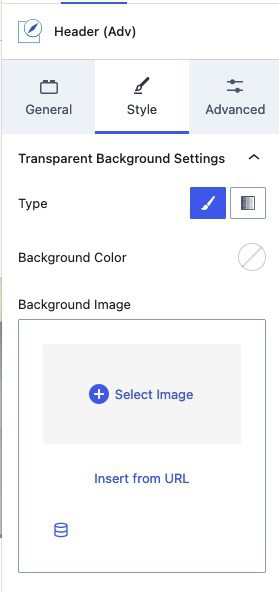
Transparent Header Style Settings

Transparent Border Settings: Adjust the Border around the Transparent Header.

Border: Set the Border Color, Style, and Size for the Transparent Header.

Border Radius: Apply a Border Radius to the Transparent Header.
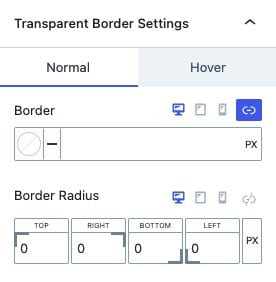
Transparent Header Border Settings

Transparent Styles: Adjust the Styles of the Advanced Navigation Block when the Header is in its Transparent state.

Colors: Customize the Colors for Navigation Links in the Normal, Hover, and Active states.

Link Color: Set a standard Link Color for all inner Navigation Links.

Background: Apply a Background Color to the inner Navigation Links.

Divider: Configure the Divider Color, Style, and Size that appears between the inner Navigation Links.

Navigation Styles

The Navigation Link Block also includes Transparent Styles that can be customized on an individual level. These settings apply exclusively to the selected Navigation Link Block and will override the Transparent Styles set for the Navigation (Adv) Block.
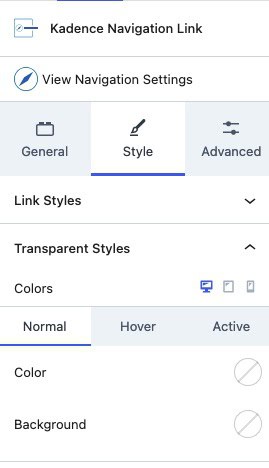
Navigation Link Transparent Styles

Using a Sticky Header

To use a Sticky Header, select the Header (Adv) Block and navigate to the Block Settings -> General Tab. Find the Sticky Header setting and toggle it to Yes.
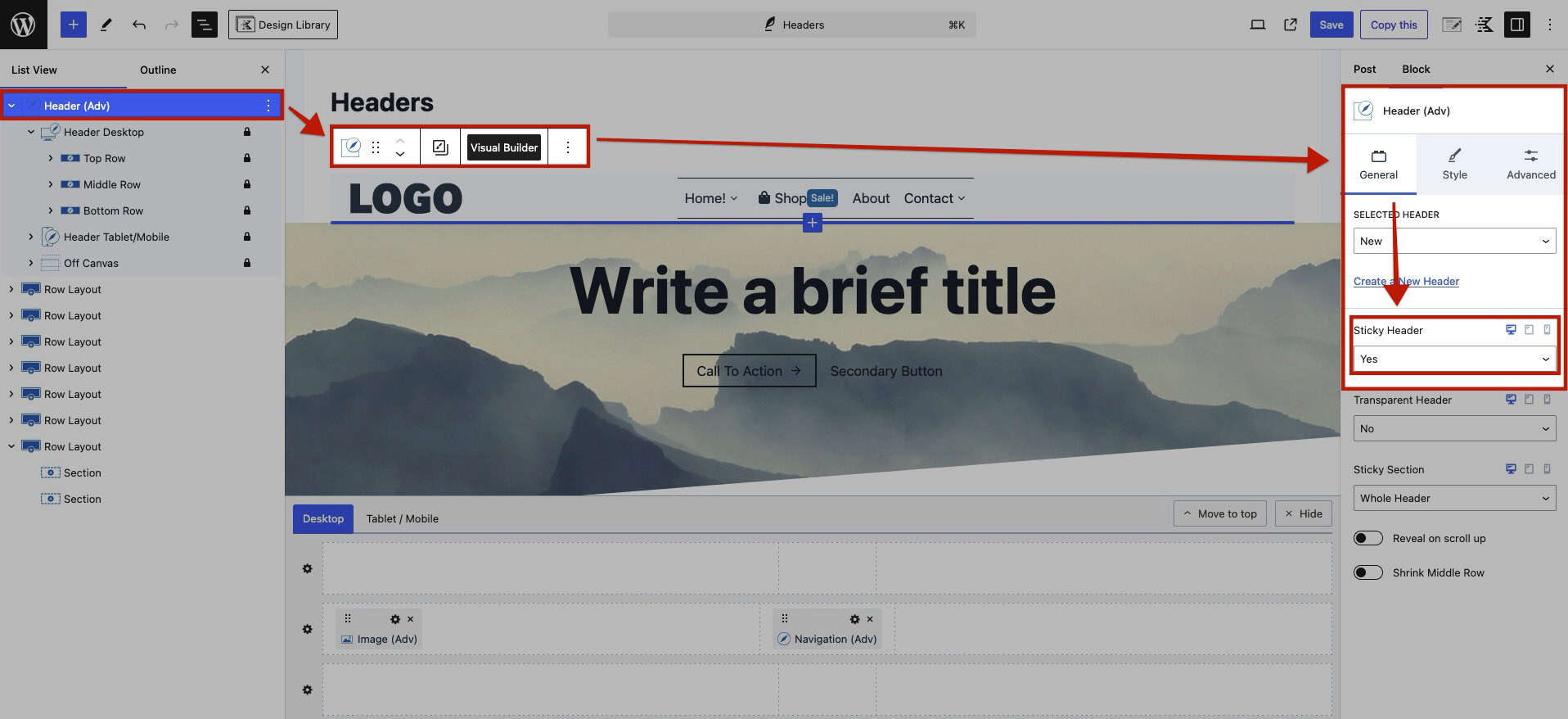
Enabling Sticky Header

Once the Sticky Header is enabled, additional settings will appear at the bottom of the Header (Adv) General Block Settings.

Sticky Section: Choose which part of your Header will remain sticky. You can set this to either the Whole Header or select from the Top, Middle, or Bottom Header Rows. (Confirm Before Release)

Reveal On Scroll Up: Enable this option to make the Header sticky when scrolling up the page. The Header will hide while scrolling down.
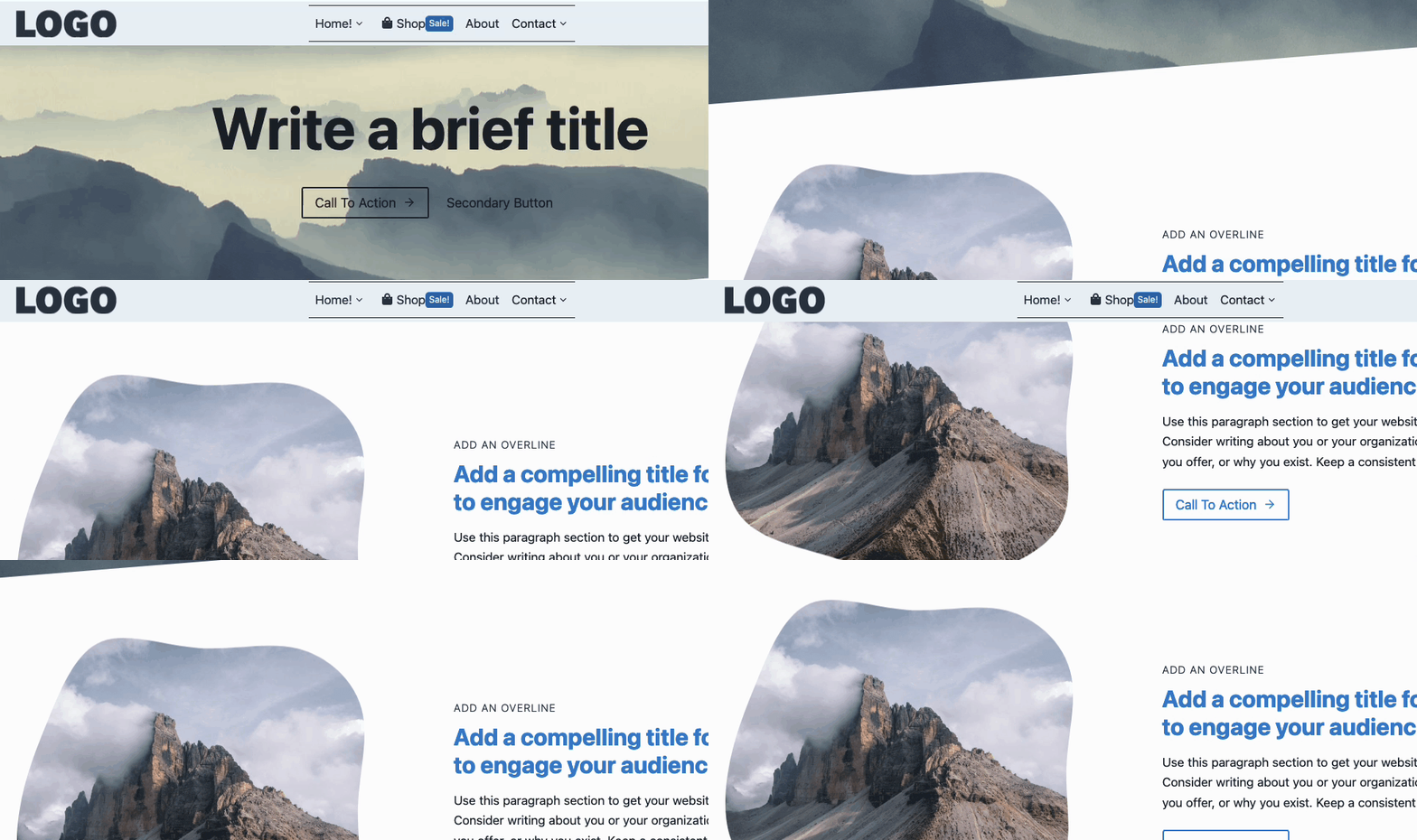
Reveal On Scroll Up

Shrink Middle Row: Use this setting to reduce the size of the Row as the Header becomes sticky. Once this setting is enabled, use the Row Shrink Height Setting to adjust the Shrink Height.
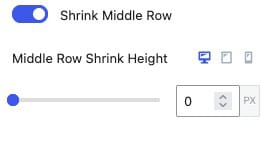
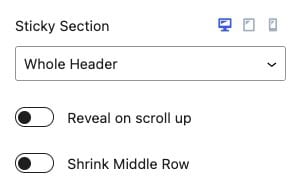
Shrink Height
Sticky General

The Header (Adv) Block will gain the Sticky Background and Sticky Border Styles Block Settings.
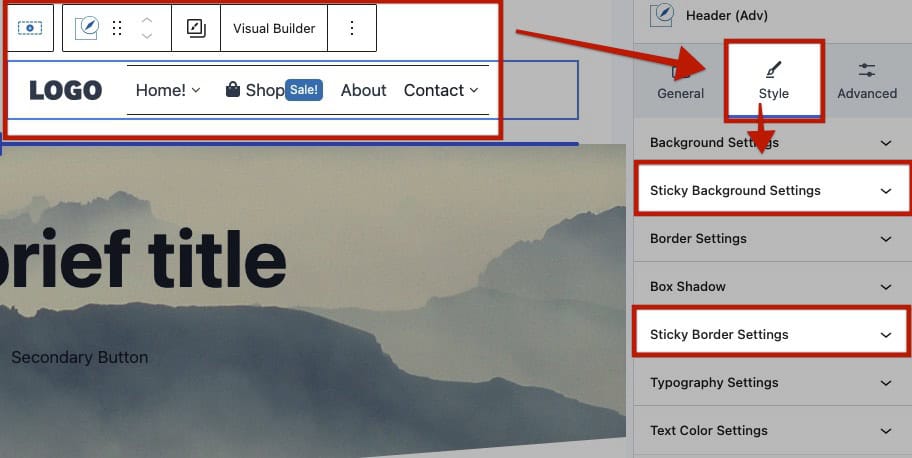
Sticky Header Styles

The Navigation (Adv) Block will gain the Sticky Styles Block Settings.
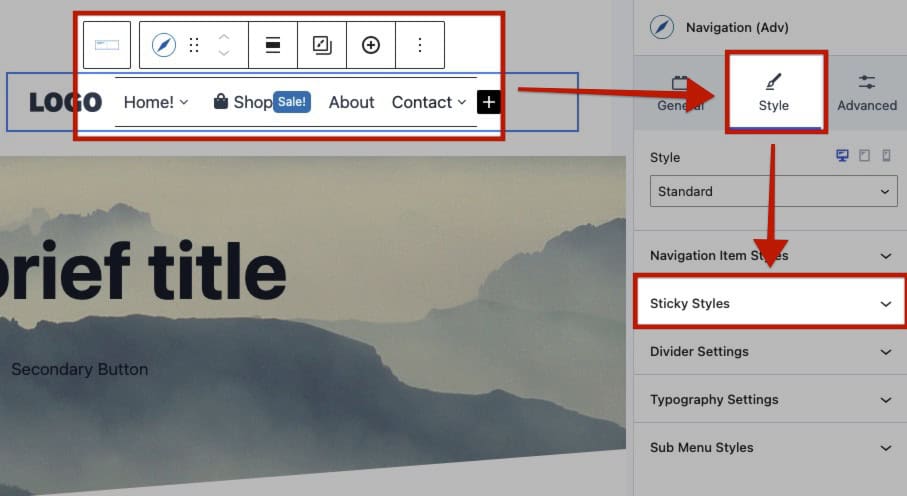
Navigtion Sticky Styles

Sticky Background Settings: These settings apply to the Header when Sticky.

Type: Choose either a Color or Gradient as the Background Type.

Background Color: Set a Color for the Sticky Header Background.

Gradient Color: Set a Gradient for the Sticky Header Background.

Background Image: Set a Background Image for the Sticky Header Background. You can choose an Image from the Media Library, insert one from a URL, or use a Dynamic Image (Pro) for more customization.
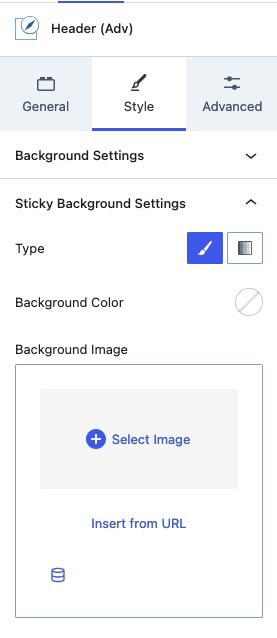
Sticky Header Style Settings

Sticky Border Settings: Adjust the Border around the Sticky Header.

Border: Set the Border Color, Style, and Size for the Sticky Header.

Border Radius: Apply a Border Radius to the Sticky Header.
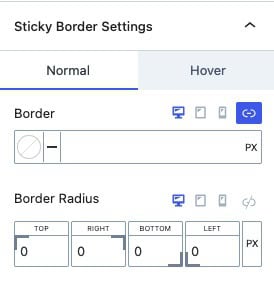
Sticky Style Border Settings

Sticky Styles: Adjust the Styles of the Advanced Navigation while the Header is in the Sticky state.

Colors: Customize the Colors for Navigation Links in the Normal, Hover, and Active states.

Link Color: Set a standard Link Color for all inner Navigation Links.

Background: Apply a Background Color to the inner Navigation Links.

Divider: Configure the Divider Color, Style, and Size that appears between the inner Navigation Links.

Sticky Nav Styles

The Navigation Link Block also includes Sticky Styles that can be customized on an individual level. These settings apply exclusively to the selected Navigation Link Block and will override the Sticky Styles set for the Navigation (Adv) Block.

Navigation Link Sticky Settings

Making Sticky + Transparent Headers

In certain designs, both Transparent and Sticky Headers may be desired. By enabling both the Sticky Header and Transparent Header settings in combination, you can create versatile, feature-rich headers that enhance the overall design and user experience.
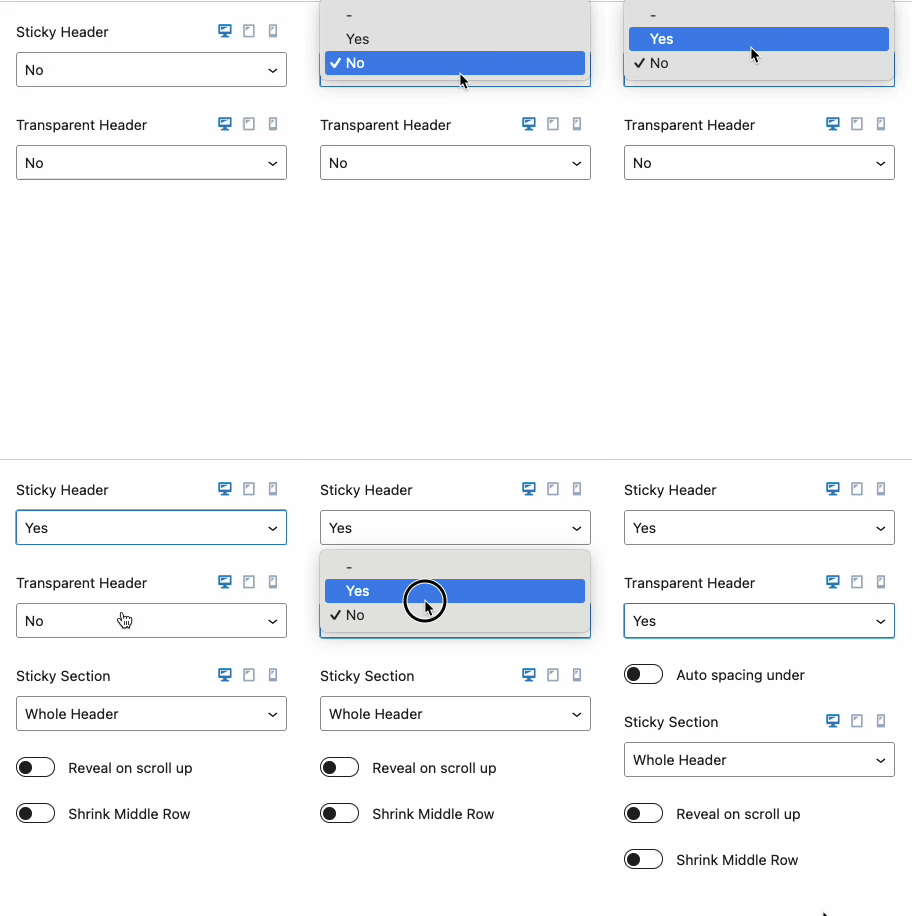
Transparent and sticky Header settings

The settings above are in the Header (Adv) General Block Settings.
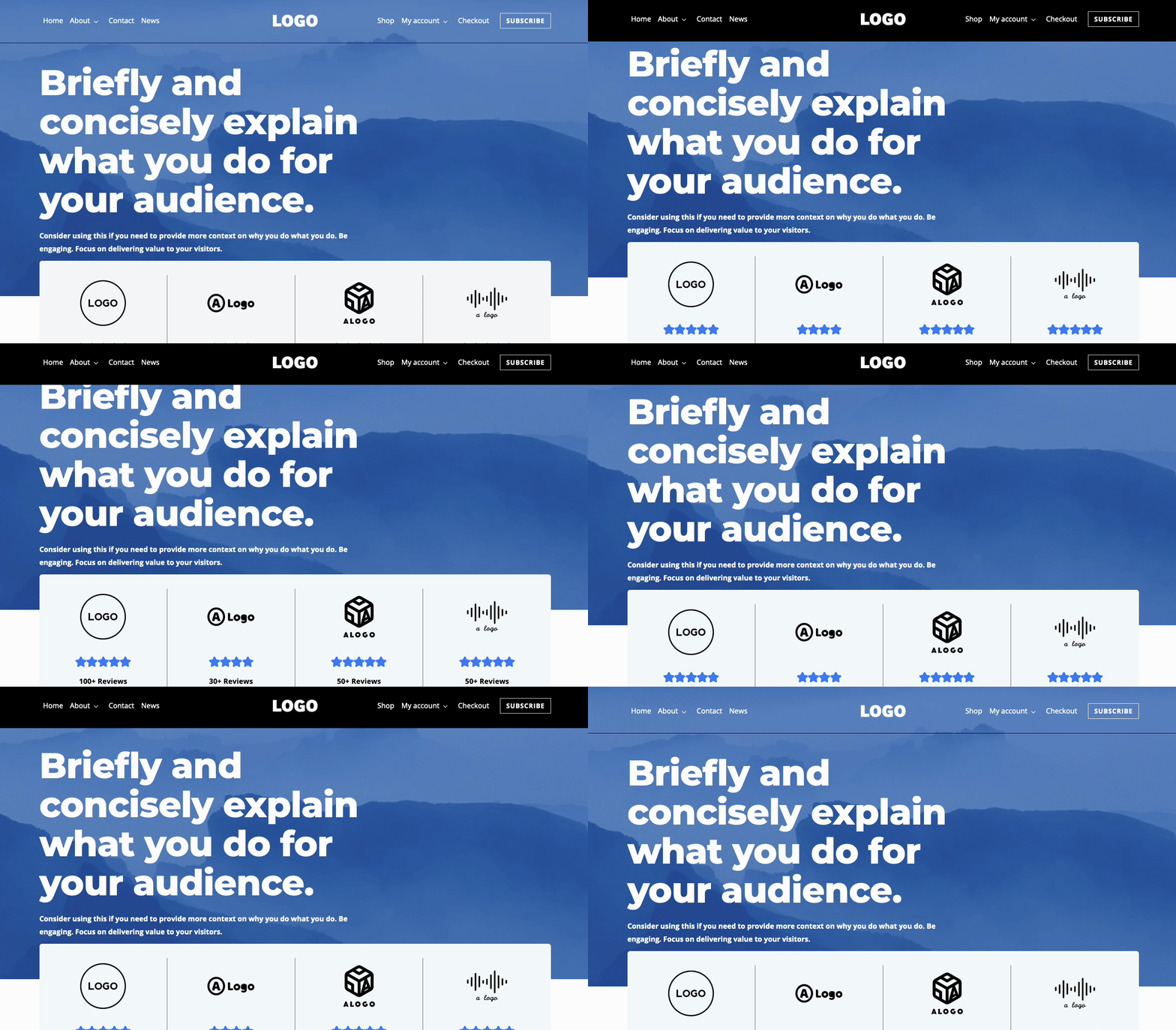
Transparent and Sticky Header Demo

To customize the background color of the Sticky Header, use the Advanced Header Block settings. Navigate to the Header (Adv) Block Settings, then go to the Style Tab and expand the Sticky Background Settings to make the necessary adjustments to the Sticky Background.
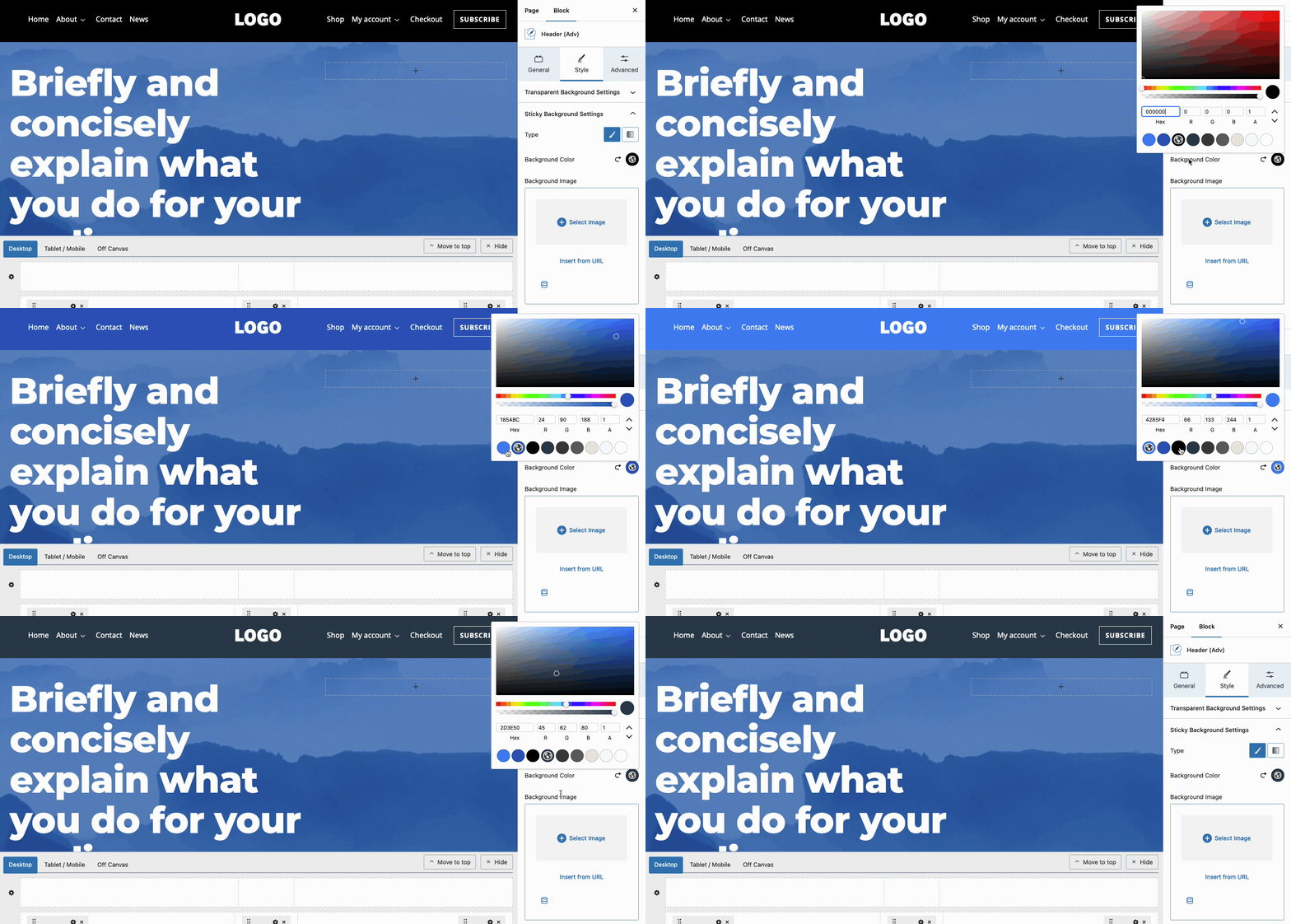
Sticky Background Color

Making Sticky Headers Transparent

When using a Sticky Header, with or without a Transparent Header, you may want the Sticky Header to appear Transparent or Translucent. To achieve this, set a Sticky Header Background Color and use the Color Picker to reduce the Color Opacity.

This approach allows you to create a Translucent or fully Transparent background for the Advanced Header in its sticky state.
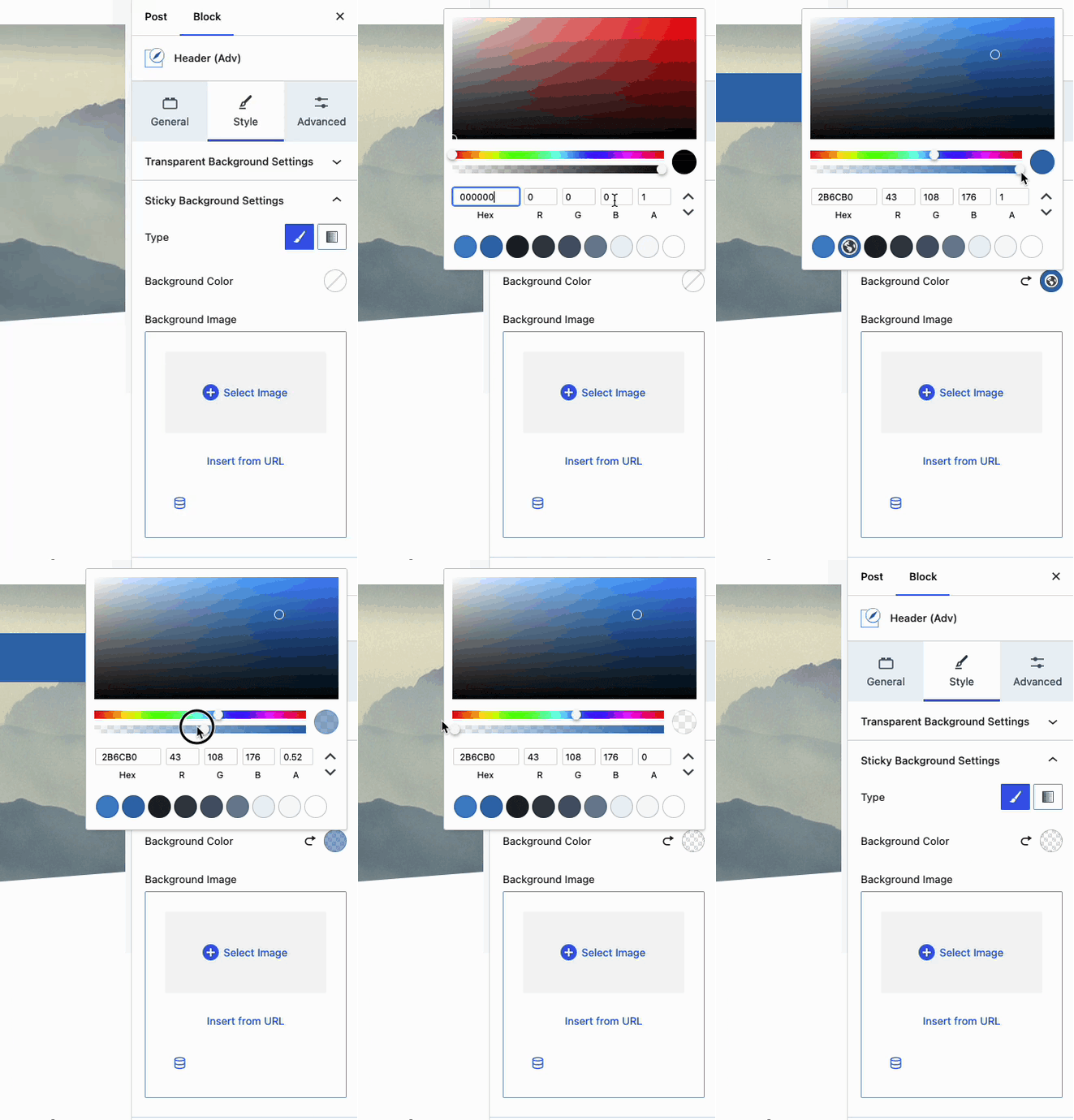
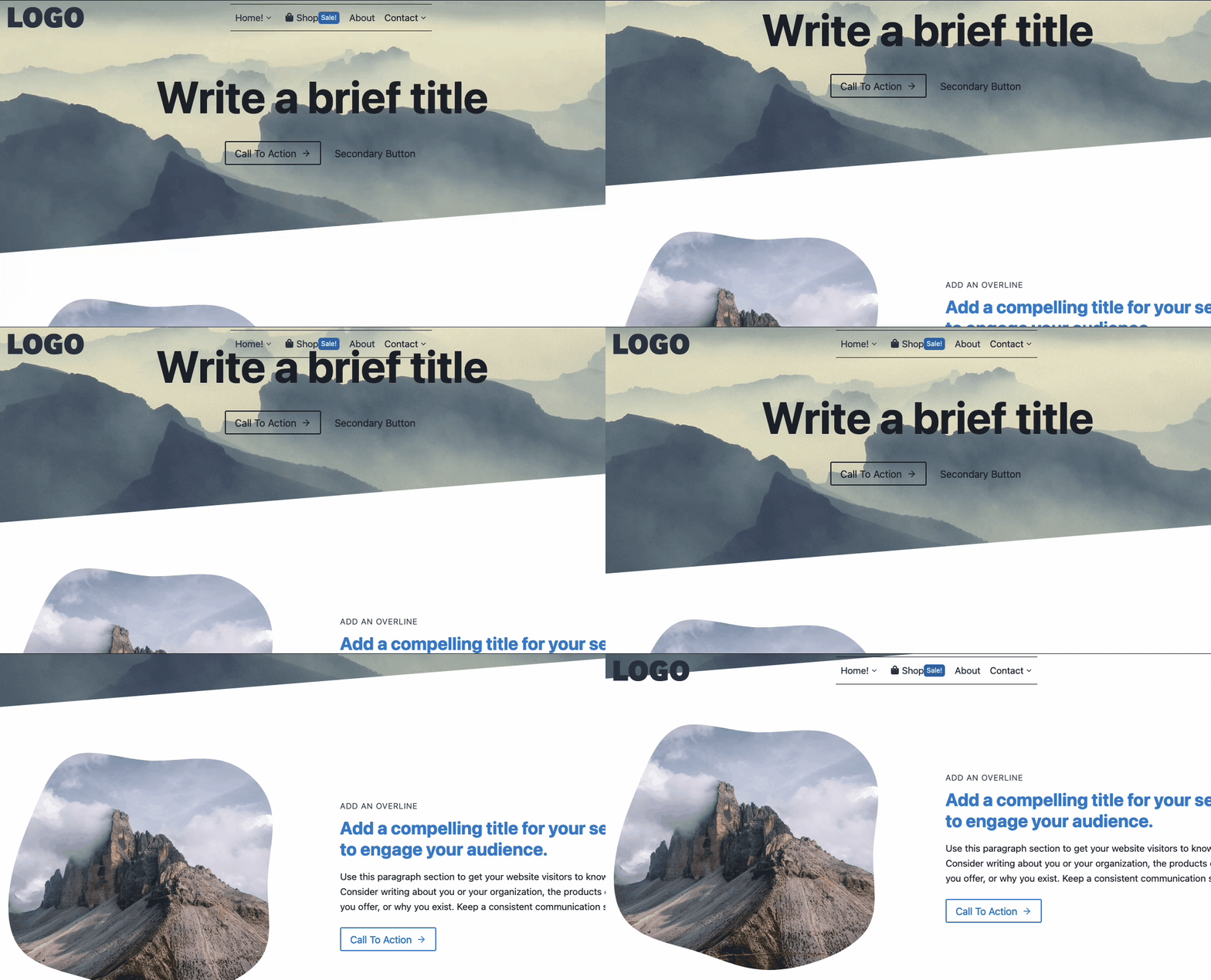
Sticky Transparent Header 1
Sticky Transparent header 2

Making Transparent Headers Translucent

In some designs, instead of a fully Transparent Header, you may need a partially transparent/translucent design. To achieve this while using a Transparent Header, navigate to the Header (Adv) Block Settings, go to the Style Tab, and expand the Transparent Background settings. Use the Background Color Picker to adjust the opacity of the Transparent Background.
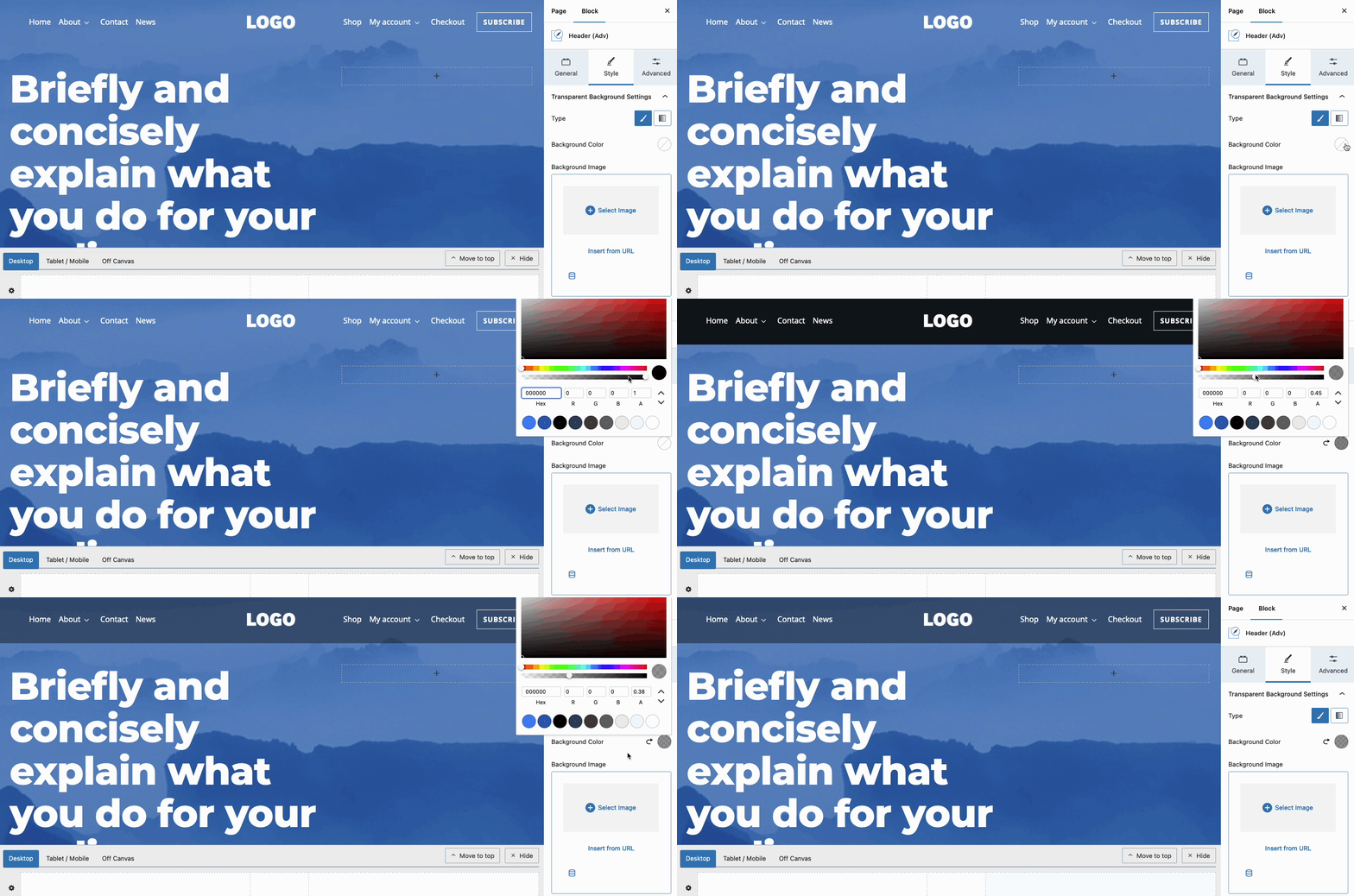

Making Translucent Transparent Backgrounds
Do you feel this document was helpful?
Getting the most out of Navigation Link BlocksAdvanced Navigation Sub Menus and Mega Menus
The Kadence WP Logo
Crafted in Missoula, Montana
  • Follow Kadence on Facebook
  • Follow Kadence on Youtube
  • X
  • Follow Kadence on Instagram
Trustpilot
Products
  • Kadence Plans
  • Kadence Theme
  • Kadence Blocks
  • Kadence AI
  • Kadence Starter Templates
  • Kadence Shop Kit
  • Kadence Conversions
  • Kadence Pattern Hub
  • View All
Resources
  • Blog
  • Podcast
  • Knowledgebase
  • Support ticket
  • Feature Requests
  • FAQ
  • WordPress Hosting Services
About Us
  • About Kadence
  • Become an affiliate
  • Contact us
  • Terms
  • Privacy Policy
  • Security
Our Partner Brands
  • SolidWP
  • LearnDash
  • The Events Calendar
  • GiveWP
  • MemberDash
Kadence Community
  • Kadence Marketplace
  • Join the Facebook Group
  • Subscribe to our YouTube Channel
© 2024 Kadence WP | All prices are in USD
Logo for StellarWP an umbrella brand of Premium WordPress plugins
  • Pricing
  • Products
    • Premium PlansGet all the tools you need in one plan
    • Kadence ThemeLightning-fast performance theme for modern websites
    • Kadence BlocksDrop in ready designs with advanced controls for pixel perfect websites
    • Kadence Shop KitCreate a more effective WooCommerce shopping experience
    • Kadence ConversionsBoost sales and build engaged audiences with popups and banners
    • Kadence InsightsEasily create A/B tests. Optimize your pages to drive higher conversions.
    • View All Products
    • Get Kadence + Hosting
      In One Place

      Enjoy faster setup, top-tier performance, and worry-free WordPress hosting – Kadence Theme, Kadence Blocks, and Solid Security all pre-installed.

      Learn More

  • Kadence AI
  • Starter Templates
  • Blog
  • Support
    • Resource HubStart here for guides, Product docs, FAQs, and Troubleshooting tips, all in one place.
    • Contact SupportStuck on something? We’re here to help! Open a ticket for top-notch support.
    • Contact Our TeamGot pre-sales questions or need help choosing a plan? Open a ticket and our team will guide you.
    • About usCrafted with love in Missoula, Montana. Meet the team behind the mission.
Account Login
  • Features
  • Pro
  • Blocks
  • HelpExpand
    • Documentation
    • Submit a Ticket
    • Facebook Group
    • Feature Requests
    • Roadmap
    • Changelog