
The Accordion Block allows you to add custom content to an accordion-style layout. Add whatever block content you like within the Accordion Block and customize the appearance to meet your needs!
Sample Accordion
Adding an Accordion Block
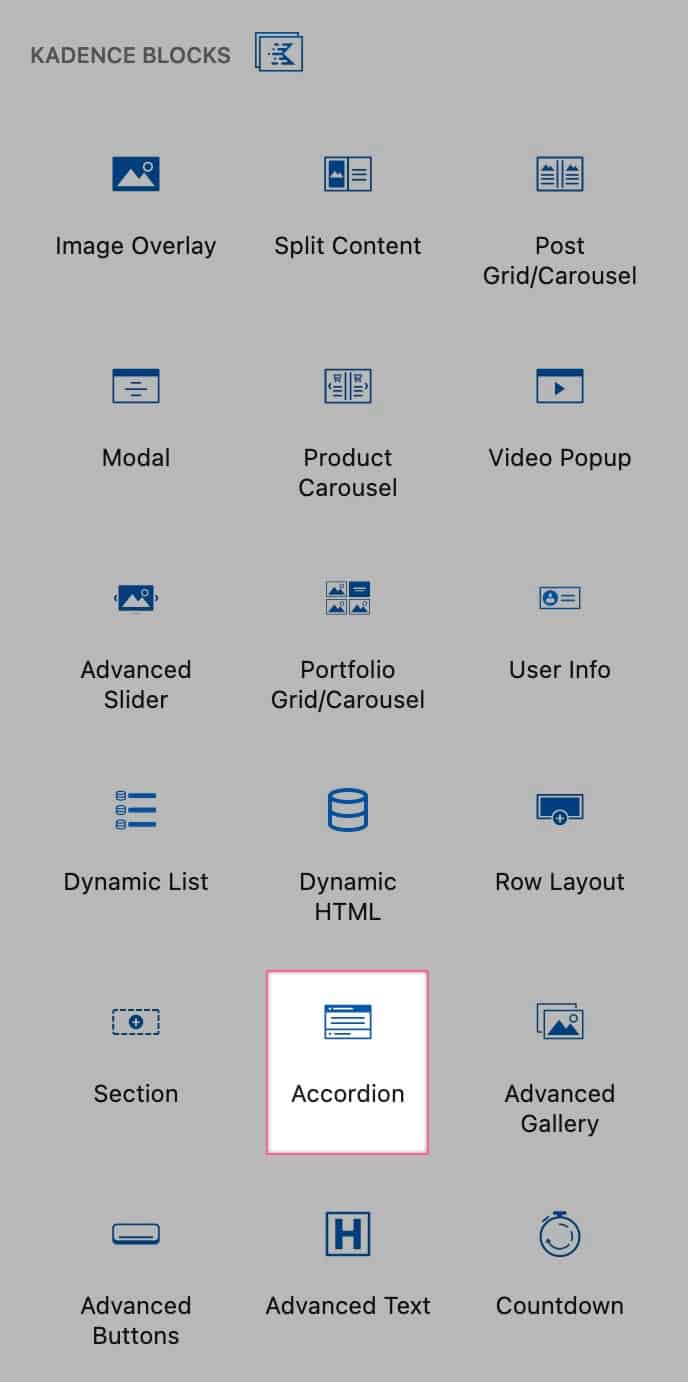
You can add an Accordion Block by adding a new block to the page and locating the Accordion Block under the Kadence Blocks category.
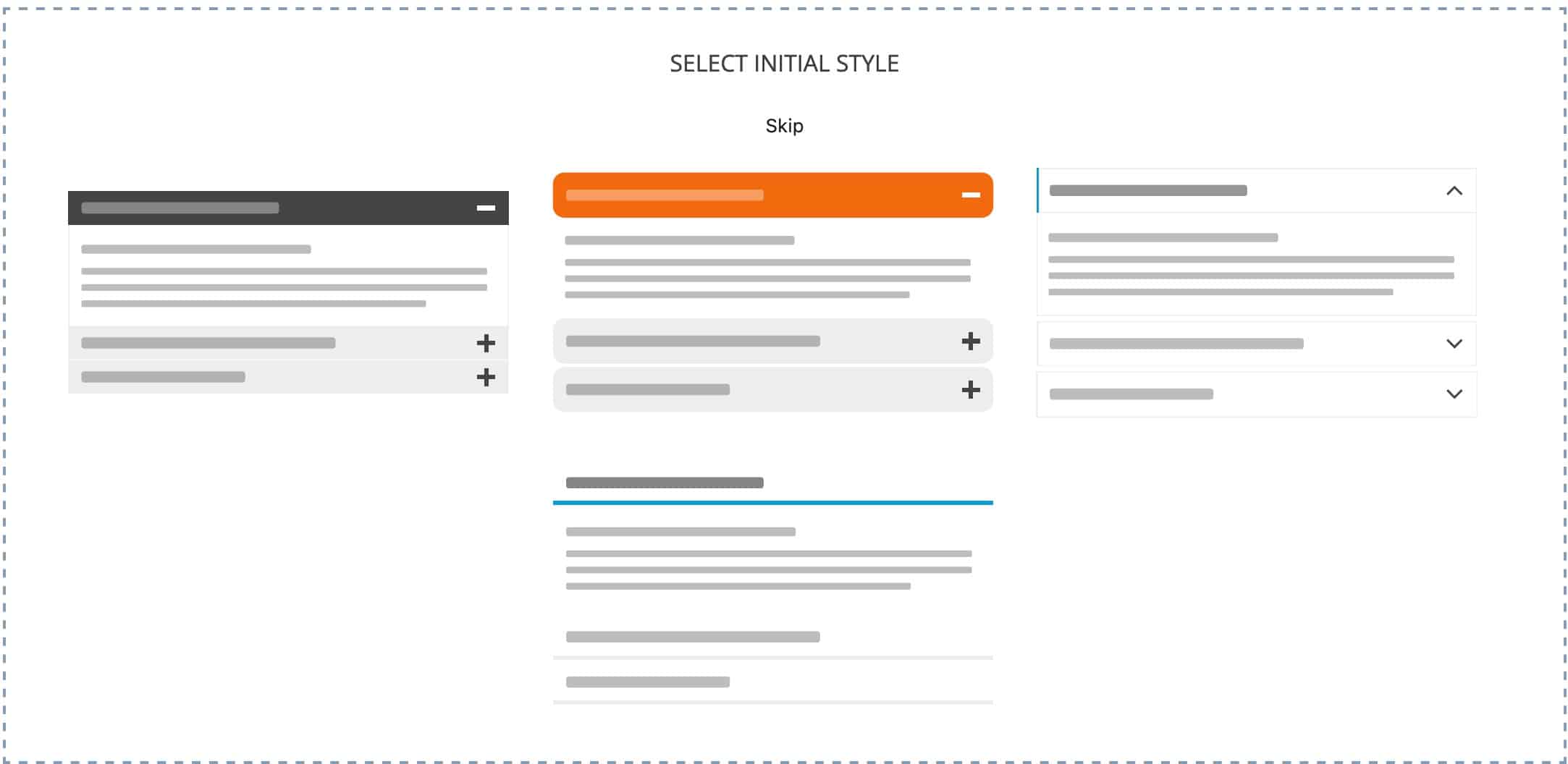
Whenever you add a new Accordion Block to a page, you will be prompted to select an initial style.
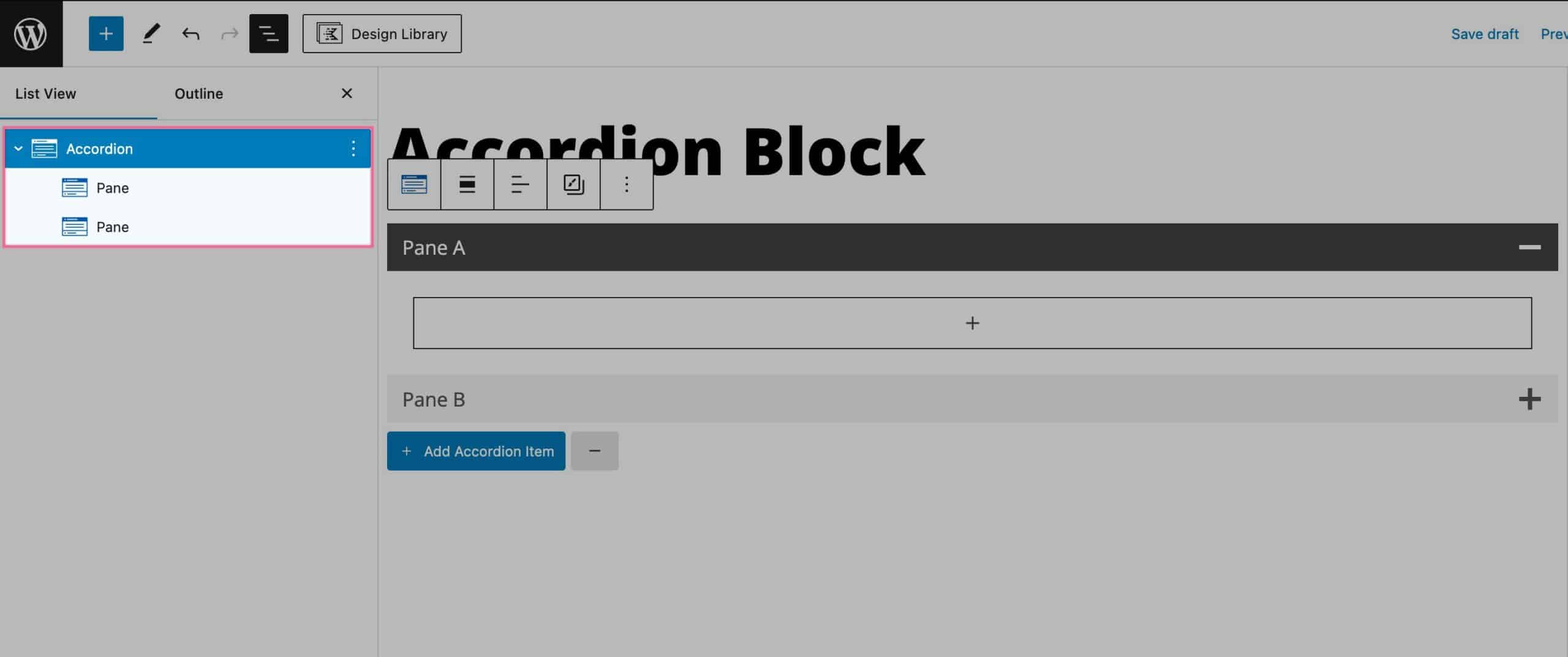
You will see a Parent Accordion Block along with Nested Pane Blocks. The Accordion Block controls the Accordion as a whole, while each Pane Block has its own Block Settings.
You can customize your Accordion Block and Panes using the Block Settings in your Editor.
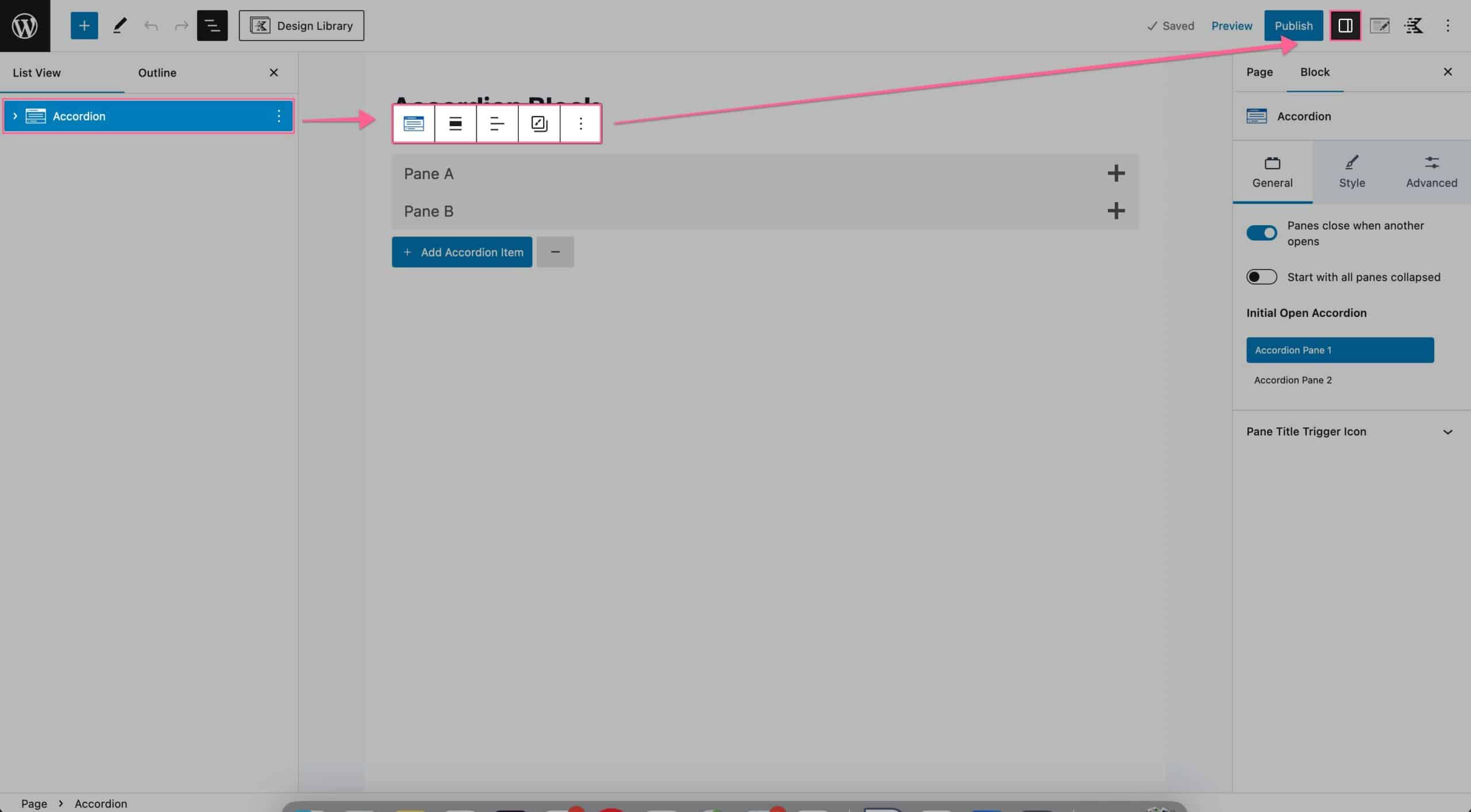
Select the parent Accordion Block and use the Add Accordion Item button to add additional panes to the accordion block.
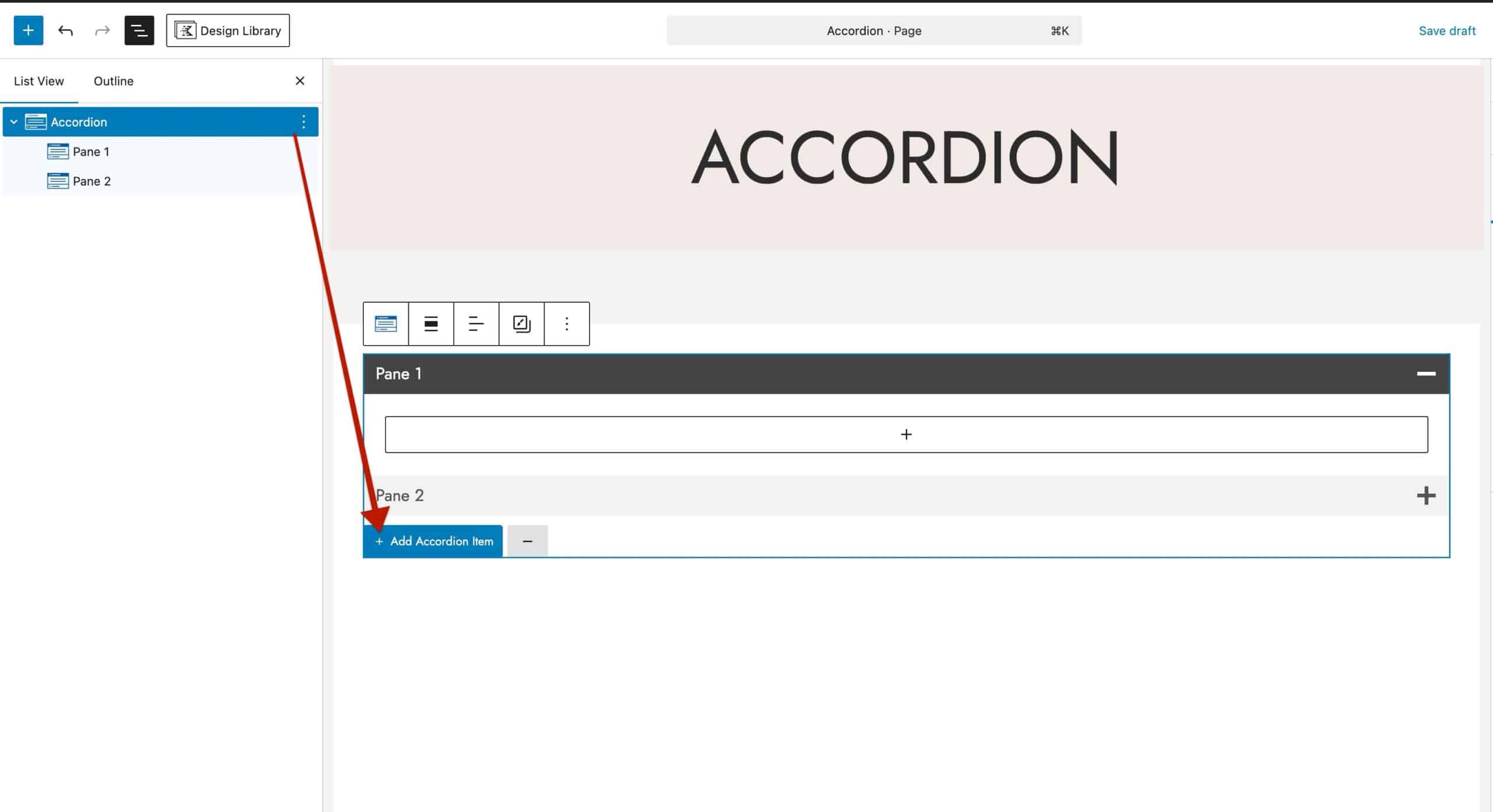
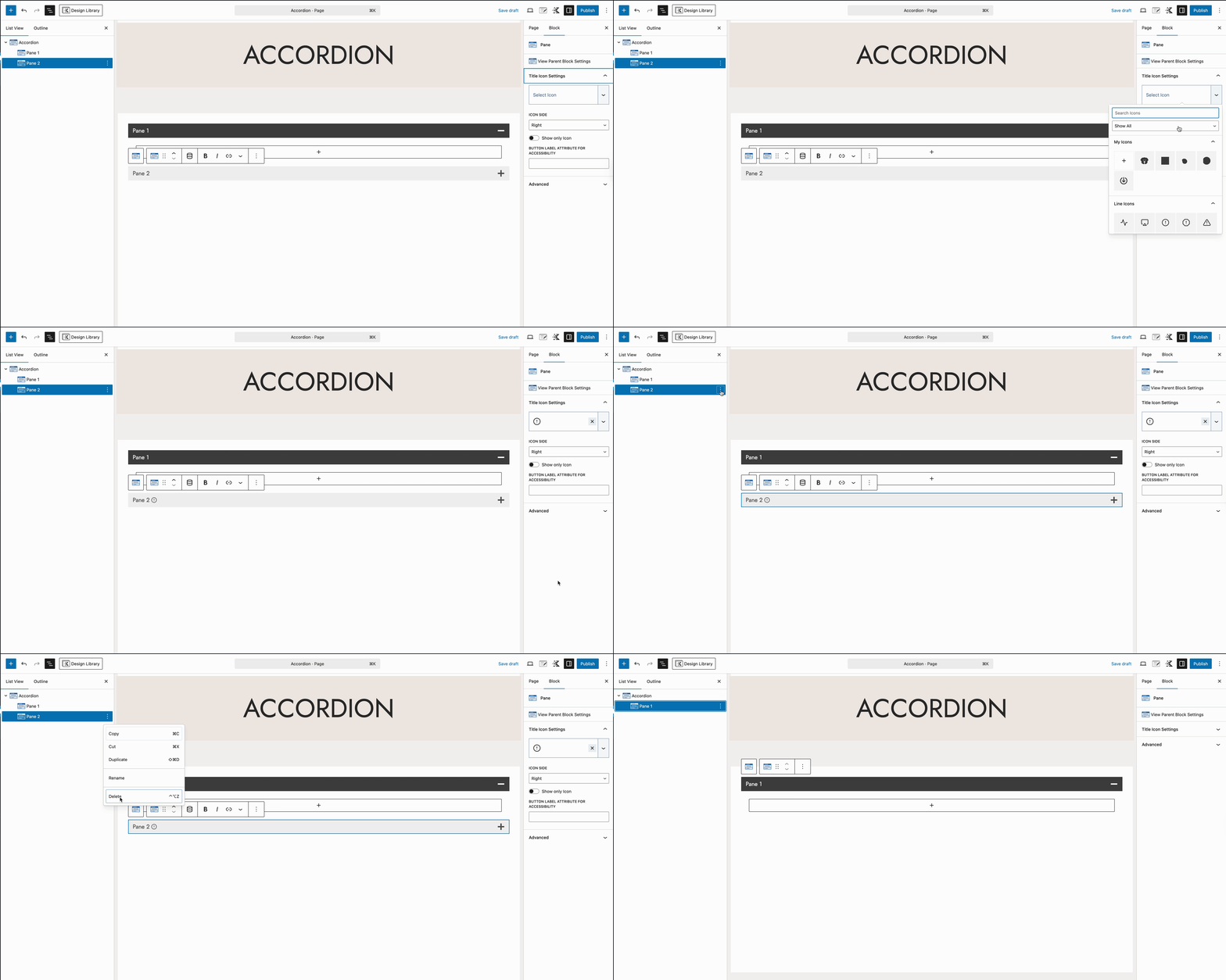
Additionally, you can select individual panes to configure their block settings or remove them from the accordion.
General Settings
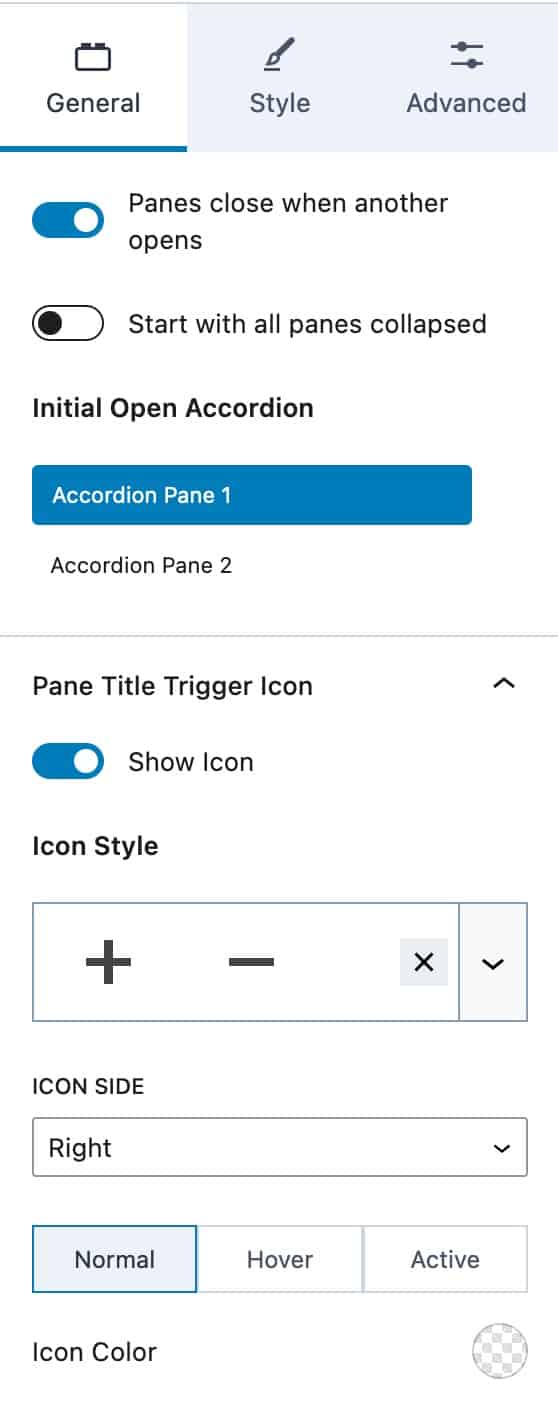
You can enable the option to close panes whenever other panes are opened.
You can also enable the option to start with all panes collapsed.
The Initial Open Accordion option allows you to select which Accordion Pane is open by default.
The Pane Trigger Icon settings allow you to enable and select Icons for opening and closing your Accordion Panes
You can select an Icon Side (right or left) and set an Icon Color for the normal, hover, and active states.
Style Settings
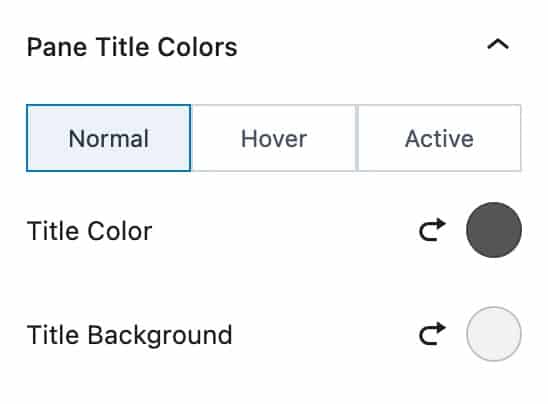
You can set the Pane Tile Color and Title Background for the normal, hover, and active states.
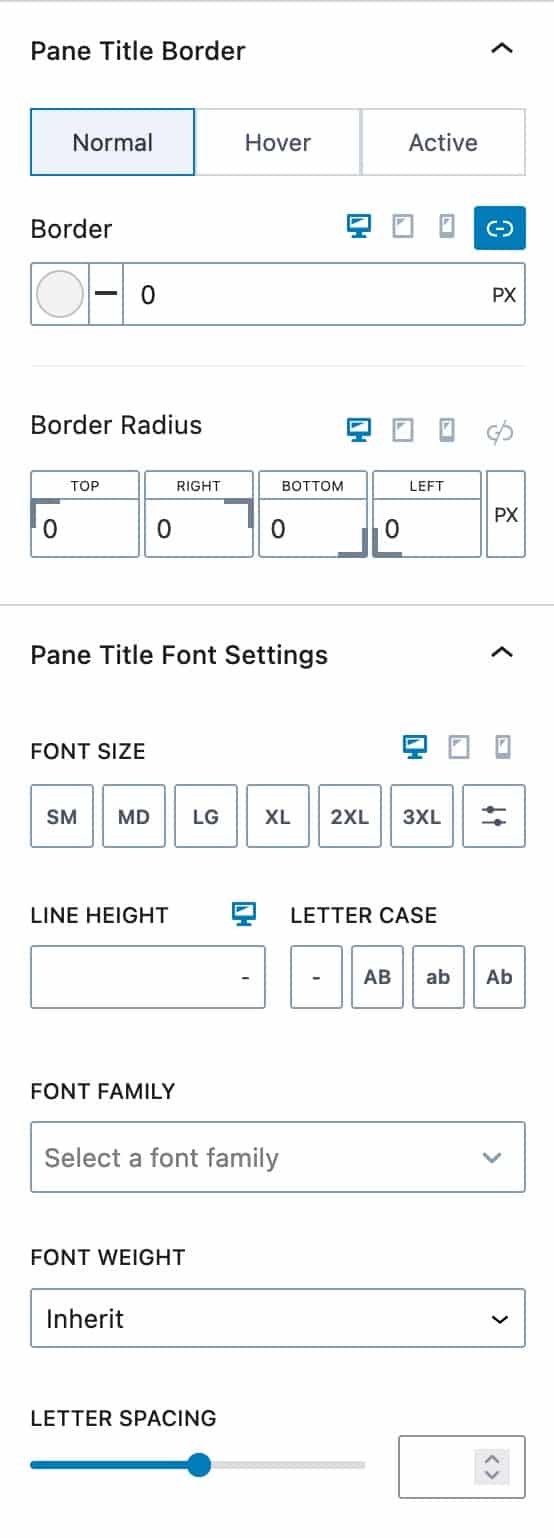
The Pane Title Border settings allow you to set a Border for desktop, tablet, and mobile devices. You can set the Border for the normal, hover, and active states.
You can also set the Border Radius for desktop, tablet, and mobile devices.
The Pane Title Font Settings allows you to set the Font Size for desktop, tablet, and mobile devices.
You can set the Font Family, Font Weight, and Letter Spacing for the Pane Title as well.
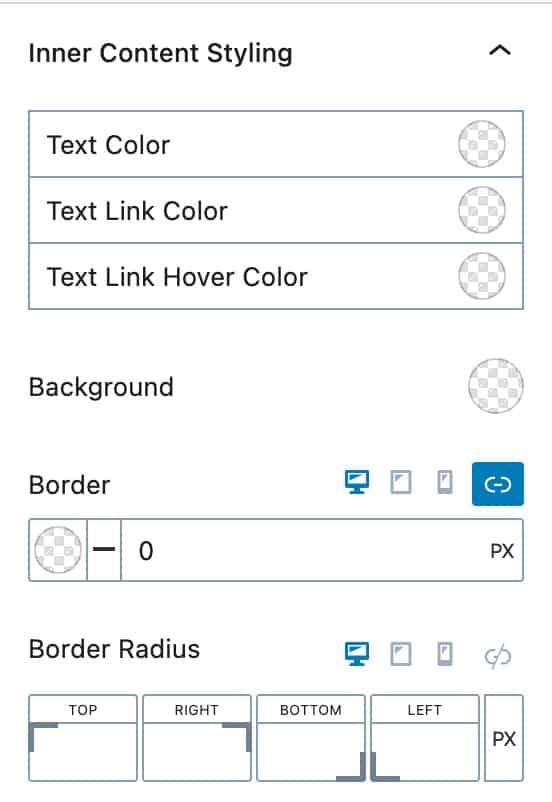
For the Inner Content Styling, you can set the Text, Text Link, and Text Link Hover colors.
You can set the background color. You can also apply a border and border radius for desktop, tablet, and mobile devices.
Advanced Settings
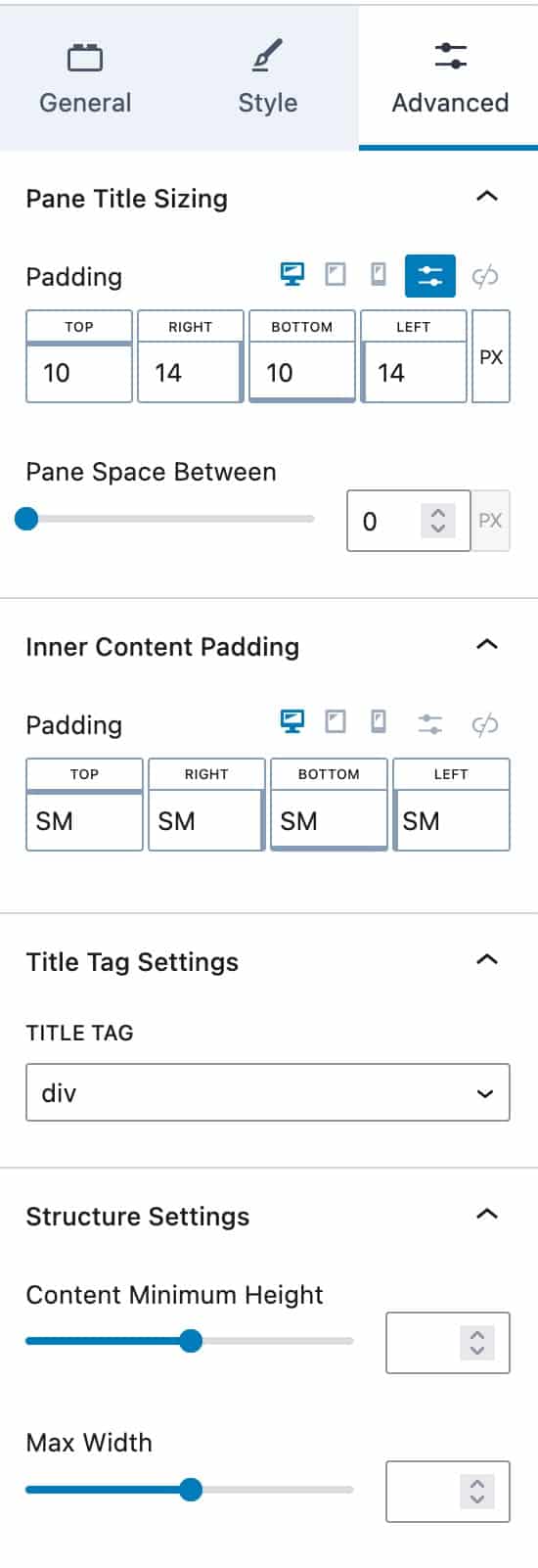
Under the Pane Title Sizing section, you can adjust the Padding for your Pane Title.
The Pane Space Between setting controls the gap between your panes.
You can set the Inner Content Padding.
You can also set the Title Tag. By default, this is a div, but you can use a heading tag if you prefer.
The Structure Settings allow you to set a Content Minimum Height and a Max Width.
Enabling FAQ Schema
FAQ schema is a type of structured data that helps search engines understand your Accordion Block’s content is in a question and answer format. By enabling this, you can improve the visibility of your FAQ pages in search results and potentially get your answers displayed as rich snippets.
Saving Block Defaults
Block Defaults allows you to save your block settings as defaults when adding new blocks. You can learn more about Block Defaults here!
Advanced
Here you can set an HTML anchor for the entire block and also add Additional CSS class(es) to your block.

Pane Block Settings
Each Pane within the Accordion Block can be configured individually.

After selecting a Pane, you will be able to adjust the individual Pane settings.
You can add a Pane Title Icon and control which side it appears on. This will override the Accordion Block icon setting for this individual Pane.
You can also enable the option to Show Only the Icon.
Setting the Button Label Attribute is useful for accessibility, especially if you enable the Icon Only option.
Linking to a Pane
Adding an HTML Anchor to your Pane allows you to link directly to a tab by adding the HTML Anchor to the URL (i.e. yoursite.com/yourpage/#tab-a). Be sure that each HTML Anchor is unique as you cannot have duplicates on a page.
You can also add Additional CSS Class(es) to your Pane Block for your custom CSS styles.

Adjusting Allowed HTML Tags in FAQ Schema
You may need to add or remove HTML tags from your FAQ Schema. While this is generally not necessary, as Kadence already filters out most tags. The following PHP code snippets will allow you to add or remove allowed HTML tags.
Adding HTML Allowed Tags to the FAQ Schema
The Kadence Accordion block with FAQ schema supports a limited set of HTML tags within FAQ answers to enable basic text formatting. Google recognizes the following tags: <h1> through <h6>, <br>, <ol>, <ul>, <li>, <a>, <p>, <div>, <b>, <strong>, <i>, and <em>. All other tags are ignored.
Google’s structured data guidelines permit these tags in the Answers as they improve readability and user experience without altering the content’s meaning. Including basic formatting helps make FAQ answers clearer and easier to scan.
The Kadence block allows the following tags by default: <a>, <strong>, <br>, <h2>, <h3>, <h4>, <h5>, <ul>, <li>, <ol>, and <p>.
Should you want to add any HTML tags to the schema, you will need to add a PHP code snippet like this:
add_filter( 'kadence_blocks_faq_schema_allowed_tags', 'custom_faq_schema_allowed_tags', 10, 1 );

function custom_faq_schema_allowed_tags( $tags ) {
    // Add allowed tags (example: <b> <i> and <em>)
    $tags .= '<b><i><em>';

    // Return the updated list of allowed tags
    return $tags;
}
Removing HTML Tags from the FAQ Schema
If you’d like to remove one or more HTML tags from the FAQ schema, you can add a PHP code snippet like this:
add_filter( 'kadence_blocks_faq_schema_allowed_tags', 'custom_faq_schema_remove_tags', 10, 1 );

function custom_faq_schema_remove_tags( $tags ){
	// List the tags you want to remove
	$remove_tags = ['p', 'br'];

	// Build regex patterns
	$patterns = array_map(function($remove) {
	    return '/<' . $remove . '\s*\/?>/i';
	}, $remove_tags);

	$tags = preg_replace($patterns, '', $tags);

	return $tags;
}
Removing All HTML Tags from the FAQ Schema
Here is a PHP code snippet that will remove all HTML tags from the FAQ schema:
add_filter( 'kadence_blocks_faq_schema_allowed_tags', 'custom_faq_schema_disallow_all_tags', 10, 1 );

function custom_faq_schema_disallow_all_tags( $tags ) {
    // Return an empty string to disallow all HTML tags
    return '';
}
